
Seesaw - Student Login to Seesaw Portfolios
How to Log in to Seesaw Portfolios Using Your Home Learning Code:
*If you prefer a video format, this Seesaw for HCOS video provides an overview of how to sign in to your account using your home learning codes, how to add your other children, how to switch between classes (Foundations and CC/CC+) and how to share learning.
For consistency between our programs, all students will receive a 'Home Learning Code' unique to them so they can access their Family Class and their CC or CC+ Seesaw portfolios with one simple login. Foundations teachers will share home learning codes for "Family Classes," and if your child participates in CC or CC+, they will be able to see their CC or CC+ class using the same login code. *Note: CC classes will be set up in September, once classes begin.
Families will be set up as a class, and parents will still be able to view all the children in their family and tag any or all of them when they share family learning samples. Families will be able to see their child's CC class portfolio from the same login, but will not be able to view other students’ work.
Your support teacher will email you a link to a PDF with step-by-step instructions. You can also follow the written instructions below for more detailed instructions.
Logging Into Your Child's Portfolio:
|
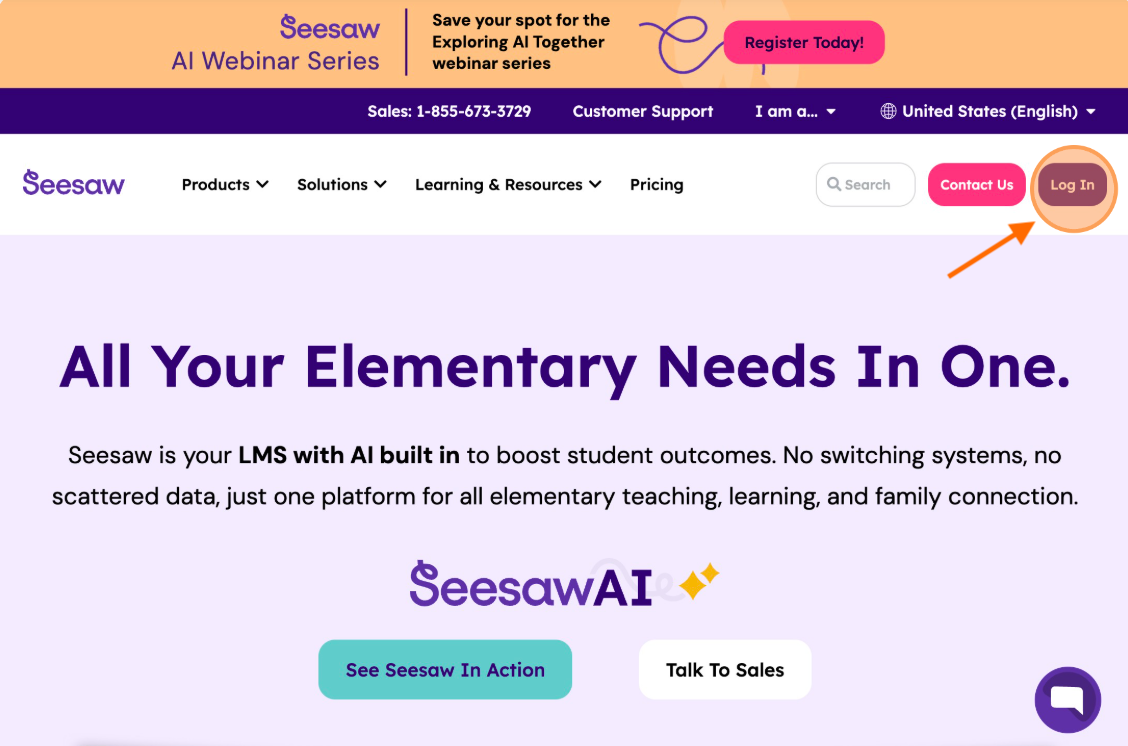
Step 1: You can connect and log in to your child's portfolio in the following ways:
|
|
|
Desktop
|
Mobile Device
|
|
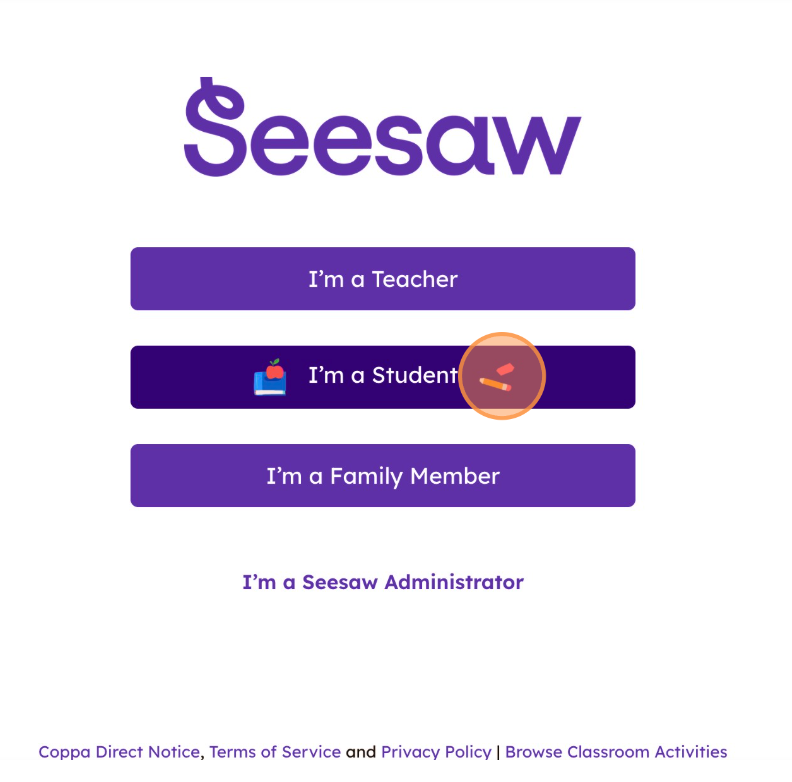
Step 2: Click on “I’m a Student” |
|
|
|
|
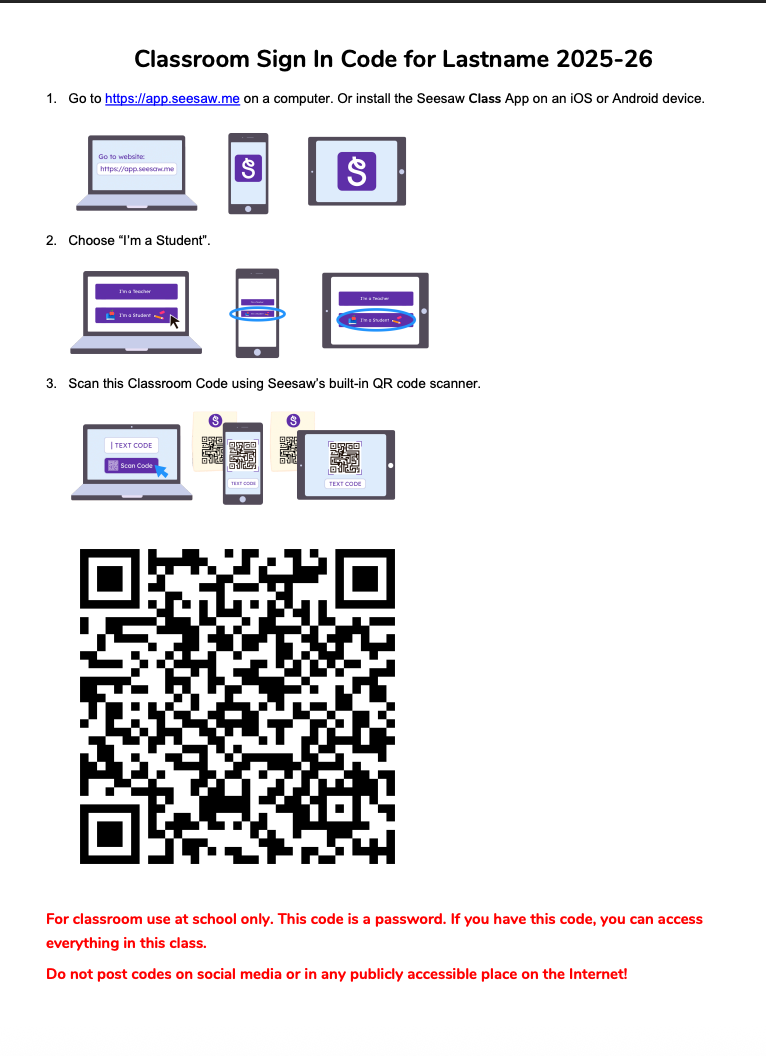
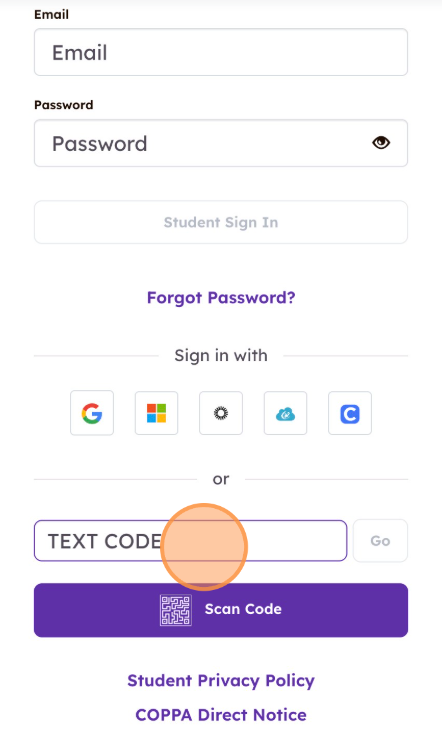
Step 3: Using the PDF sent by your teacher, enter the text code if you are logging in from a desktop, or click the purple "scan code" button and then scan the QR code in the Seesaw App, then click “Go”. The image below (left) shows a sample of the PDF you would have received from your teacher. The image below (right) shows where to enter the text code or scan the code. |
|
|
|
|
|
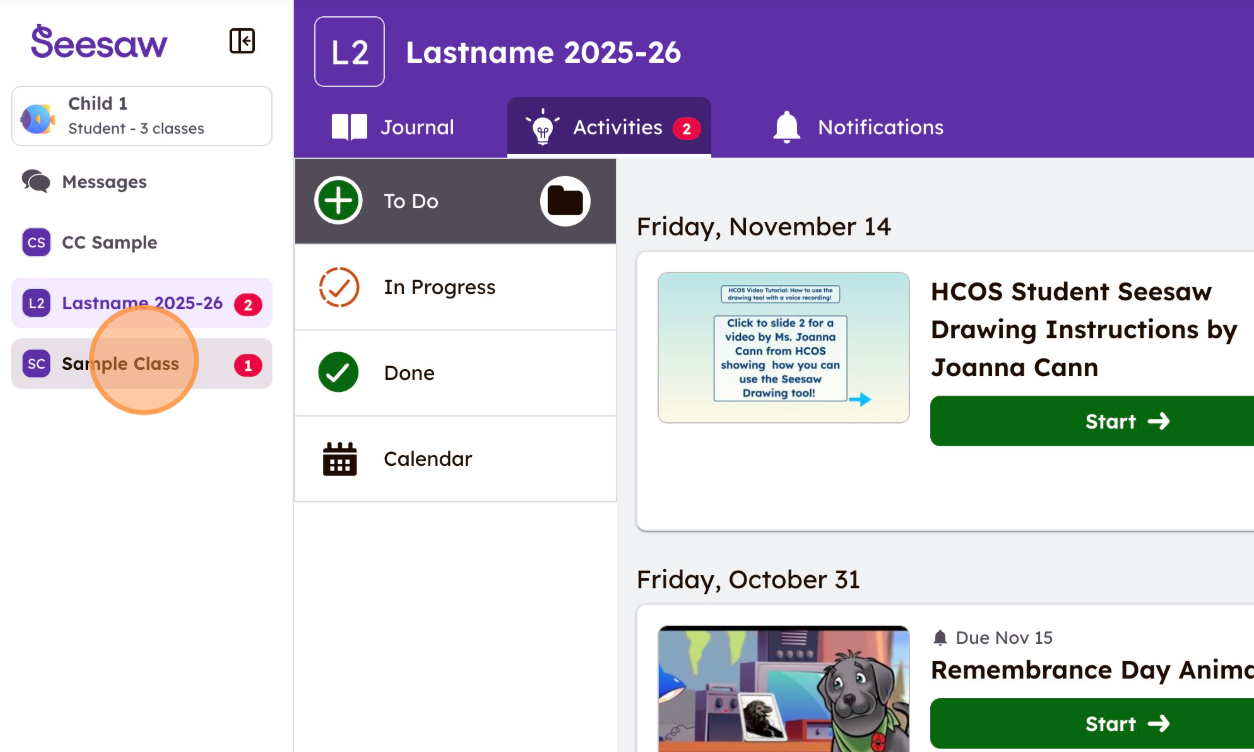
Step 4: You are now in your class! Other Seesaw classes your child is part of will appear on the left side of your screen. After this initial setup, you should not need to sign in again unless you sign yourself out. |
|
|
|
Adding Additional Children:
|
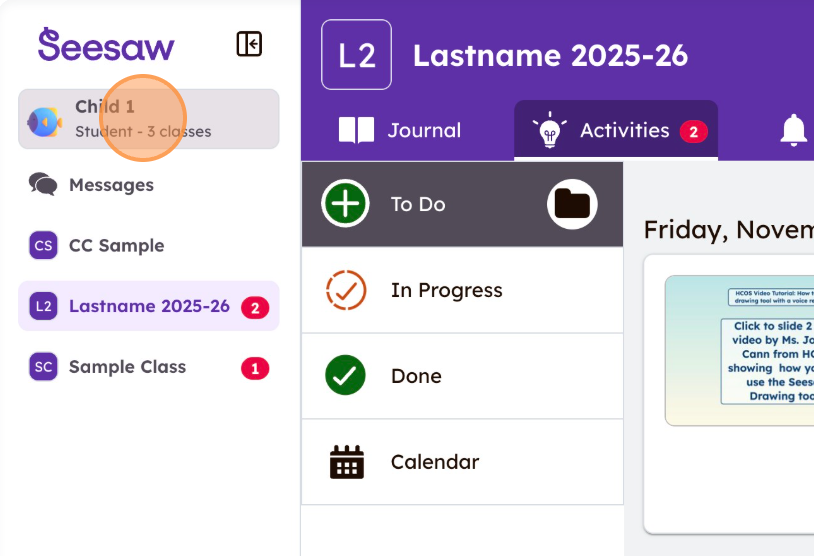
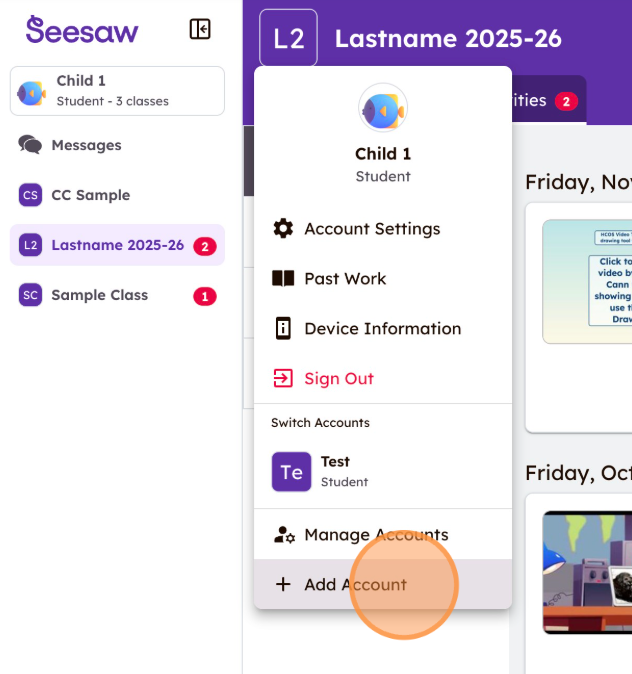
Step 5: It's simple for families to add their own children's accounts! After you are in your child's account, click your child’s name in the top-left (Step A below), then select “Add Account” (Step B below), which will take you back to Step 2 above. |
|
|
Step A
|
Step B
|
Notes for Foundations Families:
- Journal Page: Your initial login takes you to the "Activities" tab. Simply click the "Journal" tab to post samples for your foundations teacher!
-
Toggling: As a parent, you will only see one child at a time on the page, but by clicking your child's name (see above), you can easily toggle between your children and between the other classes they are in. To learn how to toggle between accounts, go here.
- Sharing Family Learning: Although you will be posting from one of your children's accounts, you can easily tag the other children in your family to share family learning! Click this link for step-by-step directions.