Gale (Focused Ed)
Gale Databases (Grades 8-12) is a leading research resource providing full-text articles from hundreds of up-to-date databases, accessible through Focused Education Resources.
Read below to learn more about the specific databases available through Gale.
Gale in Context: Canada
Gale in Context: Canada provides information on Canadian topics, people, places, and events through magazines, journals, news articles, primary sources, multimedia, and vetted websites.
Gale in Context: Science
Gale in Context: Science offers information on major science topics through reference content, magazines, journals, news articles, experiments, multimedia, and vetted websites, and also includes some math topics.
Gale in Context: Global Issues
Gale in Context: Global Issues presents international perspectives on current issues, countries, geography, civics, and science topics through articles, multimedia, primary sources, and statistical information.
Gale in Context: Power Search
Gale PowerSearch is a search platform unlike any other, providing libraries with a sophisticated yet simple solution for managing a wealth of periodical, reference, multimedia and primary source information.
Logging In
There are two steps to log in to Gale Databases.

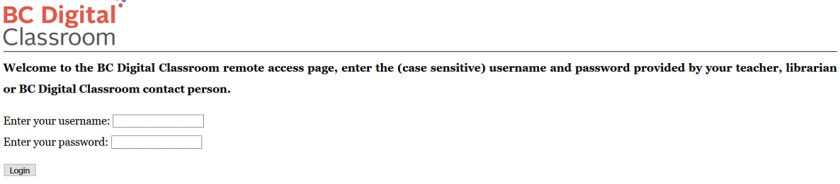
Step 2: Enter the username and password for Gale Databases from the Subs/Passwords tab in the Search Portal.
Navigation & Use
Gale Databases are designed to function intuitively.
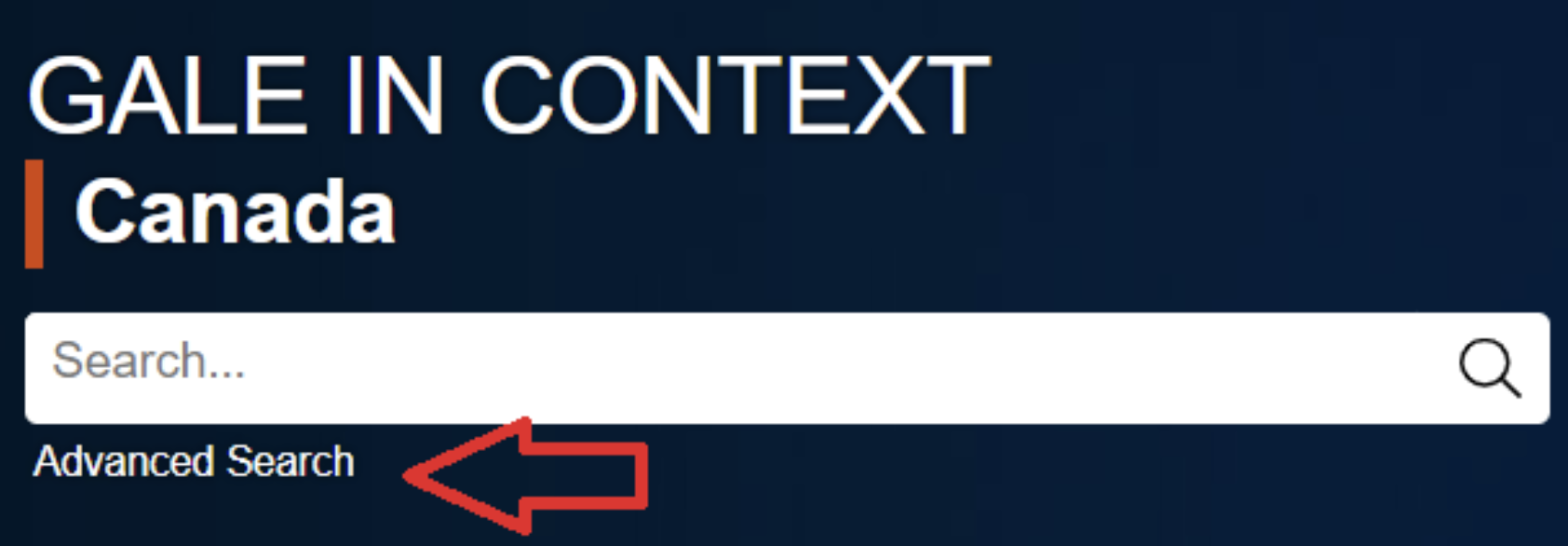
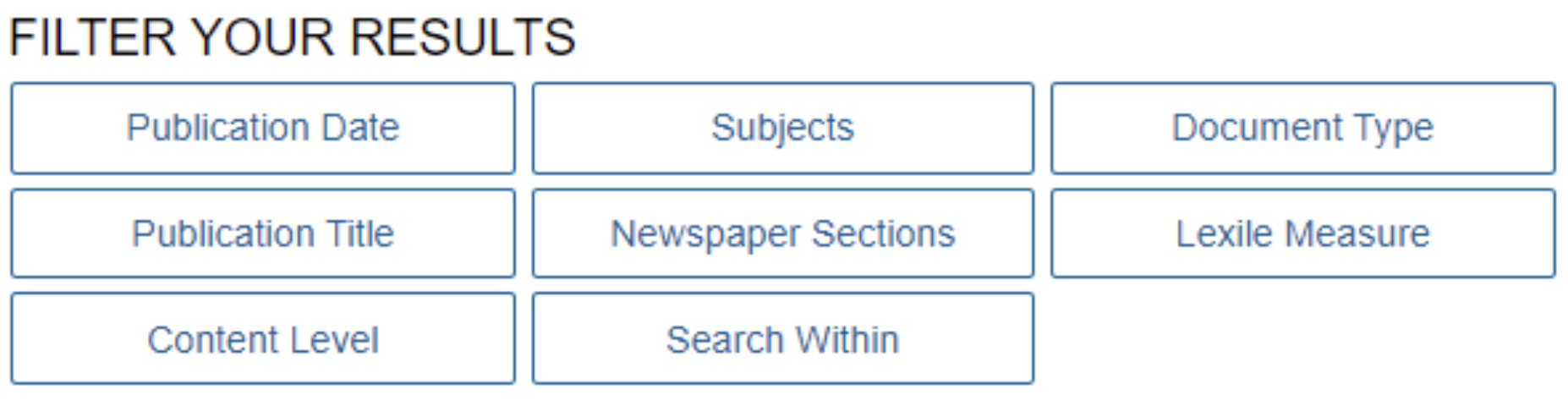
The Advanced Search feature underneath the search bar allows users to add filters and generate more specific results.
Topic Finder
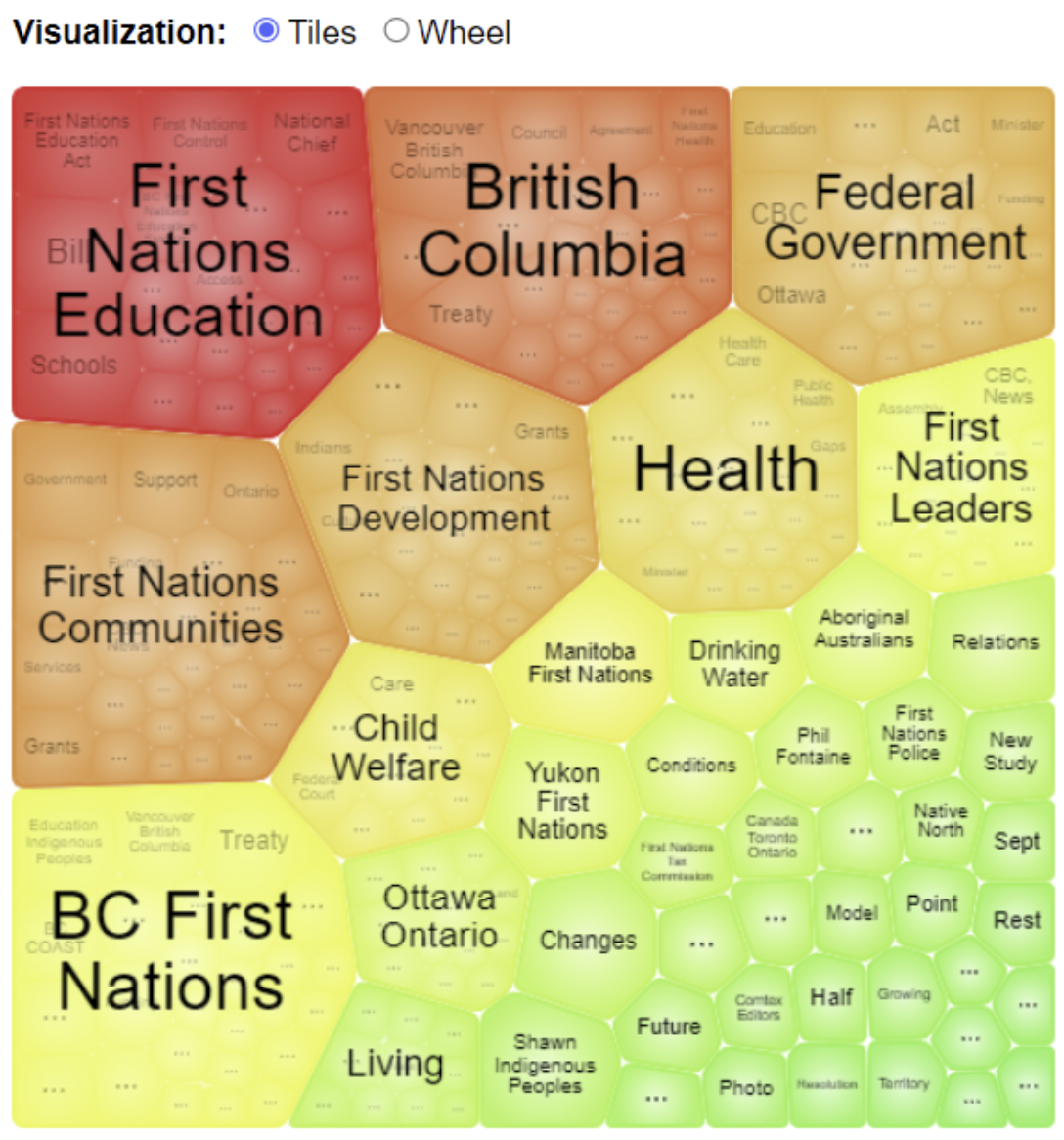
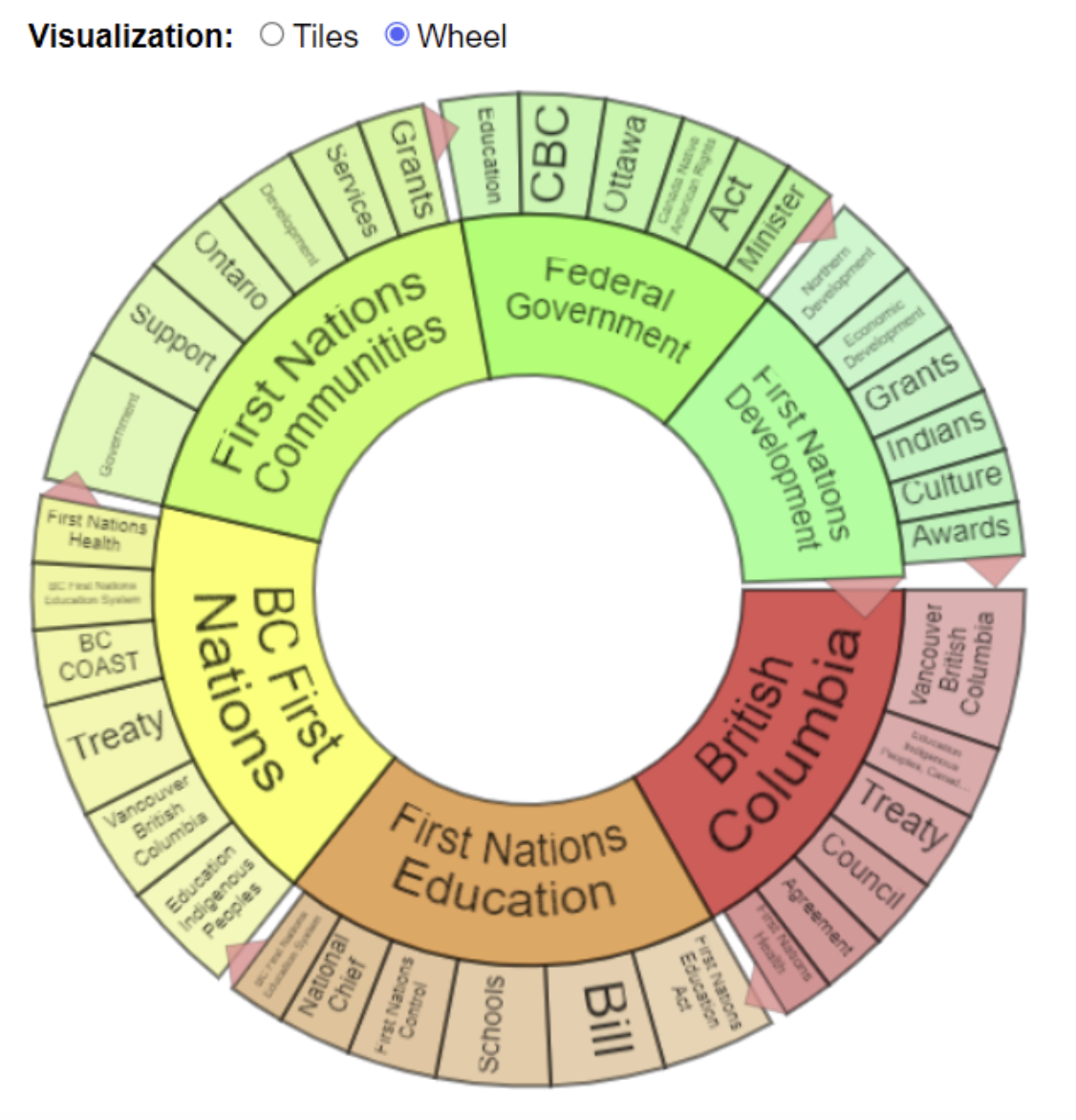
Users can find information organized by topic. Results can be formatted as tiles or a wheel. Below is the result of a search for “First Nations.”
The Educator Resources tab has a research toolkit with tips and strategies for students to fine-tune their research skills.

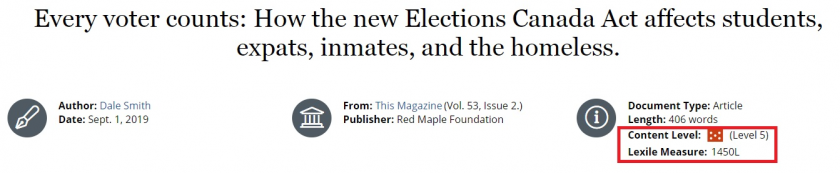
Content Levels and Lexile Measures allow readers to determine whether an article is written at an appropriate reading level for their learning needs.
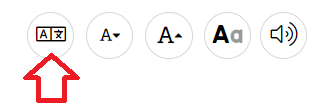
The Translate button invites students to translate articles into a different language. Once a language has been selected, click on the "Complete Translation" button. The article's text will be translated, and the speaker button will allow the student to hear the article spoken in the selected language. This could be very useful when learning a second language.
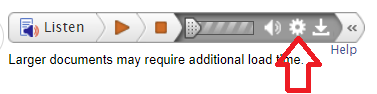
The Listen toolbar features read-aloud options and downloadable MP3s. The settings icon ⚙️ provides assistive technology options, including highlighting words, high contrast mode, speed adjust, and enhanced text visibility. Click on it to learn more and apply these features.