How to Log in to Seesaw (CC/CC+ Portfolios) Using Your Home Learning Code
IfEach your child is in a CC/CC+ that is using Seesaw, youstudent will receive a unique 'Home Learning Code' for each of your childrenunique to them so they can access updates and important information, work samples, and/or activities assigned by their CC/CC or CC+ teachers.Seesaw portfolio.
Each child has their own login information for privacy and will not be able to see other students’ work.
The CC/CC+Your teacher will sendemail you a 'Homelink Learningto Signa In Code' documentPDF with step-by-step instructions. You can also follow the written instructions below for more detailed instructions.
|
Step 1: You can connect and log in to your child's portfolio in the following ways:
-
On a textdesktop, codelaptop or aChromebook, QRby code. This code will be valid for 1 year. Once logged in, you will stay logged in unless you log yourself out.
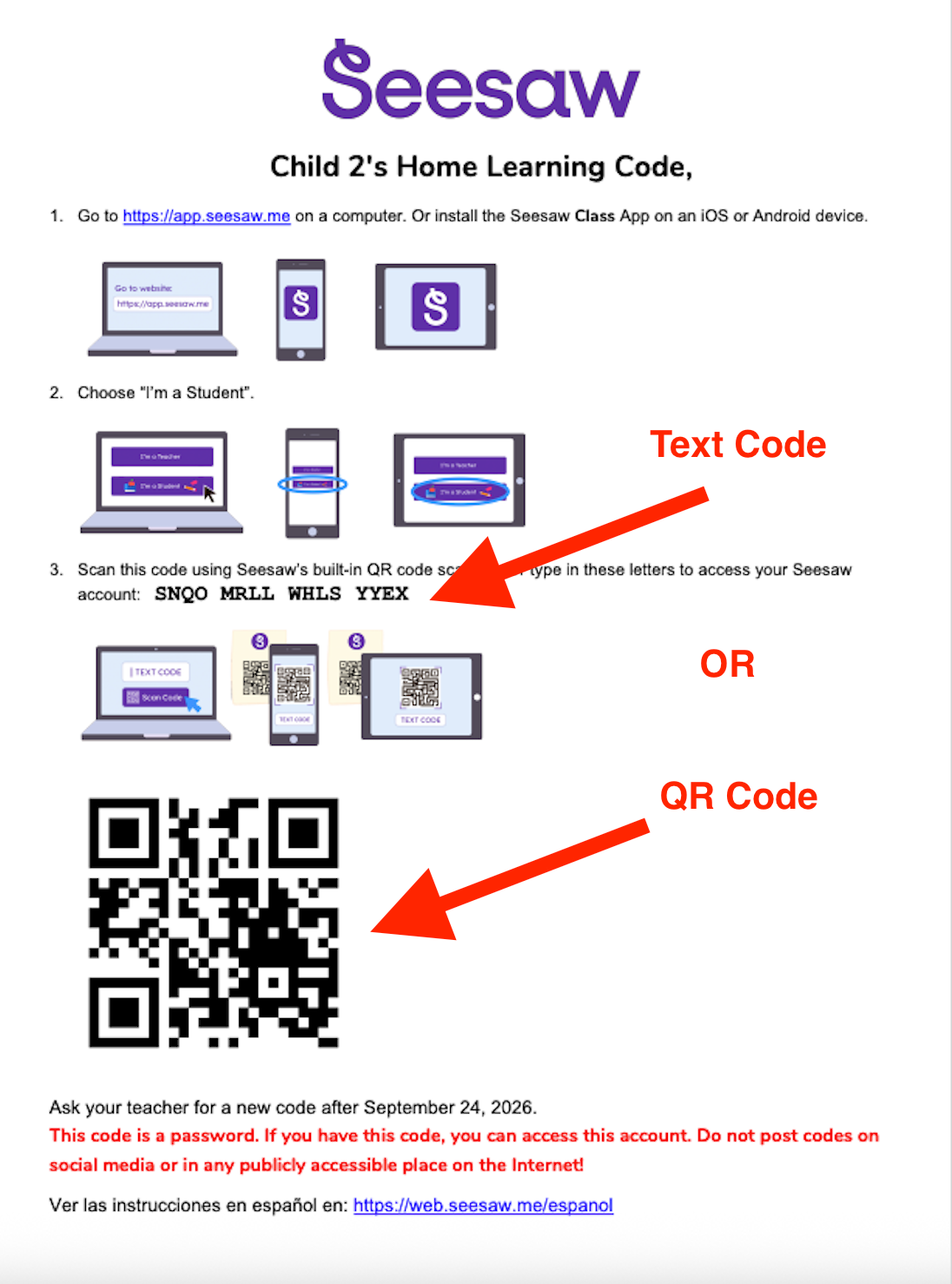
Sample 'Home Learning Sign In Code' document:
Step One
You will receive your child’s ‘Home Learning Sign-in Code’ from your teacher with your unique QR code or Text Code
Step Two
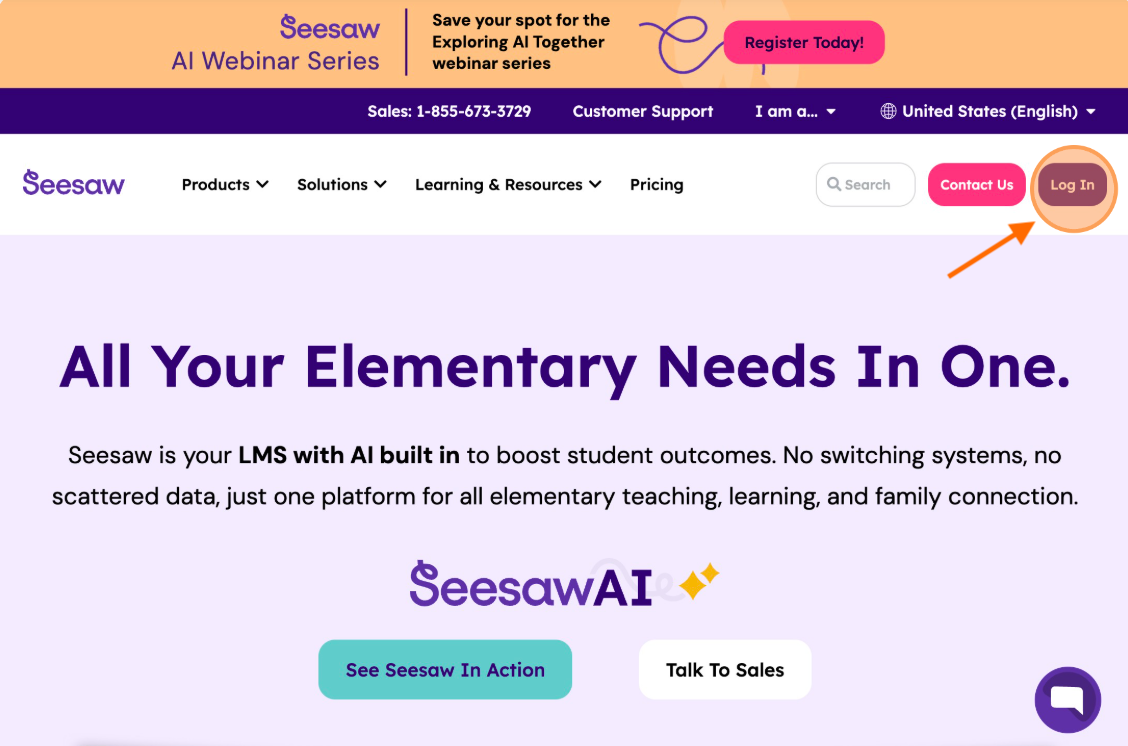
Open the Seesaw App on your phone or tablet: OR gogoing to app.seesaw.me for laptops and computers.
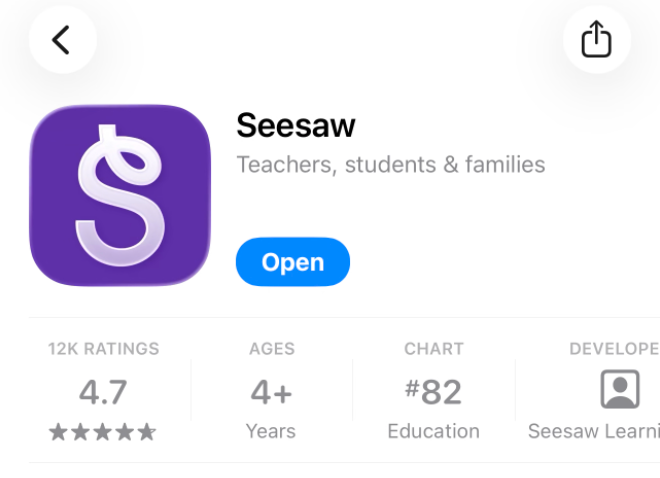
If you have not downloaded the Seesaw Class app, download the appclicking on iOS“Log or Android device.

Step Three
|
|
Desktop
|
Mobile Device
|
|
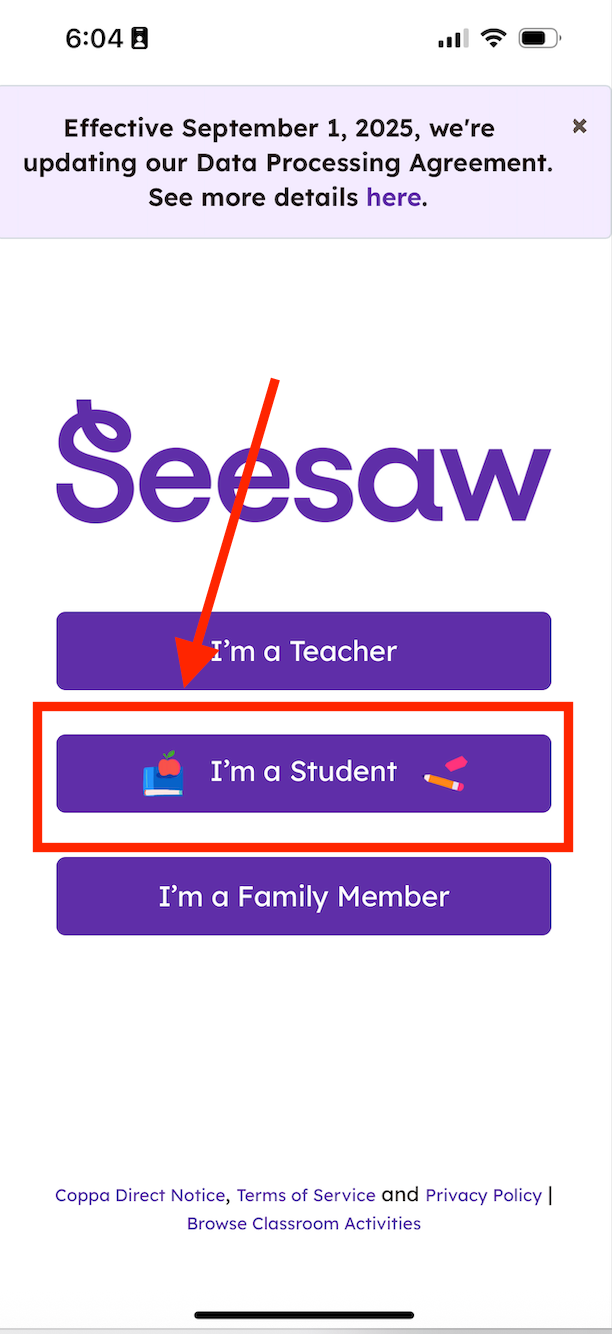
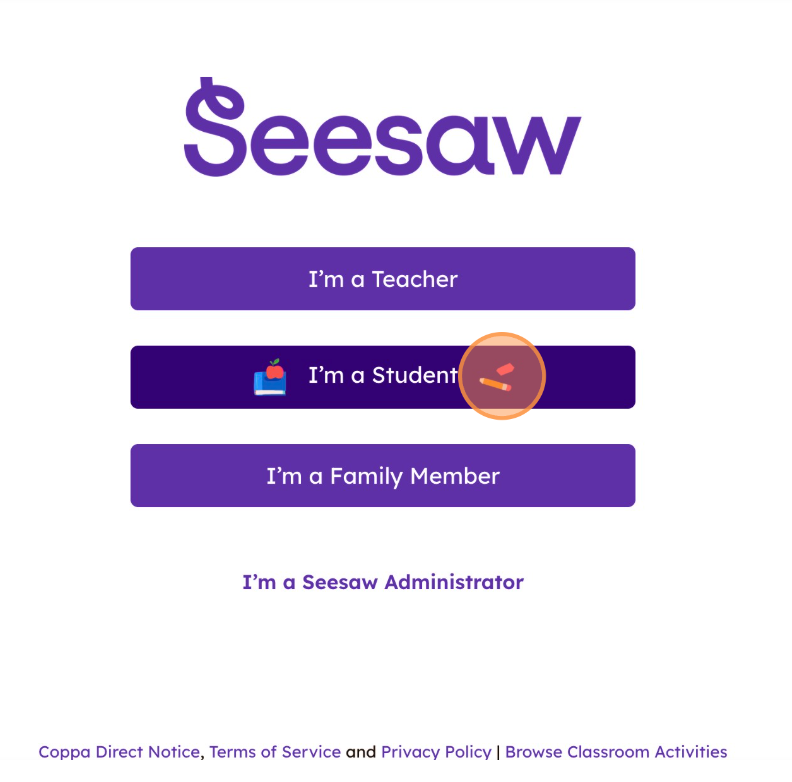
Step 2: Click on “I’m a Student' button
|
|
|
|
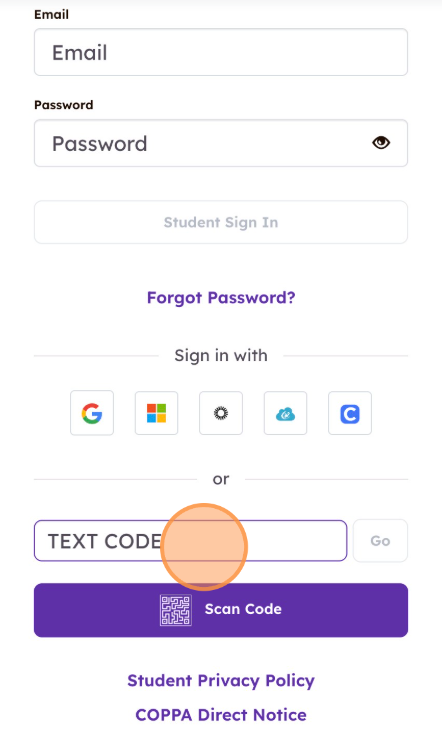
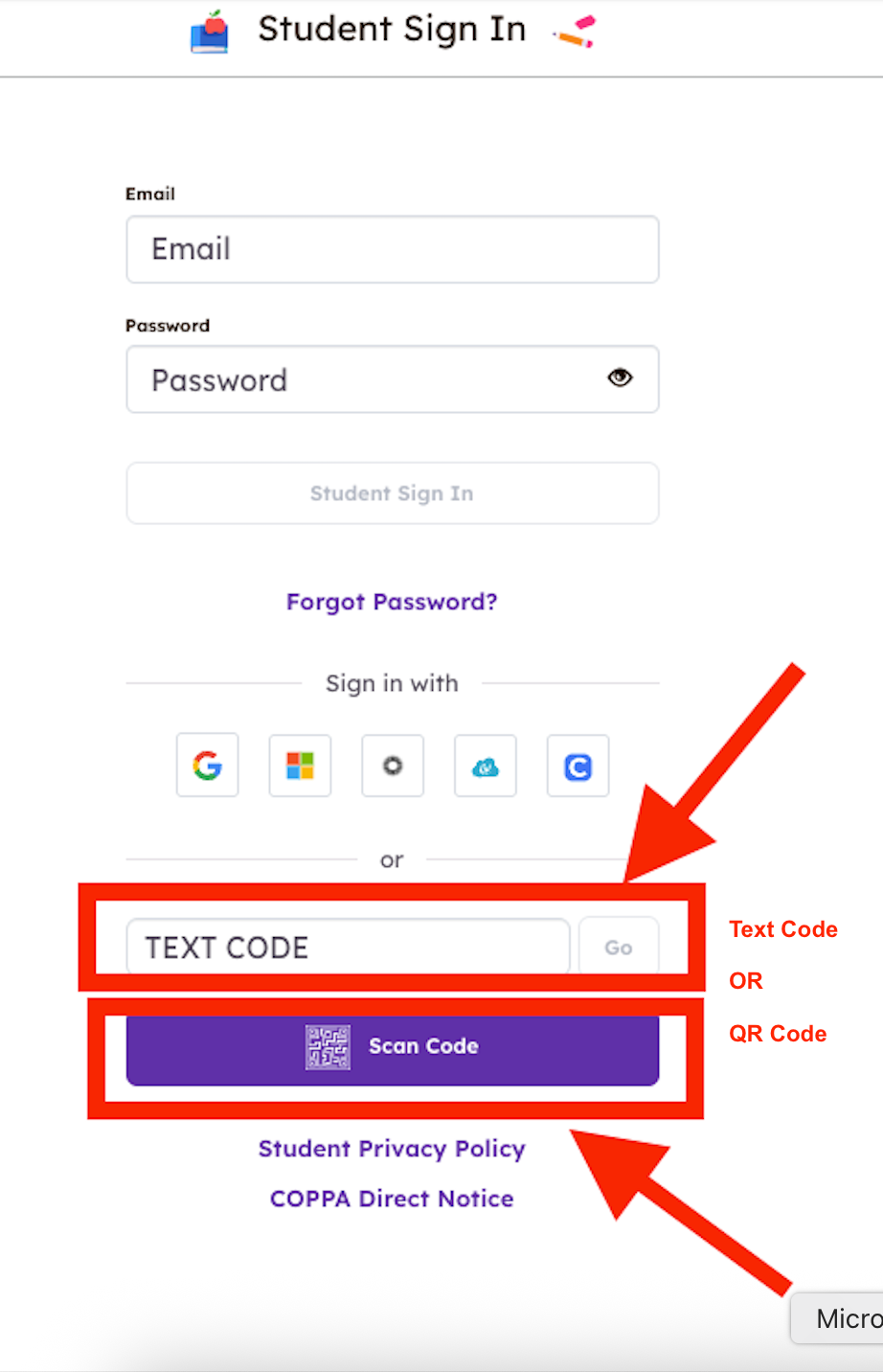
Step Four3: When you click on 'I'm a Student', a student login page will open in the Seesaw App
Log in using either the QR Code or the Text Code from your log in document
using either option, Seesaw will open to a unique page for your child in the CC/CC+ Seesaw Class Journal
QR Code Option:
Click the 'Scan Code' purple button
A Seesaw QR Code Scanner will open
Scan the 'Classroom Code' using Seesaw’s built in QR Code Scanner
Hold the phone up to the QR code provided by the teacher
The QR Code Scanner is able to scan the code from a printed piece of paper or an open screen on a computer
Text Code Option
- Enter the text code
inor scan the 'TextQR Codecode Box'sent by
your teacher, then click “Go”. The image below (left) shows a sample of the PDF you would have received from your teacher.
|
|
This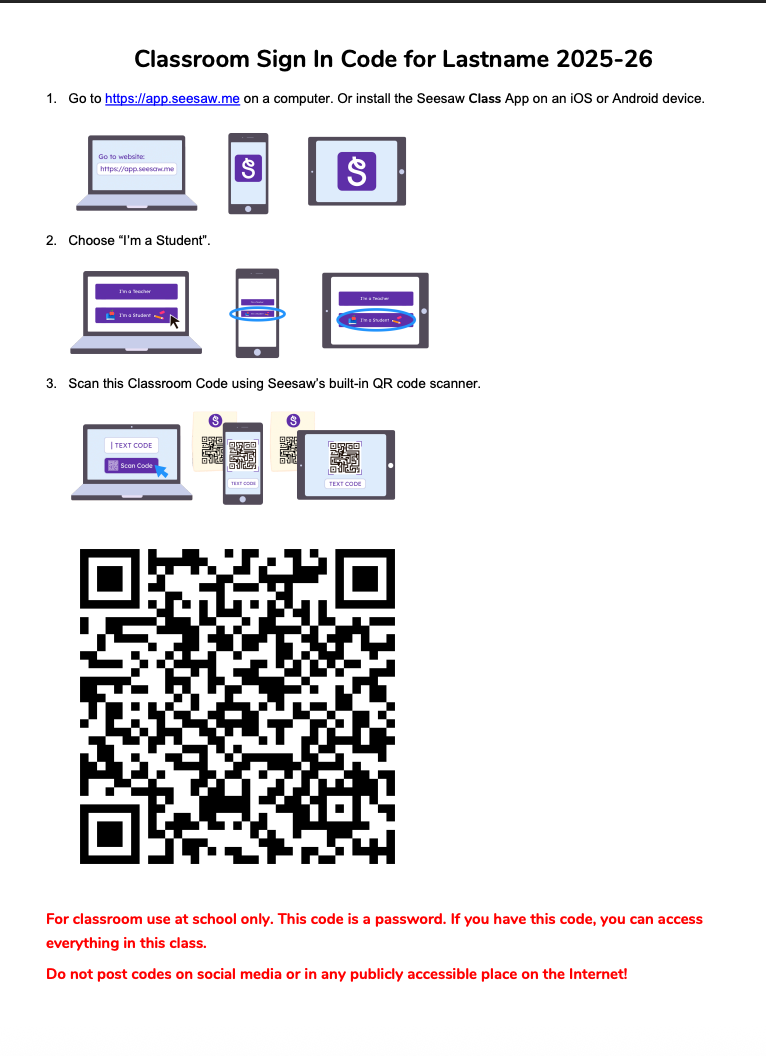
|
|
|
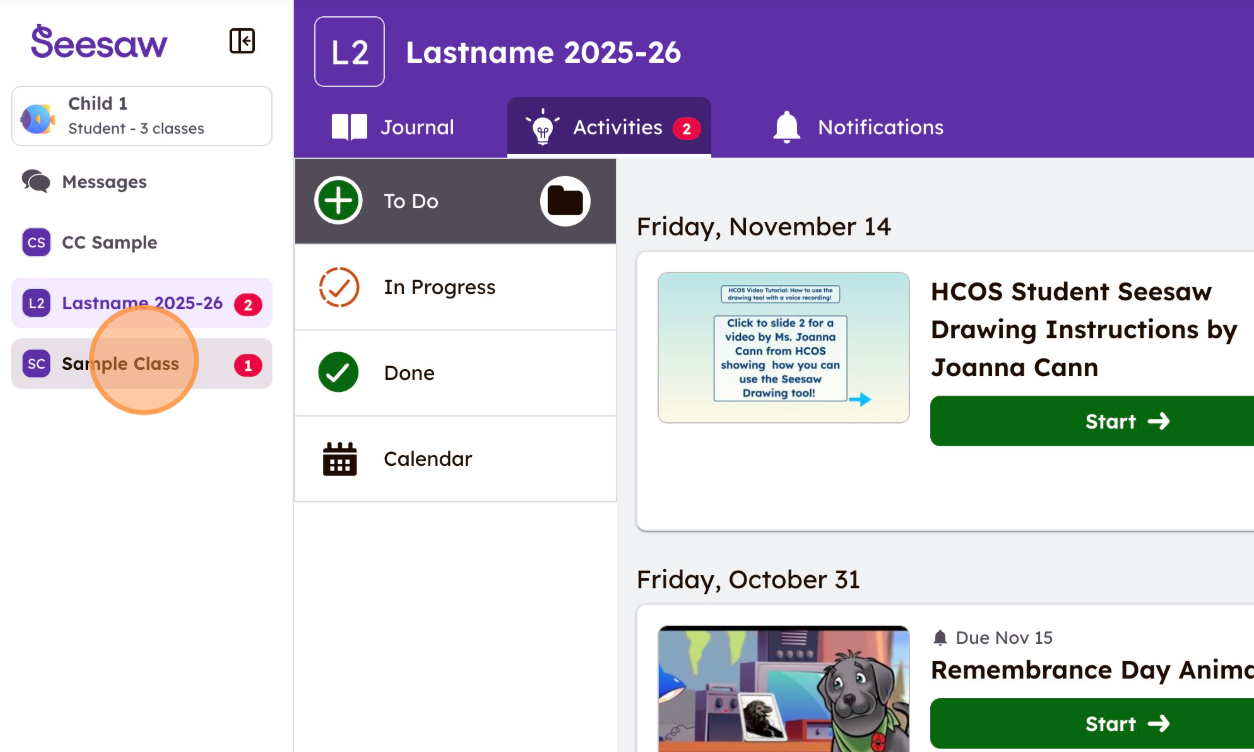
Step 4: You are now in your class! Other Seesaw classes your child is thepart easiest method
Step Five
When you add the Home Learning Code for the CC/CC+ class, youof will use the sidebarappear on the left side of theyour pagescreen. After this initial setup, you should not need to switchsign betweenin again unless you sign yourself out.
|
|
|
|
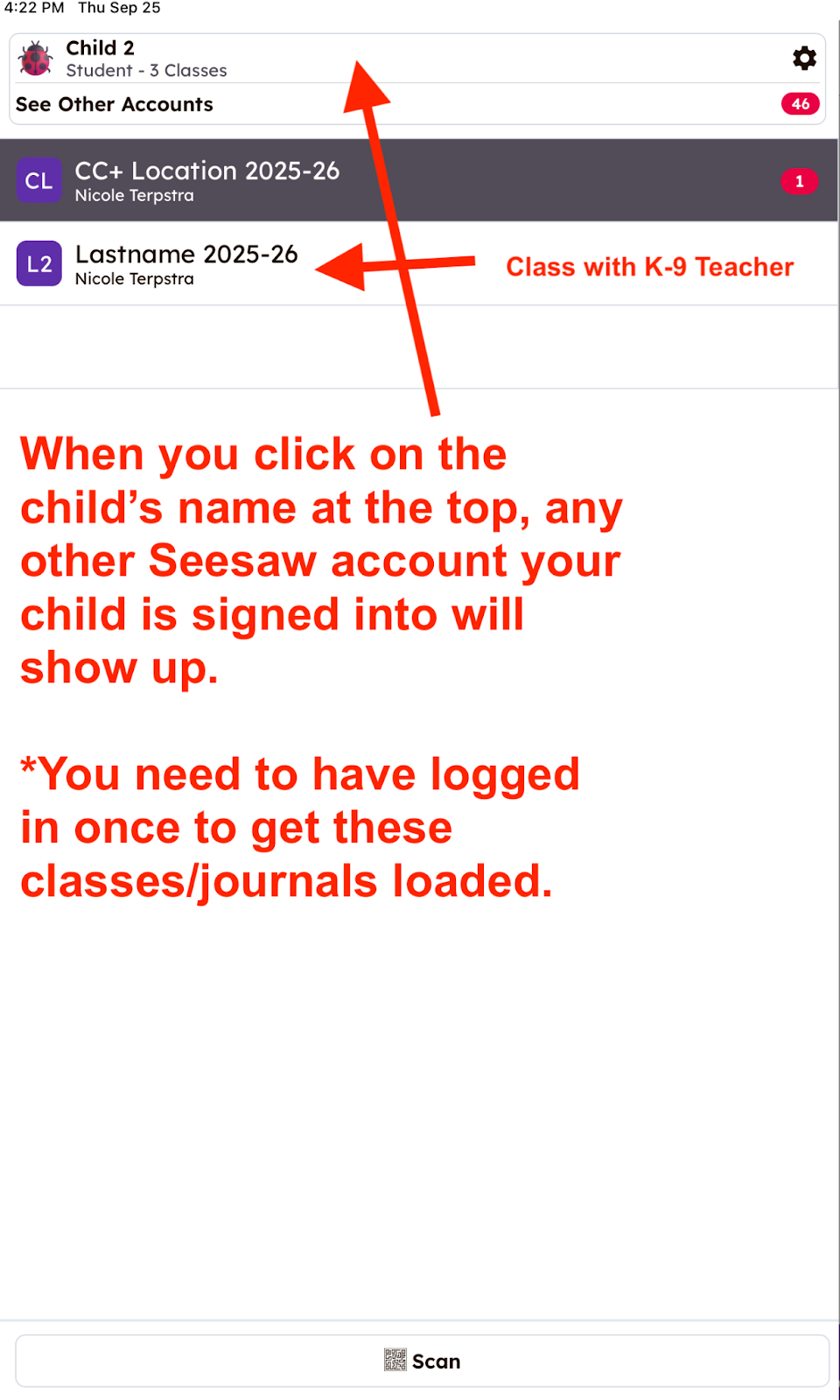
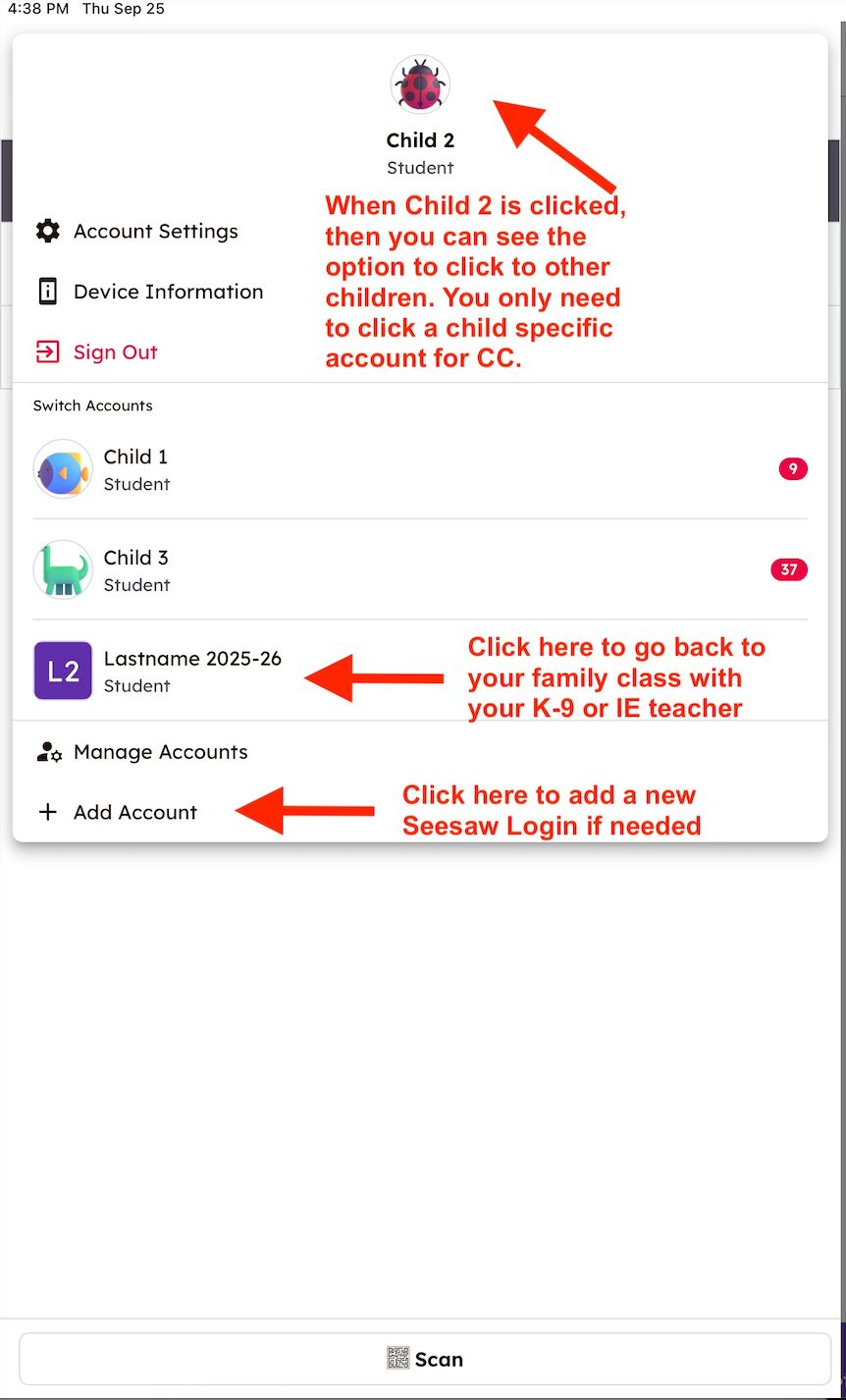
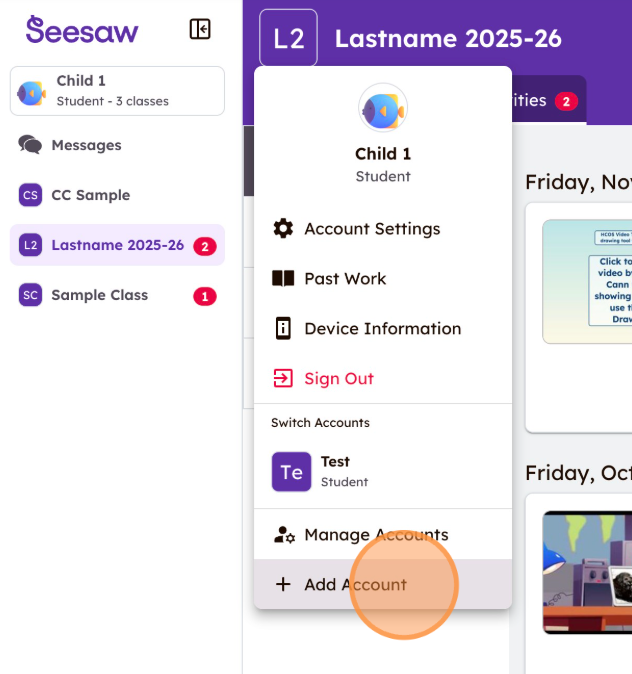
Step 5: If you need to add a second student account, click your child’s CC/CC+name classesin andthe your Foundation K-9 family classtop-left (orStep IEA Casebelow), Manager’sthen familyselect class“Add ifAccount” (Step B below), which will take you are In Inclusive Education)
You can access multiple Seesaw classes from the same device
Watch this Seesaw videoback to helpStep see2 above. To learn how to add accounts and switchtoggle between eachaccounts, child’sgo CC/CC+ class and your family class: How Can Users Switch Between Seesaw Accountshere.
|
|
Step A
Sample Screenshots of Steps
Here are sample screenshots of what you will see following these steps and additional explanations. 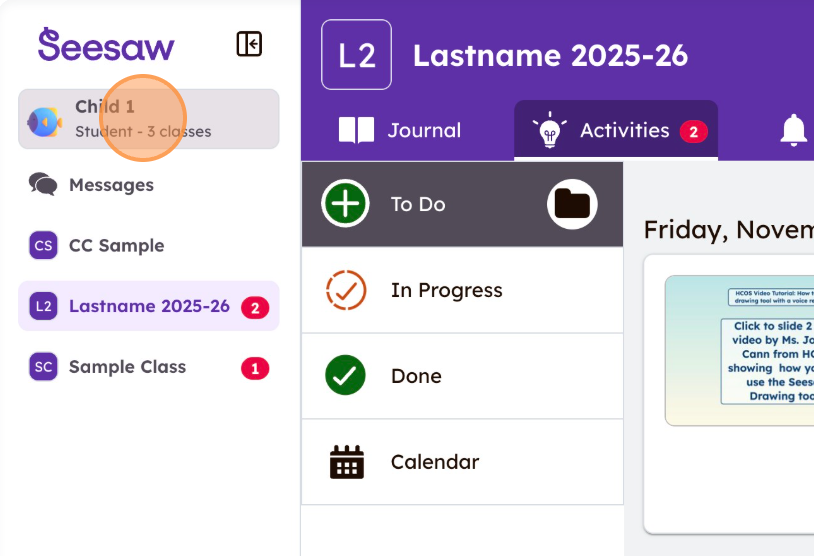
|
TheseStep screenshots are from a tablet portrait view. A phone may orient the tabs and icons slightly differently on the smaller screen. B
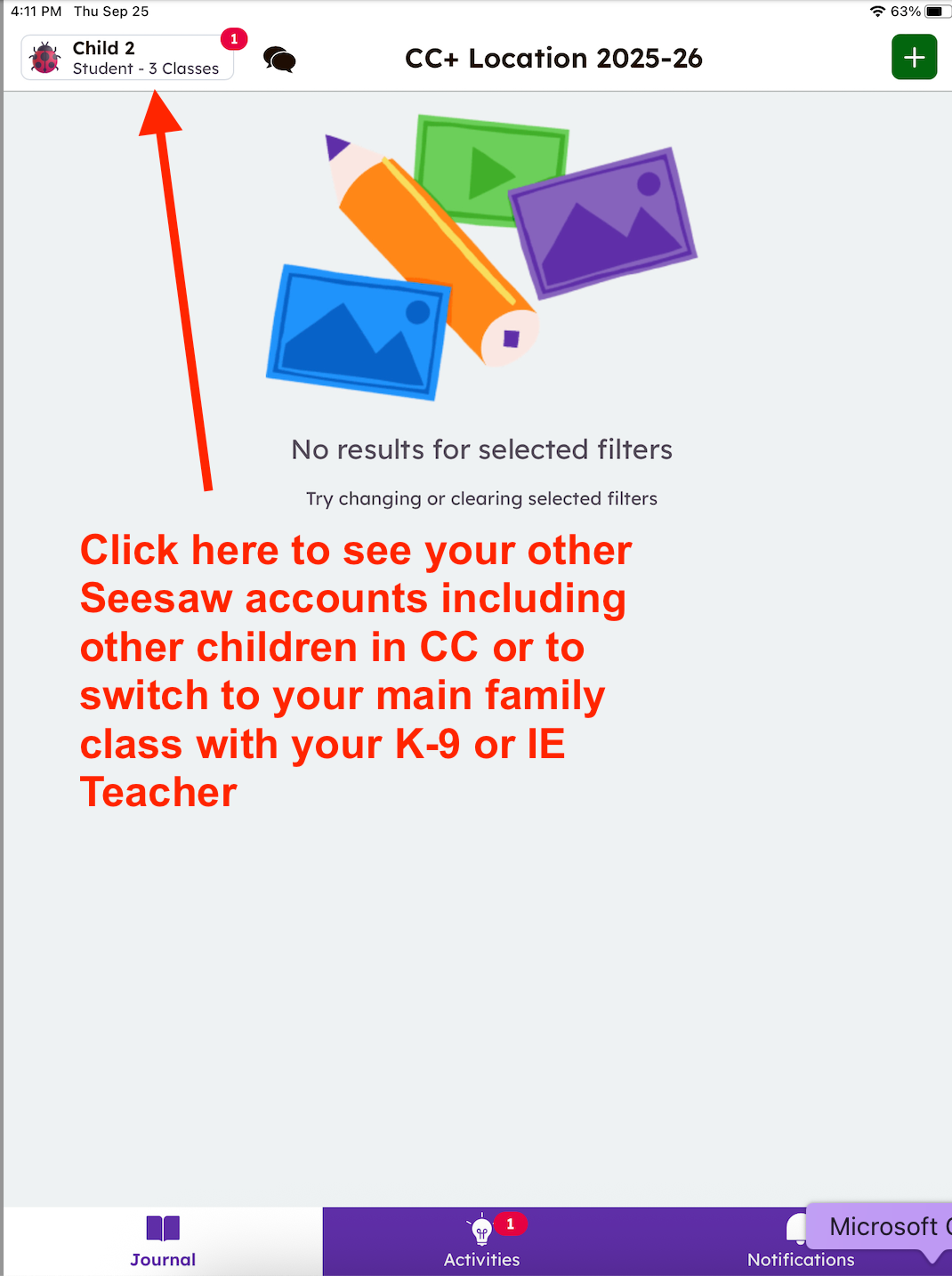
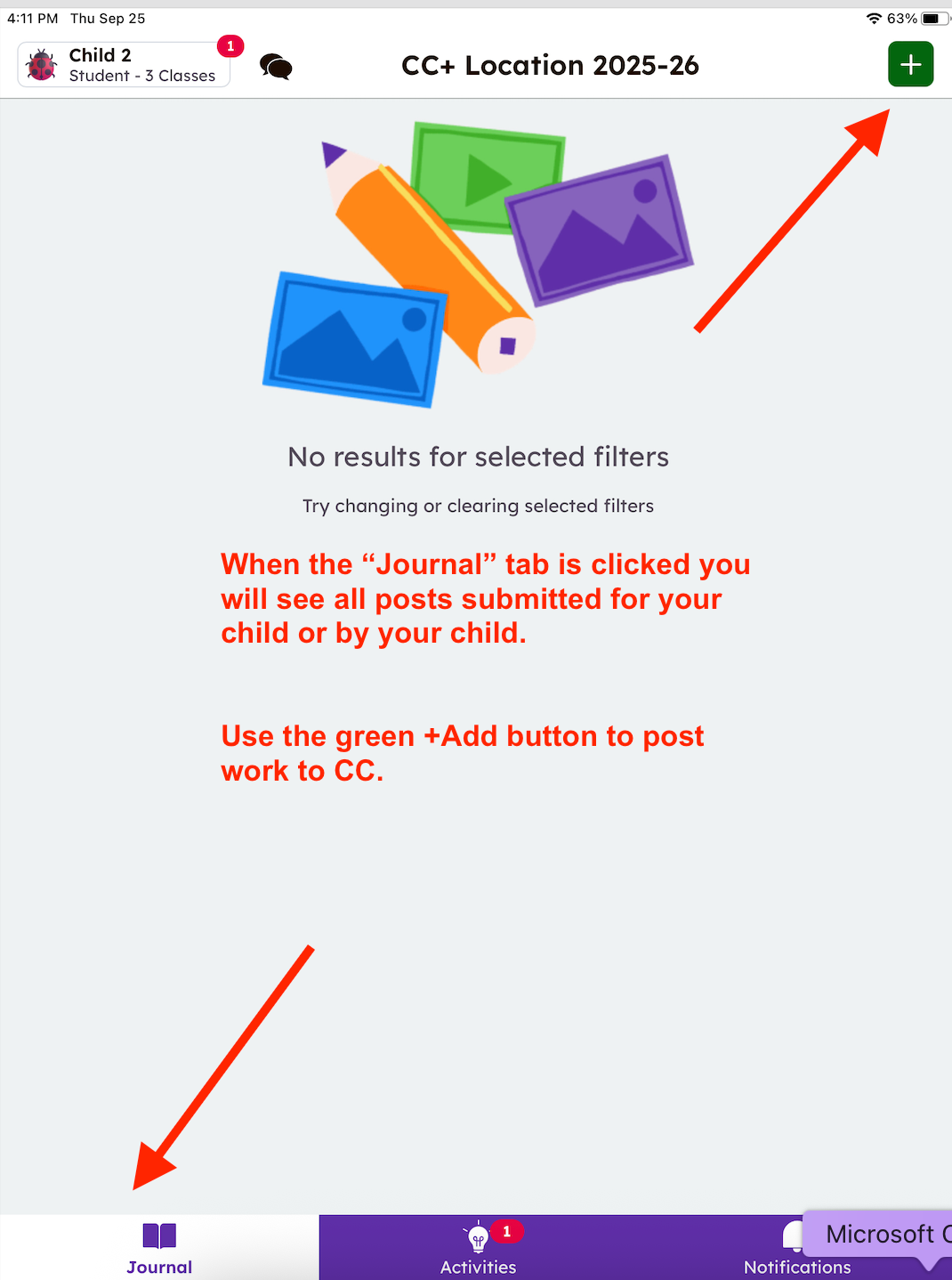
First view when using a Home Learning Code for a Child. In the example below, the child’s name is Child 2.
|
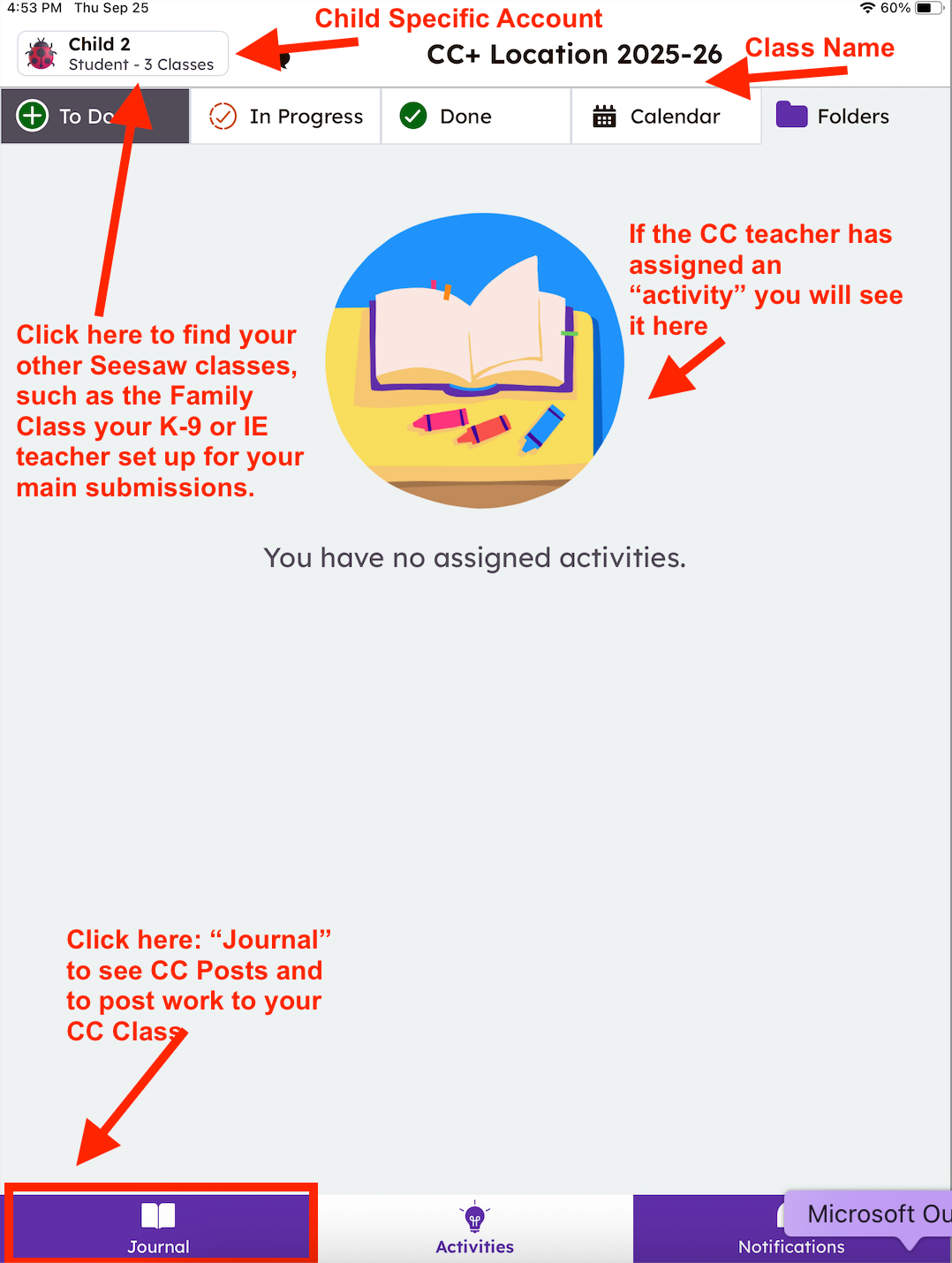
This screenshot shows how to see work posted from, and how to post work to, a CC/CC+ class Seesaw class.
This screenshot shows how to switch from one child to another if you have more than one child in Seesaw. It's also how you would switch back to your Family Class set up by your K-9 Foundations or IE Teacher.