Seesaw - How To Submit Work for Foundations K-9 and Inclusive Education Parents
Here are a few key details before we look at the steps you will take to submit student work samples to your teacher:
To submit work samplesSteps for
yourSharingchild,StudentyouWorkwillSamplesstartStep
byOne:opening- Open your 'Seesaw Journal' in the 'Seesaw Class App' or by accessing app.seesaw.me .
- If you have logged in
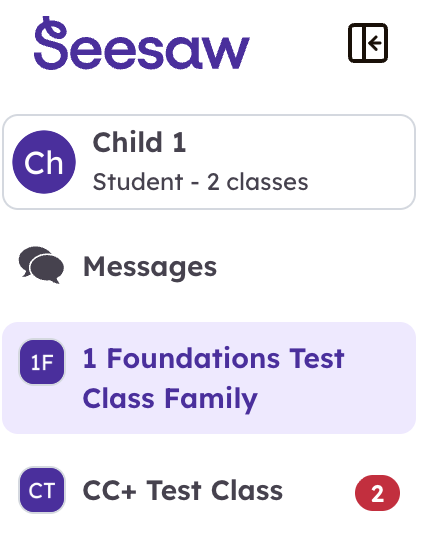
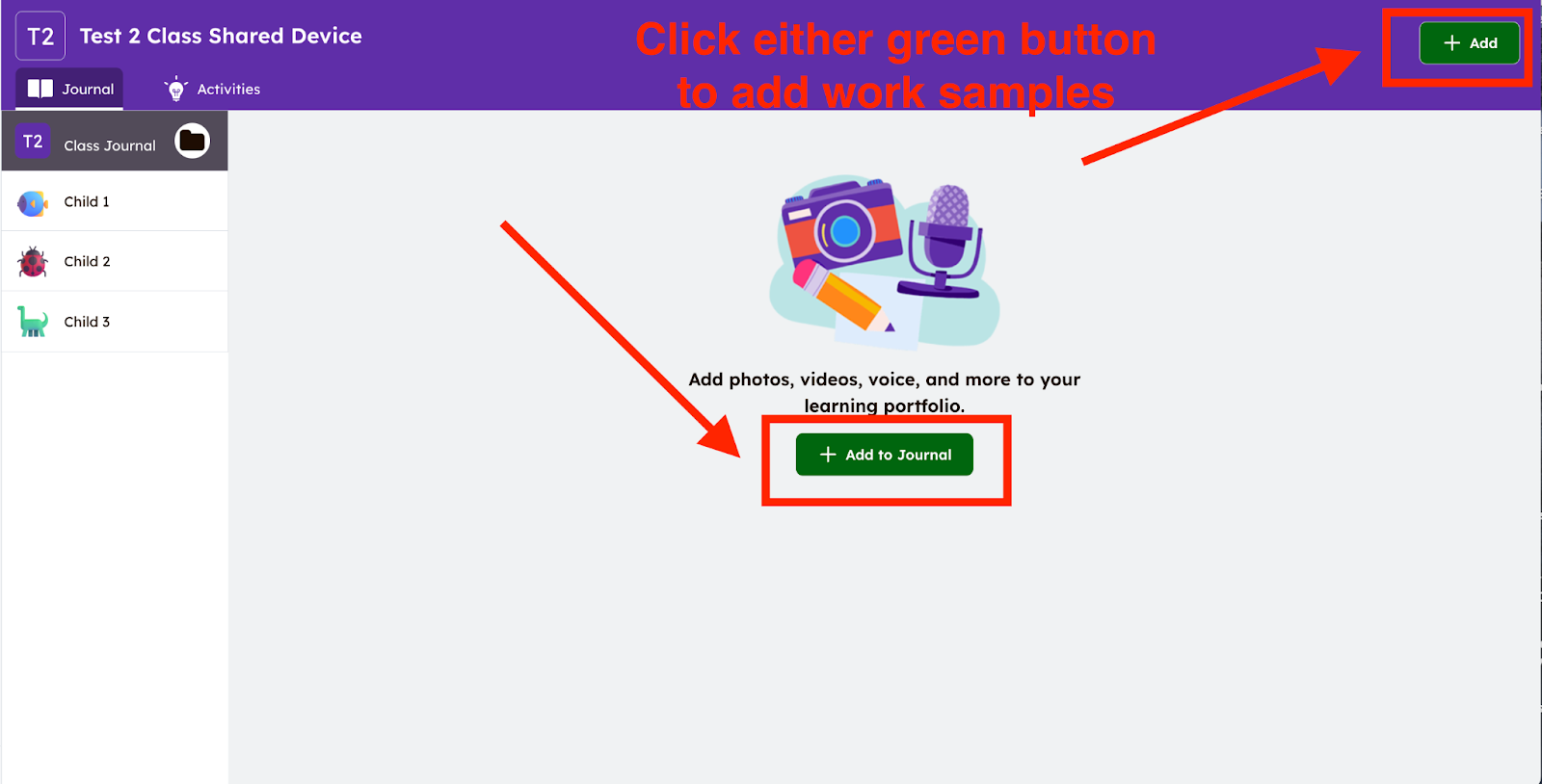
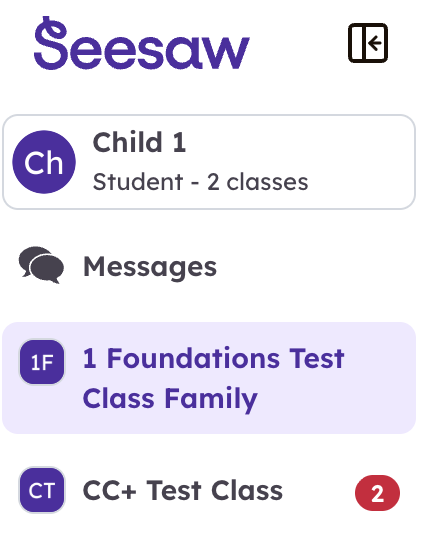
oncebefore, your family class should open without needing to log inagain In most classes, your class will be named with your last nameYou will see your children listed down the left hand side under Class Journalagain.- The
'Class Journal'page willshowopenallto theworkactivitythattabyouforhaveonepreviouslyofloadedyourintochildren'sSeesawaccounts.withClick on journal to open themostjournalrecentandsubmissionspostata sample.
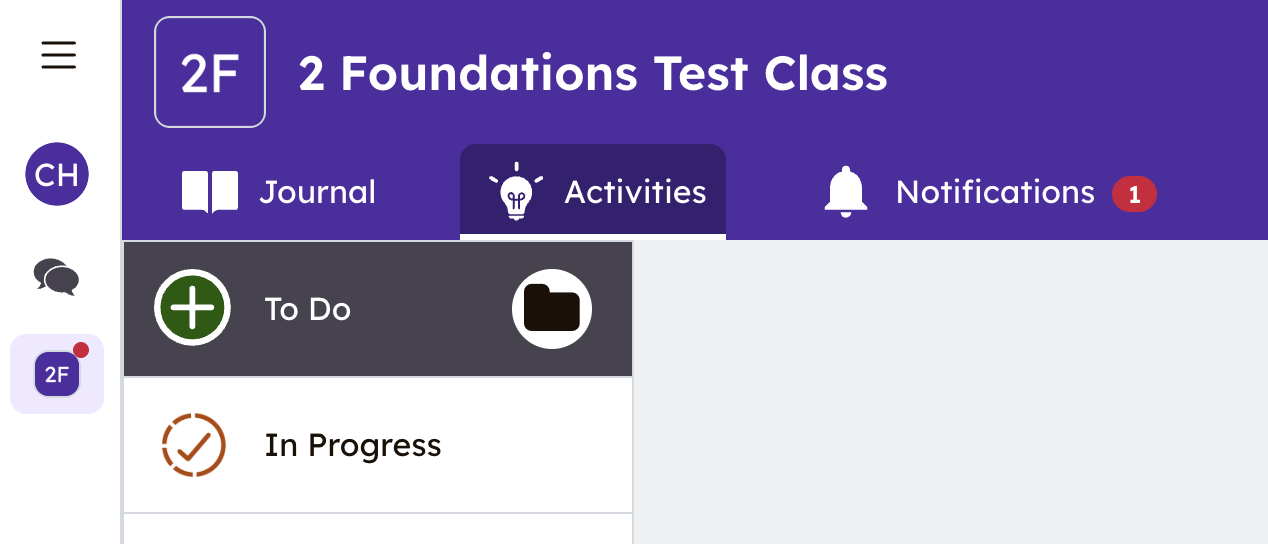
Opens to "Activities" Tab
Click on the
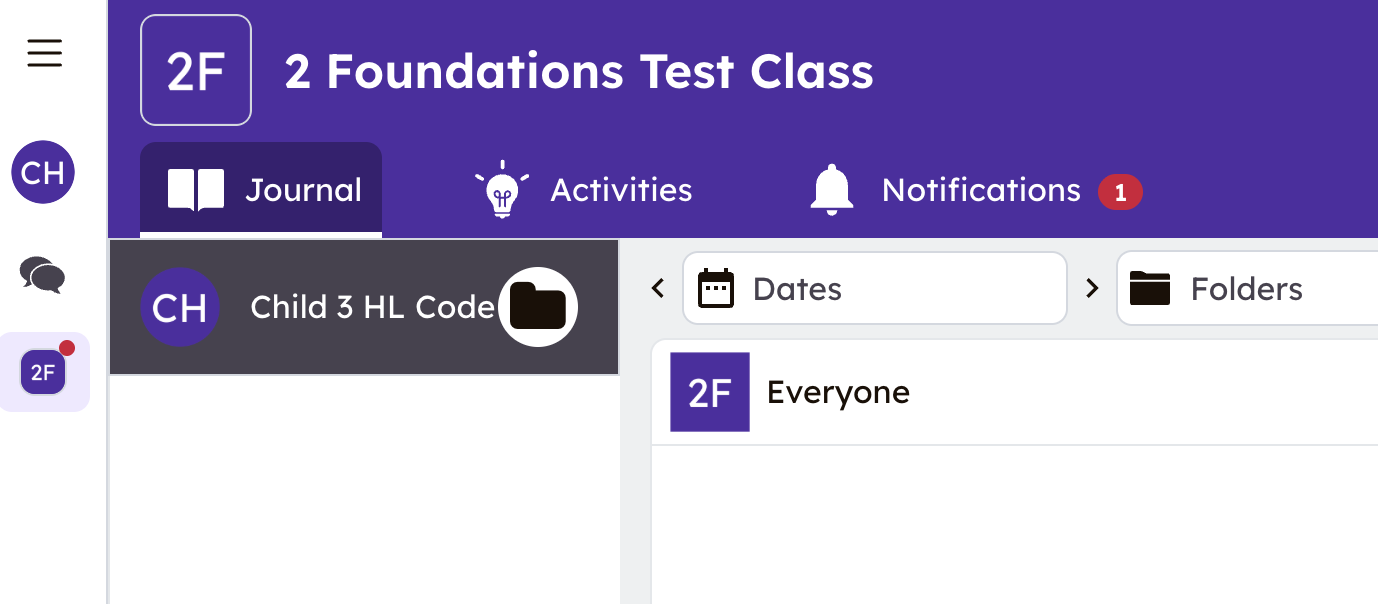
top"Journal"If you click on 'Child 1', you will see all submissions posted for Child 1 listed from newesttab tooldest.share aThispostwillincludeanyposts that were 'tagged' with other children in the familySteps for Submit Student Work SamplesParents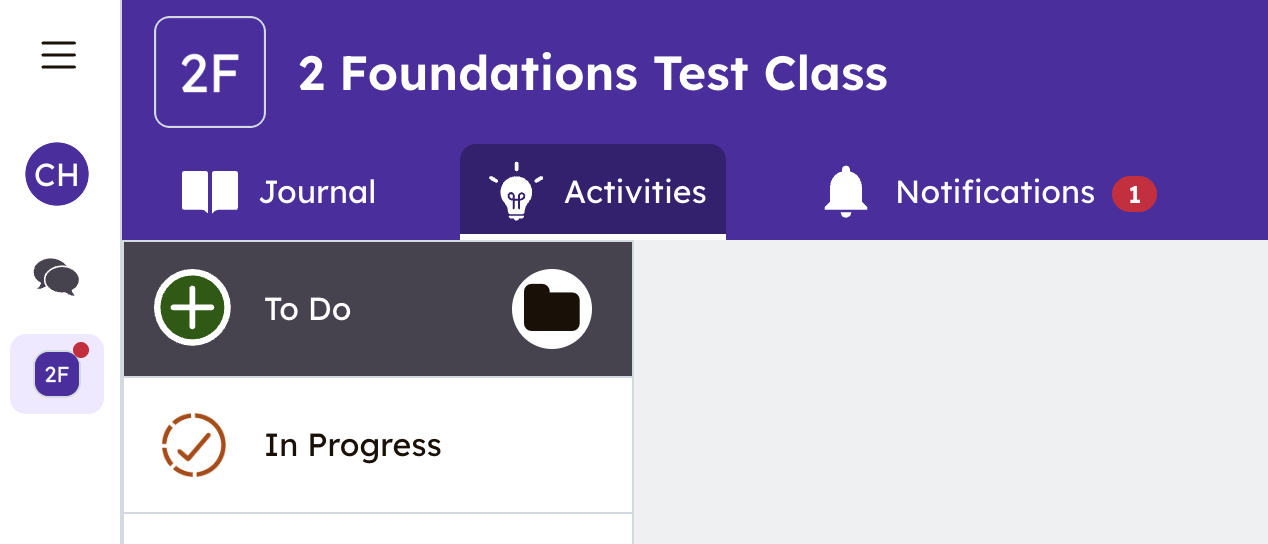
orstudentscan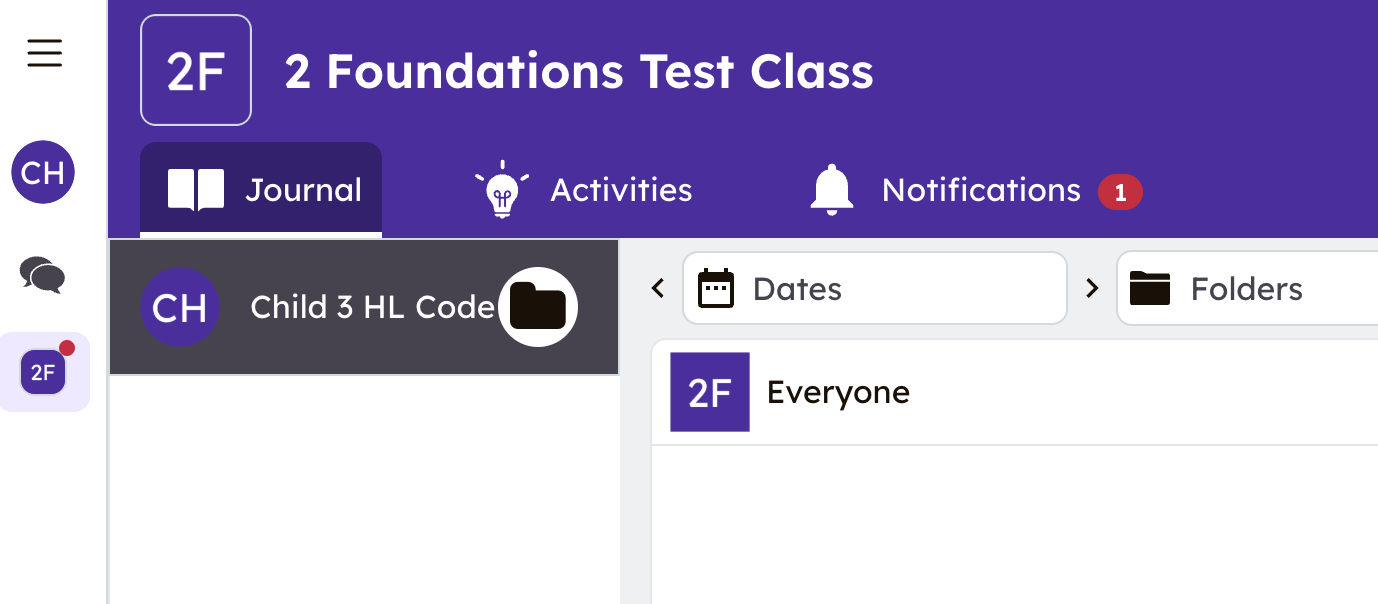
useeitherofStep Two:
Click the green ‘+Add’ button (top right corner) to add work samples.

Step Three:
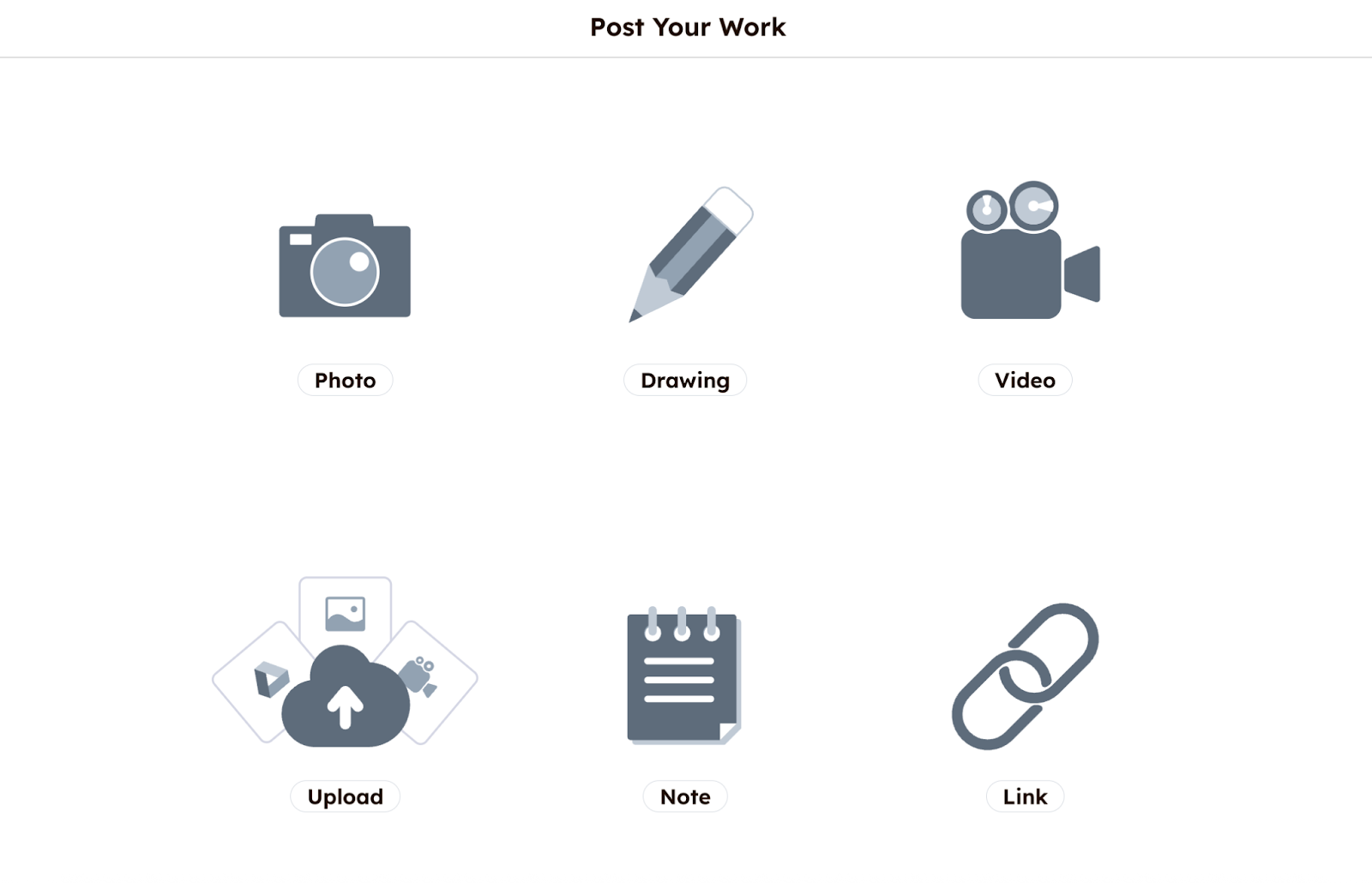
- A new window will open showing Seesaw’s 'Creative
Tools'Tools' for postingwork (see image below in Step 2). Parents or students can select how they would like to add samples to the journal
work.Most often, parents or students will be using the 'Upload' to access photos from their camera rollHowever, you can use the camera option to take photos of work right in the app to send to the teacher
Step OneClick the green '+Add' buttonStep TwoChoose the 'Creative Tool' to post work-
Select a creative tool that best fits the work to be uploaded
You can: take a photo of your work, upload a photoof your workfrom your camera or computer, add a video, add a link, or create your own work on a blank canvas or notepagepage.
MostMany parents
Drive.willuse the 'upload' feature to upload photos from theirphone camera roll, theirphone, computer, or Googledrive.Students
maycanusealsothetake a photo or videooption throughusing theSeesawbuiltApp to use the built-in cameraor video tool rightin the SeesawClass App to submit to the teacher.App!Step
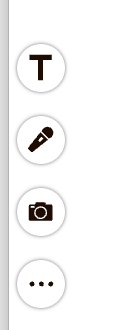
ThreeFour:You can edit the post by adding voice recordings, drawings, text labels, or captions by clicking the icons
toton theleft.left side of the screen.OrYou can also clickthethis button at the bottom left torecord a voice message or upload an audio file to accompany
theyour work sample.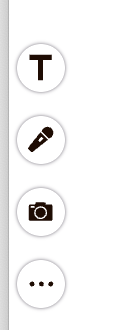

Step
FourFive:Tap the
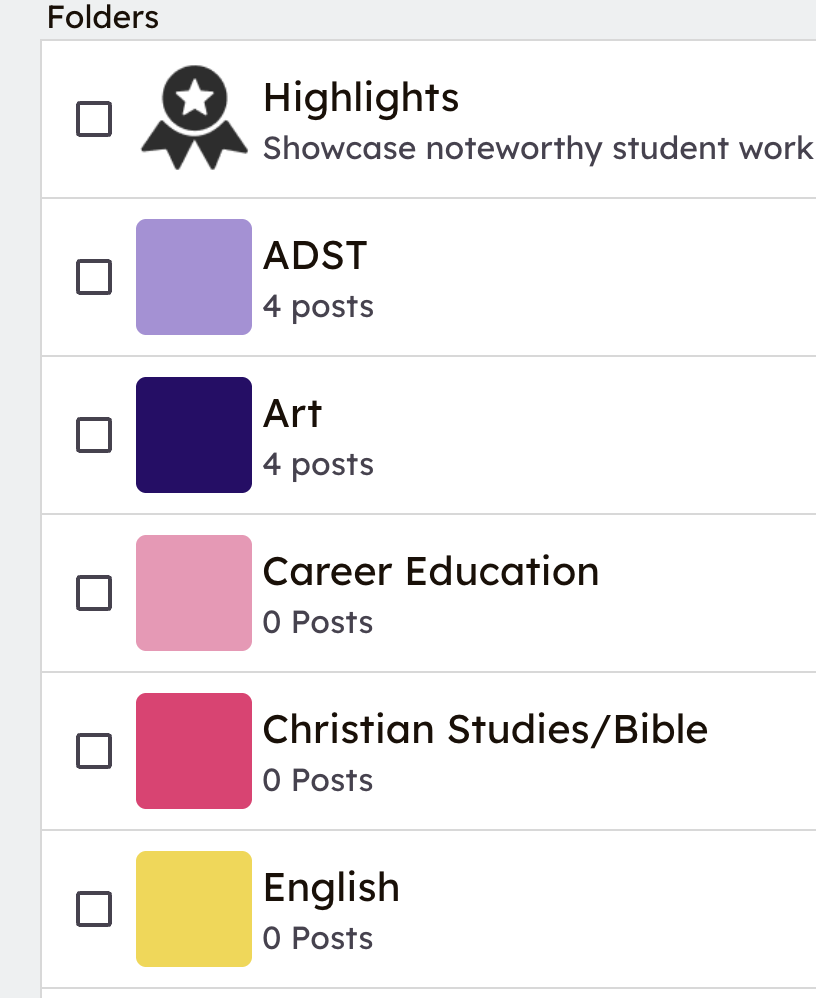
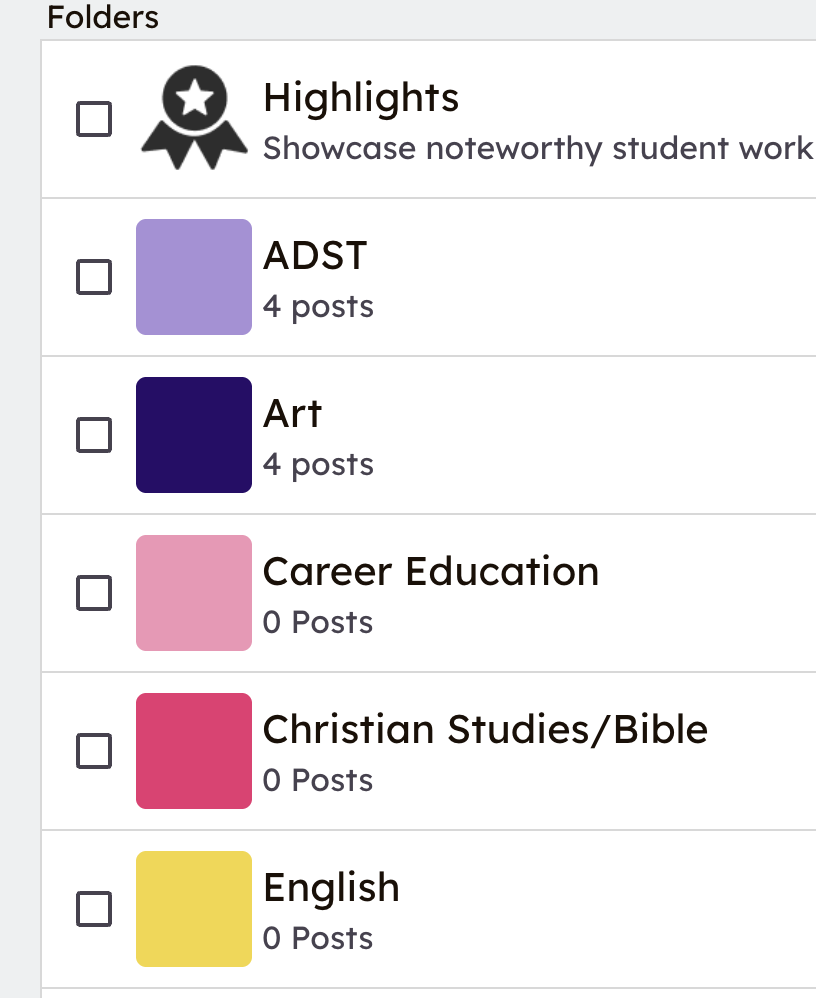
Greengreen 'check mark' at the top right to complete your post.OptionaL: If your teacher has enabled folders, you can tag one or more subject folders for the post.

Step
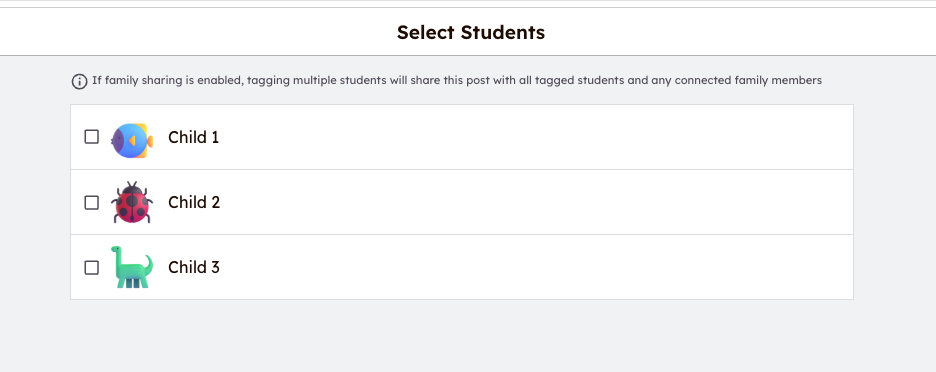
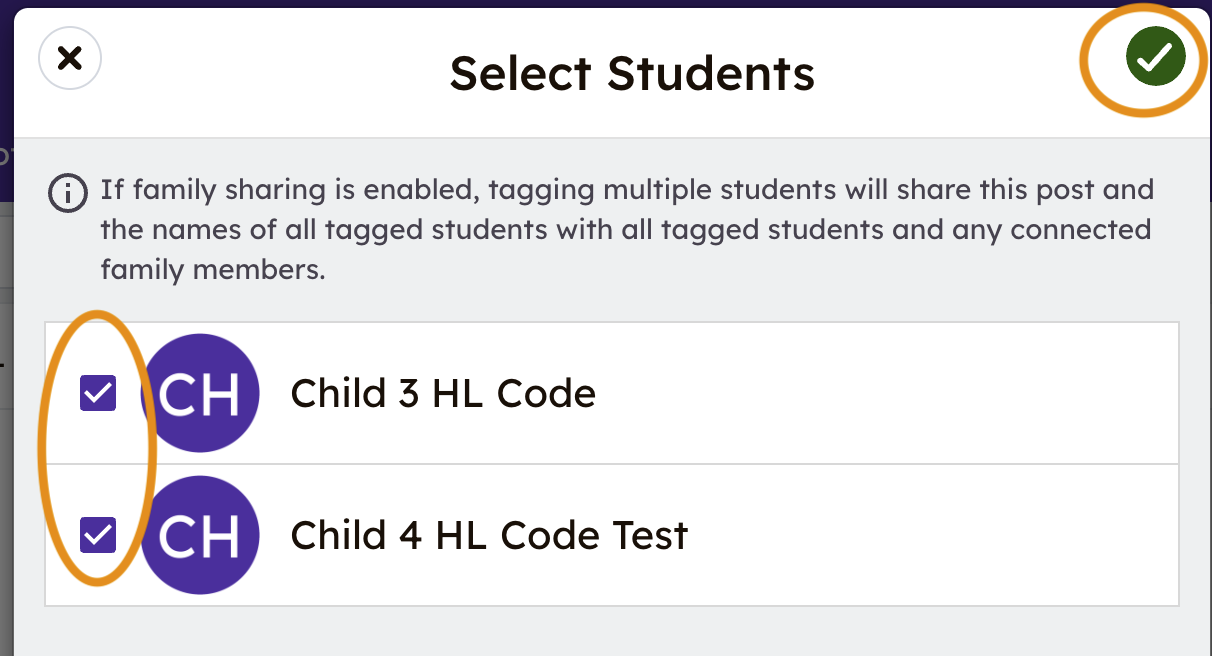
FiveSix:- Once the journal activity is posted, you can tag other children in your family.:
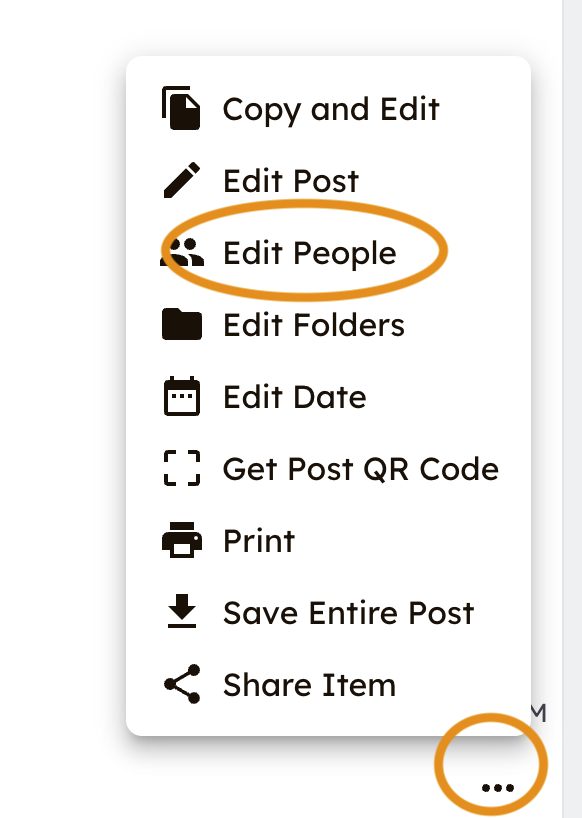
TagorselectIn the bottom-right corner of the post, click the 3 dots, then click "edit people".
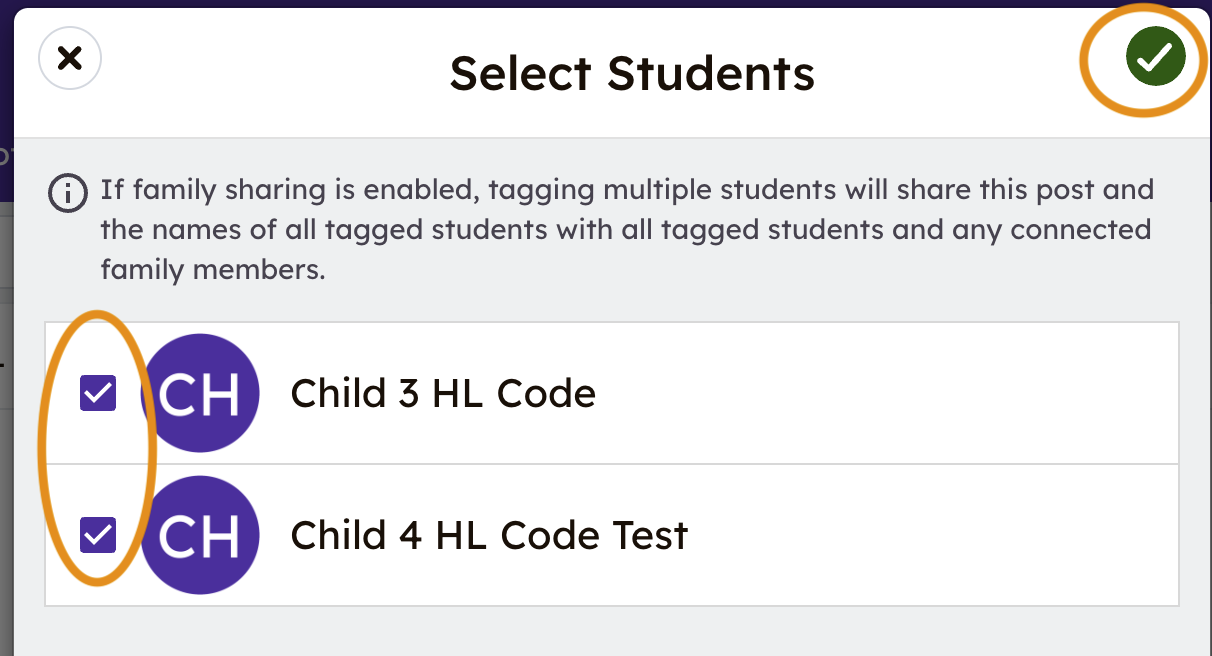
Select the students
whoincompletedyour family to include in thework.post,Youthenare able to select one student or multiple students.Step SixClickclick the greencheckcheckmarkmarktoagain.add to portfolios.The work sample will
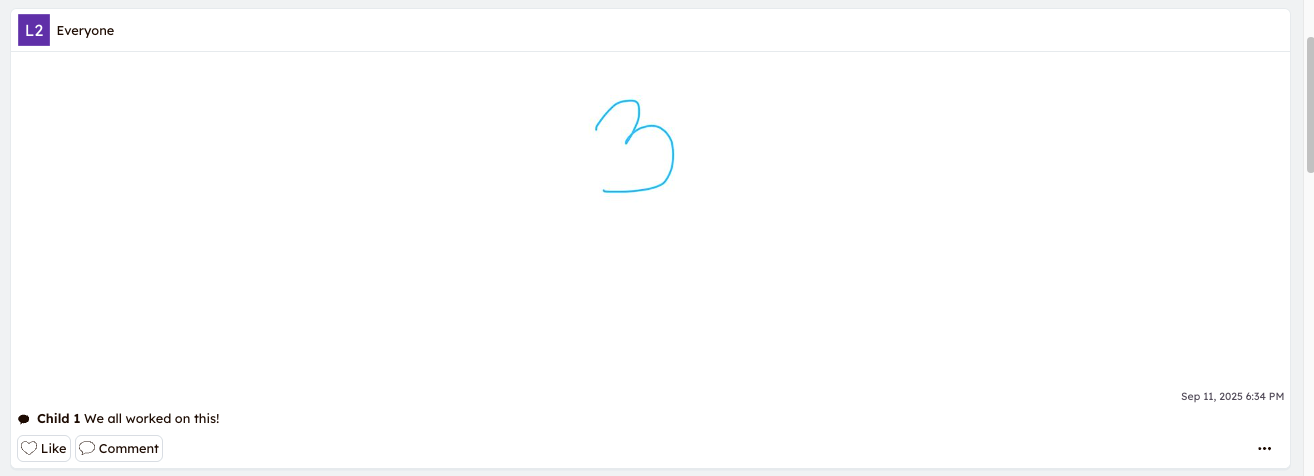
shownowupappear intheallClassyourJournal and can be found within each child’children'sjournal.portfolios.Seebelow, the work sample was selected for all of the children in this family 'Everyone'.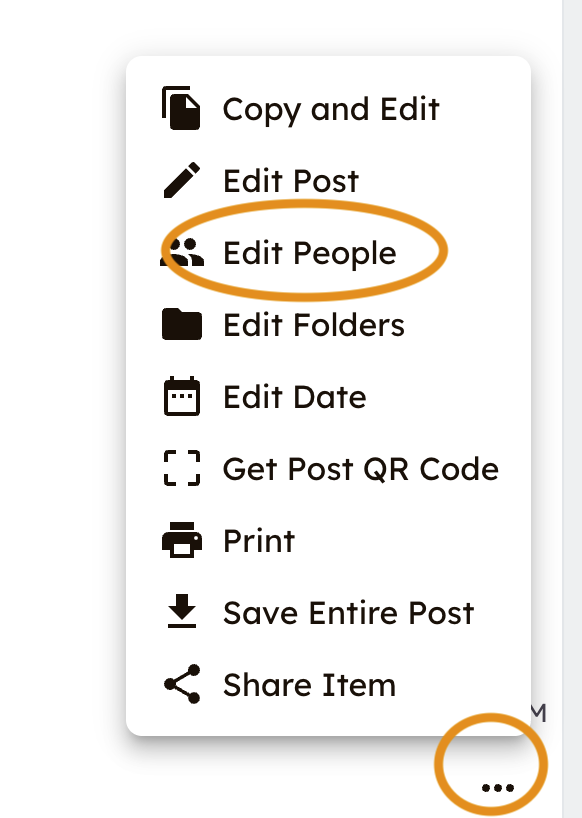
Step
SevenSeven:IfYouyou would like tocan add more details after afurthersamplecomment,isclickposted by clicking the 'Comment' box under the posted work sample.Click on the student’s name and add your comment.If multiple children worked on a sample and the comment applies to all of them,
feel free to enter the extracomment under one child’s name and indicate the comment applies to all of them.If you wish toTo add something unique to another child,you canaddanothera comment andselectnotethatwhichparticularchildchild.it is meant for.Optional:
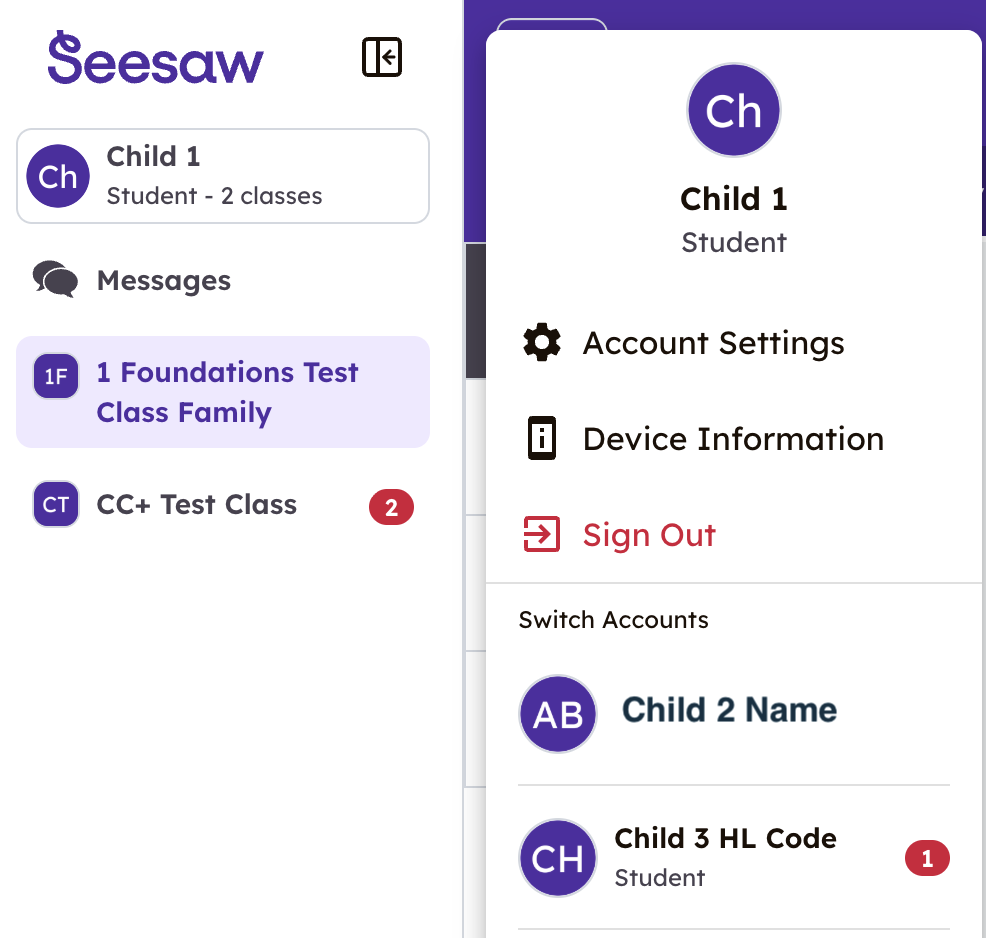
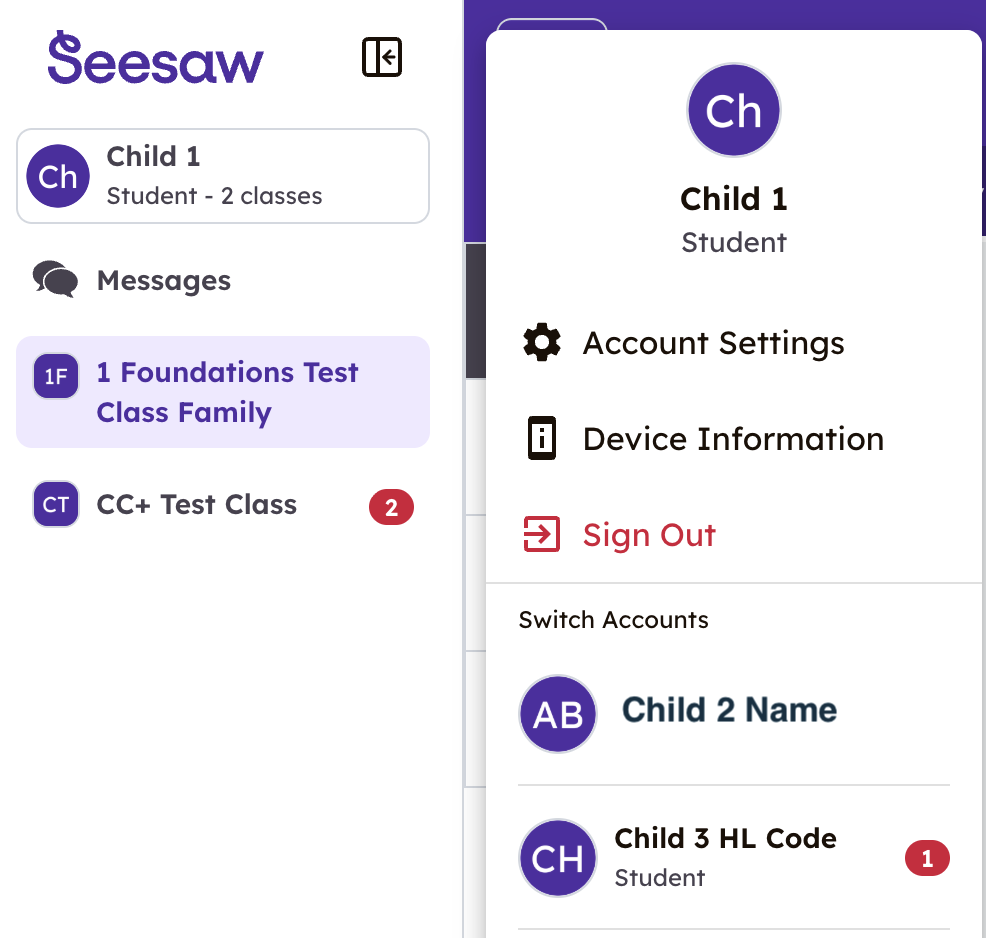
You can easiily switch to another class (e.g., CC+) or another one of your children's portfolios:
Click on the child's name to see other classes they are enrolled in.Click again to see the other children in your family and to switch to a different account.