
Seesaw - How Parents and Students Submit Work in Seesaw
This chapter provides instructions for parents or students on sharing student work samples on Seesaw.
If a student is adding work samples, it would be best for a parent to review what to add and help supervise this until the student understands what to share with their support teacher.
Getting Started
- Open your Seesaw Journal in the Seesaw Class App or by accessing app.seesaw.
meme. - If you have logged in before, your family class should open without needing to log in again.
Step One:
|
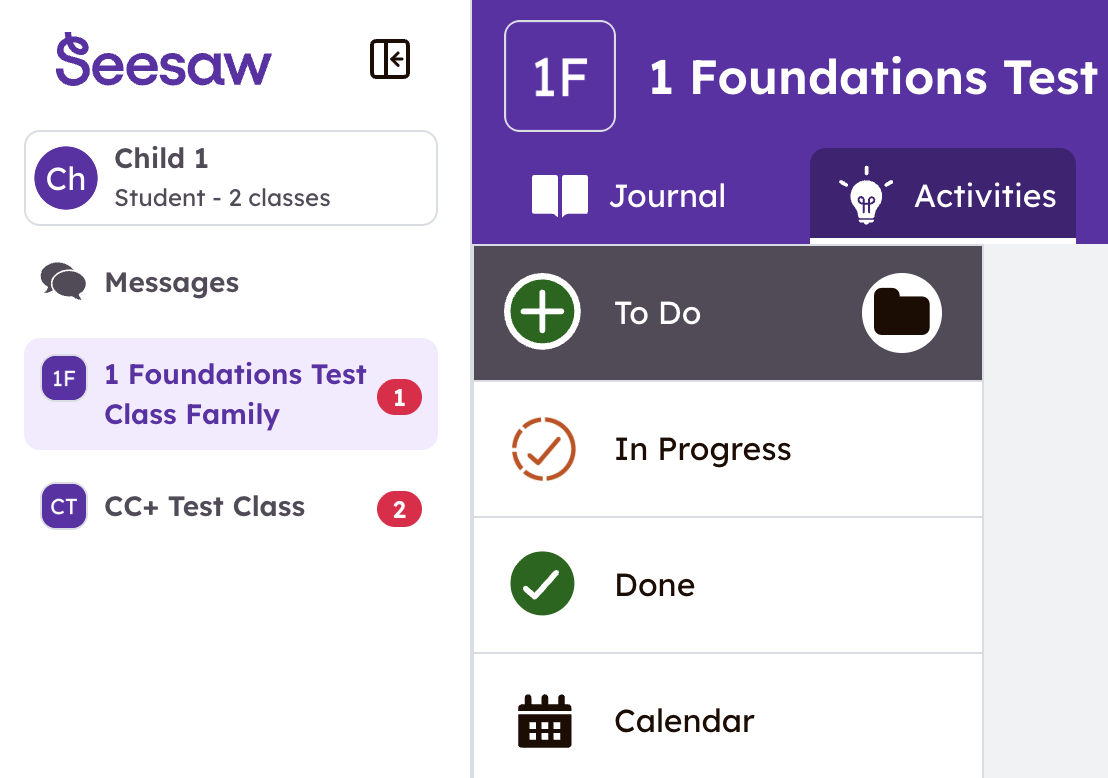
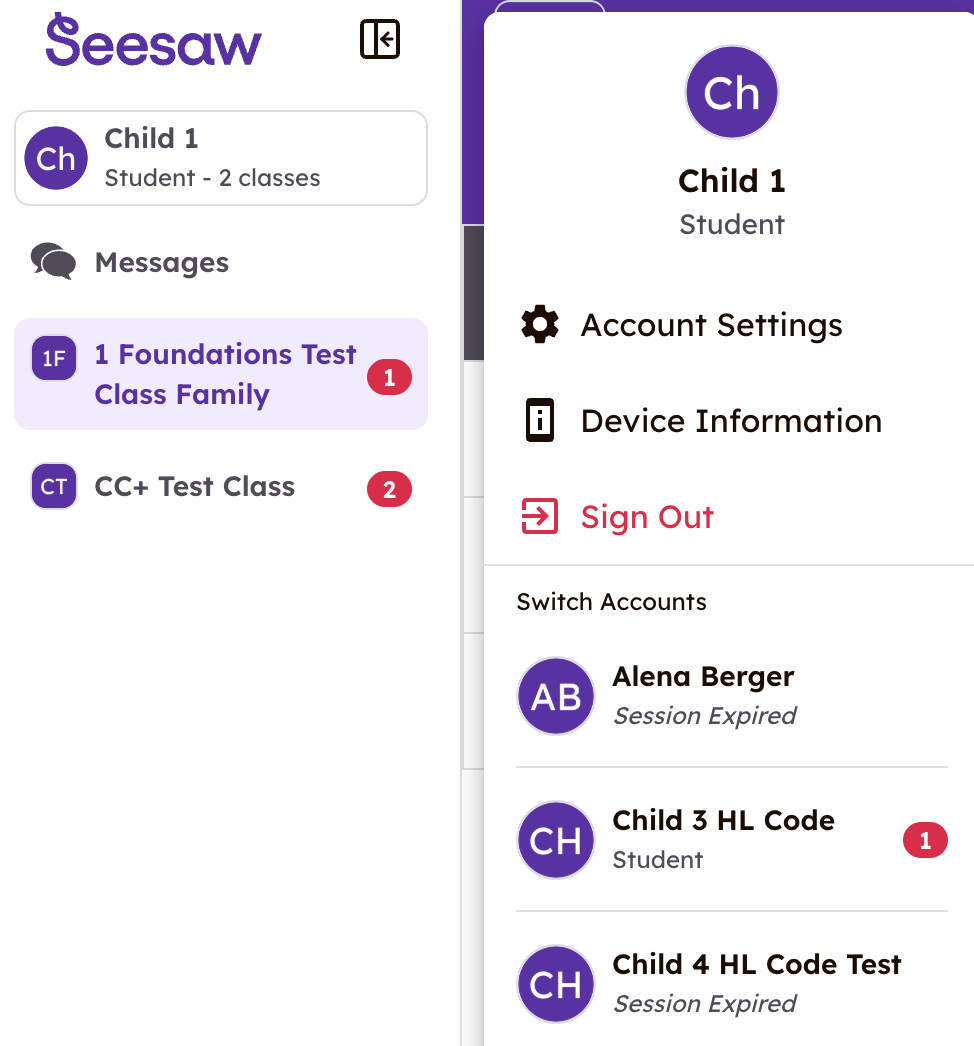
The app will open to the activity tab for the last class you were logged into. Tip: If your child is in CC/CC+, make sure you are in the Foundations Class, not the CC/CC+ class, when you post. When you click your child's name (top-left corner), you can see the other classes they are enrolled in. |
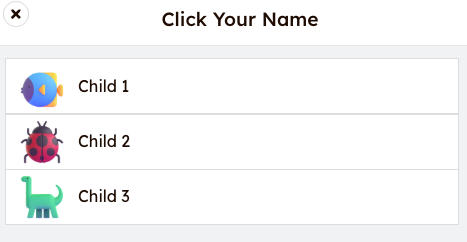
Click the student name again to see the other children in your family. |
|
|
|


Step Two:
|
|
|

Step 2Three:
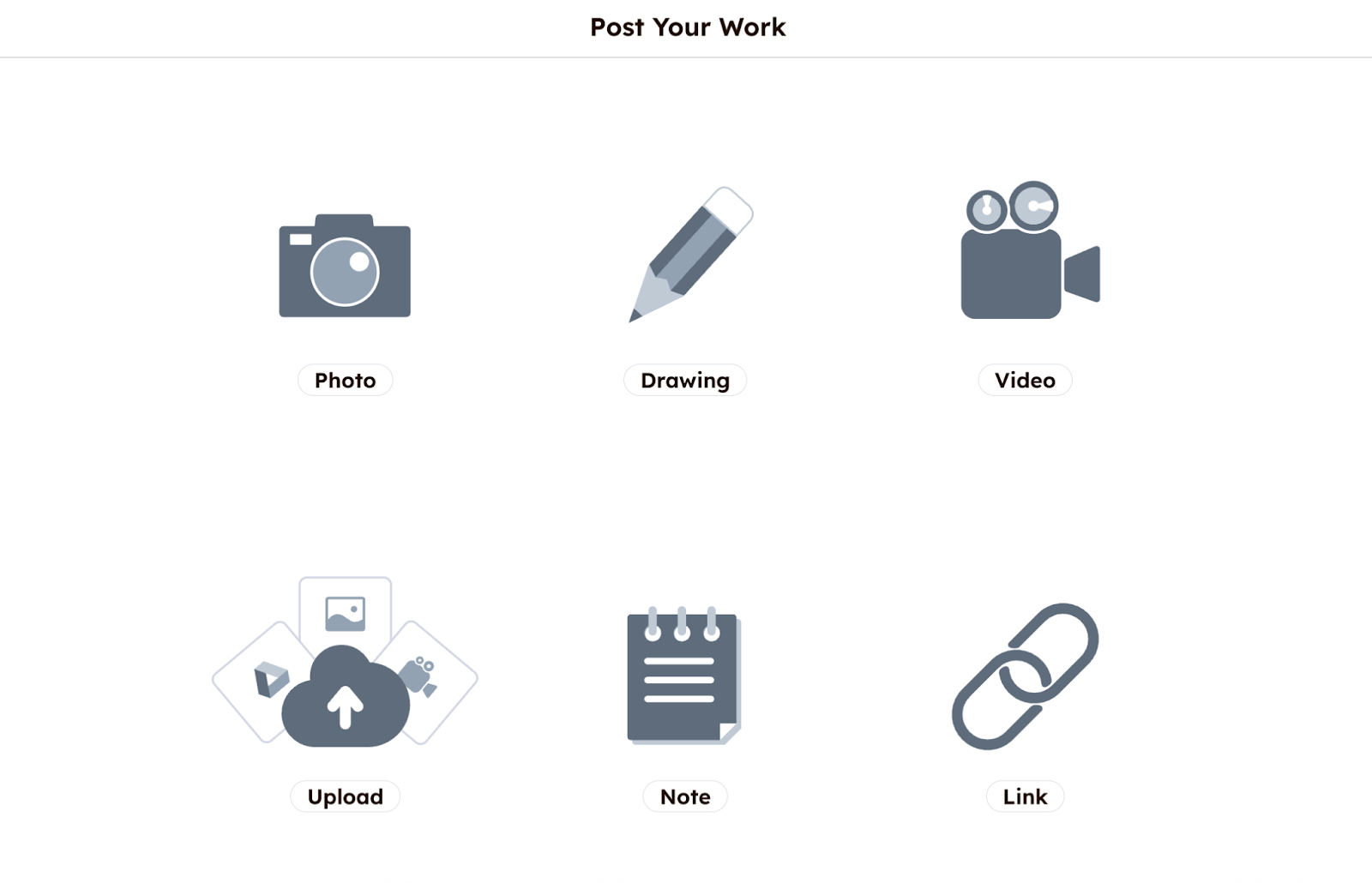
ChooseOn the CreativepageToolthattoopens:post work-
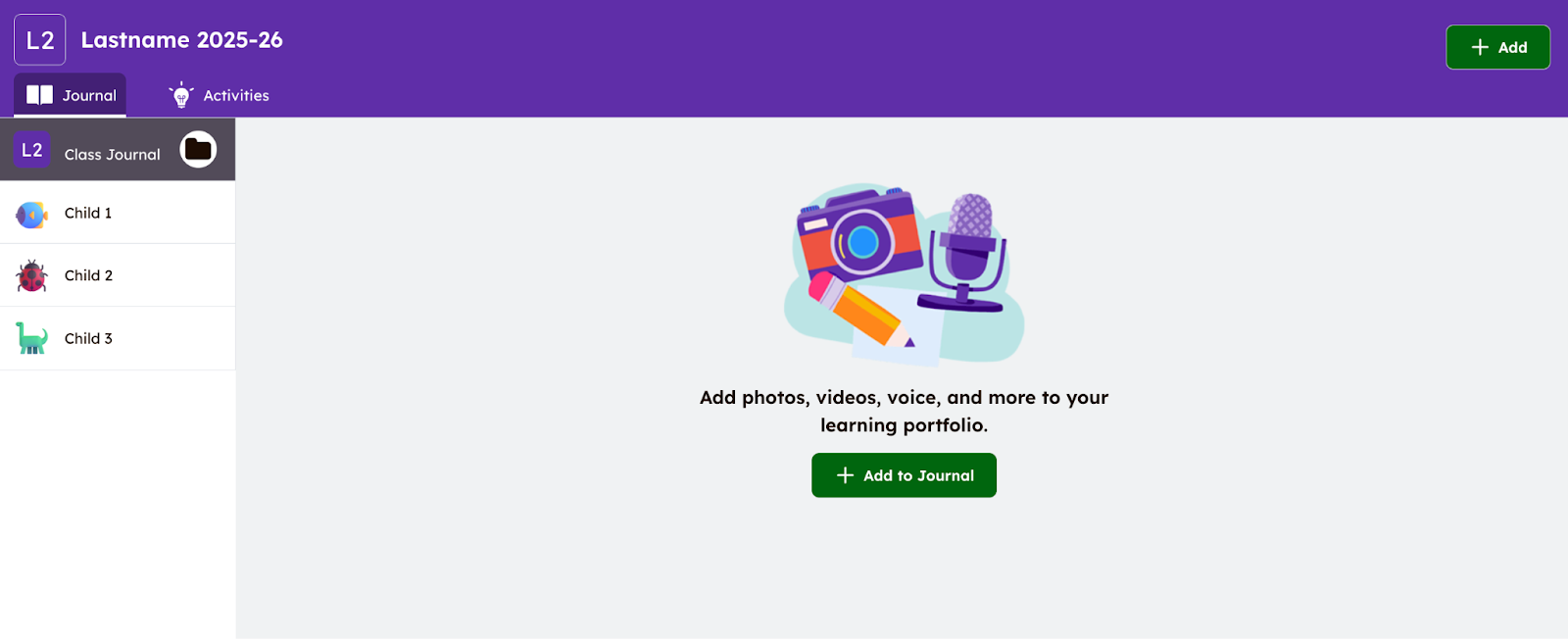
Select a creative tool that best fits the work to be
uploadeduploaded:- Use the 'upload' feature to add photos from their phone camera roll, computer, or Google Drive.
You can takeTake a photooforyourvideowork,rightuploadin the app.- Click the pencil to make a
photodrawing,ofwriteyournotes,worketc. - Use
yourthecamera"note"orpadcomputer,foradda written post. - Click the "link" button to share a link (e.g., to a video,
addotheradocument,link,etc.)
fromor create your own work on a blank canvas or note page - Follow the prompts for the Creative Tool you are using to upload the
samplessamples.
Mostparentswillusethe'upload'feature-
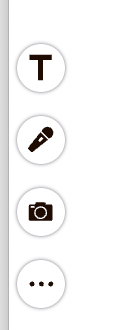
- You can edit the post by adding voice recordings, drawings, text labels, or captions by clicking the icons to the left
- of your screen.
-
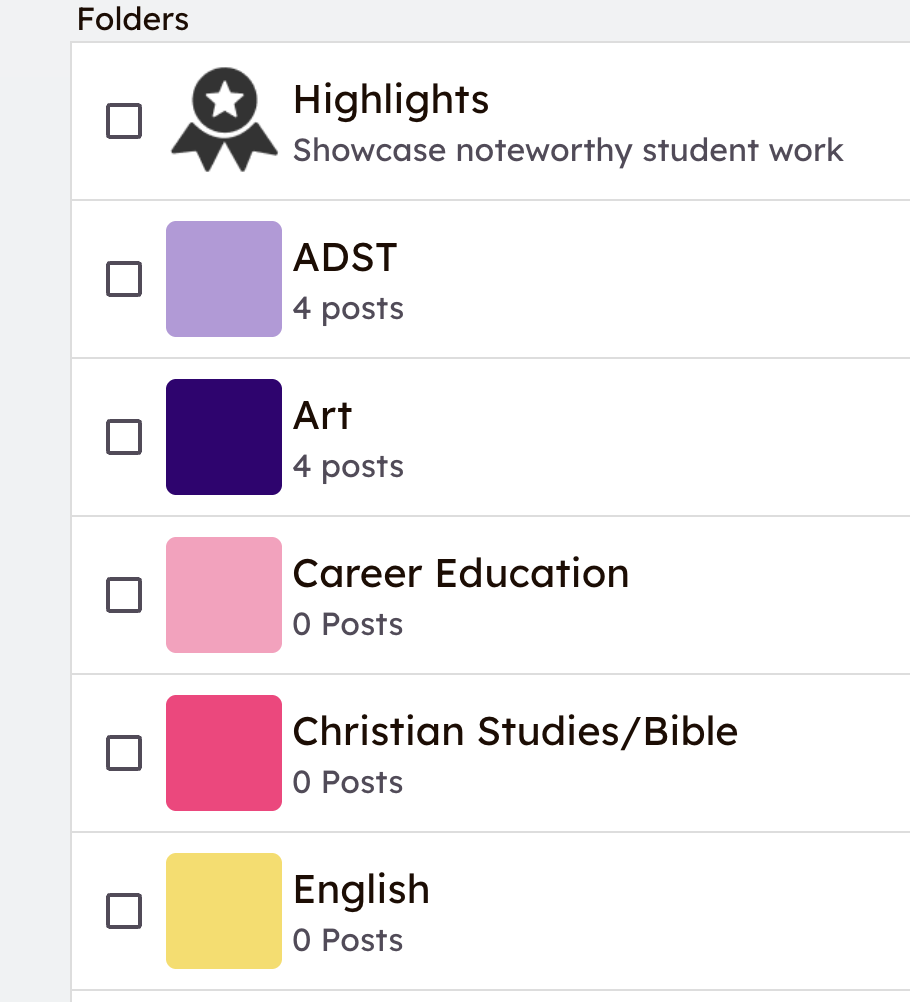
Tap the Green 'check mark' at the top right to complete your post Optional: select a folder or folders to tag your work sample. It will still appear in your journal, with subject tags. 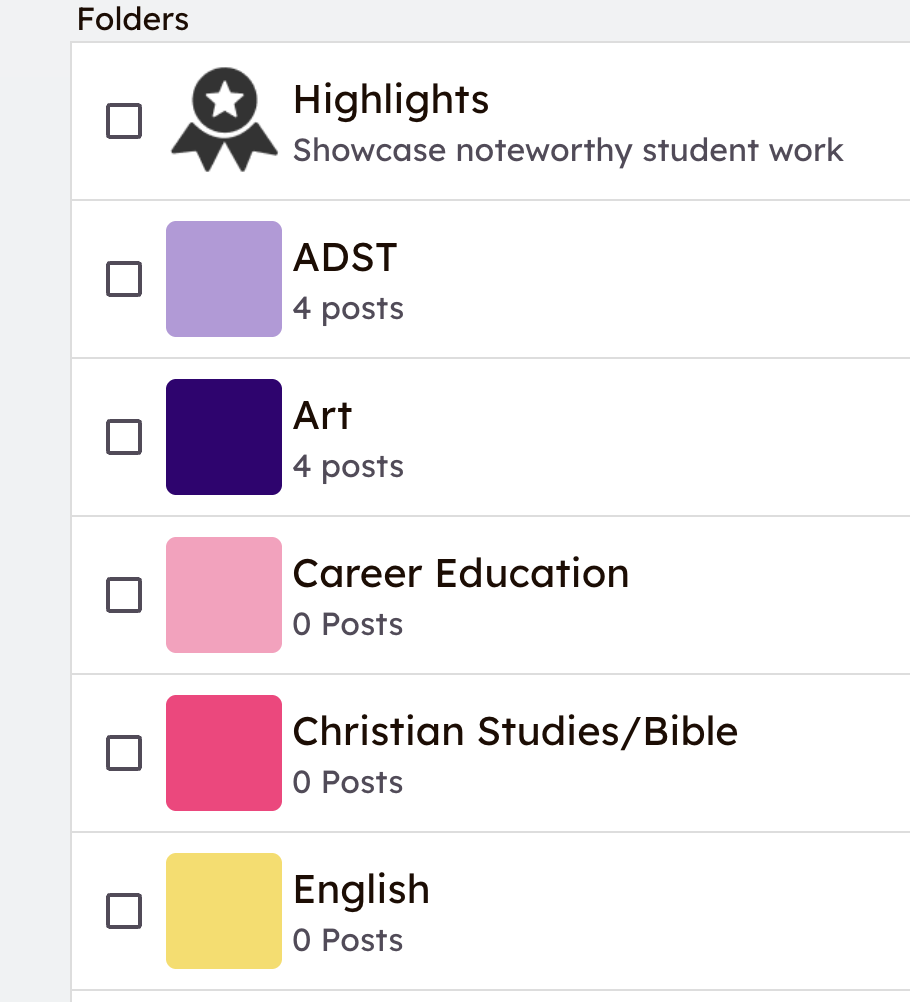
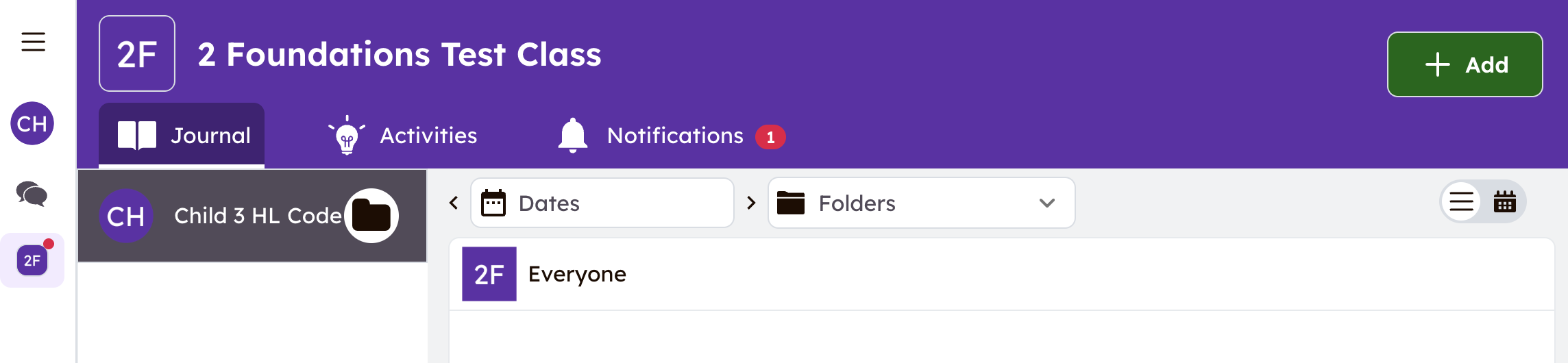
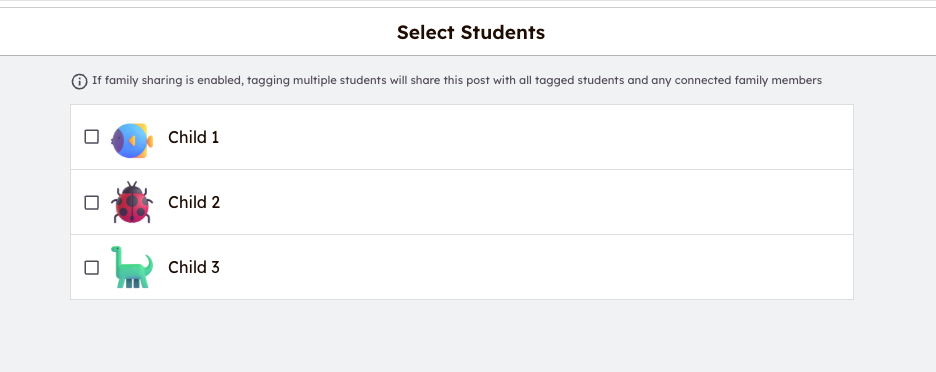
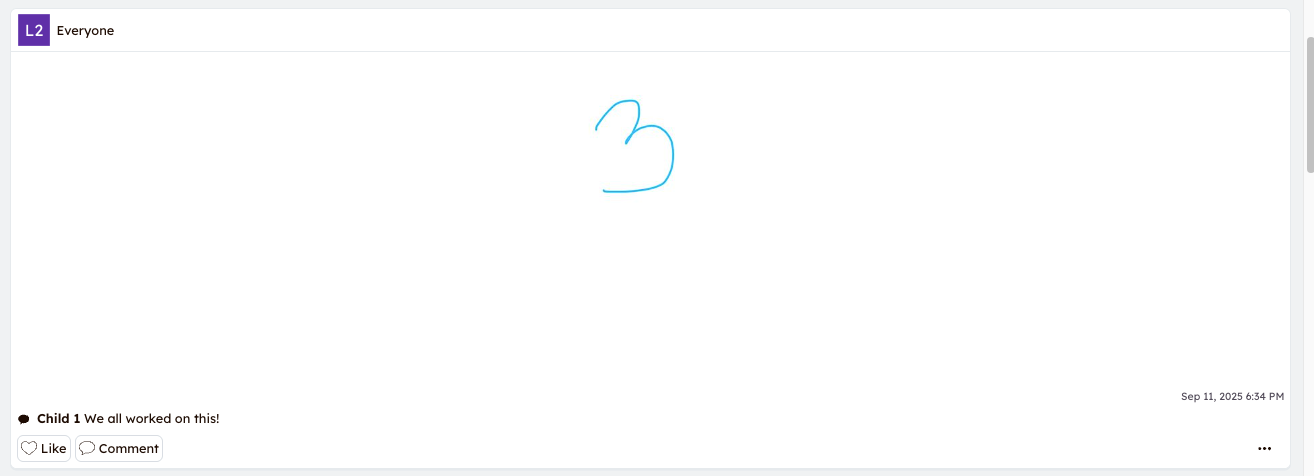
Tag or select the students who completed the workYou are able to select one student or multiple students for each sample addedClick the green check mark againThe work sample will show up in the Class Journal and can be found within each child’s journalSee below, the work sample was selected for all of the children in this family as can be seen with the tag 'Everyone'If you would like toTo add afurthercommentcomment,or additional details about the post, click the 'Comment' box under the posted work sampleClick on the student’s nameEnter the CommentIf you wish to add something unique to another child, youYou canadd another comment and select that particular child.Write a comment.You mayalso add a voice comment by clicking themicrophonemicrophone. Youwill now seeIf thesamplecommentuploadedapplies to all students, simply add that to the'Classnote.Journal' and attached to each individual child's journal as well
Step photosFour:
|
|
You can also click the |
|
|


Step 4Five:

Step Six:
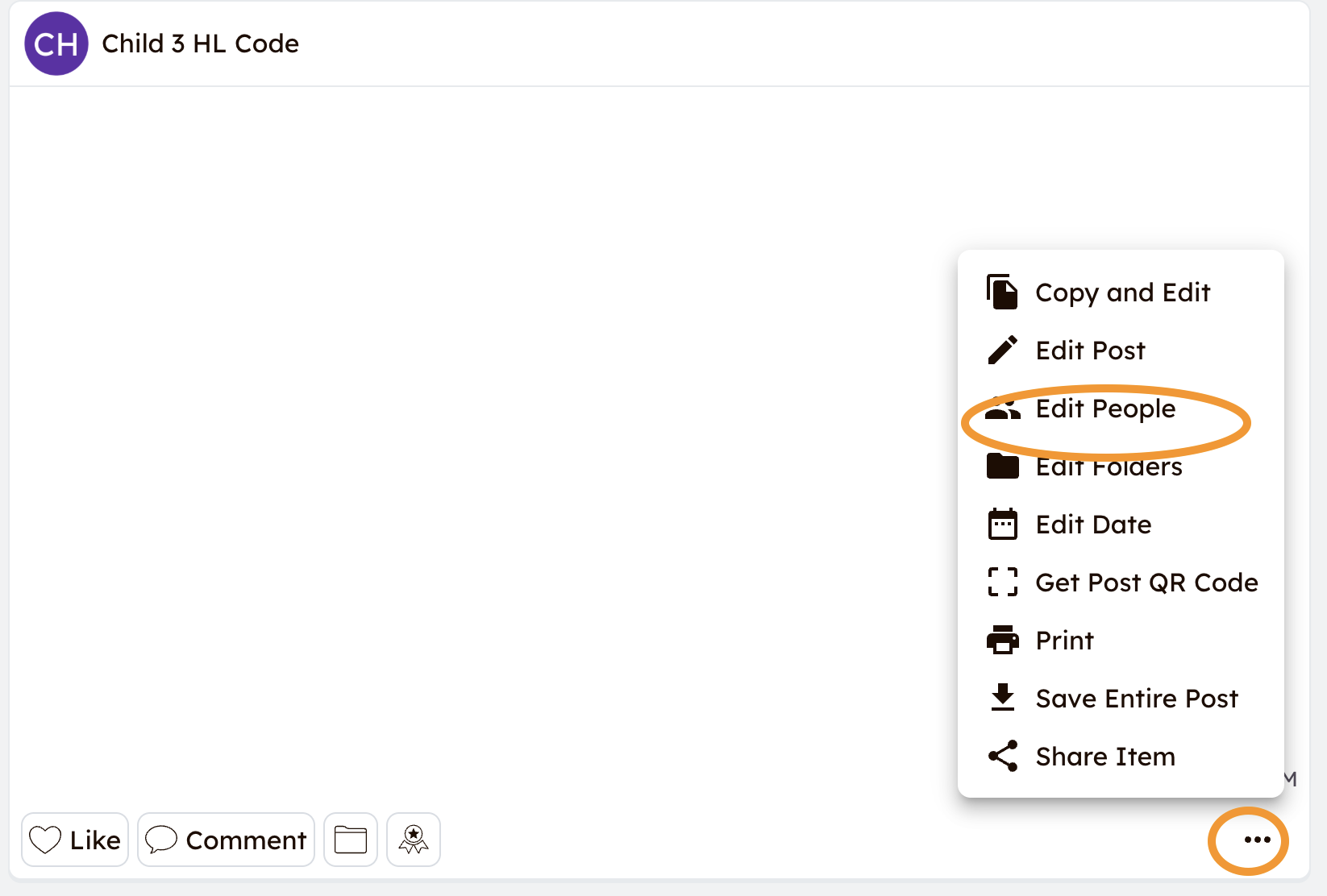
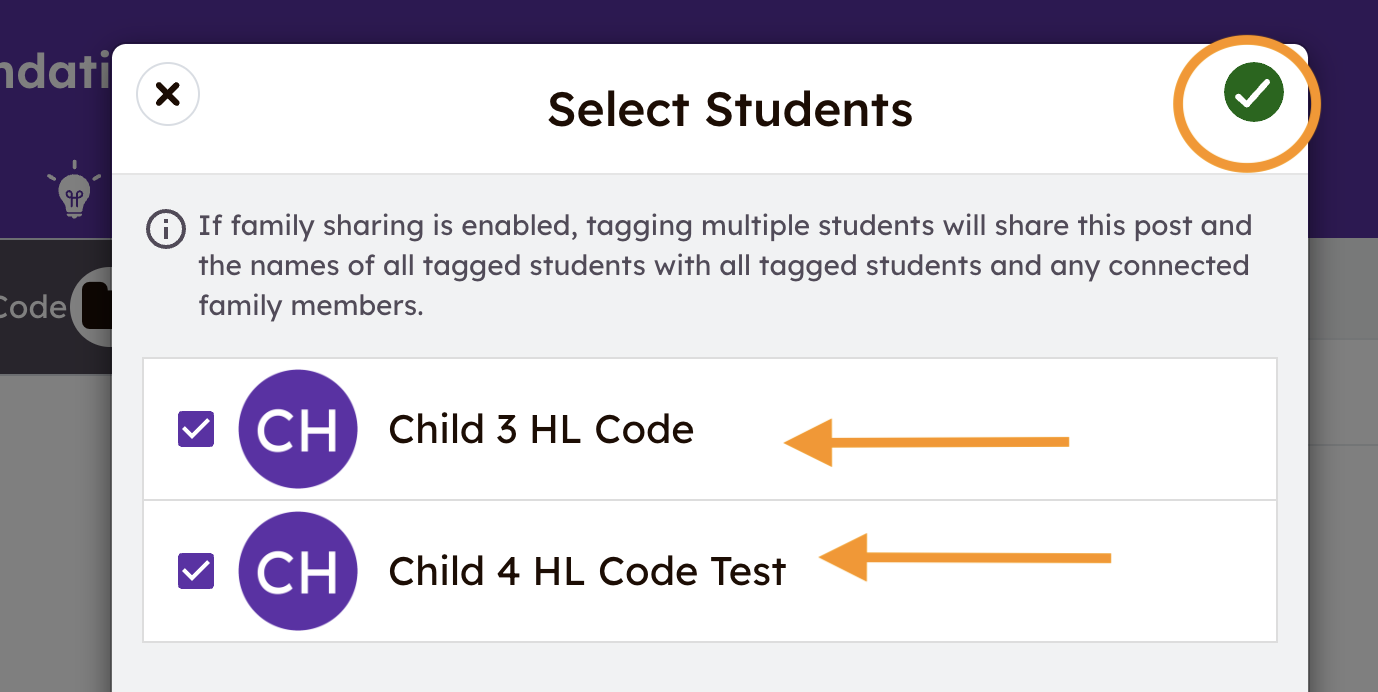
| Once it's posted, click the three dots in the bottom-right corner of the post, then select "edit people" to add other students to that sample. | In the window that opens, select the students the post applies to, and click the green checkmark to add it to each portfolio. |
|
|
|
Step 5Seven:
Step 6
Step 7
If multiple children worked on a sample and thewrite commentyour appliescomment. to all of them, feel free to enter the extra comment under one child’s name and indicate the comment applies to all of them.
Additional Support
How to use Multipage to post up to 20 pages