Learning Groups Applications - How To
This page walks through how to complete an application for a learning group activity using Uppli, our new event management system.
We are continuing to develop and refine the program, as we gradually increase the number of Learning Group applications created on this platform instead of our existing platform. Please reach out to lg@onlineschool.ca if you encounter any issues while completing your application.
Uppli Account Registration
All families wishing to apply to participate in a Learning Groups opportunity will need to create an Uppli account before signing up for their first event.
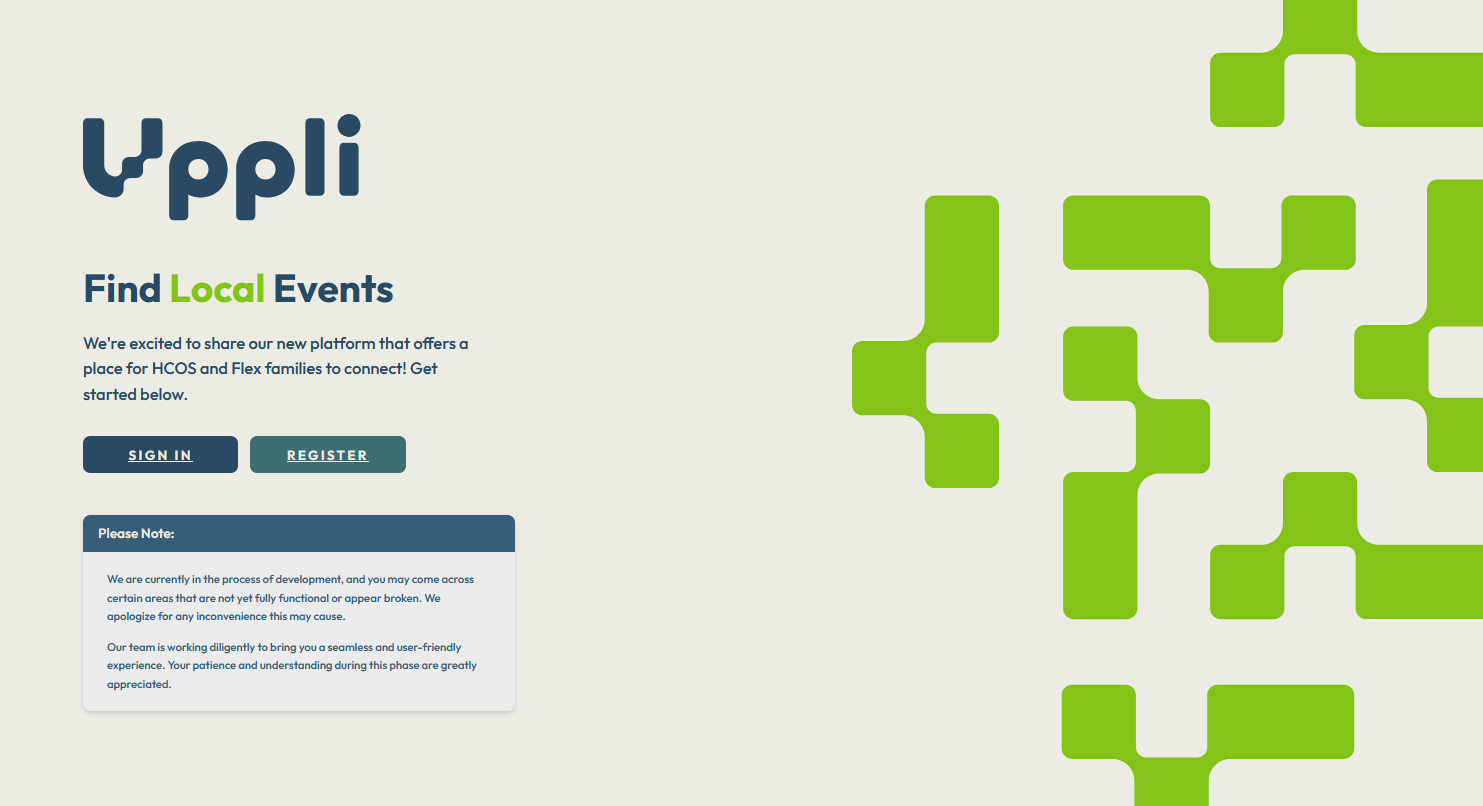
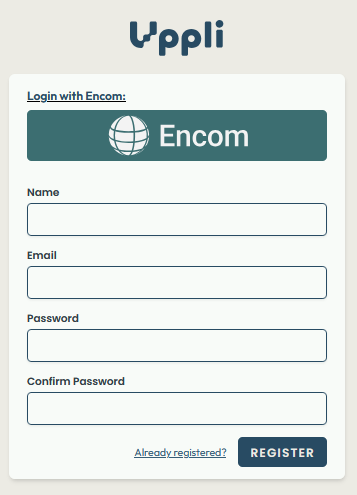
If you are an HCOS-enrolled or registered family, click to log in with your parent account in Encom. The Uppli account will automatically be created using your Encom credentials.
Important - Students will need to log out of their Encom account in order to ensure the correct parent account login is made.
If your children are not enrolled or registered with HCOS but are General Community students, click on Register, and fill in your name, email and desired password.
*You must use your Encom parent account to enable the student account information to pre-populate.
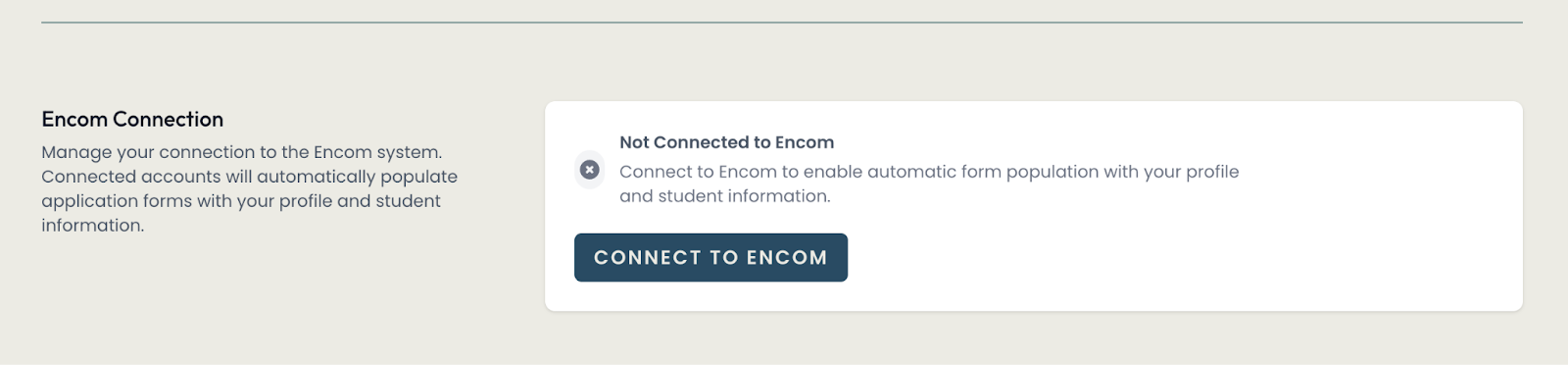
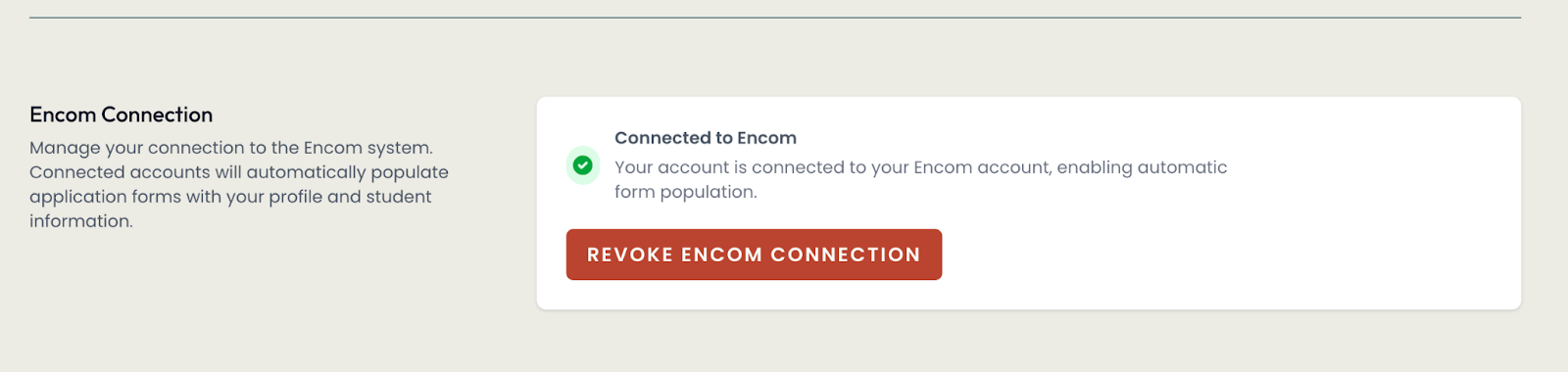
HCOS Parents: When registering for Uppli, using your Encom login information, you can authorize Encom to integrate student data (pre-populate various fields). This can be revoked at any time (will show in your Uppli Profile):
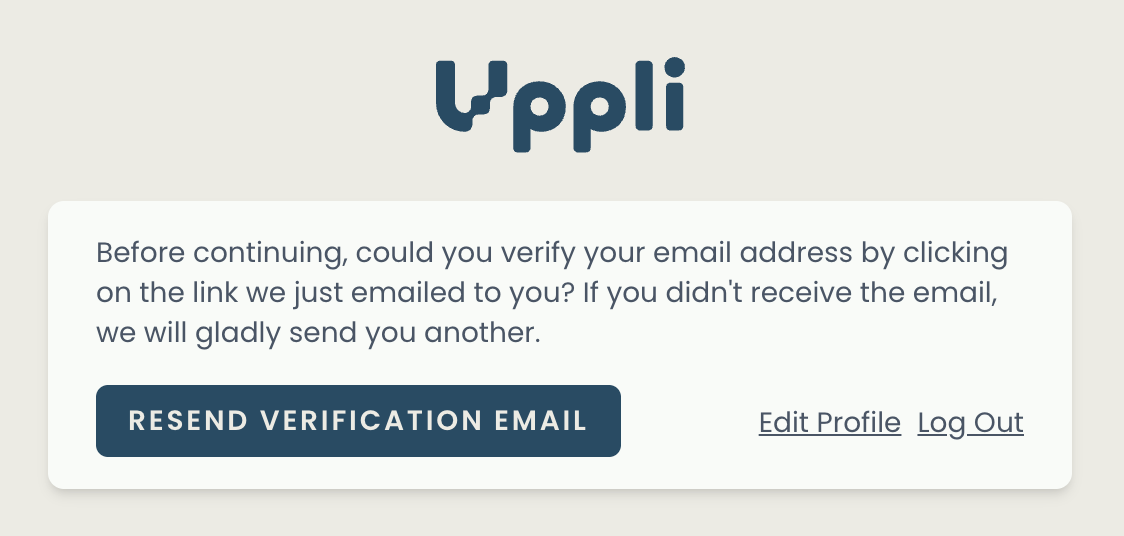
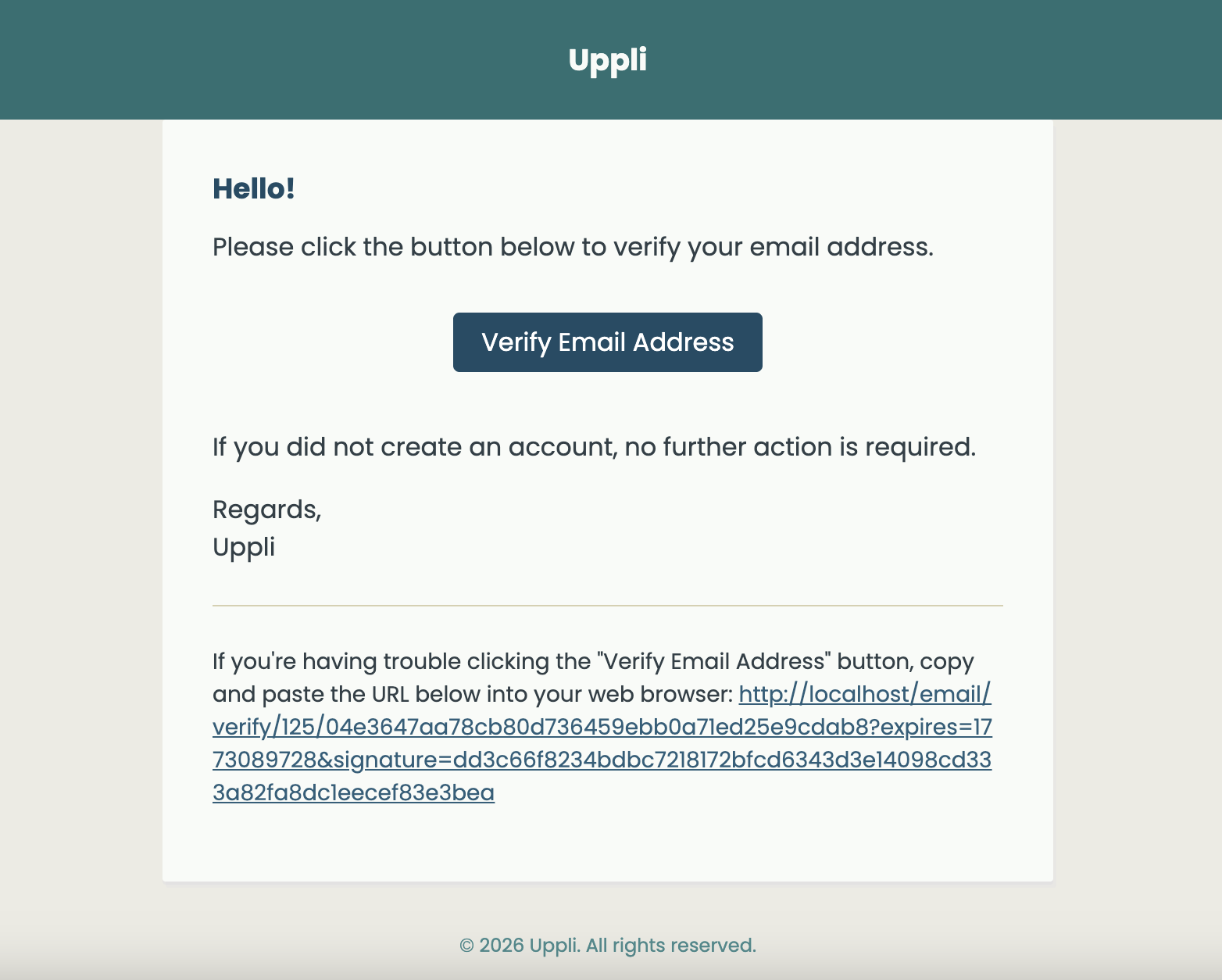
General Community parents: Upon registering an account for the first time, you will receive an email to verify your email address.
HCOS Families
To speed up the application process, we have integrated Encom and Uppli to allow information to flow between the two. The benefit of this connection is that multiple (not all) information fields will be pre-filled, saving parents the need to fill them in manually.
-
Students must be actively enrolled or registered at HCOS for the connection to work. When registering in Uppli, use the Login with Encom option to ensure your account is linked.
-
If you are unsure which email address is on file, please reach out to tickets@onlineschool.ca.
At this time, fields that are set up to be pre-populated from Encom include:
- Student Grade, Educational Support Name and Email (Academic Advisor, Case Manager or Support Teacher, in this order of availability)
- Any Medical Alert on file (for on-site awareness) - yes/no
- Any Legal Alert on file - yes/no
- Parent or Guardian Name, Email, Phone Number and City of Residence
General Community
At this time, the Uppli account does not pre-populate application information.
Signing up for an LG Opportunity
Blue call out Before your first application, create your Uppli account. You then need to click on the application link separately. You are not redirected back if you went from a specific application to creating your Uppli account.
It is important to read and complete Learning Group applications correctly; cancellation fee and refund policies vary for each type of opportunity, and the listed ‘Terms and Conditions’ apply.
-
When you open the application link, the information page provides details of the learning opportunity. Please review your calendar to avoid scheduling conflicts.
-
Click on Apply Now.
-
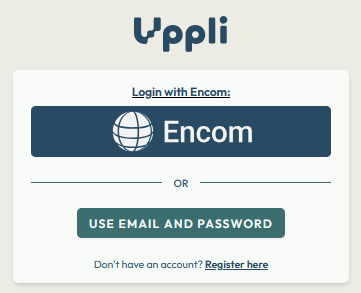
HCOS Parents - Please ensure you click the Connect to Encom option to have student information pre-populated.
-
General Community Parents - Log in using your email and password set up for your Uppli account.
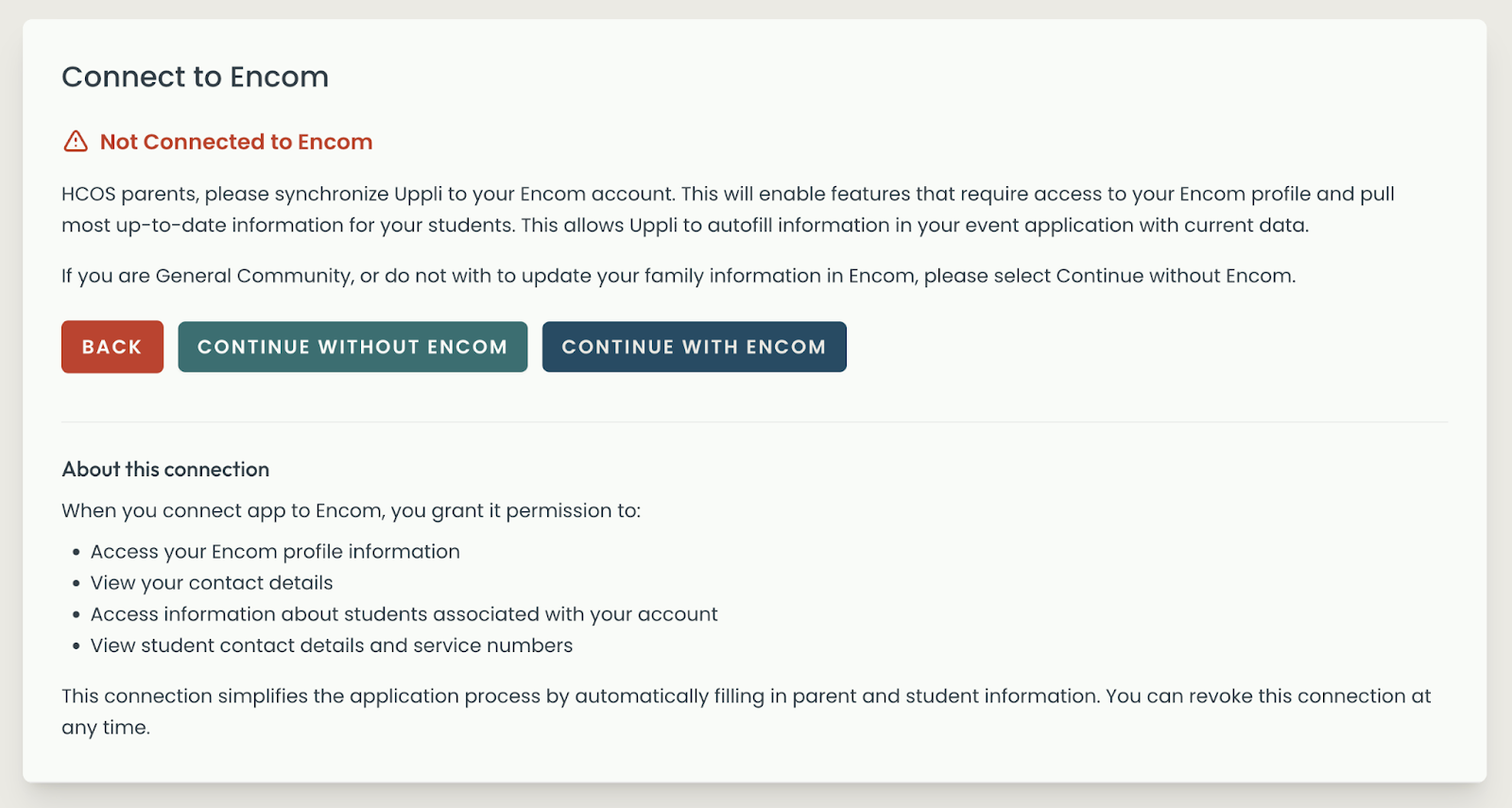
Please note: the application program sees each new email address as a new user.
- If you are an HCOS student (registered or enrolled), please choose the Encom sign-in option each time you sign your family up.
- If you are a General Community family, please use the same email address in Uppli for each learning camp.
You can then start your application, choosing which applicant you want to sign up first.
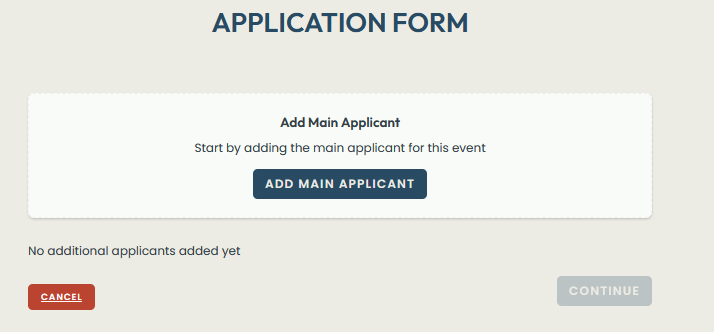
HCOS families with an Encom connection, after choosing “Add Main Applicant” will see the choice of connected participants at the top of the application form.
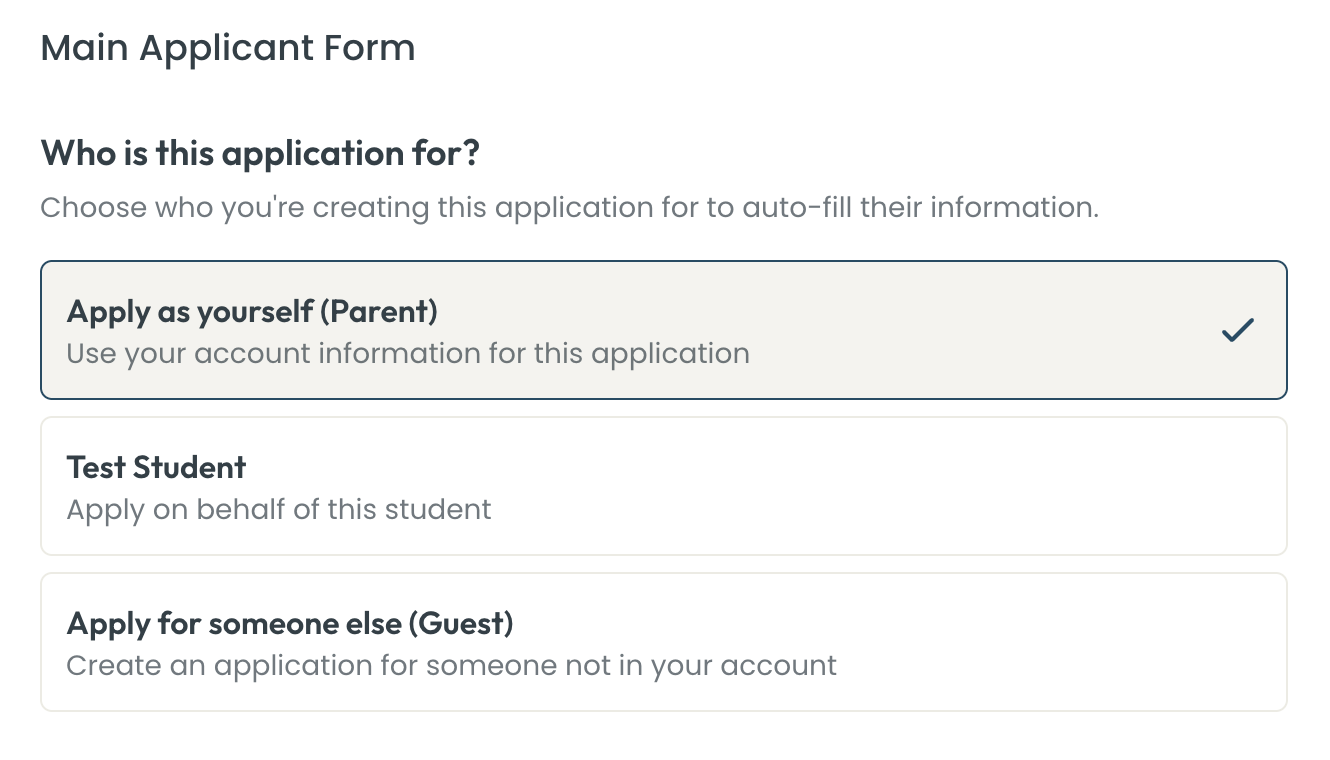
- If the information is pre-populated, there will still be an opportunity to edit it.
- A red notice for specific questions will indicate any fields that are not filled out correctly, where information is missing or in an incorrect format. Please make corrections in order to proceed.
Once you have signed up your first participant, click “Click Save Main Applicant”. You can “Add Another Applicant” at the bottom of the page, which will open up another participant application form for the next student (or guest).

When you have added all the participants you wish to apply for, click on “Continue”. You will be provided the opportunity to review your information for each applicant and make any necessary changes. NOTE that once you press Submit or proceed to payment, you will not be able to further edit, but will need to cancel and start over.
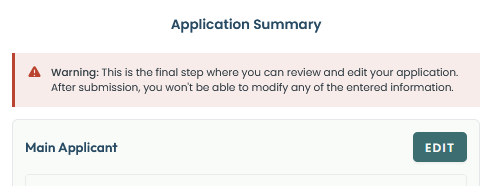
For Learning Camps and Community Connections requiring payment, once answers are reviewed and edited, you can press “Continue to payment”.
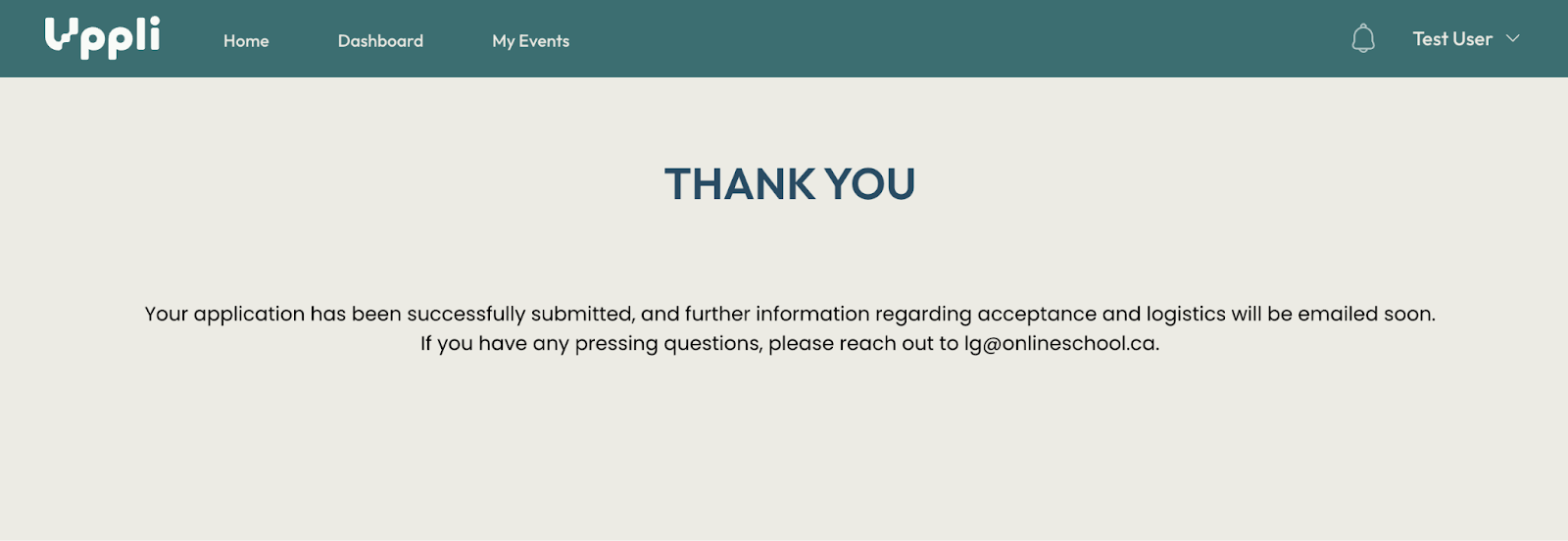
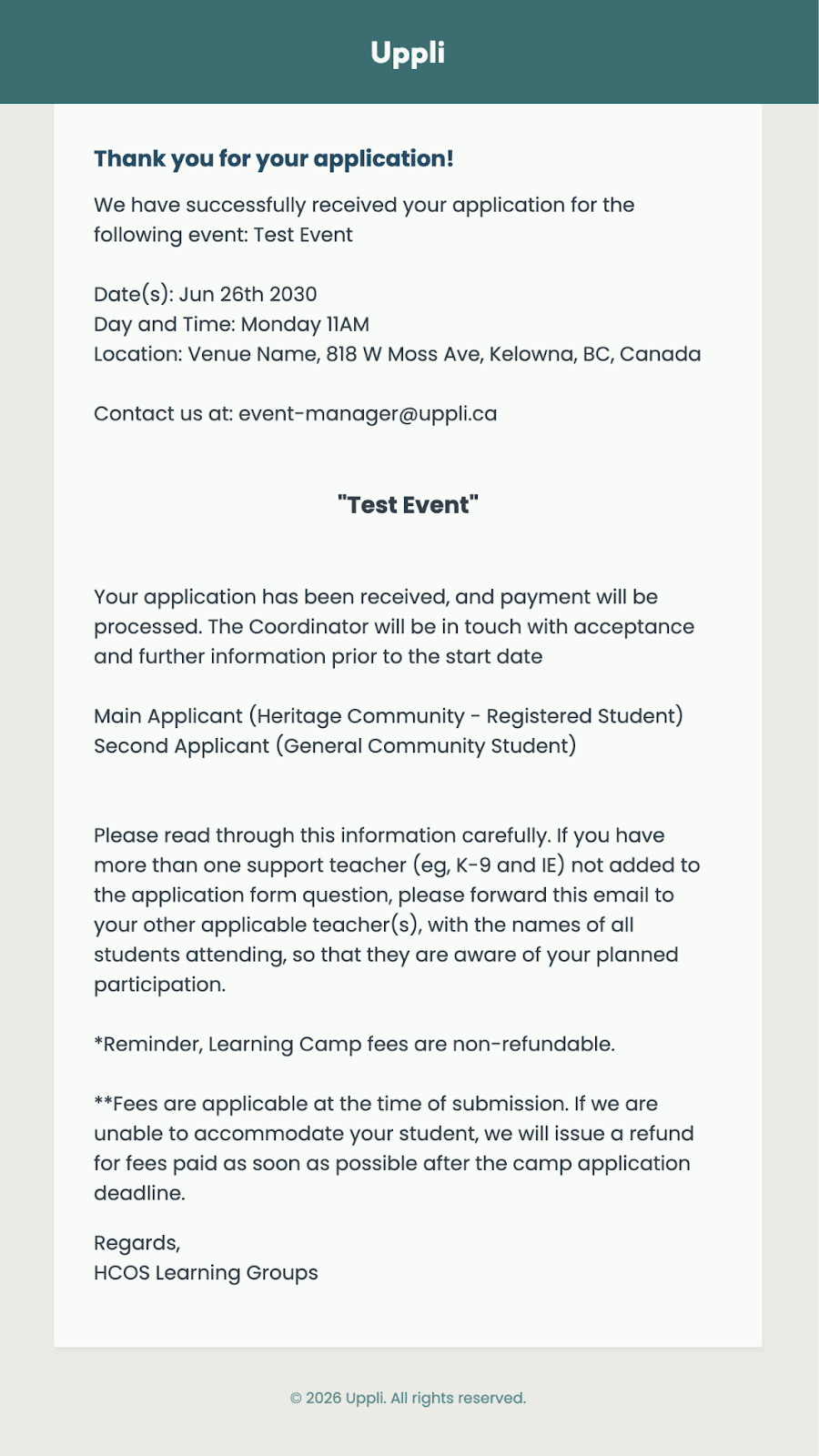
For Free Learning camps: Upon pressing Submit, you will see a note indicating that the form has been successfully submitted. You will also receive an email notification of the submitted application, with the Learning Camp information.
For LG applications created on Uppli, we are pleased to now offer expanded payment options, including credit cards and credit card debit cards.
Please note that credit card information does not remain on file. If funds are not available in Encom to fully cover fees and a balance is outstanding, an invoice will be sent for payment.
Payment
Where there is a fee attached to the event as a whole or to sessions, the payment page will provide information per applicant.
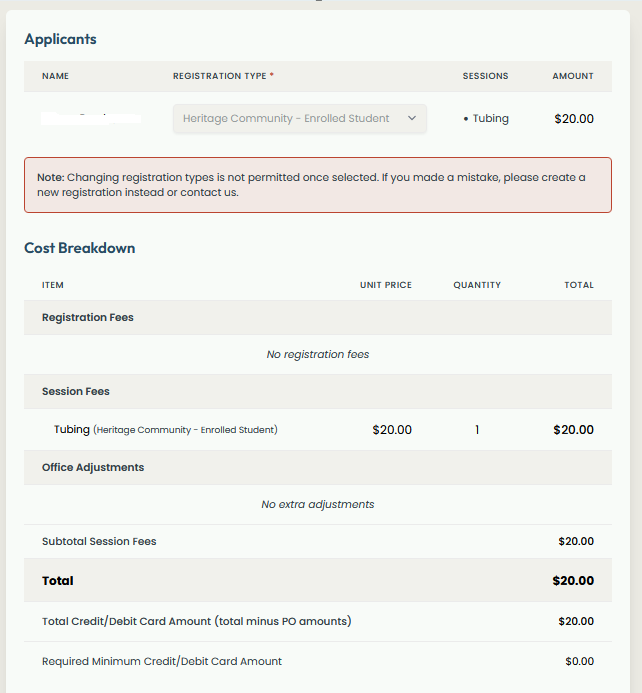
If you wish to use your PO# or IE Funds, where available, you can check off this option. Any eligible participants will then show “Fully pay by PO#”. The amount will show as ‘pending’ until it is processed by the Learning Groups Office.
-
PO# or IE funds can be used for students enrolled with HCOS and one chaperoning adult per family.
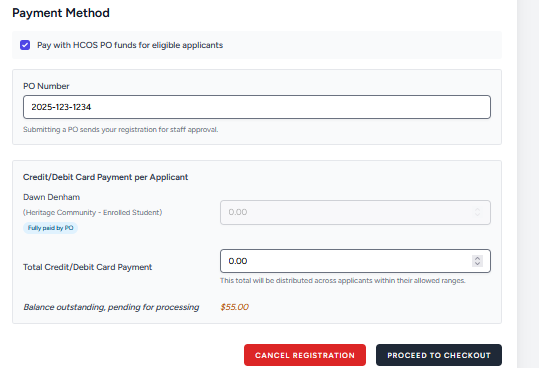
For additional participants who are not being covered by PO or IE funds, an out-of-pocket payment will be required at the time of application.
-
HCOS Enrolled students who make a partial payment out of pocket, will have any remaining balance processed to available PO Encom/IE school funds, or invoiced to them, if a balance still remains.
-
Case-by-case exceptions will be noted for large fee events. ie: overnight trips – a partial out-of-pocket fee will be due at time of application, with the balance remaining processed to available PO Encom/IE funds, or invoiced to them, if a balance still remains.
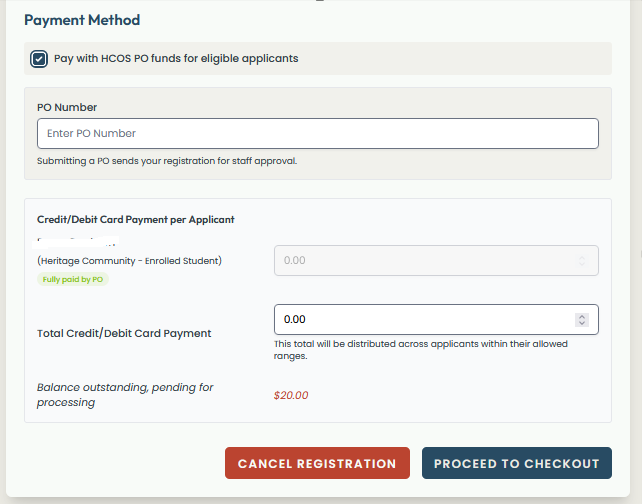
Upon proceeding to checkout, you will be taken to the payment checkout page.
If you have a debit card set up to use with online transactions, you can use it as a payment method (it does need expiry date an CVC number to proceed)
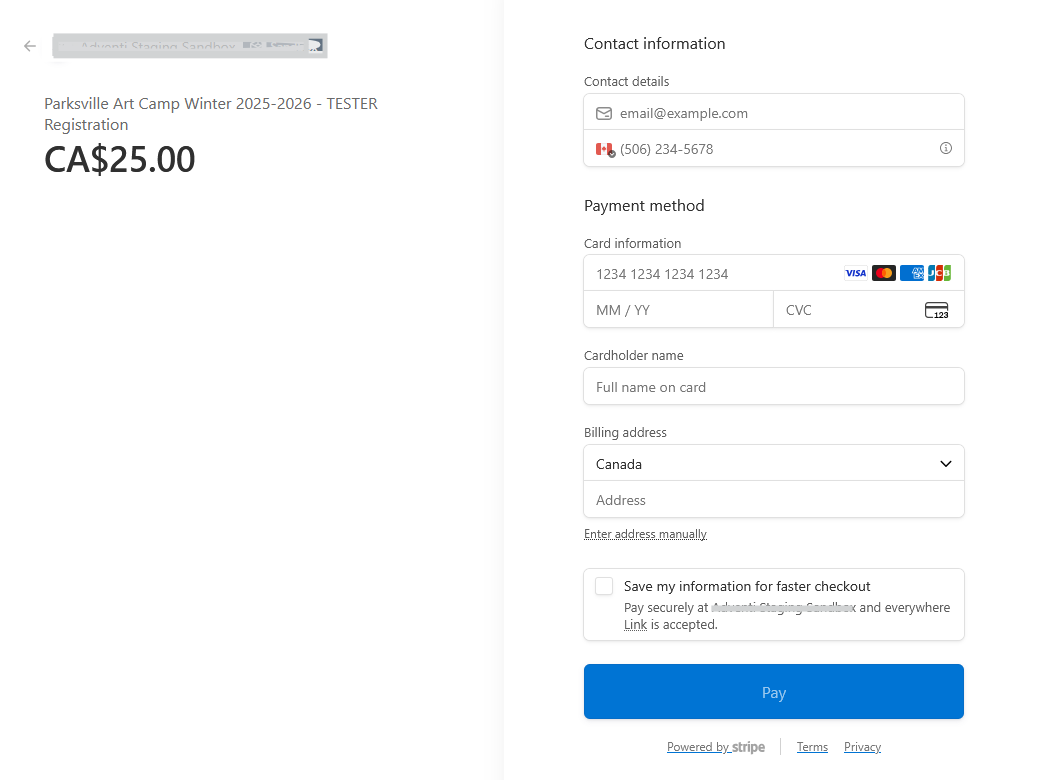
Upon completion of payment, you will see a note indicating that the form has been successfully submitted and you will receive an email notification of the submitted application with information about the learning opportunity.
The Learning Group opportunities that you have signed up for can be viewed under “My Events”.
-
Information about applied students in each event is a future feature.
-
They will be visible until the LG Office archives an event or a withdrawal is processed.
Reminder - Submitted applications are not guaranteed seats. A Learning Camp Coordinator or CC Campus Lead will be in touch to provide acceptance and further opportunity-specific information. If we are unable to accommodate your student(s), a full refund will be issued after the deadline.
Reminders:
-
Signing up for a Learning Groups Opportunity is an application; you will be contacted to confirm your acceptance (usually after the posted deadline).
-
HCOS priority is provided; if space permits, General Community students may also be accepted. If we are not able to accommodate your participation, a full refund will be provided.
Dashboard
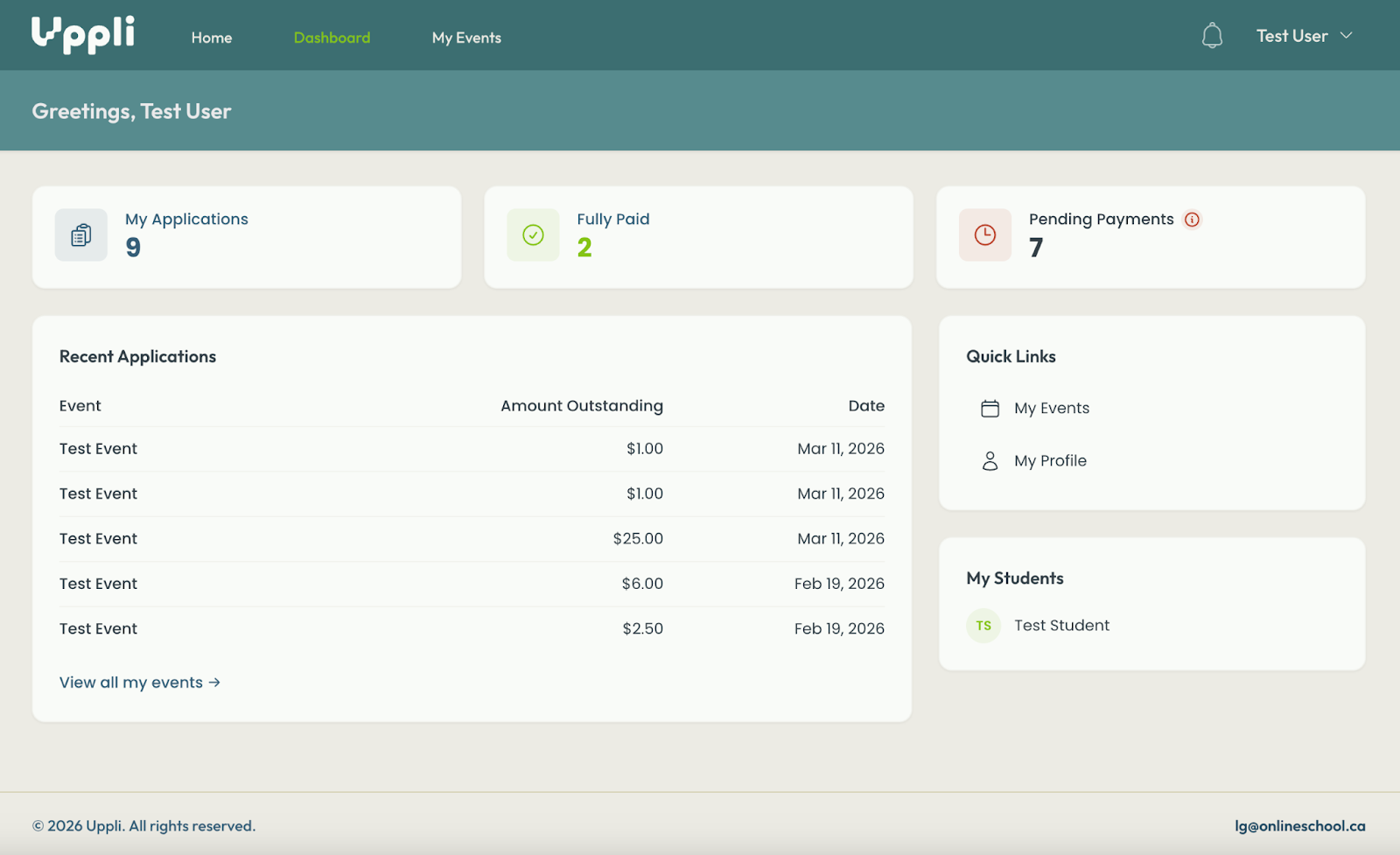
By visiting your Uppli account dashboard, you will be able to see:
-
Events that your family has applied to
-
Where there may be payments that have not been completed or are still pending, a pending payment may be due to:
-
HCOS PO#/ IE funds may not have been processed for the specific event (this is normally done following an event deadline)
-
You may not have enough Encom funds to cover the full balance, and payment by invoice will be required.
-
The original credit card payment did not process correctly