
ClickView and Twig
ClickView (Gr. 3-12): An interactive, video-based teaching and learning platform that brings curriculum concepts to life through engaging educational videos and ready-to-use teaching resources. Covering a wide range of subjects and grade levels, ClickView helps teachers introduce new topics, explain challenging concepts, spark discussions, and create meaningful learning experiences both in the classroom and at home.
Twig (Gr. 6–9): A specialized collection within ClickView featuring short, engaging Science and Mathematics videos, demonstrations, and ready-to-use teaching resources. Content is organized by specific topics under Biology, Chemistry, Physics, Earth Science, Human Geography, and Mathematics, making it easy to find relevant materials.
Families all log in as guests.
Accessing ClickView and Twig
Sign In
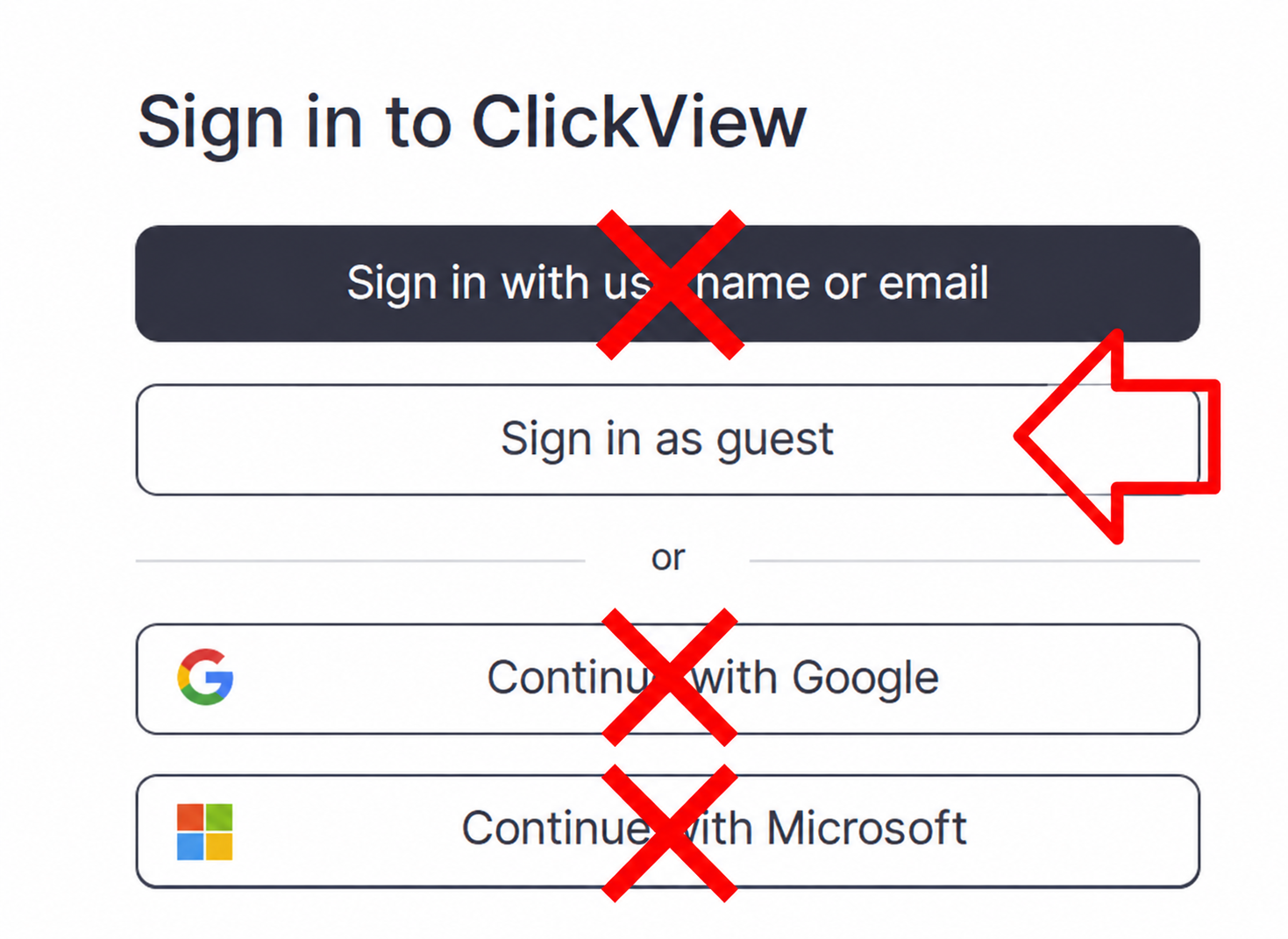
Do not select "Sign in with username or email," "Continue with Google," or "Continue with Microsoft."
How to sign in - written instructions with screenshots
2. Find the username and password under Subs/Passwords in the Search Portal.
3. Select the "Sign in as guest" button.
Do not use the black "Sign in with username or email" button and do not use the "Continue with Google or Microsoft" buttons.
4. To access Twig, scroll down the main homepage to the pink "Twig" button.

If you do not see the Twig button, close your tab and use the ClickView link a second time on a new tab.
Using ClickView and Twig
Included Resources and Features
How to use resources and features - written instructions
ClickView
| Feature | What it offers | Where to find it |
|---|---|---|
| Educational Videos | Engaging videos that explain concepts, introduce topics, and support learning across subjects. | Main desktop, or under the "Discover" button on the left menu bar. |
| Documentaries or series | Many topics, with video series curated by ClickView, including curriculum links and resources. | Select the "Movies + TV" button from the left menu bar. |
| Teaching Resources | Ready-to-use worksheets, discussion questions, and supporting activities available with select videos. | Hover over any video |
Twig
| Feature | What it offers | Where to find it |
|---|---|---|
| Subject Related Topics | Short instructional videos organised by subject, topic, and subtopic, making it easy to explore specific concepts and find relevant content. | From the ClickView homepage, scroll down to find the pink Twig button. Choose a subject, then browse by topic and subtopic to find relevant videos. |
| Fact Packs and Glossary Videos | Key information, definitions, and explanations that reinforce understanding. | Explore the resources available within a selected topic. |
| Teaching Resources | Lesson plans, worksheets, diagrams, and Teacher Packs that support instruction and activities. | Hover over any video thumbnail to see the "Curriculum Links" and "Resources" button. OR Choose a video and scroll down for available resources. |
| Experiment Demonstrations | Video demonstrations of |
Select a subject, then topic. (Not all topics contain experiments.)
|