
Set your time zone before November 1 (Windows, Mac, Outlook)
On Sunday, November 1, 2026 BC stops changing its clocks and stays on UTC-7 (now called Pacific Time (British Columbia), or PCT) year-round. Any computer or calendar that has not been told this will "fall back" an hour on its own, and every meeting from November 1 onward will show up an hour off.
Please work through every section: your computer (Windows or Mac), the Outlook app you use, and Outlook on the web. Each one is a short set of slides; use the arrows or dots to move through the steps. If anything does not look the way it does here, or you get stuck, email tickets@onlineschool.ca right away.
1. Windows
{testimonials}
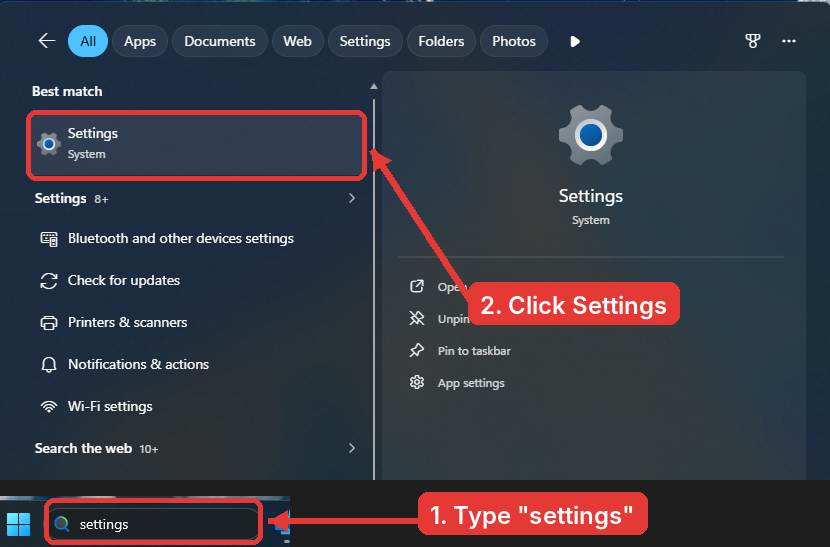
Open Settings
Click Start, type settings, and open Settings.
-- Windows, Step 1 of 7
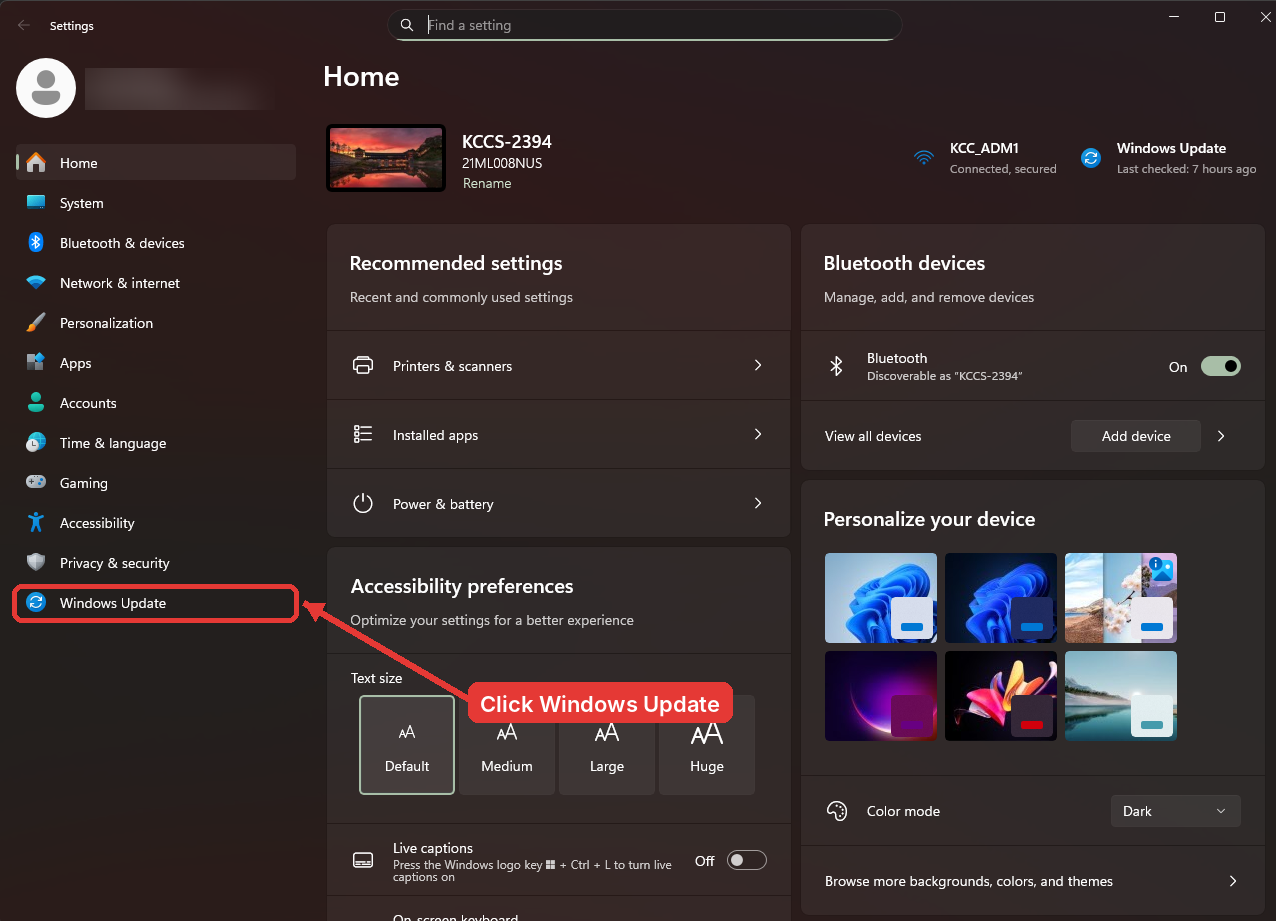
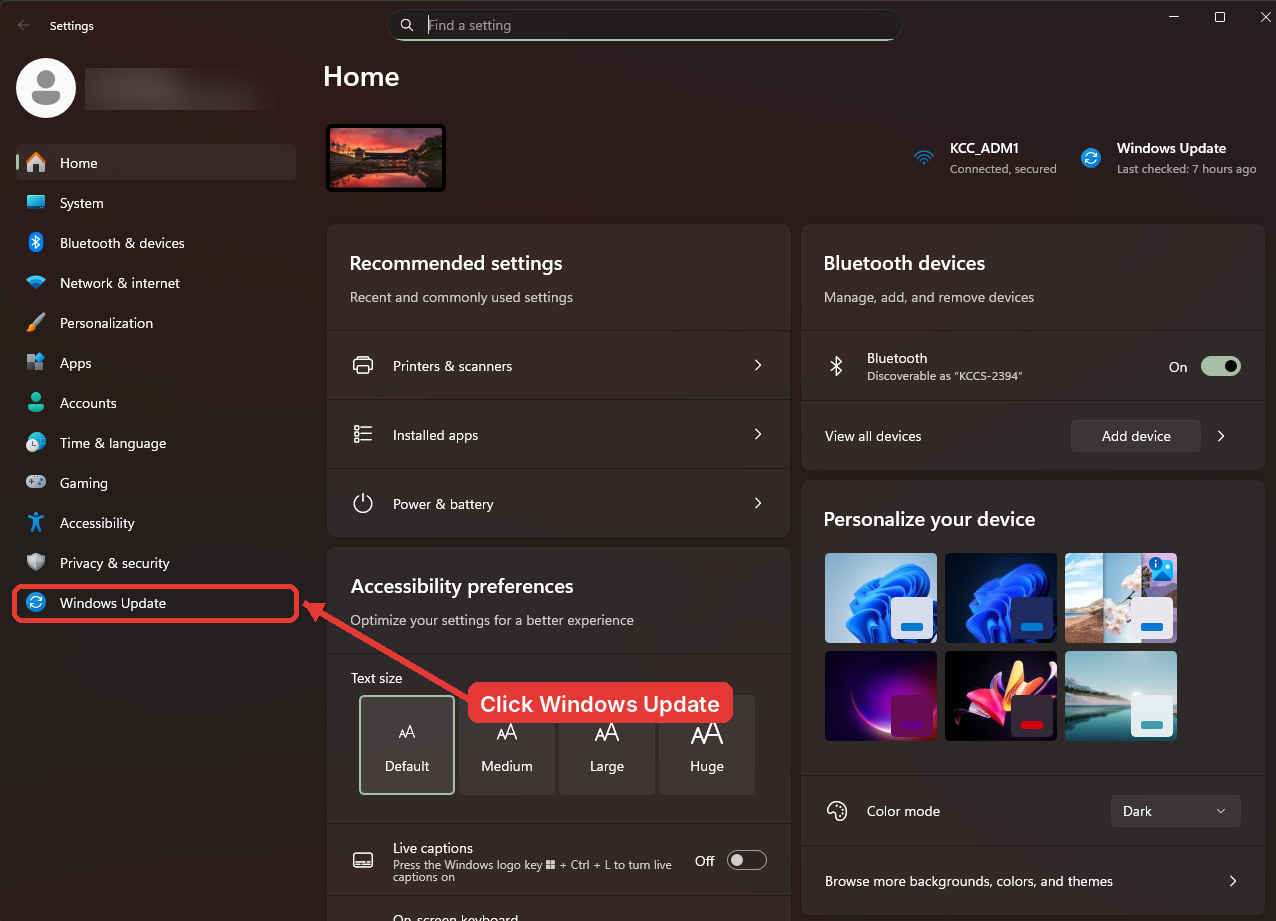
Open Windows Update
Click Windows Update at the bottom of the left column.
-- Windows, Step 2 of 7
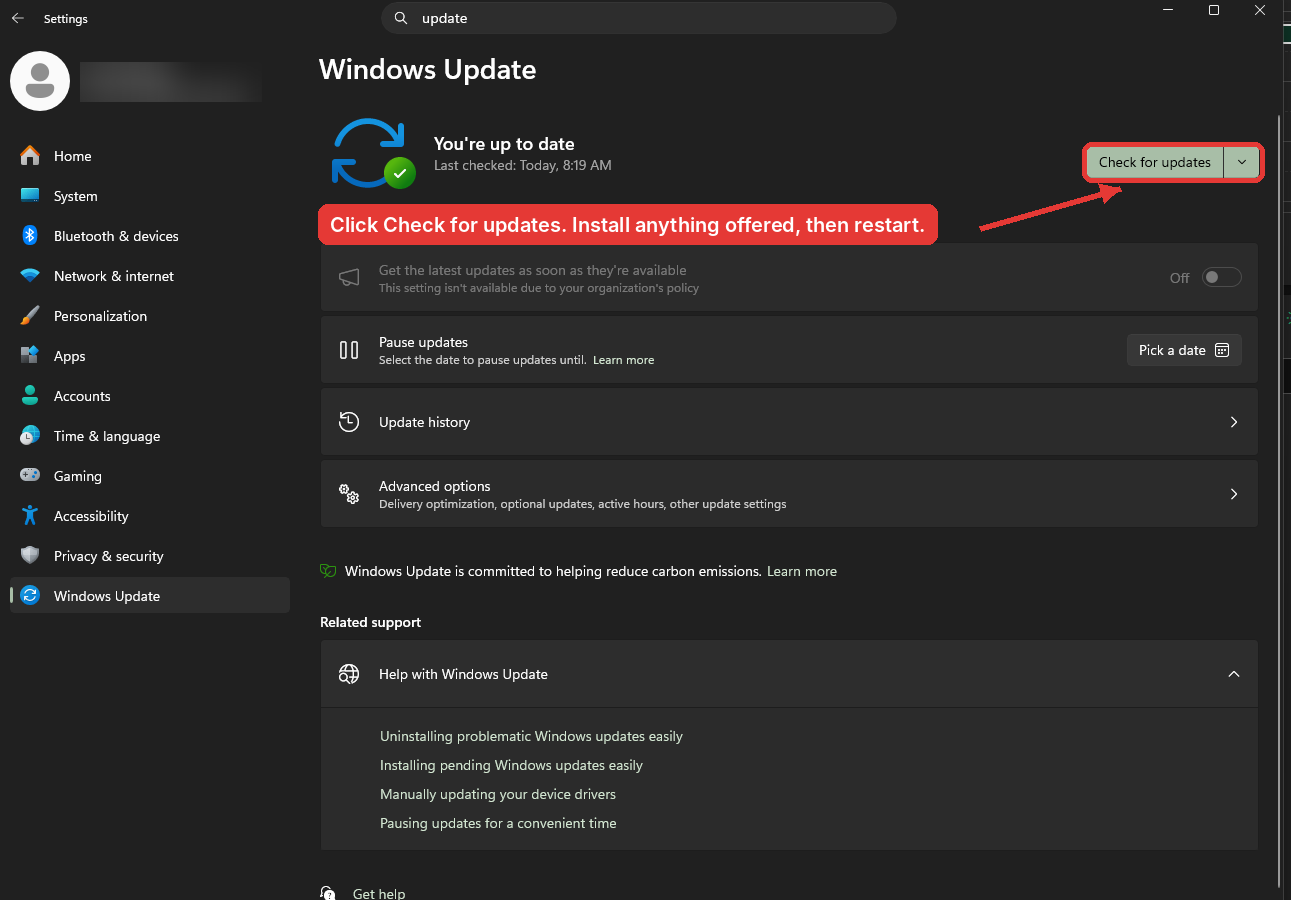
Check for updates and restart
Click Check for updates. Install everything that is offered and restart. The new BC time zone arrived in the October 13, 2026 update, so a machine that has not restarted since then does not have it yet.
-- Windows, Step 3 of 7
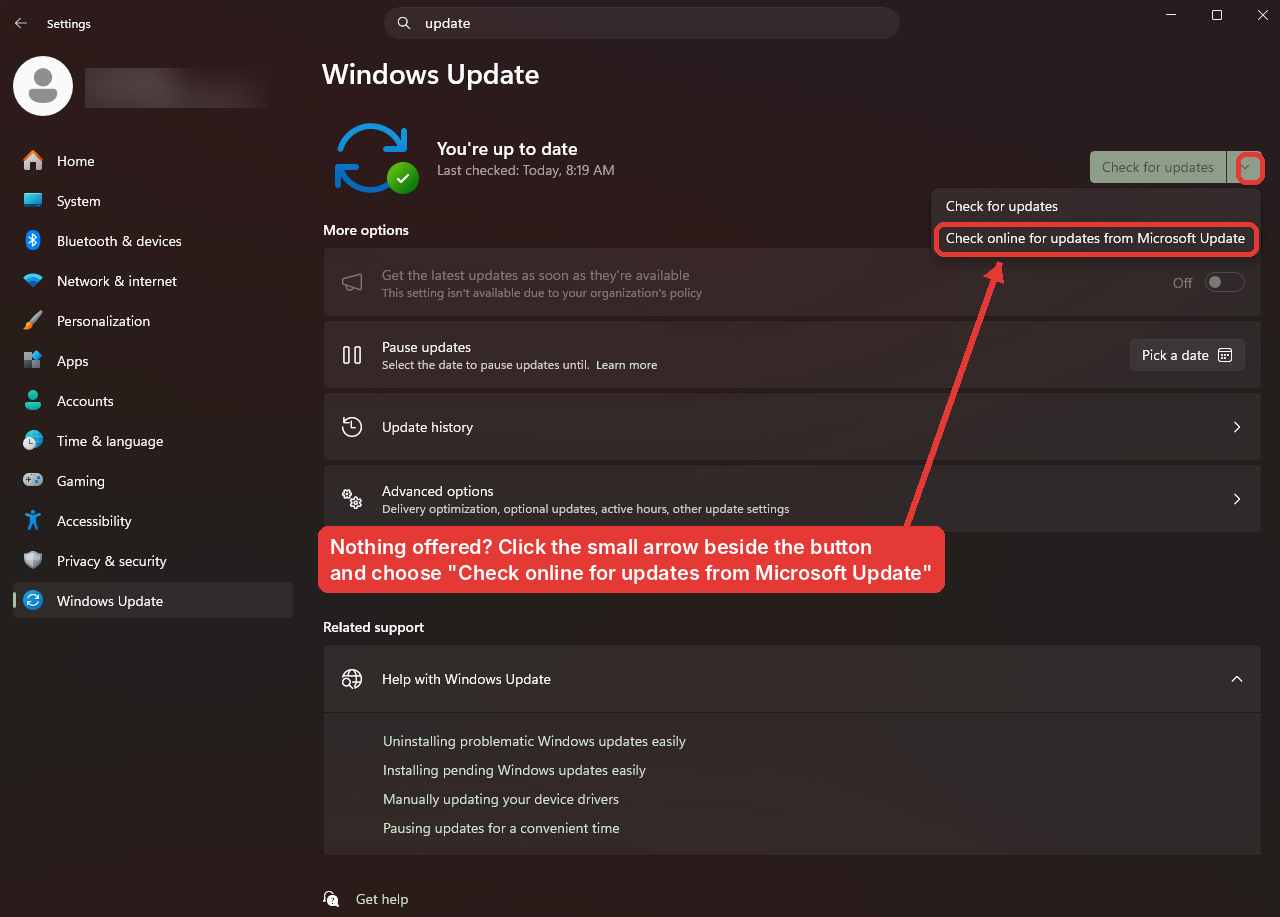
Nothing offered? Check online
If Windows says you are up to date but the British Columbia time zone still does not appear in step 5, click the small arrow beside Check for updates and choose Check online for updates from Microsoft Update, then install and restart.
-- Windows, Step 4 of 7
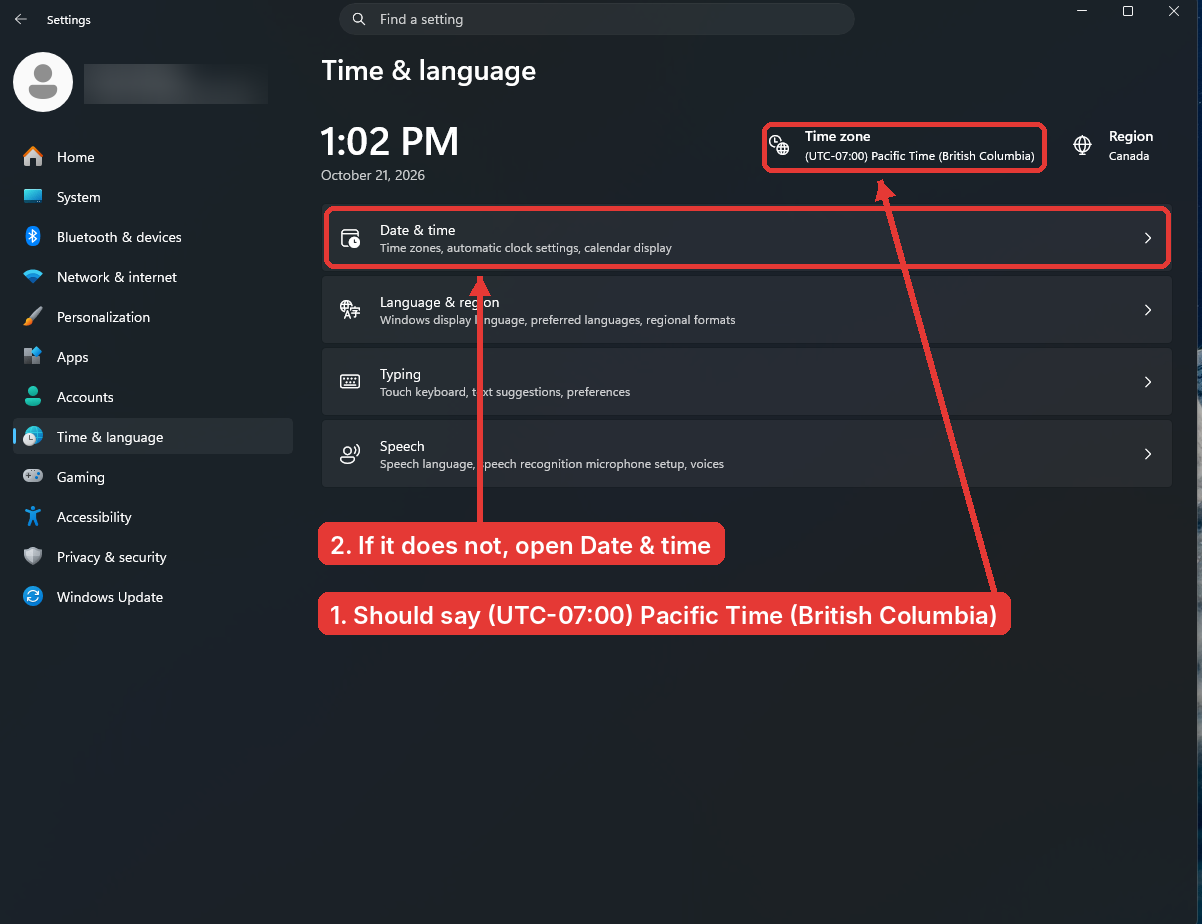
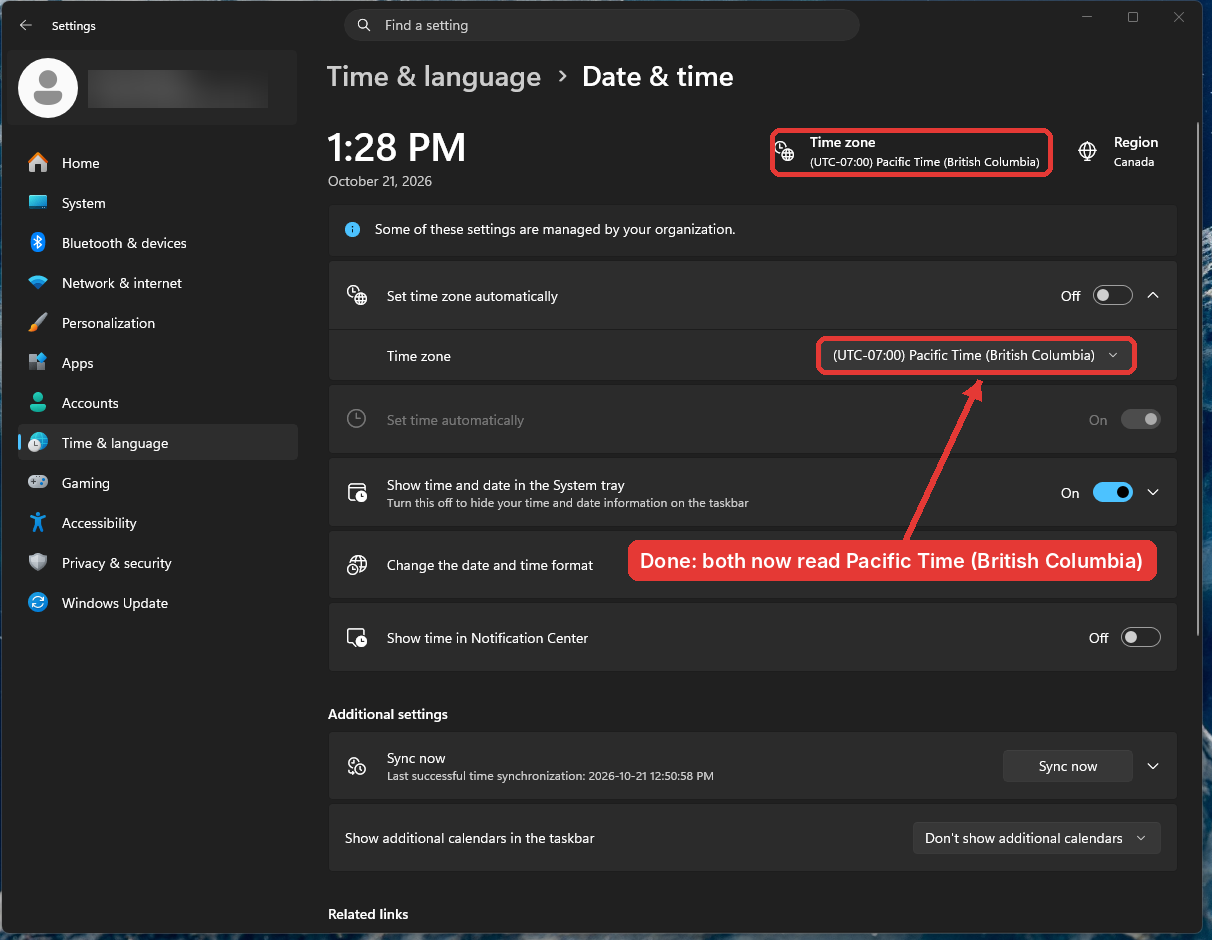
Check the time zone
Go to Settings > Time & language. At the top right, Time zone should read (UTC-07:00) Pacific Time (British Columbia). If it does, Windows is done. If it still says Pacific Time (US & Canada), click Date & time.
-- Windows, Step 5 of 7
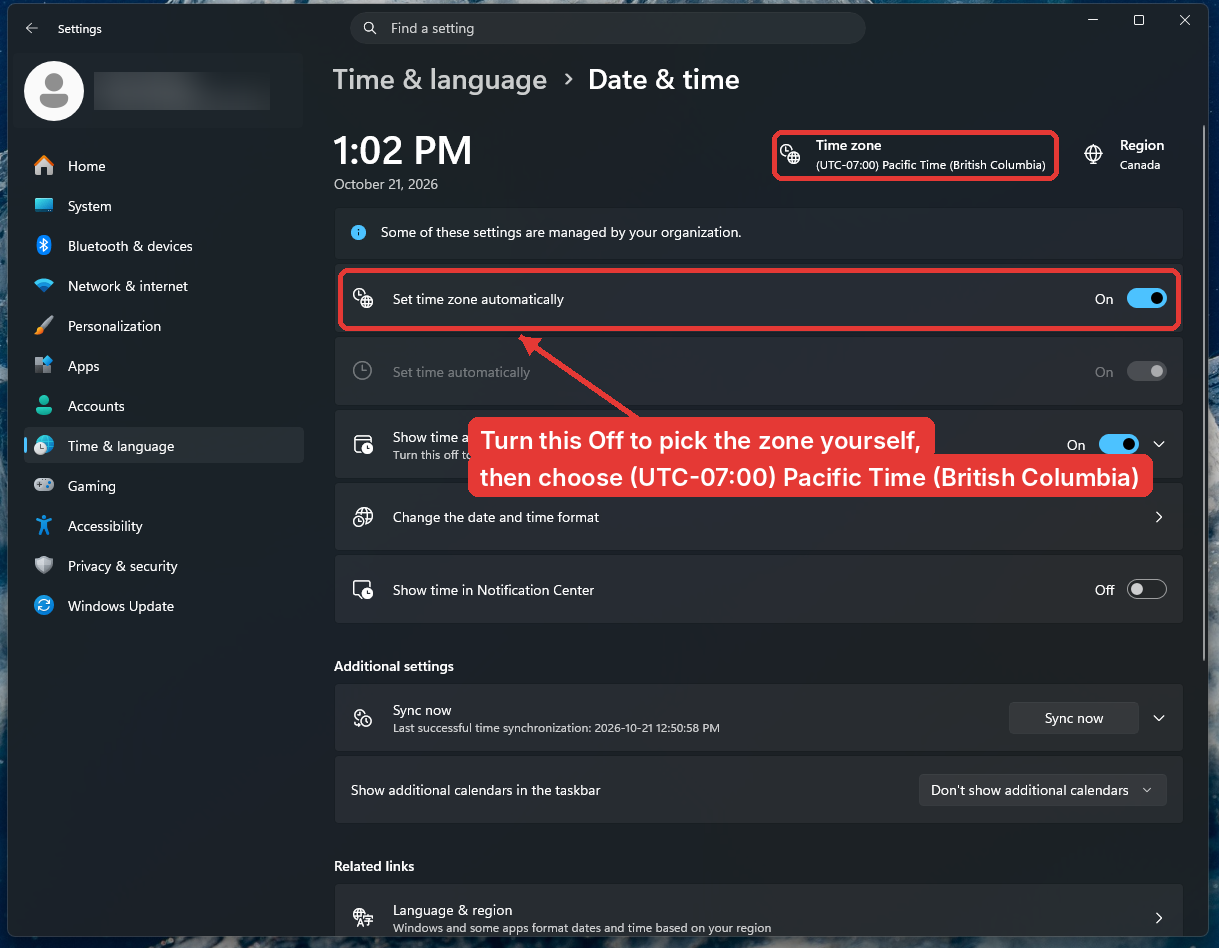
Pick the new time zone
Turn Set time zone automatically off. A Time zone list appears underneath; choose (UTC-07:00) Pacific Time (British Columbia).
-- Windows, Step 6 of 7
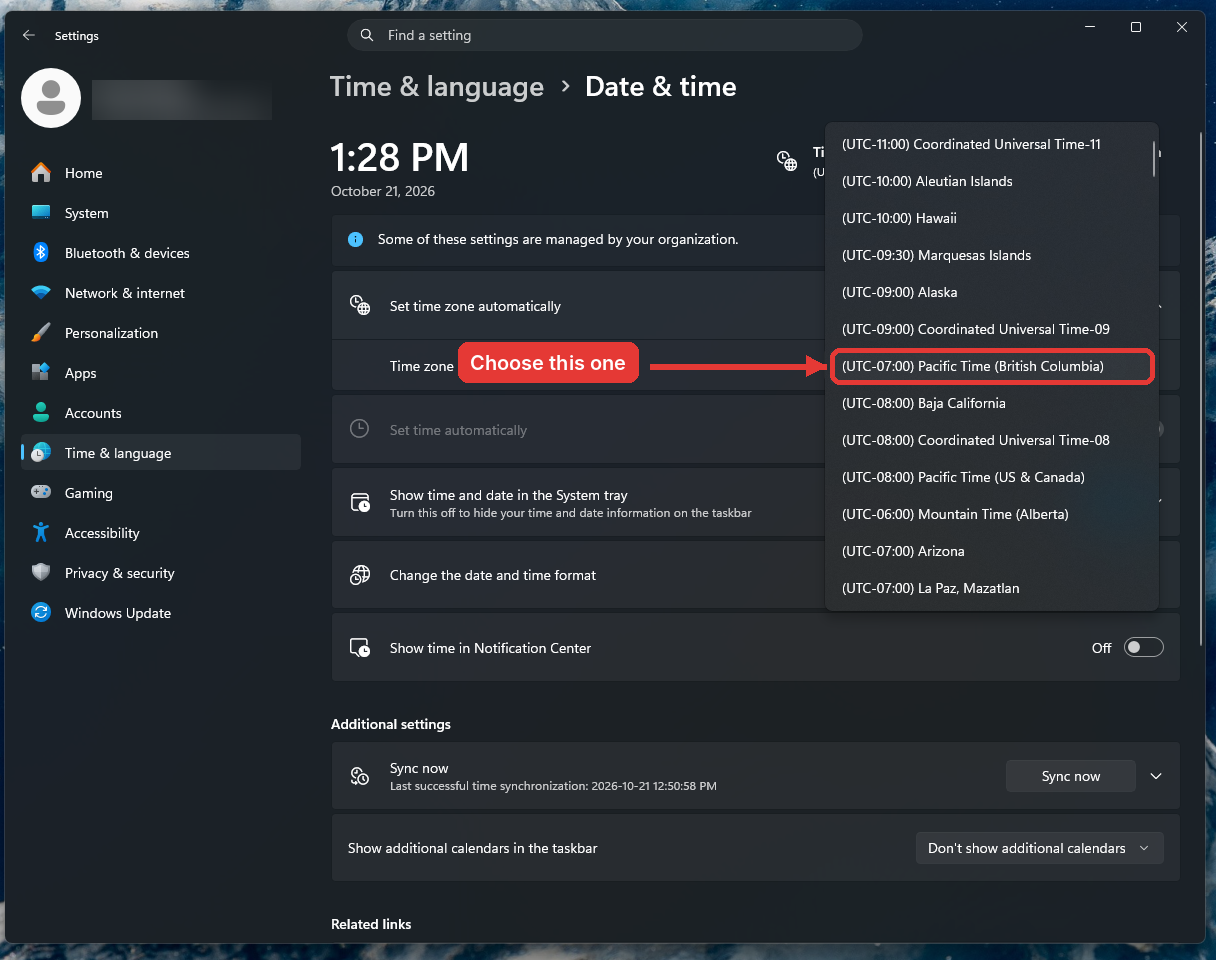
Confirm
Both the header and the Time zone field should now read Pacific Time (British Columbia).
If the British Columbia option is not in the list, the update is not installed yet. Go back to step 4, or email tickets@onlineschool.ca.
Cannot get the update before November 1? As a temporary workaround, choose (UTC-07:00) Yukon instead. Yukon is already on UTC-7 year-round, so your clock and calendar will stay right. Switch to Pacific Time (British Columbia) as soon as the update is installed.
-- Windows, Step 7 of 7
2. Mac
{testimonials}
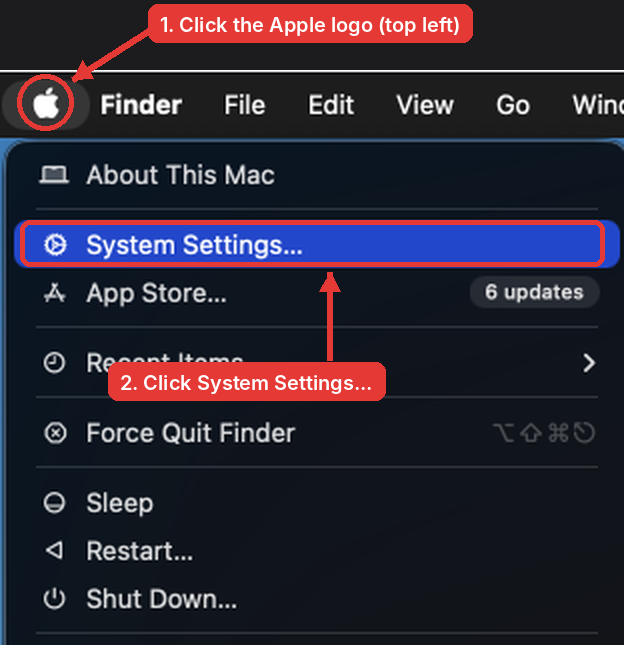
Open System Settings
Click the Apple logo at the top left of the screen and choose System Settings.
-- Mac, Step 1 of 3
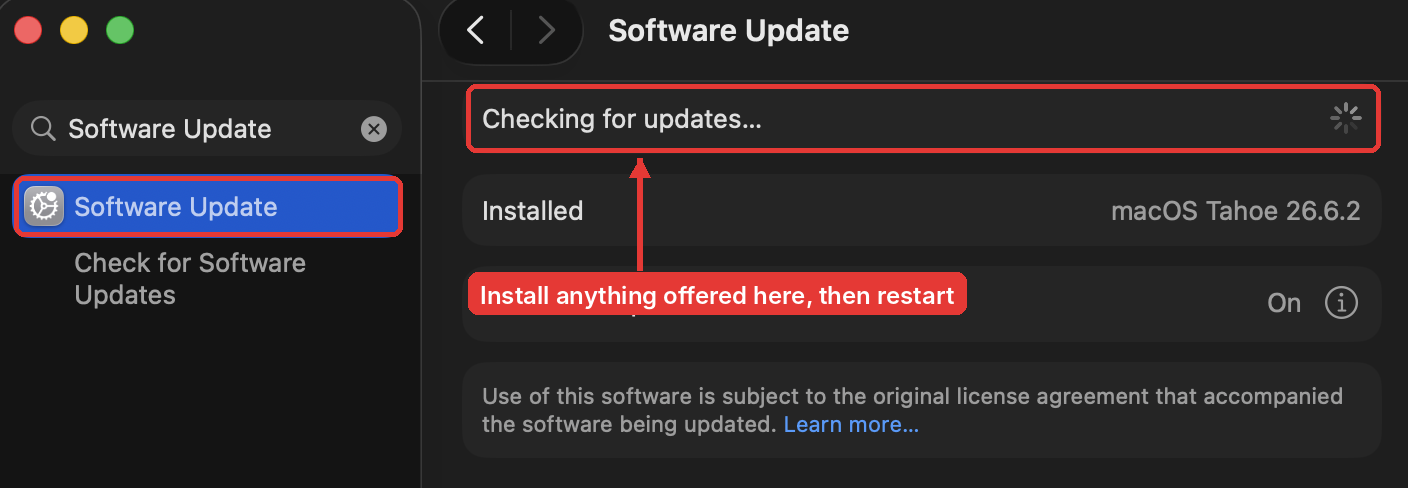
Install updates and restart
Go to General > Software Update (or type "Software Update" in the search box). Install anything that is offered and restart. Apple has already sent the BC change to macOS, but it only takes effect after a restart, so please restart even if no update is listed.
-- Mac, Step 2 of 3
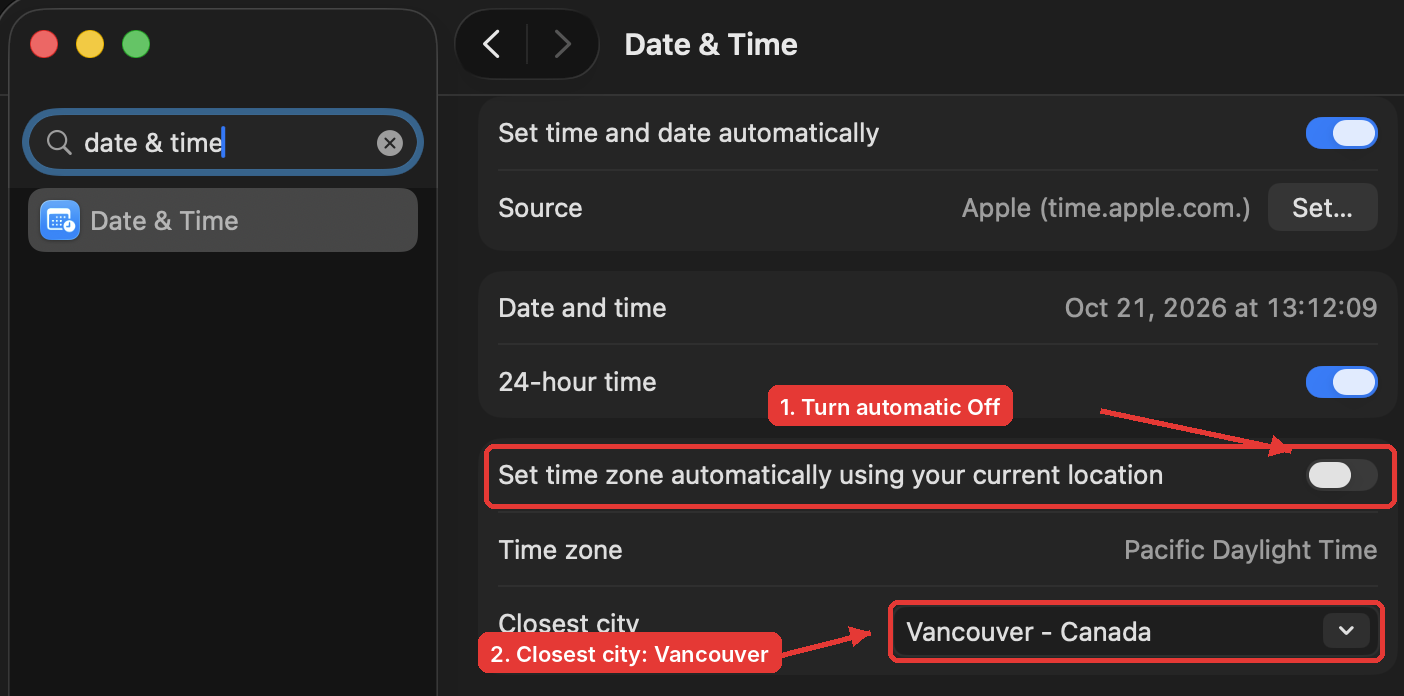
Check Date & Time
Open System Settings > General > Date & Time. The Time zone line will still say Pacific Daylight Time (Apple did not rename it; that is expected). What matters is Closest city: it must be a BC city such as Vancouver, Canada.
If Closest city shows somewhere outside BC (a US city, for example), your Mac will fall back on November 1. Turn off Set time zone automatically, click Closest city, and choose Vancouver.
Cannot update your Mac before November 1? Set Closest city to Whitehorse, Canada as a temporary workaround (Yukon is already on UTC-7 year-round). Switch back to Vancouver once your Mac is updated.
-- Mac, Step 3 of 3
3. New Outlook on Windows
Outlook keeps its own calendar time zone separate from Windows. You are on New Outlook if the New Outlook switch near the top right of the window is on. If your Outlook has a File menu at the top left instead, skip to section 5.
{testimonials}
Open Settings
Click the Settings gear at the top right of the Outlook window.
-- New Outlook (Windows), Step 1 of 2

Set the calendar time zone
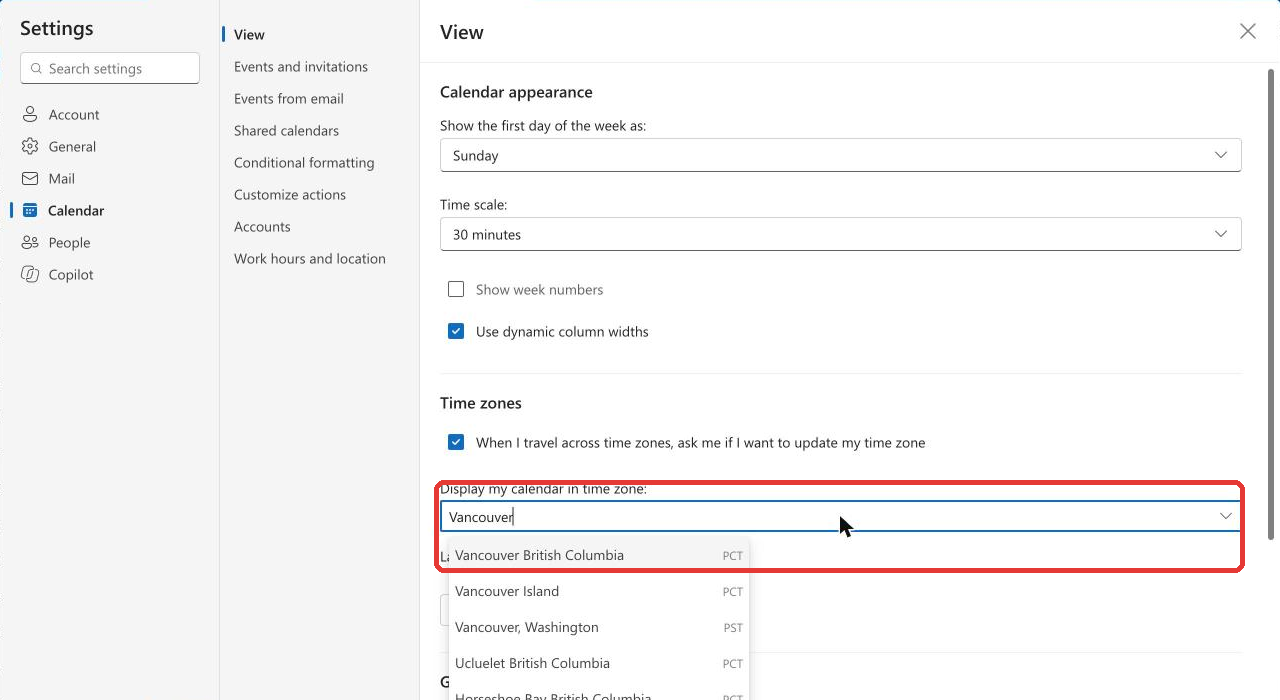
Click Calendar > View and scroll to Time zones. Under Display my calendar in time zone, type Vancouver and choose Vancouver British Columbia (PCT). Click Save. (This is the same settings pane as Outlook on the web.)
-- New Outlook (Windows), Step 2 of 2
4. New Outlook on Mac
{testimonials}
Open Settings
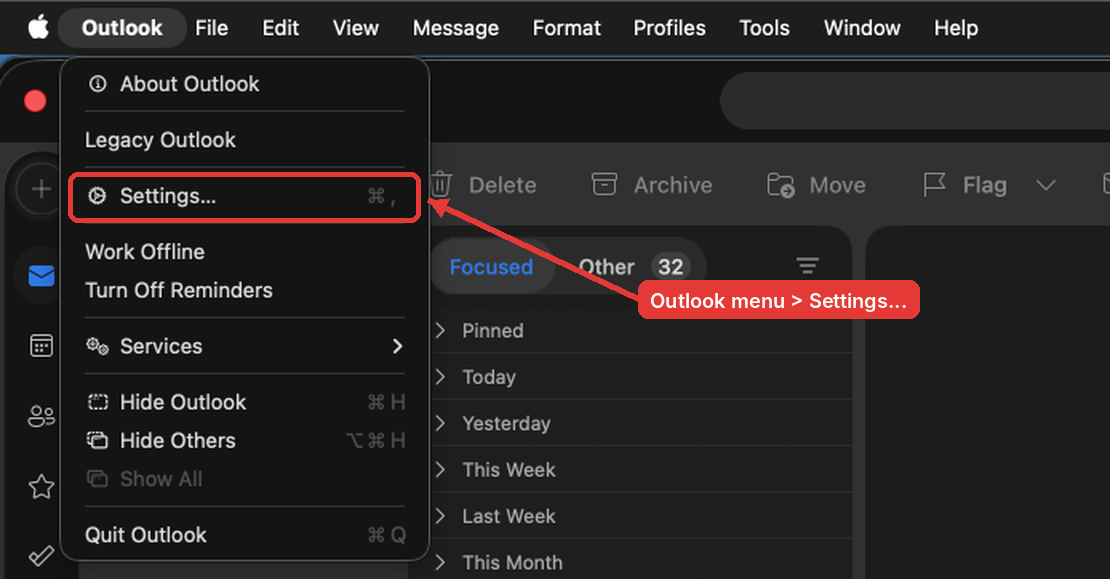
Open the Outlook menu (top left of the screen) and choose Settings.
-- New Outlook (Mac), Step 1 of 2
Check Work Schedule
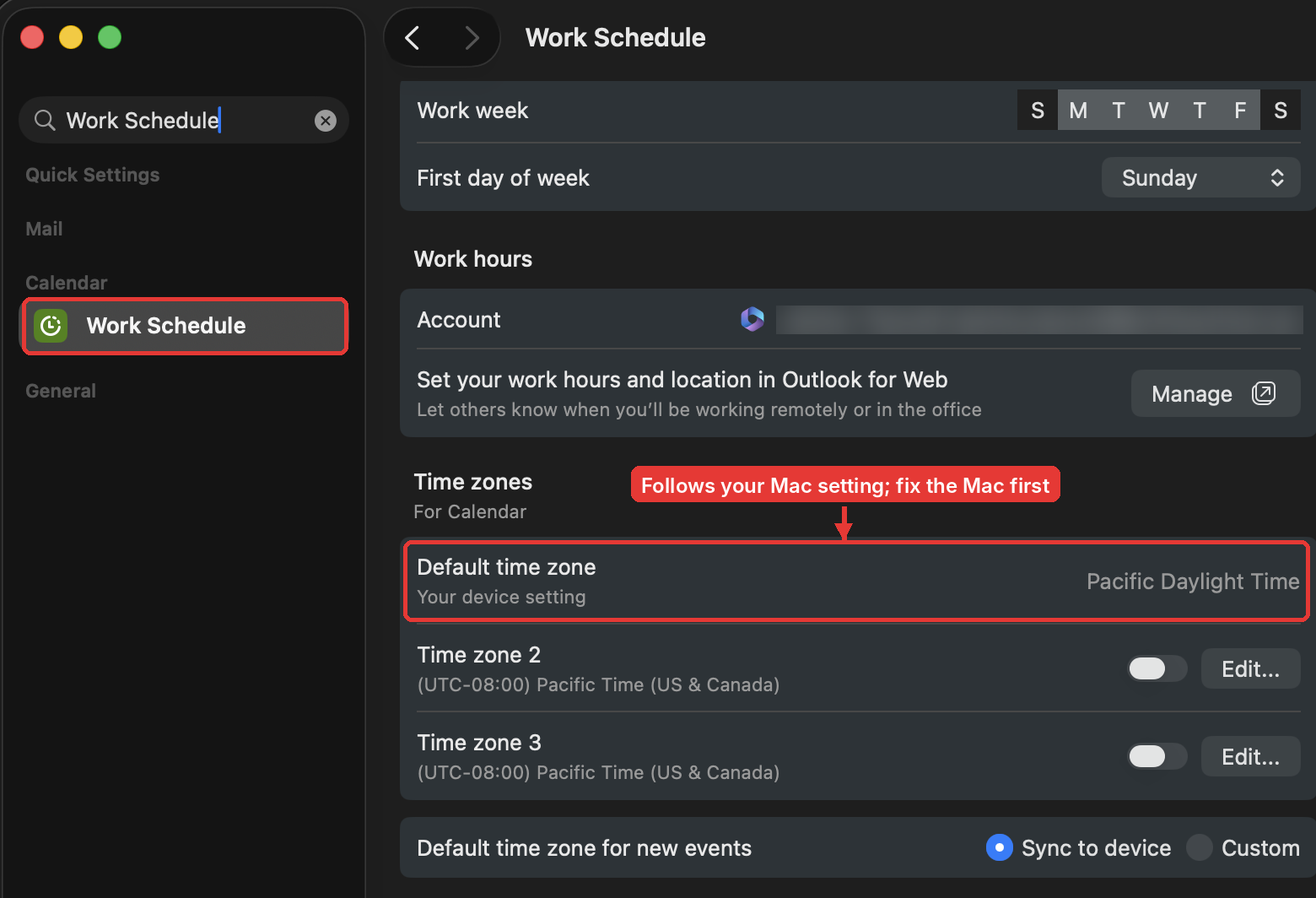
Click Calendar > Work Schedule. Under Time zones, Default time zone reads "Your device setting", which means it follows your Mac. Once section 2 is done there is nothing to change here. Leave Time zone 2 and 3 switched off and Default time zone for new events on Sync to device.
-- New Outlook (Mac), Step 2 of 2
5. Classic Outlook on Windows
You are on classic Outlook if there is a File menu at the top left of the window.
{testimonials}
Open File
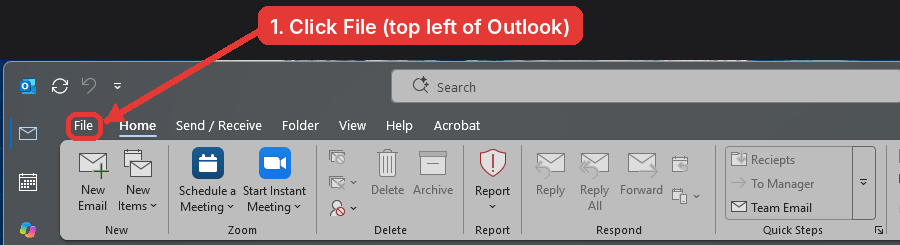
Click File at the top left of the Outlook window.
-- Classic Outlook, Step 1 of 3
Open Options
Click Options at the bottom of the left column.
-- Classic Outlook, Step 2 of 3
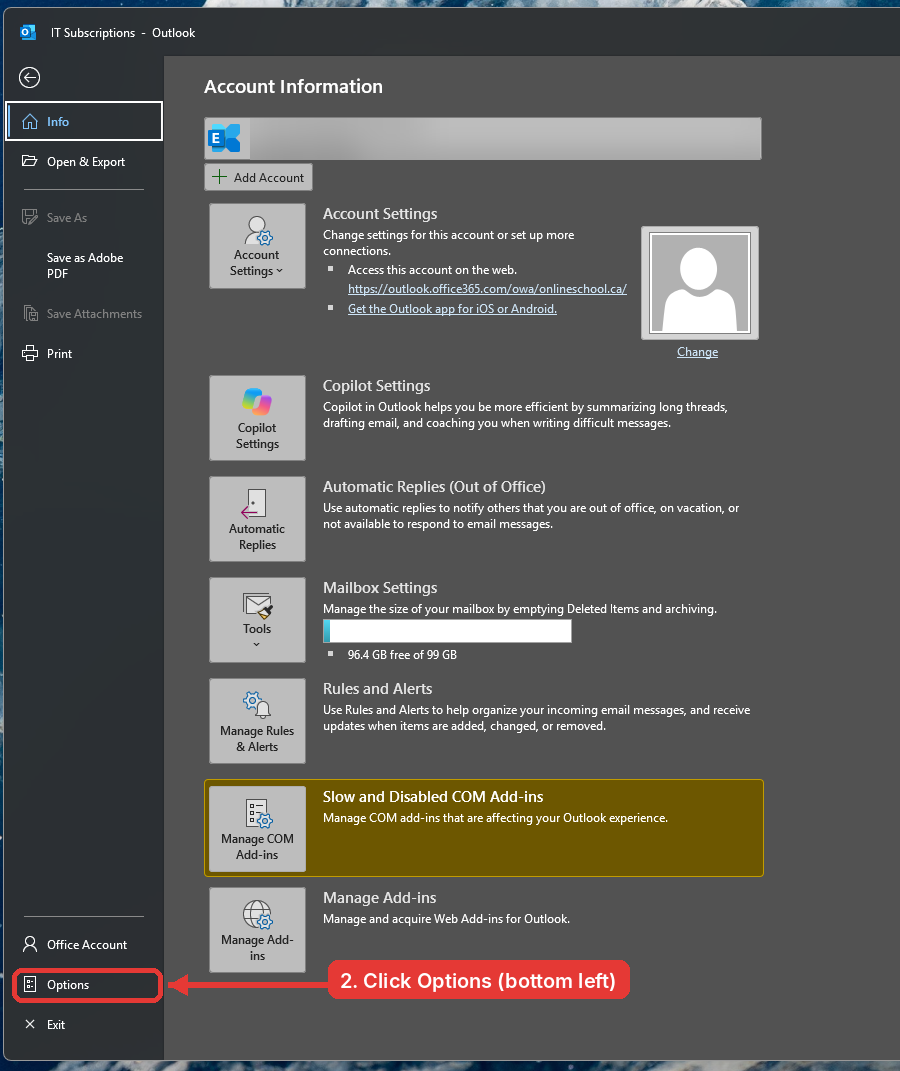
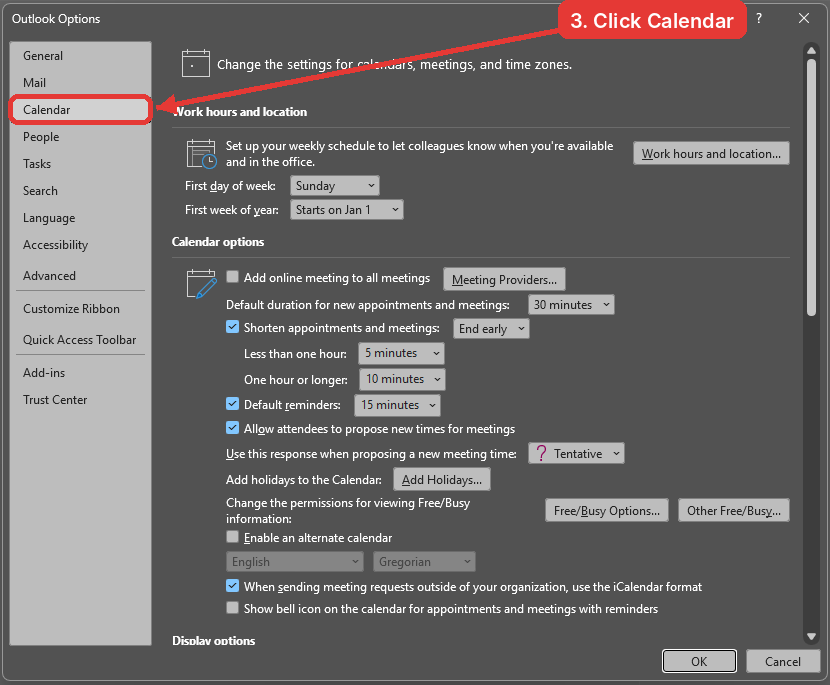
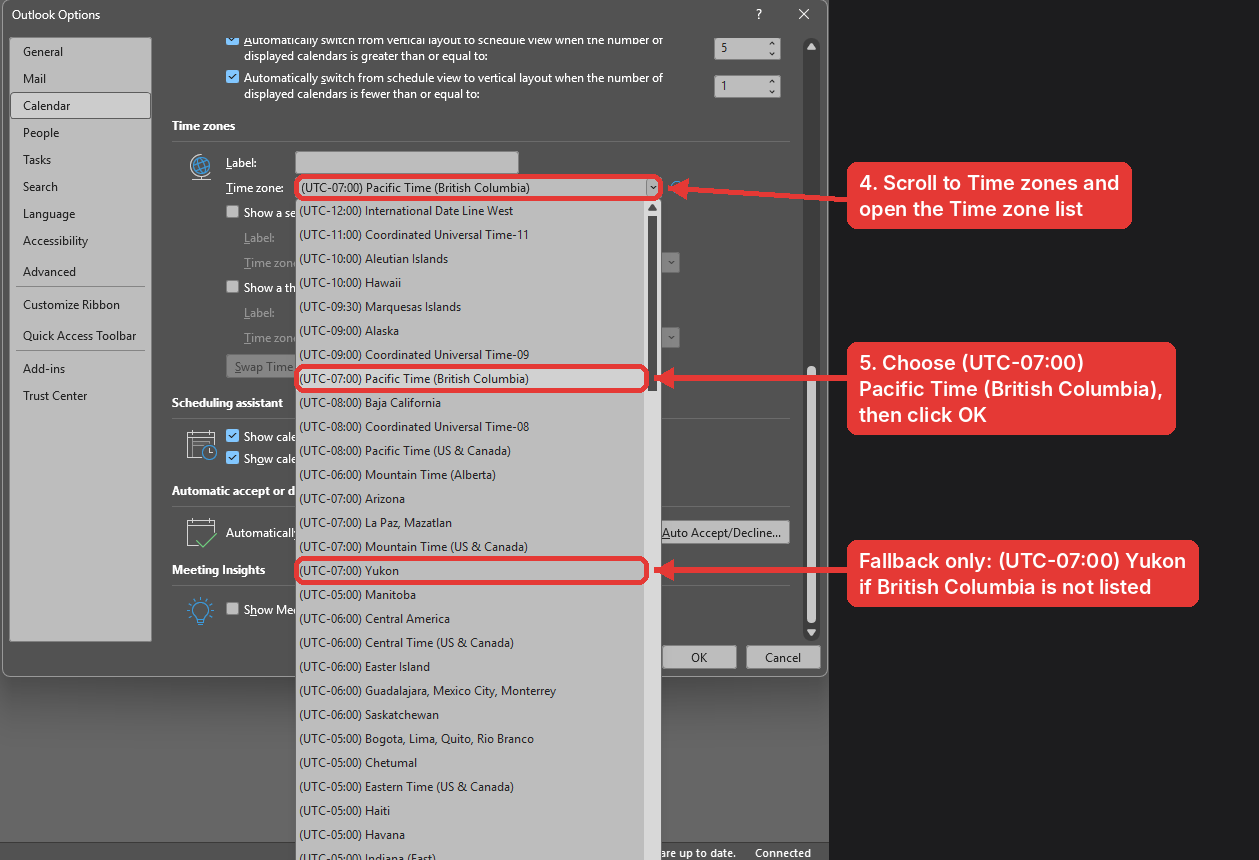
Set the time zone
Click Calendar on the left, scroll down to Time zones, open the Time zone list and choose (UTC-07:00) Pacific Time (British Columbia). Click OK. This option only appears once the Windows update from section 1 is installed; until then, (UTC-07:00) Yukon is the temporary fallback.
-- Classic Outlook, Step 3 of 3
6. Legacy Outlook for Mac
Legacy Outlook for Mac follows the Mac system time zone, so once section 2 is done there is nothing to set here. If your meetings still look an hour off after November 1, switch on New Outlook (top right of the window) and follow section 4, or use Outlook on the web.
7. Outlook on the web (outlook.office.com)
{testimonials}
Open Settings
Go to outlook.office.com and click the Settings gear at the top right.
-- Outlook on the web, Step 1 of 3

Check the time zone
Click General > Language and time. At the bottom, Time zone should read (UTC-07:00) Pacific Time (British Columbia). If it does, you are done with this section. If it does not, click Change.
-- Outlook on the web, Step 2 of 3
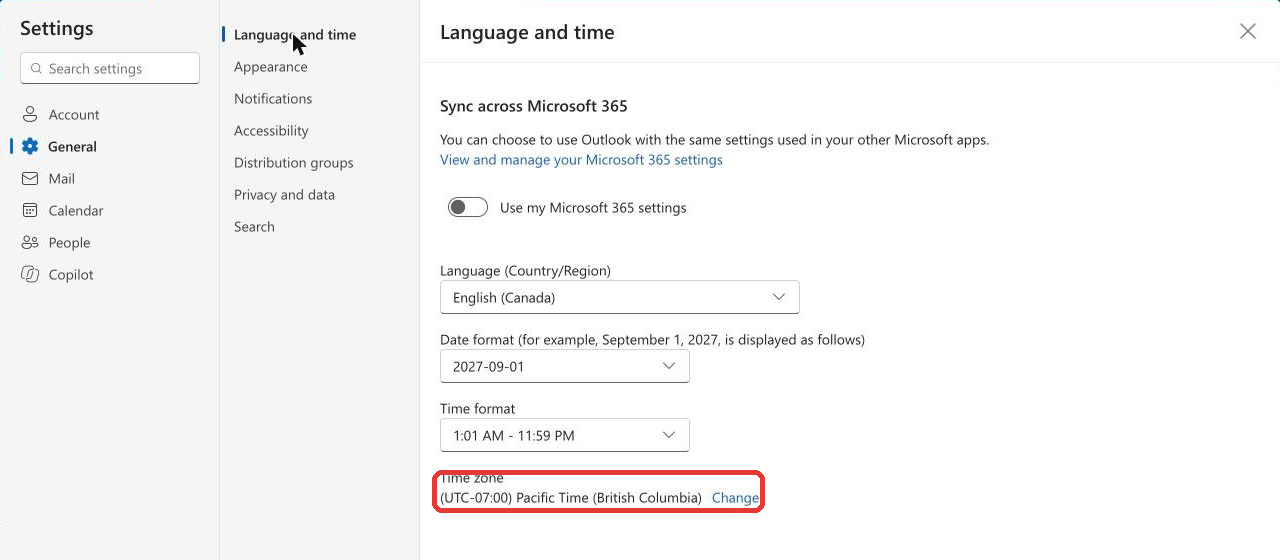
Change it if needed
You will land on Calendar > View. Under Display my calendar in time zone, type Vancouver and choose Vancouver British Columbia (PCT). Click Save.
-- Outlook on the web, Step 3 of 3
8. If you organize recurring meetings
Your own settings fix what you see. Meetings you created before the update still carry the old time zone, so any recurring meeting you organize that runs past November 1 needs one more step: open the series in Outlook, click the time zone (globe) button next to the start time, choose (UTC-07:00) Pacific Time (British Columbia), and send the update. Attendees get the corrected invite automatically and do not need to do anything.
Two things to know: changing a series resets any single occurrences you had moved or cancelled, so check those afterwards; and do not shift the start time by an hour to compensate, change the time zone instead.
When changing a series of events, you can also do this via web-mail and select "Edit this and all following events", which allows you to adjust the time zone of an entire series at once
Phones and tablets
Update iOS, iPadOS or Android to the latest version and restart. No other setting is needed.
Need help?
Email tickets@onlineschool.ca with your device type and what you see, and IT will walk you through it.