# Research

Learning Commons' recommended tools for teaching students digital safety and how to research online.

# The What and How of Research

### What is Research? 

Research is the process of asking questions, finding reliable information, analyzing what you’ve learned, and presenting your findings. It helps develop critical thinking, creativity, and problem-solving skills—key elements of the Applied Design, Skills, and Technologies (ADST) process in the BC Curriculum.

Students must know how to define a problem, locate information in their school library or database, select appropriate resources, organize notes, and present their work to their peers. They must also understand how to accept peer feedback and edit their work for mistakes. A basic introduction to preparing a cited list of references is required using MLA standards.

The BC Ministry of Education has produced a scope and sequence of what is required for research skills and digital citizenship in [BC’s Digital Literacy Framework.](https://www2.gov.bc.ca/assets/gov/education/kindergarten-to-grade-12/teach/teaching-tools/digital-literacy-framework.pdf)

### Why is Research Important?

Through research, students gain a deeper understanding of topics, practice evaluating information, and learn to apply new ways of thinking. Good research skills help students become independent learners who can effectively analyze information and communicate their ideas.

### How to Research

To start with research, ask a clear question about what you want to learn. Once you have your question, look for trustworthy sources, like your school’s databases, educational websites, and books or journals. Make sure to check if the information is reliable, relevant, and not biased. As you gather information, take notes in an organized way, using graphic organizers or digital tools, and be sure to put the information into your own words to avoid plagiarism. When sharing what you’ve learned, you can present your findings in different formats, like a report, a slideshow, or a visual project. Don’t forget to cite your sources and review your work with feedback from peers and teachers to make it even better. By following these steps, you'll develop strong research skills and learn how to present your ideas clearly.

This short webinar by Cynthia Duncalfe and Margaret Basaraba will help you get started.

<div id="bkmrk--1" style="padding: 56.25% 0 0 0; position: relative;"><iframe allow="autoplay; fullscreen; picture-in-picture; clipboard-write" frameborder="0" height="" src="https://player.vimeo.com/video/1031328910?h=70d8b9bd55&badge=0&autopause=0&player_id=0&app_id=58479" style="position: absolute; top: 0; left: 0; width: 100%; height: 100%;" title="Unlocking Research: Essential Skills and Resources for Success" width=""></iframe>

</div>- 0:20 - 1:00 Overview of Session
- 1:00 - 1:51 What is Research?
- 1:52 - 3:26 The Research Process
- 3:27 - 5:19 How to Evaluate Websites
- 5:20 - 9:02 Creating a Works Cited (or Bibliography)
- 9:03 - 10:15 Using our Research Template
- 10:44 - 12:37 Finding Subscriptions and Passwords
- 12:38 - 13:41 Overview and Finding Information in SOPHIE
- 13:42 - 14:23 Usernames and Passwords in the Search Portal
- 14:24 - 15:07 Subscription Information in SOPHIE
- 15:08 - 17:03 FocusedEd
- 17:40 - 18:54 World Book
- 18:55 - 20:54 Gale in Context Canada
- 20:55 - 21:07 PebbleGo PebbleGo Next
- 21:08 - 22:01 KnowBC
- 22:02 - 26:00 EBSCO Explora

### <span style="font-size: 13.999999999999998pt; font-family: Poppins,sans-serif; color: #434343; background-color: transparent; font-weight: 500; font-style: normal; font-variant: normal; text-decoration: none; vertical-align: baseline; white-space: pre-wrap;">The Research Process</span>

<span style="font-size: 11pt; font-family: Poppins,sans-serif; color: #3a3a3a; background-color: transparent; font-weight: 400; font-style: normal; font-variant: normal; text-decoration: none; vertical-align: baseline; white-space: pre-wrap;"><span style="border: none; display: inline-block; overflow: hidden; width: 624px; height: 271px;">![](https://lh7-rt.googleusercontent.com/docsz/AD_4nXekKA6qhYra7mMjUfgi6zJZiiYDK7GnZBI-9s_3RiKbgt4DCE0lbiEPxYGACXg0sbrr5LxHYJN7HYVkoeIkgR94DZJGyn2vDoApTQl-SYdX5A6jgNTqH6t3I-2FPnxn0k__GW1iig?key=w7MnlLLeyzVBQwebtfVF3zTd)</span></span>

### Research Templates

These research templates will guide students through the research process.

- Expectations for Grade 1 students: Write one fact and draw a picture.
- Expectations for Grade 2 students: Write two facts and add images and citations.
- Expectations for Grade 3 students: Write three facts and add images and citations. Grade 3 students can use the Grade 4-6 Research Template when they learn how to create a bibliography.
- Make your own copy of the Gr 4 - 6 [Research Template ](https://docs.google.com/document/d/1MqxehgIX48HKDUmPVBYa4ScqjbAH6fOB3ieXU7tpac0/edit?tab=t.0#heading=h.qn9i1fdokmji)
- Make your own copy of the Gr 7 - 9 [Research Template](https://docs.google.com/document/d/1EUiztI4qGE83vwPwW17dJ_vWfKxxwo4H5szpie9ehgE/edit?tab=t.0#heading=h.52434sd9ugfg)
- Feel free to make a copy of this [Notetaking Template ](https://docs.google.com/document/d/1_LQvTmqNPmz6rcytScKGovGcYoKBeW5vvY7Gc7z76RM/edit?tab=t.0#heading=h.7vdu06omnm90)for students in Grades 1-3.

### Learn More

- More about [research skills](https://ergo.slv.vic.gov.au/learn-skills/research-skills)

# Research Using HCOS Subscriptions

### Which Subscriptions Can I Use for Research?

<details id="bkmrk-all-grades-research-"><summary>All Grades</summary>

- [WorldBook](https://sophie.onlineschool.ca/books/learning-commons-for-families/page/world-book)
- [Explora](https://sophie.onlineschool.ca/books/learning-commons-for-families/page/explora-canada)
- [GALE Cengage Learning](https://sophie.onlineschool.ca/books/learning-commons-for-families/page/gale-databases)
- [KnowBC](https://sophie.onlineschool.ca/books/learning-commons-for-families/page/knowbc-encyclopedia-of-bc)
- [National Geographic for Kids](https://sophie.onlineschool.ca/books/learning-commons-for-families/page/national-geographic-kids)

</details><details id="bkmrk-grade-k-2-research-s"><summary>Grades K - 2</summary>

- [WorldBook Early Learning](https://www-worldbookonline-com.bc.idm.oclc.org/wbel/#/home)
- [PebbleGo](https://sophie.onlineschool.ca/books/learning-commons-for-families/page/pebblego-and-pebblego-next)

</details><details id="bkmrk-grade-3---6-research"><summary>Grades 3 - 6</summary>

- [PebbleGo Next](https://sophie.onlineschool.ca/books/learning-commons-for-families/page/pebblego-and-pebblego-next)
- [World Book Online](https://sophie.onlineschool.ca/books/learning-commons-for-families/page/world-book)

</details><details id="bkmrk-grades-6---9-researc"><summary>Grades 6 - 9</summary>

- [Explora Canada](https://sophie.onlineschool.ca/books/learning-commons-for-families/page/explora-canada)
- [Gale Databases](https://sophie.onlineschool.ca/books/learning-commons-for-families/page/gale-databases) (Gr 8+)

</details><details id="bkmrk-grades-10---12gale-d"><summary>Grades 10 - 12</summary>

- [Gale Databases](https://sophie.onlineschool.ca/books/learning-commons-for-families/page/gale-databases)

</details>### Tutorials on Using Our Research Subscriptions

- [Using EBSCOhost interfaces](https://help.ebsco.com/interfaces/EBSCO_Guides/General_Product_FAQs/tutorials_on_EBSCO_interfaces)
- [Research Made Easy With Explora Tutorial](https://vimeo.com/191195612)
- [Explora for Middle and High School Users Tutorial (PowerPoint)](https://eis1.my.salesforce.com/sfc/p/#1H000000P2eP/a/1H000000UiSy/WMdxPAZGgtTwKHRhEjo3zOS74LfiKCdvLOGhgIUkWRM)
- [Explora for Primary School Users (PowerPoint)](https://eis1.my.salesforce.com/sfc/p/#1H000000P2eP/a/1H000000UiSj/937A4Xlfg3DD_yHXMu.gYDzhlhUlu6pJYua0.xyIM80)

# Finding Credible Information Online

### How to Evaluate Websites


[![Website Evaluation Steps (2).png](https://sophie.onlineschool.ca/uploads/images/gallery/2025-07/scaled-1680-/website-evaluation-steps-2.png)](https://sophie.onlineschool.ca/uploads/images/gallery/2025-07/website-evaluation-steps-2.png)

#### Other Resources

- [Evaluate credibility using the RumorGuard 5 Factors](https://newslit.org/educators/resources/rumorguard-5-factors/)

##### Infographics

- - [Fake News](https://action4mediaeducation.org/wp-content/uploads/2017/11/media-literacy_real-news-infographic_10_2017.pdf)
    - [News Media Bias](https://newslit.org/wp-content/uploads/2024/01/InBrief_News-media-bias_FINAL.pdf)
    - [6 Things to Know About AI](https://newslit.org/wp-content/uploads/2024/01/AI-Infographic_FINAL.pdf)
    - [Is it Legit? Five steps for vetting a news source](https://newslit.org/wp-content/uploads/2022/12/IsItLegit_infographic.pdf)

### Searching Online

- Consider using a safe search engine such as [Advanced Google](https://www.google.ca/advanced_search) in grades 5-12, or if in grades K-4, [Kiddle ](https://www.kiddle.co/)
- Most search engines store your search history and other data about what you browse online. [DuckDuckGo](https://duckduckgo.com/) is a search engine and browser that doesn't track your online activity or personal data.
- If students use Google, parents should ensure the [SafeSearch](https://www.google.com/safesearch) filter is “on.” [Advanced Search](https://www.google.ca/advanced_search) will provide more relevant results.
- Grade 10-12 students could use [Google Scholar ](https://scholar.google.com/)

#### Tips for Effective Searching

- <div>Use good keywords and quotation marks to refine your questions.</div>
- <div>Be aware of advertisements on the website page, as this might indicate a paid site.</div>
- <div>Check the source URL for relevancy (.gov, .edu, .ca, etc.)</div>
- <div>Select sources that both challenge and confirm your existing perspective.</div>

<details id="bkmrk-identifying-credible"><summary>Questions for Determining Whether a Source is Credible</summary>

- **Does this writing seem too good to be true?** You may wonder about its validity or truth. Ask these questions: Does this article seem unbelievable? Does it conflict with something you already know to be true? Is it greatly exaggerated?
- **Who wrote this information?**  Identifying the author can help you determine the credibility and truth of your source. Determine the author’s education, training, or experience/knowledge on the topic. Does he or she have a professional title or belong to an established and respected organization? Can you take extra steps to learn more about the author, i.e., on an “About Me” page? Who owns the website? Sometimes, the owner and author may be different. To find the owner, search the URL on [Whois](https://www.whois.com/whois/).
- **What type of website is this?** A political organization? A non-profit organization? A social media celebrity? Check the URL. Read the “About” section or profile bio. Do another search for more information about the source.
- Who else links to the site and why? What is their reputation? Do they stand to gain anything by attacking or supporting a point? Type the website link into your search engine with quotation marks and see what reviews appear.
- **When was this article written?** How old is the information on the website? This will determine its reliability and accuracy. There should be a date when the information was written, and links included on the site should be updated and working. Check the bottom of the website to see the latest update.
- **Can the information be verified?** To check the accuracy of an article or website, look at the sources used in the article, whether they are listed in the article, and whether there is a good bibliography or other links to provide additional sources of information. Can you find other sources which share identical information?
- **How does the tone of the writing reflect credibility?** The way an article is written will reveal clues about its credibility. Check for good grammar, spelling, punctuation, and style of language. Is the language demanding, critical, or over-emotional? Is the writing too informal and more colloquial? Does it only share one point of view? If you notice a bias, what facts does it use to back it up? Does it appear to make people angry or try to manipulate people?
- **Why does the author write this information?** Every author comes from a particular worldview or perspective. Some people will write articles to contribute to unreliability, bias and untruth. That does not discount argumentative essays or passion/opinion pieces. However, use your judgement and the clues about credibility as shared above before using this as a reliable source.

</details>#### Searching for Images

<span style="font-size: 11pt; font-family: Poppins,sans-serif; color: #3a3a3a; background-color: transparent; font-weight: 400; font-style: normal; font-variant: normal; text-decoration: none; vertical-align: baseline; white-space: pre-wrap;">Searching for images can be an interesting adventure. You need to find ones that fit your topic, can be used (usage rights), and do it “safely.” Google is often the first place people turn to. There are ways to ensure you can use images you find online (tools, usage rights, labelled for reuse, etc.). However, other sites can be more efficient for searching images that are free to use. Here are some recommended places to search for images.</span>

- [Library of Congress: Prints &amp; Photographs Online Catalog](http://www.loc.gov/pictures/)
- [Wikimedia Commons](https://commons.wikimedia.org/wiki/Main_Page)
- [Unsplash](https://unsplash.com/)
- [Pixabay](https://pixabay.com/)
- [Pexels](https://www.pexels.com/)
- [Gettyimages](https://www.gettyimages.ca/resources/embed)
- [Veezzle Free Stock Photos](http://www.veezzle.com/)

# Citing Digital Images

As students build research skills, they learn how to reference work done by other people. In an increasingly digital world, it is important to learn how to give proper attribution for both written and visual artifacts, including digital images. Though it is relatively simple to take a screenshot or save an image from the internet, students need to follow the appropriate steps to ensure credit is given to the original author. There are a few options for finding and sourcing images correctly.

### Option 1: Google Images Search

You can search for any image using Google Images.

**Step 1:** Navigate to the [Google Search](https://www.google.com/) homepage and type a word or description of what you are looking for into the text box. If you use Chrome as your browser, simply type into the omnibox and press enter. From here, click "Images" to see the results of your search.

[![Screen Shot 2022-02-01 at 10.44.30 AM.png](https://sophie.onlineschool.ca/uploads/images/gallery/2022-02/scaled-1680-/screen-shot-2022-02-01-at-10-44-30-am.png)](https://sophie.onlineschool.ca/uploads/images/gallery/2022-02/screen-shot-2022-02-01-at-10-44-30-am.png)

---

**Step 2:** Next, click "Tools" to open the toolbar. Find "Usage Rights" and select "Creative Commons licenses." This will filter your results to only display images licensable under Creative Commons (CC) licenses.

[![Screen Shot 2022-02-01 at 10.45.16 AM.png](https://sophie.onlineschool.ca/uploads/images/gallery/2022-02/scaled-1680-/screen-shot-2022-02-01-at-10-45-16-am.png)](https://sophie.onlineschool.ca/uploads/images/gallery/2022-02/screen-shot-2022-02-01-at-10-45-16-am.png)

---

**Step 3:** When you find the image you would like to use, click on it. The image will pop up into a larger window and you will be able to locate the license details underneath the image. Click on the "License details" hyperlink to find out the specific details of how to properly attribute your chosen image.

[![Screen Shot 2022-02-01 at 10.50.58 AM.png](https://sophie.onlineschool.ca/uploads/images/gallery/2022-02/scaled-1680-/screen-shot-2022-02-01-at-10-50-58-am.png)](https://sophie.onlineschool.ca/uploads/images/gallery/2022-02/screen-shot-2022-02-01-at-10-50-58-am.png)

**Step 4:** Insert the image into your project, then add your attribution with a link to the CC license. For example, the MLA citation for the above image would look like this:

<p class="callout success">Kriz, Jonathan. *Puppy.* Flickr. October 2010. [https://www.flickr.com/photos/27587002@N07/5170590074](https://www.flickr.com/photos/27587002@N07/5170590074). [CC BY 2.0](https://creativecommons.org/licenses/by/2.0/).</p>

---

### Option 2: Google Apps

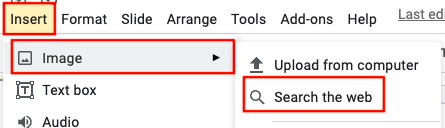
You can add images using the toolbar within Google apps (e.g., Google Docs, Google Slides, Google Drawings). It takes a few extra steps to find the license for attribution.

**Step 1:** In the toolbar, click "Insert" -&gt; "Image" -&gt; "Search the web." A Google window will pop up on the right side of your document.

[![Screen Shot 2022-02-03 at 11.49.06 AM.png](https://sophie.onlineschool.ca/uploads/images/gallery/2022-02/scaled-1680-/screen-shot-2022-02-03-at-11-49-06-am.png)](https://sophie.onlineschool.ca/uploads/images/gallery/2022-02/screen-shot-2022-02-03-at-11-49-06-am.png)
---

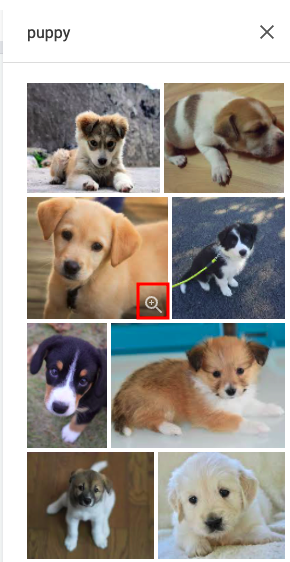
**Step 2:** Type a word or description in the search bar to find an image. Once you locate your desired image, click on the magnifying glass with the plus sign to preview the image.

[![Screen Shot 2022-02-03 at 11.50.04 AM.png](https://sophie.onlineschool.ca/uploads/images/gallery/2022-02/scaled-1680-/screen-shot-2022-02-03-at-11-50-04-am.png)](https://sophie.onlineschool.ca/uploads/images/gallery/2022-02/screen-shot-2022-02-03-at-11-50-04-am.png)
---

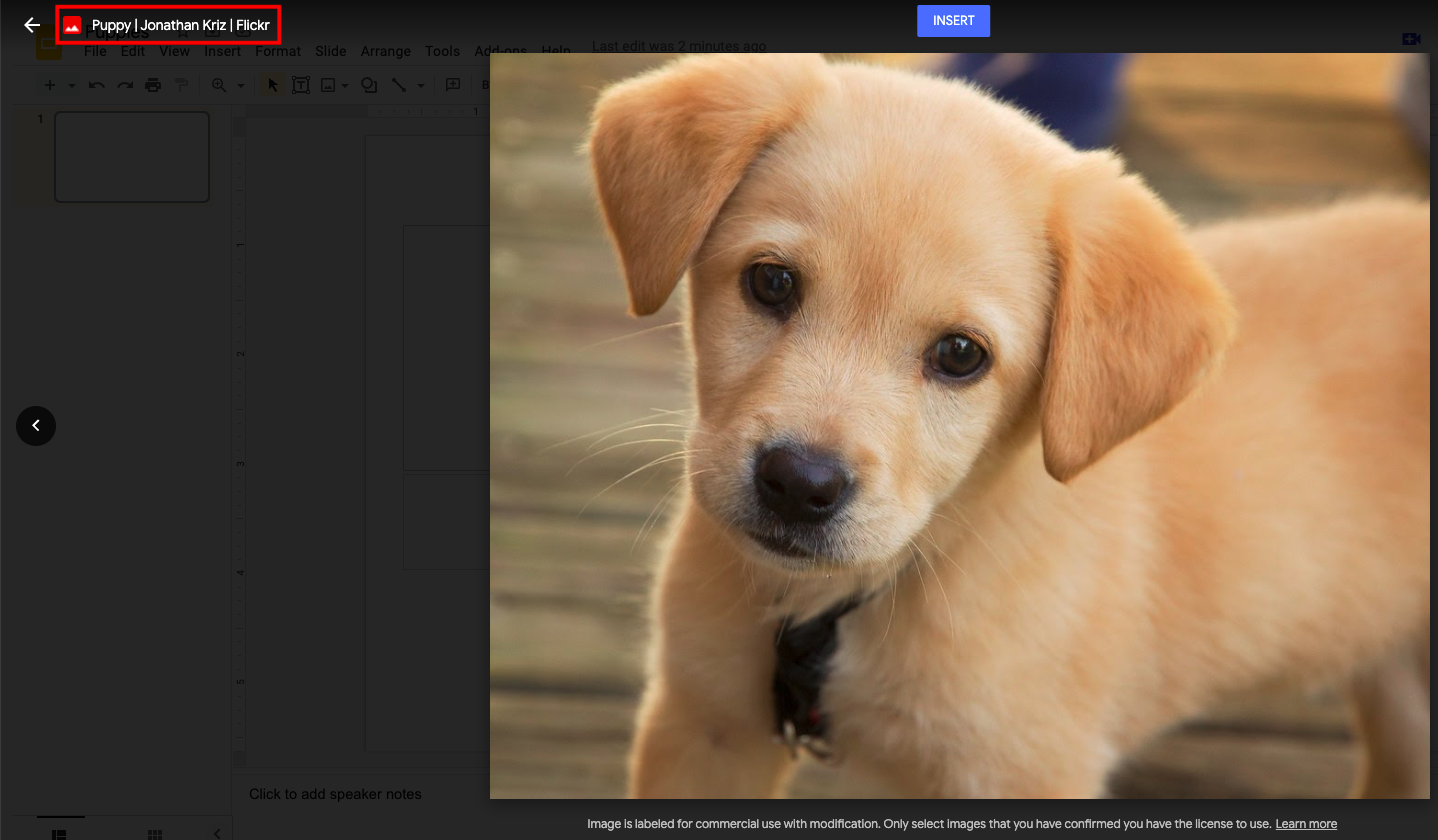
**Step 3:** Click the title of the image at the top left hand corner to visit the original website where the image is located.

[![Screen Shot 2022-02-03 at 11.50.50 AM.png](https://sophie.onlineschool.ca/uploads/images/gallery/2022-02/scaled-1680-/screen-shot-2022-02-03-at-11-50-50-am.png)](https://sophie.onlineschool.ca/uploads/images/gallery/2022-02/screen-shot-2022-02-03-at-11-50-50-am.png)
---

**Step 4:** Find the license information on the original website, and include it in your citation.

[![Screen Shot 2022-02-03 at 12.01.18 PM.png](https://sophie.onlineschool.ca/uploads/images/gallery/2022-02/scaled-1680-/screen-shot-2022-02-03-at-12-01-18-pm.png)](https://sophie.onlineschool.ca/uploads/images/gallery/2022-02/screen-shot-2022-02-03-at-12-01-18-pm.png)
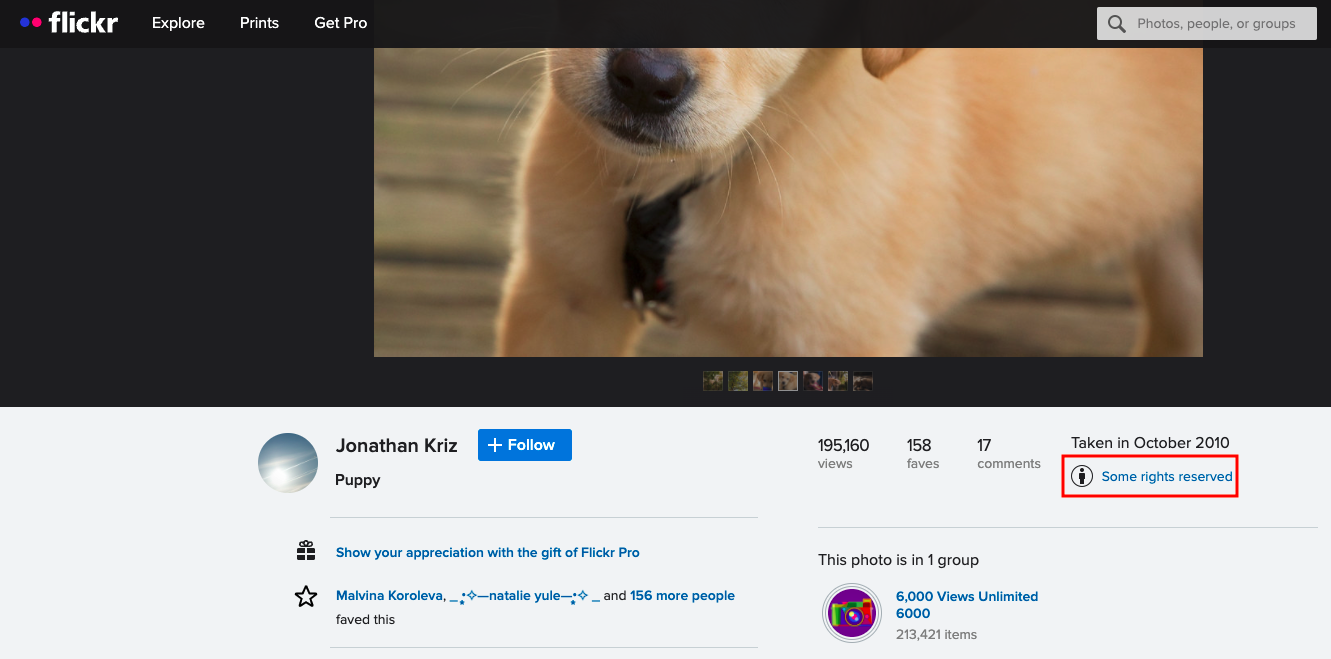
<p class="callout info">If you are unable to find CC licensing information on the website, you may include the license information from Google as appropriate attribution (e.g., "Image is labeled for commercial use with modification").</p>

---

### Option 3: Open Source Image Websites

Another option is to search for your image on an open source image website. These are websites where photographers and artists can post their work as freely-usable images for you to use and enjoy. Some popular open source image websites are [Pexels](https://www.pexels.com/), [Pixabay](https://pixabay.com/), and [Unsplash](https://unsplash.com/). These images do not fall under CC licences; rather, each website has a specific license allowing you to download and use images for free with no requirement for attribution (though it is appreciated if possible). You can read more about licenses on each of the websites ([Pexels](https://www.pexels.com/license/), [Pixabay](https://pixabay.com/service/license/), [Unsplash](https://unsplash.com/license)). The reference for an open source image might look like this:

<p class="callout success">Photo by [Imelda](https://unsplash.com/@unleashed_?utm_source=unsplash&utm_medium=referral&utm_content=creditCopyText) on [Unsplash](https://unsplash.com/s/photos/puppy?utm_source=unsplash&utm_medium=referral&utm_content=creditCopyText)</p>

<p class="callout info">The main thing to remember about using digital images is that if a license cannot be easily found, you should look for another image using Google Images filters or open source image websites. This allows you to be confident that you are using ethical image sourcing practices.</p>

# Avoiding Plagiarism and Citing Sources

### What is Plagiarism?

Plagiarism is when someone presents another person’s work, ideas, or words as their own without proper credit. It can happen accidentally or intentionally, but either way, it’s a serious issue in academic and professional settings.

According to the *Merriam-Webster* dictionary, to plagiarize means:

- **To steal** and pass off the ideas or words of another as one’s own.
- **To use** someone else’s work without crediting the source.
- **To commit literary theft.**
- **To present** an existing idea or product as new and original.

#### Why is Avoiding Plagiarism Important?

Plagiarism isn’t just about breaking the rules—it affects learning, creativity, and integrity. When you give credit to original authors, you show respect for their work while also strengthening your own. Proper citations help:

- **Build credibility** – Your work is more trustworthy when sources are properly cited.
- **Strengthen arguments** – Well-researched work shows a strong foundation of knowledge.
- **Encourage learning** – Engaging with different perspectives helps you develop your own ideas.
- **Protect academic integrity** – Honesty in research builds a reputation of integrity.

Visit [Plagiarism.org](https://www.plagiarism.org) for tips on how to avoid plagiarism and properly credit sources.

#### How to Take Notes to Avoid Plagiarism

Good note-taking helps you avoid accidental plagiarism and ensures you credit sources correctly. It's easy to mix up ideas when researching, so keeping organized notes strengthens both your understanding and integrity. Follow these strategies to stay ethical and accurate:

- **Use Your Own Words** – Rephrase information to reflect your understanding.
- **Track Sources** – Record the author, title, date, and page number for easy citation. This makes it easier to cite sources correctly later.
- **Use Quotation Marks -**  If you must copy exact wording, use quotation marks and note the source details immediately to avoid forgetting where it came from.
- **Organize by Topic** – Structure your notes in categories or key ideas rather than copying large chunks of text.
- **Review Before Writing** – Before drafting your work, compare your notes with the original sources to ensure you properly paraphrase and cite information where needed.
- **Label Summaries, Paraphrases, and Quotes** – Clearly mark your notes to differentiate between your own thoughts, paraphrased ideas, and direct quotes.
- **Use a Citation System** – Jot down citations as you take notes to save time later.
- **Write Immediate Reactions** – Writing personal insights helps separate your thoughts from sources.
- **Use Multiple Sources** – Gathering information from multiple references ensures a well-rounded understanding and reduces the risk of plagiarism.

#### More Information and Plagiarism Tools

Tools and Resources to Help You Avoid Plagiarism:

- [HCOS Academic Integrity Policy](https://sophie.onlineschool.ca/books/hcos-policies/page/academic-integrity-policy-uTJ) (including the use of artificial intelligence)
- [Plagiarism Information for Parents](https://sophie.onlineschool.ca/books/information-for-families/page/plagiarism-information-for-parents) - Help students understand academic honesty.
- [Plagiarism Checker](https://www.duplichecker.com/) - Scan your work to ensure originality.
- [Avoiding Plagiarism Infographic](https://support.ebsco.com/promotion/promo_resources/Files/Col2/EBSCO/Infographic-Flyer_Avoiding-Plagiarism.pdf) - A visual guide to staying plagiarism-free.

### Citing Sources

#### What is a Bibliography or Works Cited?

Citing your sources isn’t just about following rules but being a responsible researcher and thinker. When you give credit where it’s due, you contribute to a culture of honesty, respect, and learning. A bibliography or works cited lists all the sources you have used while researching your work. Whenever you use an idea that isn’t your own, you must cite where it came from.

#### What to Include in a Citation:

- **Author’s name** (Who wrote it?)
- **Title of the work** (What is it called?)
- **Publisher’s name** (Who published it?)
- **Publication date** (When was it published?)
- **Page numbers** (If part of a book or journal)
- **URL** (If found online)
- **Date accessed** (If it’s a website that may change over time)

**Example:**

[![image.png](https://sophie.onlineschool.ca/uploads/images/gallery/2024-12/scaled-1680-/Lpdimage.png)](https://sophie.onlineschool.ca/uploads/images/gallery/2024-12/Lpdimage.png)

<p class="callout success">**Please refer to the Research Templates for more instructions on citing various kinds of sources (book, webpage, etc.** [Gr 4 - 6 Research Template](https://docs.google.com/document/d/1MqxehgIX48HKDUmPVBYa4ScqjbAH6fOB3ieXU7tpac0/edit?usp=sharing); [Gr 7 - 9 Research Template](https://docs.google.com/document/d/1EUiztI4qGE83vwPwW17dJ_vWfKxxwo4H5szpie9ehgE/edit?usp=sharing)</p>


#### Citing Sources When Using Subscriptions

Some Subscriptions supply a citation that you can copy.

- **Gale in Context: Canada (Gr. 8-12)** - find the citation at the end of the article
- **Pebble Go (K-3) and PebbleGo Next (Gr. 3-5)** - find the "cite" button at the bottom of the page.
- **World Book Student (Gr. 5-8)** - find the "How to cite this article" button at the end of the article.
- **World Book Advanced (Gr. 9-12)** - citations are listed at the end of the article.

**Tip:** Even when a source provides a citation, always double-check it against MLA or APA guidelines to ensure accuracy.

#### More Information

- [Citation for Beginners Video](https://youtu.be/CDGdqoCyAtw?si=h_UuOSJevHVyX-jl)
- [Citing Digital Images](https://sophie.onlineschool.ca/books/learning-commons-for-families/page/citing-digital-images) (SOPHIE) – How to properly credit online images.
- [Citing Artificial Intelligence](https://sophie.onlineschool.ca/books/information-for-families/page/citing-artificial-intelligence) (SOPHIE) – How to cite content created by AI tools.
- [Schrock Research and Style Manual](https://www.schrockguide.net/uploads/3/9/2/2/392267/workscited_1_6.pdf) – Citation guide for Grades 1-6 (MLA 9 format).

#### Free Citations Generators

- [Grammarly Citations](https://www.grammarly.com/citations)
- [MyBib](https://www.mybib.com/)
- [EasyBib](https://www.easybib.com/mla/website/search-form)

# Digital Citizenship and Online Safety

### What is Digital Citizenship?

Digital citizenship is the ability to navigate digital environments safely, responsibly, and respectfully. It involves making informed choices, protecting personal information, and engaging positively in online communities.

> “Although we live and interact in the digital world similarly to the offline world, we're not always as mindful of our online actions. We can sometimes act without realizing how it could affect our reputation, safety and growth as digital citizens. In the meantime, everything we do online affects and defines our digital world and selves.
> 
> Digital media also provide unique opportunities for everyone to get involved, speak out, and make changes online and offline. Our actions in our online world can have a real impact, and we all have a role to play as active digital citizens ([Media Smarts](https://mediasmarts.ca/digital-media-literacy/general-information/digital-media-literacy-fundamentals/what-digital-citizenship)).”

### The Why and How of Digital Citizenship

Above all else, guard your heart, for it is the wellspring of life. Proverbs 4:23

We encourage our students to become discerning digital learners—able to explore online safely while maintaining healthy boundaries. Here are some key guidelines to help new online learners:

- **Discuss online responsibility**: Talk with students about screen time, appropriate websites, and the importance of digital discernment. Stay informed about the websites and apps they use.
- **Set clear family rules**: Establish guidelines for screen time, safe browsing, and online behavior.
- **Keep devices in common areas**: Placing computers in open spaces, such as the living room, promotes supervision and accountability.
- **Encourage balance**: Set tech-free times and promote physical activity to balance screen time.
- **Teach critical thinking**: Help students evaluate online content for credibility and accuracy.

<p class="callout success"> Students who are new to using technology can learn more through these [BrainPOP videos](https://www.brainpop.com/technology/computerscience/). </p>

### Online Safety

#### Tips for Privacy and Data Security

In today’s digital world, protecting personal information is more important than ever. Practicing smart online habits helps ensure privacy, security, and a safer experience for everyone.

- **Research before you use**: Investigate apps, websites, and online services before signing up.
- **Think before posting**: Be mindful of the long-term impact of sharing personal information online.
- **Educate students on online risks**: Teach them to avoid sharing personal details and to recognize potential dangers.

#### Resources

**For Parents and Educators**

- Read more at [ProtectKidsOnline.ca](https://protectkidsonline.ca/app/en/)
- [Online Parenting Book](https://thewhitehatter.ca/online-parenting-book/) by The White Hatter
- [MediaSmarts](http://mediasmarts.ca/digital-media-literacy/digital-issues)
- [Common Sense Media](https://www.commonsensemedia.org/cyberbullying)
- [Raising Digitally Responsible Youth: A Parent’s Guide](https://www2.gov.bc.ca/assets/gov/erase/documents/raising-digitally-responsible-youth.pdf)

**For Students**

- [HCOS Digital Literacy Unit Study Kit](https://docs.google.com/presentation/d/1AXL0D22IalxRoXKY9W-7tmnAUtnV9WWlKNOiXGUpqag/edit?usp=sharing)
- [Be Internet Awesome](https://beinternetawesome.withgoogle.com/en_us): Helping kids be safe, confident explorers of the online world.
- [Digital Literacy &amp; Well-Being Curriculum](https://www.commonsense.org/education/digital-literacy) by Common Sense Media: K–8 lessons to prepare students for life in the digital world.
- [AI Literacy Lessons for Grades 6–12](https://www.commonsense.org/education/collections/ai-literacy-lessons-for-grades-6-12)
- [Security Awareness Lessons](https://focusedresources.ca/en/student-security-awareness-curriculum) for students ages 8-11.
- Videos on Internet Safety: [Being Safe on the Internet](https://www.youtube.com/watch?v=HxySrSbSY7o); [Internet Safety by BrainPOP Jr](https://jr.brainpop.com/artsandtechnology/technology/internetsafety/)
- [RightNow Media – Bullying Videos (McGee and Me! Series)](https://www.rightnowmedia.org) – Please email [Margaret Basaraba](mailto:margaret.basaraba@onlineschool.ca) for an invitation.

##### Sora eBook Curations

- [Grades K - 4 ](https://soraapp.com/library/heritageca/curated-10331)
- [Grades 5 - 9](https://soraapp.com/library/heritageca/curated-1033117/titles)
- [Grades 10 - 12](https://soraapp.com/library/heritageca/curated-1033118/titles)
- [Digital Wellness for Educators](https://soraapp.com/library/heritageca/curated-1033116/titles)

#### Digital Citizenship and Online Safety for Young Learners  


Before your students begin exploring social media, it’s important to introduce them to the basics of online privacy. Help them understand that personal information—such as their full name, address, and school—should not be shared online. Encourage open conversations about what is safe to post and who they can trust online.

*"Safety Smart with Timon and Pumbaa"* is a fun and engaging educational video created by Disney in collaboration with Underwriters Laboratories (UL) to teach children about online safety. In this video, Timon and Pumbaa explore key topics such as:

- **Keeping personal information private** (not sharing names, addresses, or school details online).
- **Recognizing safe and unsafe online interactions** (understanding who to trust).
- **Thinking before clicking** (avoiding suspicious links or downloads).
- **Being kind and respectful online** (digital etiquette and cyberbullying awareness).

With humour and relatable storytelling, the video helps children understand how to navigate the digital world responsibly while making safe choices. It’s a great resource for introducing Kindergarten to Grade 2 students to the basics of digital citizenship.

<div class="fusion-video fusion-youtube fusion-aligncenter" id="bkmrk--5"><div class="video-shortcode"><div class="fluid-width-video-wrapper align-center"><iframe allow="autoplay; fullscreen" allowfullscreen="allowfullscreen" height="360" id="bkmrk--6" src="https://www.youtube.com/embed/Zp2EvM2tzgg?autoplay=0&enablejsapi=1&wmode=opaque" title="YouTube video player 1" width="600"></iframe>

</div></div></div>