# Grad Planner - FAQ
### What is the purpose of the Grad Planner?
As students complete Grades 10-12 in British Columbia, they begin building their transcript and accumulating credits towards a diploma. The *Grad Planner* module in Encom is used for planning and tracking student progress through the various graduation requirements in BC.
The *Grad Planner* seen in Encom reflects the graduation program a student is currently enrolled in, either Dogwood, Adult Graduation or School Completion Certificate. It is meant to be a simple tool used to understand graduation requirements and a student’s current standing at any point in time.
### Who sets up the Grad Planner?
When a student first connects with their Grad Advisor (GA) and prepares to enter the grad program at Flex, the GA will initiate the set-up of the Grad Planner. If you think your Grad Planner still needs to be set up, please contact your GA.
When a GA initially sets up a Grad Planner, they will:
- Pull any existing final marks for grade 10-12 courses already completed with HCOS.
- Manually enter marks for grade 10-12 courses completed at other schools as reported on the student’s transcript.
- Manually enter external credits for extracurricular programs the student has completed.
As the GA continues to support a student through grades 10-12, further updates to the Grad Planner may include:
- Automatic updates to course marks and credits earned as a student receives final grades on HCOS report cards.
- Adding courses the student plans to take in the future. These are easily removed or changed if plans or required courses change.
- Adding ‘suggested’ courses that the GA feels would help meet graduation requirements or provide a pathway to the student’s post-secondary aspirations.
- Adding course marks and credits for courses or external credits completed at another institution while the student is in the Grad program.
### Who can view the Grad Planner?
The grad planner in a student’s Encom profile is viewable and printable by the student, the parents, course teachers, Grad Advisors, IE case managers, and administrators.
Grad Advisors and Grad Program administrators are the only ones who have the ability to update, edit or alter the Grad Planner.
### How is the Planner updated?
Once created, the Grad Planner will automatically update when HCOS course information changes. This includes updates when:
- a student enrolls in a course
- a student becomes active in a course
- a final course grade is entered on the HCOS report card
- a student withdraws from a course
Grad Advisors will manually update Grad Planners when:
- a student moves to a different graduation program
- a student informs them they have completed a cross-enrolled course
- a student informs them of completed External Credit programs.
### What if I change Graduation programs at some point?
The Grad Planner module is designed to automatically update whenever a Grad Advisor or Grad Program administrator changes the graduation program that a student is enrolled in.
For example, if a student decides at 18 to pursue an Adult Graduation Program, the GA would make that change in Encom, and the Grad Planner module will automatically update to reflect the requirements for that program. It will also automatically pull any relevant course information from the previous version of the planner.
### What do the different icons within the planner mean?
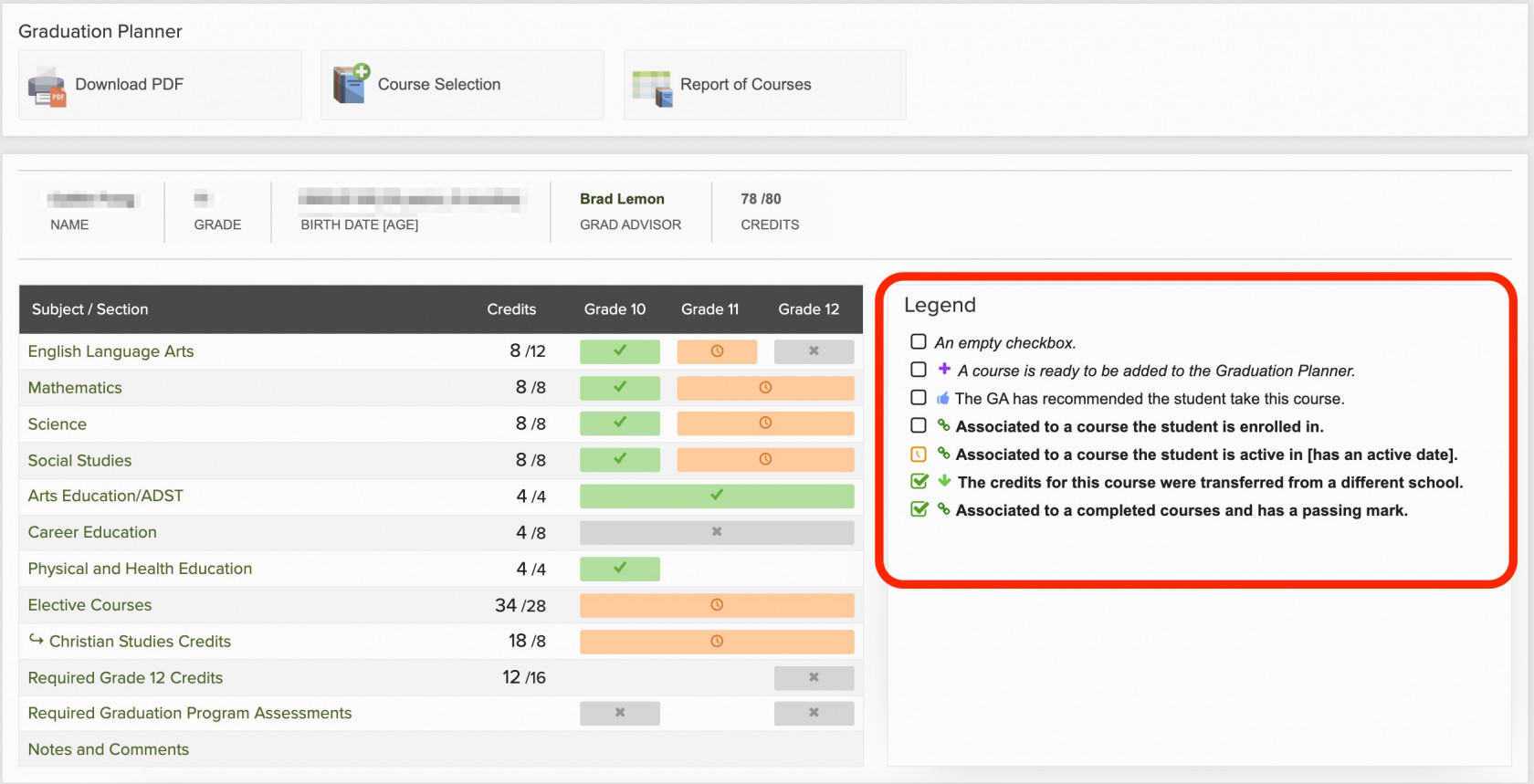
There is a legend at the top of the Grad Planner that explains what each colour and symbol mean.
[](https://sophie.onlineschool.ca/uploads/images/gallery/2022-01/grad-planner-legend.jpg)
Additionally, see the [Grad Planner for Families page here](https://sophie.onlineschool.ca/books/innovations-5-12/page/grad-planner-for-families) for a more detailed explanation of the most commonly seen icons and colours.
### Can I print a copy of my Grad Planner?
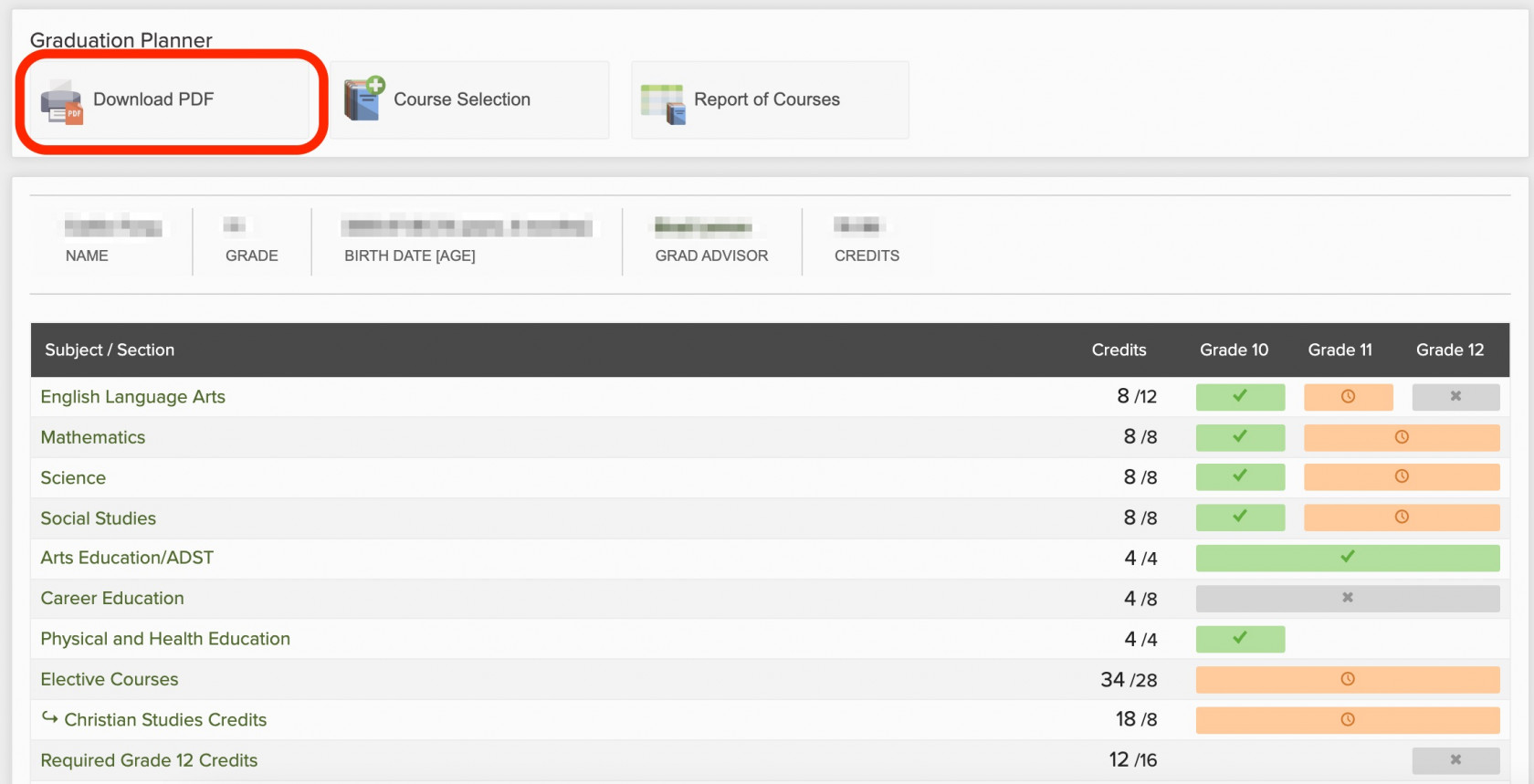
Yes! To generate a print or PDF copy of your Grad Planner, navigate to the top of your Grad Planner, where you will see a **Download PDF** button. Click on that button, and it will save a PDF of the Grad Planner, which you can print.
[](https://sophie.onlineschool.ca/uploads/images/gallery/2022-01/grad-planner-download-pdf.jpg)
Please note, your electronic grad planner will automatically update when courses are completed, so be sure you are working with the most recent version of your grad planner when planning future courses.
### Who do I contact if I have questions about the Grad Planner?
Please contact your Grad Advisor if you have any questions.