# Encom

# Encom Access & Icon Explanation

<div data-block="true" data-editor="2mo5l" data-offset-key="beq3j-0-0" id="bkmrk-"></div><div data-block="true" data-editor="2mo5l" data-offset-key="f02ho-0-0" id="bkmrk-encom-is-a-database-"><div data-offset-key="f02ho-0-0">Encom is a database in which student records and reports are stored. This can be considered to be the ‘office’ area of the school and it is separate from the site in which the online courses are posted, which is called Brightspace. You can login [here](https://hcos.onlinelearningbc.com/d2l/login). </div><div data-offset-key="f02ho-0-0">  
</div><div data-offset-key="f02ho-0-0">- <span data-offset-key="6cv1o-0-0">In Encom, the following is visible for each student: </span>
- <span data-offset-key="6cv1o-0-0">Basic information (address, phone numbers etc.</span>
- <span data-offset-key="6cv1o-0-0">Course list, student learning plans (SLP) for Individualized subjects</span>
- <span data-offset-key="6cv1o-0-0">Resource budget information</span>
- <span data-offset-key="6cv1o-0-0">Report cards</span>

</div></div><span data-offset-key="6cv1o-0-0">Any errors in information can be shared with your support teacher or directed to the Flex Office at info@flex.academy.</span>

<div data-block="true" data-editor="2mo5l" data-offset-key="f02ho-0-0" id="bkmrk--1"><div data-offset-key="f02ho-0-0"></div><div data-offset-key="f02ho-0-0">  
</div></div>When a student is enrolled, parents/guardians are emailed a User Name and Password for Encom. Please save this information and be sure to record it **<u>exactly</u>** as it is sent so it can be found easily when needed to access Encom.

<p class="callout info">**To access Encom, go to [https://encom.onlineschool.ca/](https://encom.onlineschool.ca/ "www.onlineschool.ca")**</p>

<p class="callout info">**If you forget your username and/or password please contact [Tech Support](mailto:tickets@onlineschool.ca)**</p>

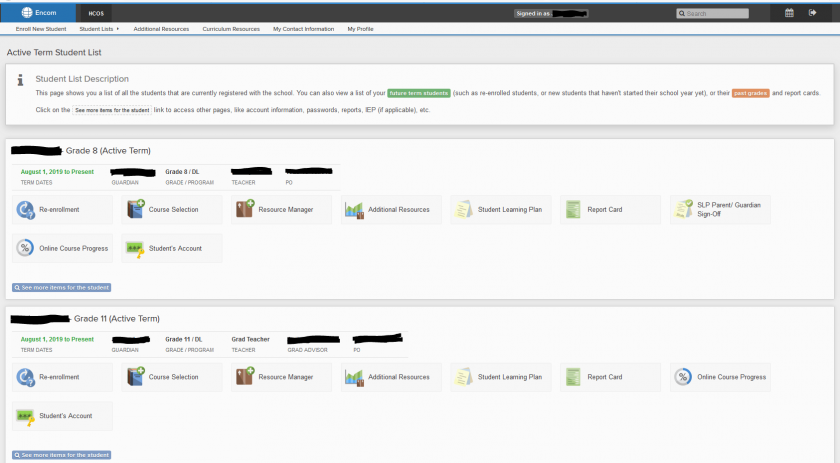
When you access Encom, this is approximately what you will see. Please take the time to become familiar with the various components of Encom***.***
![](https://sophie.onlineschool.ca/uploads/images/gallery/2020-03-Mar/scaled-840-0/image-1583345779053.png)

### The Main Icons Used by Parents/Guardians
 ![](https://sophie.onlineschool.ca/uploads/images/gallery/2020-03-Mar/scaled-840-0/image-1583346842049.png)

**Additional Resources** – This icon is where information related to the curriculum budget is tracked. Please check the curriculum budget before making purchases with the Purchase Order number to ensure there are enough funds for the purchase.

![](https://sophie.onlineschool.ca/uploads/images/gallery/2020-03-Mar/scaled-840-0/image-1583347188663.png)

The **Report Card** links directly to each student's report card. If there are any difficulties viewing it, please contact the Support Teacher and they can help.

![](https://sophie.onlineschool.ca/uploads/images/gallery/2020-03-Mar/scaled-840-0/image-1583347336533.png)

The **Self-Assessment Survey** is completed annually for each student and can be done in combination with the support teacher, student, and parent/guardian. Typically, Support Teachers share information related to this and guide parents through the process.

![](https://sophie.onlineschool.ca/uploads/images/gallery/2020-03-Mar/scaled-840-0/image-1583346222096.png) ![](https://sophie.onlineschool.ca/uploads/images/gallery/2020-03-Mar/scaled-840-0/image-1583346265836.png)

Select **See more items for the student** to access the student **Contact Information** to ensure it's up to date or when it needs to be changed. To see parent/guardian email and other contact information, click on the name above **Guardian** on the main page in Encom. The Flex Office should be notified of any changes as well at <span data-offset-key="6cv1o-0-0"><info@flex.academy></span>.

# Logging Into Encom

##### Sign into Encom

You can access [Encom](https://encom.onlineschool.ca/home/) here, or from our [FLEX homepage](https://flex.academy/flex/) by clicking on the Log In button near the bottom of the page in the quick access section:

[![image.png](https://sophie.onlineschool.ca/uploads/images/gallery/2024-01/scaled-1680-/dyfimage.png)](https://sophie.onlineschool.ca/uploads/images/gallery/2024-01/dyfimage.png)

Select Encom:

You might want to pause and bookmark Encom before you move on.

[![Screen-Shot-2019-01-04-at-11.15.38-AM.png](https://sophie.onlineschool.ca/uploads/images/gallery/2019-01-Jan/scaled-840-0/Screen-Shot-2019-01-04-at-11.15.38-AM.png)](https://sophie.onlineschool.ca/uploads/images/gallery/2019-01-Jan/Screen-Shot-2019-01-04-at-11.15.38-AM.png)

Now sign-in with the username and password that you received by email when you first registered with Flex Academy. If you have lost this information, please click on the Lost Your Password? link on [Encom](https://encom.onlineschool.ca/). You will receive an email with a link to reset your account information.

[![Screen-Shot-2019-01-04-at-11.15.27-AM.png](https://sophie.onlineschool.ca/uploads/images/gallery/2019-01-Jan/scaled-840-0/Screen-Shot-2019-01-04-at-11.15.27-AM.png)](https://sophie.onlineschool.ca/uploads/images/gallery/2019-01-Jan/Screen-Shot-2019-01-04-at-11.15.27-AM.png)

# Viewing a Student Report Card

To view your student’s report card in Encom, please begin by[ logging in](https://encom.onlineschool.ca/).  
Click the **Report Card** button below the name of the student whose report card you wish to view.

<span id="bkmrk--1" style="font-weight: normal;"><span style="font-size: 10.5pt; font-family: Poppins, sans-serif; background-color: transparent; font-weight: 400; font-style: normal; font-variant: normal; white-space-collapse: preserve;"><span style="border-width: initial; border-style: none; display: inline-block; overflow: hidden; width: 624px; height: 485px;">![](https://lh7-rt.googleusercontent.com/docsz/AD_4nXe26GYRZ_i1sFVCcMImKqNQB6IOomdYQpqBNig4HFD5KgWAoDEZMytJ20O_L36NQAFte06ROLKcPmjb1CoK8tEdz3z3cJNv-gfNjVzzJMf-llSydCUCp3ptgz6euJyVJS1ZiYJcrMcTexNmOMrNGH9UPoE?key=5NZ19NCOSi7sV_Bu5OnMwA)</span></span></span>

This will take you to the report card page within Encom where you can view a summary of your student’s marks in the given subject areas and access the Student Learning Plan (SLP) and Learning Standards (LS) available for each course, if applicable.   
Below the report card summary, you will see the Term Comments for your student. Select the term you are looking to view.

<span id="bkmrk--3" style="font-weight: normal;"><span style="font-size: 10.5pt; font-family: Poppins, sans-serif; background-color: transparent; font-weight: 400; font-style: normal; font-variant: normal; white-space-collapse: preserve;"><span style="border-width: initial; border-style: none; display: inline-block; overflow: hidden; width: 624px; height: 656px;">![](https://lh7-rt.googleusercontent.com/docsz/AD_4nXeJZNvFNYLXoipNeItLTD06MiUGYp12ikqoR88XI7ueLLiVlA_NPOJBXuGCVMak9IE3SK-x9UkeVtZ2lVV0q2-F_aocbZMwnRYAsmeOxjG7twIZ-DwpP_KpjNJhjpvOmHosDzBHNVqDvEZh5B2E9quWwf2I?key=5NZ19NCOSi7sV_Bu5OnMwA)</span></span></span>

<p class="callout info">Term Comments are only used for K-9 Foundations Students, not Innovations 5-12 students. </p>

Below the Term Comments, you will find Internal courses and course specific comments. Internal courses appear for K-9 students who are enrolled in courses with their support teacher. Comments for these courses are included in the Term Comments section.

<span id="bkmrk--5" style="font-weight: normal;"><span style="font-size: 10.5pt; font-family: Poppins, sans-serif; background-color: transparent; font-weight: bold; font-style: normal; font-variant: normal; white-space-collapse: preserve;"><span style="border-width: initial; border-style: none; display: inline-block; overflow: hidden; width: 624px; height: 79px;">![](https://lh7-rt.googleusercontent.com/docsz/AD_4nXe2GGEV3wIAH4cmO0_bBp_asOa6hrMYk531E4pFvg0YdfPJXeM8F8IDNsvZ5YX_MWJUySCUsE86zANW0NQ7UMnmWkhZGyErmbSyJsJWYdL3F0hHtqcaQJr3wriAvnRu87BpB9BOC-Uxm676WSGY7vEWl0I?key=5NZ19NCOSi7sV_Bu5OnMwA)</span></span></span>

**Course Specific Comments** apply to the following course types:

- Online
- Online Synchronous
- Synchronous
- Hybrid
- 10-12 Individualized
- IEP (Replacement) Courses

If your student is taking a course in one of these course types, you can view marks, comments, and learning habits (if applicable) under each subject area.

<span id="bkmrk--7" style="font-weight: normal;"><span style="font-size: 10.5pt; font-family: Poppins, sans-serif; background-color: transparent; font-weight: 400; font-style: normal; font-variant: normal; white-space-collapse: preserve;"><span style="border-width: initial; border-style: none; display: inline-block; overflow: hidden; width: 624px; height: 237px;">![](https://lh7-rt.googleusercontent.com/docsz/AD_4nXfMB3CKH5PLS9xI7SaaI0mg1RKHbsYPE5APXAm3DdrOPjINVwlZ9n1VSpOKIL8Om0LLfgzSw5AfEOWczSk4yg5ard9_QECY6zfNjTbSKcumBw8ofayeBJ8bPeAmS9hPu5frDN9bYwZy9KWOI1ftipFyerxZ?key=5NZ19NCOSi7sV_Bu5OnMwA)</span></span></span>

Reports indicate marks and comments for each term of the school year. Sometimes, students need more time to complete a course, meaning they receive marks in multiple terms. If your student is currently working on a course that was activated in the previous school year or recently completed a course from the previous school year, the open course will be pulled forward to the current year’s report card and teachers will continue reporting twice a year until the course is complete.

Next, you will find the Student Self-Assessment Survey (SSA). Students are encouraged to set goals and reflect on statements at the beginning of the year with their support teachers or through their Career Education courses.

SSA statements are based on the BC Core Competencies and HCOS Biblical Attributes and will rotate from year to year based on grade level.

<span id="bkmrk--9" style="font-weight: normal;"><span style="font-size: 10.5pt; font-family: Poppins, sans-serif; background-color: transparent; font-weight: 400; font-style: normal; font-variant: normal; white-space-collapse: preserve;"><span style="border-width: initial; border-style: none; display: inline-block; overflow: hidden; width: 624px; height: 596px;">![](https://lh7-rt.googleusercontent.com/docsz/AD_4nXeE3OoKM-ccwkWWWLnm0ImdPrcR5GikuuSDACzL2kUC31leHYE66lTWhQ4wkx8KajNt4ex26AKnyYow98tLc3Ww0UXfC0kJJ8gSyPc88YnSith2_dJCiDw9i4gXi6K_vjGrdznQHY1ienaYYZdx5HX6oqw?key=5NZ19NCOSi7sV_Bu5OnMwA)</span></span></span>

If your student is in K-9, you will see a section called “Promotion Sign-Off” at the bottom of the report card page. Once your student has completed their courses for the year, your support teacher will use the Promotion Sign-Off box to acknowledge your student has completed their current grade!

<span id="bkmrk--10" style="font-weight: normal;"><span style="font-size: 10.5pt; font-family: Poppins, sans-serif; background-color: transparent; font-weight: 400; font-style: normal; font-variant: normal; white-space-collapse: preserve;"><span style="border-width: initial; border-style: none; display: inline-block; overflow: hidden; width: 624px; height: 71px;">![](https://lh7-rt.googleusercontent.com/docsz/AD_4nXe046cBWtmpchB5R8kO_IvWyTnHFZ9Tc4r4rarJRdrHNSZ_n1b85aPM_-YkbqBrvagfXtlZ1KEi7sbHTbFRcbEU9lA64RR9SbOgIHfvC7Bn4eceO0ElHijo7sZD-GtMZ4ksF3E_gAO0oqdaFX7YLdjJhTqE?key=5NZ19NCOSi7sV_Bu5OnMwA)</span></span></span>  
The Promotion Sign-Off box is not included for grades 10-12 students, as these students often take courses that are not necessarily associated with their current grade level.

---

In addition to viewing the report card in Encom, you have a few additional options at the top of the page.

<span id="bkmrk--13" style="font-weight: normal;"><span style="font-size: 10.5pt; font-family: Poppins, sans-serif; background-color: transparent; font-weight: 400; font-style: normal; font-variant: normal; white-space-collapse: preserve;"><span style="border-width: initial; border-style: none; display: inline-block; overflow: hidden; width: 624px; height: 176px;">![](https://lh7-rt.googleusercontent.com/docsz/AD_4nXf2kd-Rv2oMtgI2TG-rqTSJdpA2yZ8suS3JR4t5tt90_Hf2NN2rVcMLRDCqkW-72PTJc-Kjr-BuCV1jqh6cvALXqZ1_Xb5L4Yexrj86IDmqdwDbp3Jnfvks-37vZh_rw_I0axkhlnKfSKqEWM1cBwxY068?key=5NZ19NCOSi7sV_Bu5OnMwA)</span></span></span>

**Print Report Card** generates a web-based document that can be printed.

**Download PDF** generates a PDF file of the report card that you can save to your computer.

<p class="callout info">Print Report Card and Download PDF files will show your students' most recent comments only. Previous comments must be viewed through Encom. </p>

  
**Course Selection** will take you to the course selection page within Encom. If courses have already been selected for the current school year this button will be locked in Encom. Please contact your support teacher (Grades K-9) or Grad Advisor (Grades 10-12) for assistance.

**Learning Standards** will take you to the overview page for course learning standards. From there, select a course to view your student’s progress on the curricular competencies within that course.

**Student Learning Plan** will take you to view any student learning plans that you have created with your student’s teacher.

**Interim Grade Reports** is a place to see any IGRs that have been sent for your student during the school year.