# Seesaw - Sign in Instructions for Foundations K-9 and Inclusive Education Parents

At HCOS, we have set up Seesaw this year to make it easier for families to share learning. Each family will receive a 'Class Sign In Code' unique to their family so they can access Seesaw as a ‘student’ in their teacher’s virtual Seesaw classroom.

With this code, parents will see all of their children in one class and can easily add work samples for any child in their family.

The Classroom Sign in Code document your teacher sends you will provide step-by-step instructions. Your teacher will send these instructions as a screenshot or PDF file.


#### Sample Instructions Sent by Support Teachers


##### Step One:

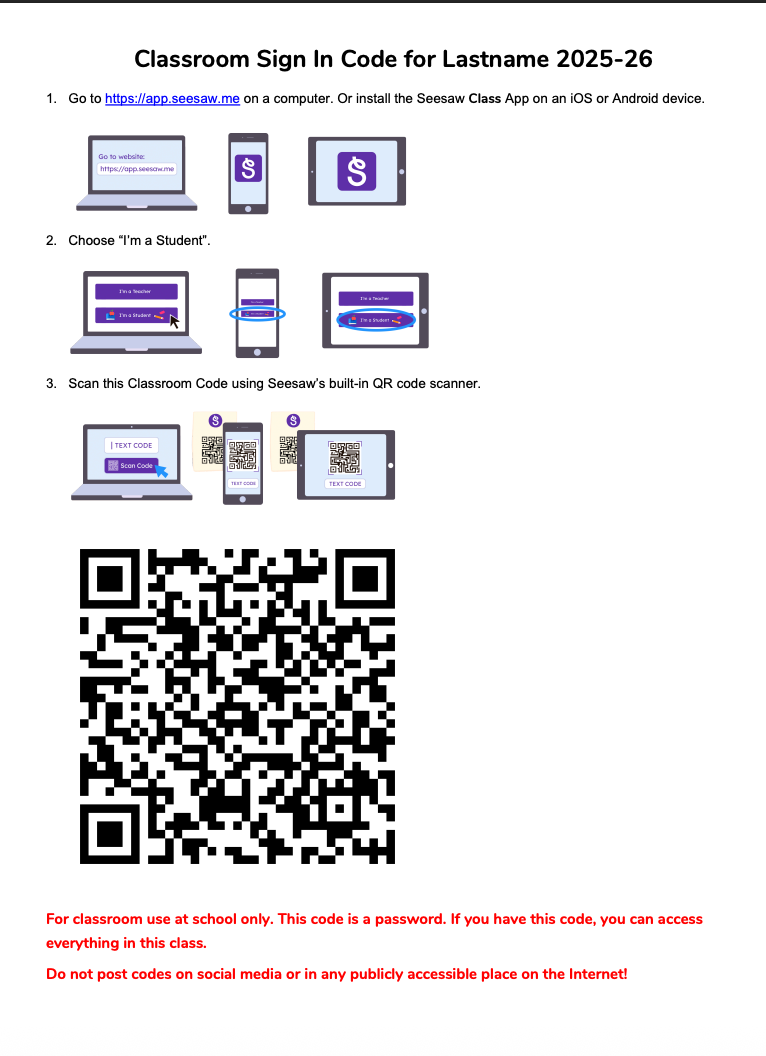
- You will receive a Classroom Sign-in Code page for your family's class
- It will be titled with your last name and the current school year
<span id="bkmrk--1" style="font-weight: normal;"><span style="font-size: 11pt; font-family: Poppins, sans-serif; color: rgb(0, 0, 0); background-color: transparent; font-weight: 400; font-style: normal; font-variant: normal; white-space-collapse: preserve;"><span style="border-width: initial; border-style: none; display: inline-block; overflow: hidden; width: 375px; height: 513px;">![](https://sophie.onlineschool.ca/uploads/images/gallery/2025-10/embedded-image-8y1w1ij3.png)</span></span></span>

##### Step Two:

- <span style="font-size: 11pt; font-family: Poppins,sans-serif; color: #000000; background-color: transparent; font-weight: 400; font-style: normal; font-variant: normal; text-decoration: none; vertical-align: baseline; white-space: pre-wrap;">Open the Seesaw App on your phone or tablet or</span><span style="font-size: 11pt; font-family: Poppins,sans-serif; color: #000000; background-color: transparent; font-weight: 400; font-style: normal; font-variant: normal; text-decoration: none; vertical-align: baseline; white-space: pre-wrap;"> go to </span>[<span style="font-size: 11pt; font-family: Poppins,sans-serif; color: #1155cc; background-color: transparent; font-weight: 400; font-style: normal; font-variant: normal; text-decoration: underline; -webkit-text-decoration-skip: none; text-decoration-skip-ink: none; vertical-align: baseline; white-space: pre-wrap;">app.seesaw.me</span>](http://app.seesaw.me)<span style="font-size: 11pt; font-family: Poppins,sans-serif; color: #000000; background-color: transparent; font-weight: 400; font-style: normal; font-variant: normal; text-decoration: none; vertical-align: baseline; white-space: pre-wrap;"> for laptops and computers </span>

<span style="font-size: 11pt; font-family: Poppins,sans-serif; color: #000000; background-color: transparent; font-weight: 400; font-style: normal; font-variant: normal; text-decoration: none; vertical-align: baseline; white-space: pre-wrap;"><span id="bkmrk--3" style="font-weight: normal;"><span style="font-size: 11pt; font-family: Poppins, sans-serif; background-color: transparent; font-weight: 400; font-style: normal; font-variant: normal;"><span style="border-width: initial; border-style: none; display: inline-block; overflow: hidden; width: 79px; height: 70px;">![](https://sophie.onlineschool.ca/uploads/images/gallery/2025-10/embedded-image-4llmhm1f.png)</span></span></span></span>

<p class="callout info"><span style="font-size: 11pt; font-family: Poppins, sans-serif; color: rgb(0, 0, 0); background-color: transparent; font-weight: 400; font-variant: normal; text-decoration: none; vertical-align: baseline; white-space: pre-wrap;">If you have not downloaded the </span><span style="font-size: 11pt; font-family: Poppins, sans-serif; color: rgb(0, 0, 0); background-color: transparent; font-weight: bold; font-variant: normal; text-decoration: none; vertical-align: baseline; white-space: pre-wrap;">Seesaw Class app</span><span style="font-size: 11pt; font-family: Poppins, sans-serif; color: rgb(0, 0, 0); background-color: transparent; font-weight: 400; font-variant: normal; text-decoration: none; vertical-align: baseline; white-space: pre-wrap;">, download the app on iOS or Android device.</span></p>

##### Step Three:

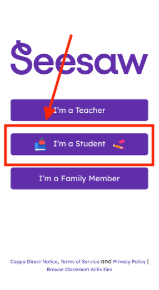
- Click on the purple 'I’m a Student' button
<span id="bkmrk--6" style="font-weight: normal;"><span style="font-size: 11pt; font-family: Poppins, sans-serif; color: rgb(0, 0, 0); background-color: transparent; font-weight: 400; font-style: normal; font-variant: normal; white-space-collapse: preserve;"><span style="border-width: initial; border-style: none; display: inline-block; overflow: hidden; width: 241px; height: 439px;">![](https://sophie.onlineschool.ca/uploads/images/gallery/2025-10/embedded-image-vhvrhvoy.png)</span></span></span>

##### Step Four:

Here is how to properly scan the 'QR Code' in the Seesaw App:

- When you click on 'I'm a Student', a student login page will open in the Seesaw App 
    - - Click the 'Scan Code' purple button
    - <span id="bkmrk--7" style="font-weight: normal;"></span> <span id="bkmrk--8" style="font-weight: normal;"></span><span id="bkmrk--9" style="font-weight: normal;"><span style="font-size: 11pt; font-family: Poppins, sans-serif; color: rgb(0, 0, 0); background-color: transparent; font-weight: 400; font-style: normal; font-variant: normal; white-space-collapse: preserve;"><span style="border-width: initial; border-style: none; display: inline-block; overflow: hidden; width: 252px; height: 542px;">![](https://sophie.onlineschool.ca/uploads/images/gallery/2025-10/embedded-image-5ug3nzur.png)</span></span></span>
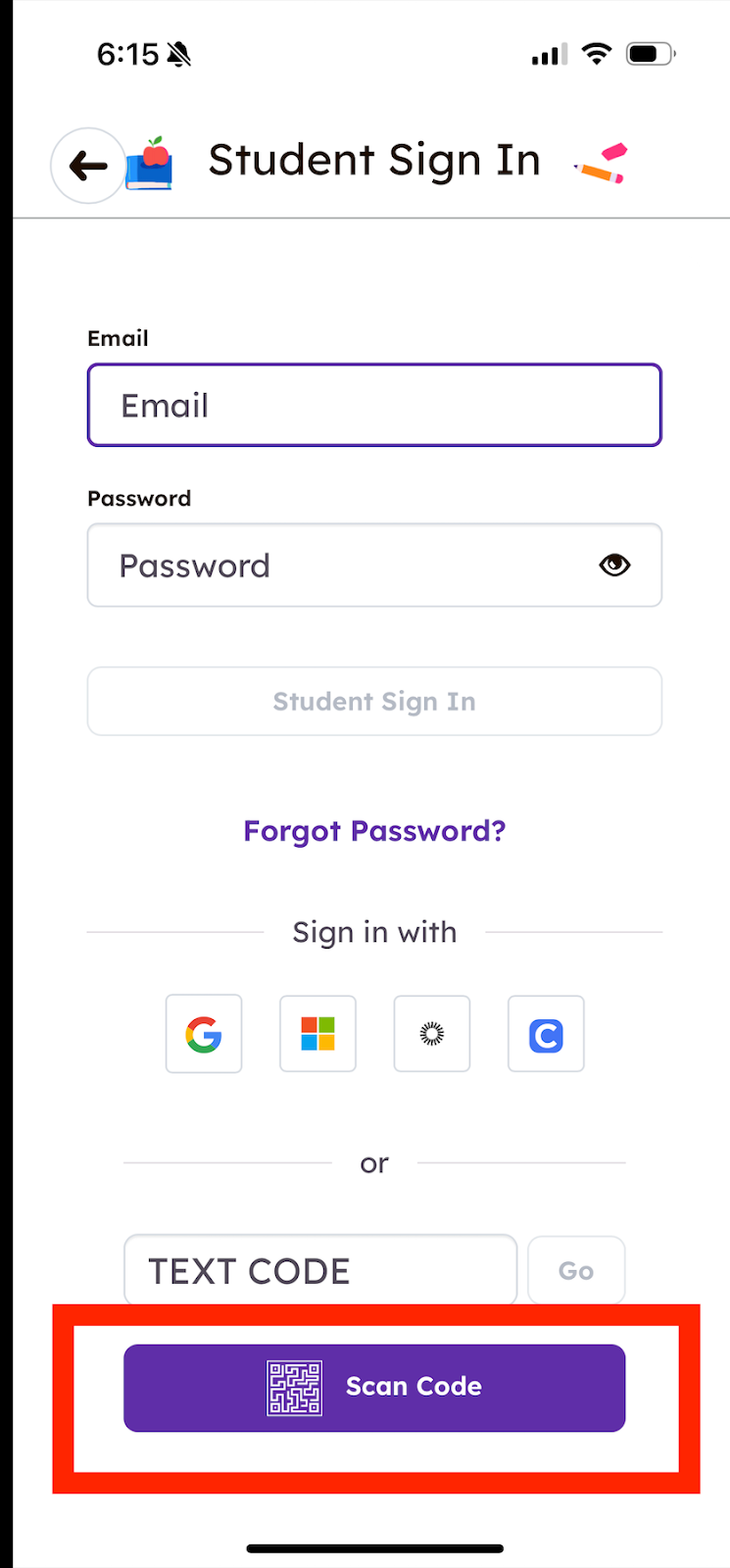
        - Seesaw’s built in 'QR Code Scanner' will open
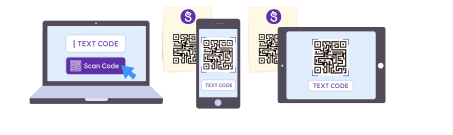
        - Scan the Classroom Code using Seesaw’s built in 'QR Code Scanner'
        - Hold the phone up to the QR code provided by your teacher to scan
<span id="bkmrk--11" style="font-weight: normal;"><span style="font-size: 11pt; font-family: Poppins, sans-serif; color: rgb(0, 0, 0); background-color: transparent; font-weight: 400; font-style: normal; font-variant: normal; white-space-collapse: preserve;"><span style="border-width: initial; border-style: none; display: inline-block; overflow: hidden; width: 504px; height: 150px;">![](https://sophie.onlineschool.ca/uploads/images/gallery/2025-10/embedded-image-jigqm4ar.png)</span></span></span>

<p class="callout info">As well, the QR scanner is able to scan the code from a printed piece of paper or an open screen on a computer. </p>

##### Step Five:

- Your family class will now open
- After this initial setup, you should not need to sign in again unless you sign yourself out
- If you accidentally sign yourself out, contact your teacher for a new code