# Getting Started With Read&Write

Watch this short video to learn how to install the Read&amp;Write extension on your Google Chrome browser. If you prefer, there are step-by-step written instructions with screenshots below the video.

<div id="bkmrk-" style="padding: 56.04% 0 0 0; position: relative;"><iframe allow="autoplay; fullscreen; picture-in-picture; clipboard-write" frameborder="0" src="https://player.vimeo.com/video/969308782?badge=0&autopause=0&player_id=0&app_id=58479" style="position: absolute; top: 0; left: 0; width: 100%; height: 100%;" title="Getting Started With Read&Write"></iframe>

</div>#### Step-By-Step Instructions

There are four steps to get started with Read&amp;Write.

---

**Step 1:** Log into the Google Chrome browser by clicking the circle in the top right corner, then entering your HCOS or Flex Academy username and password.

[![image.png](https://sophie.onlineschool.ca/uploads/images/gallery/2024-06/scaled-1680-/m2Limage.png)](https://sophie.onlineschool.ca/uploads/images/gallery/2024-06/m2Limage.png)

<p class="callout info">If you do not have the Google Chrome browser, download it [here](https://www.google.com/intl/en_ca/chrome/).</p>

---

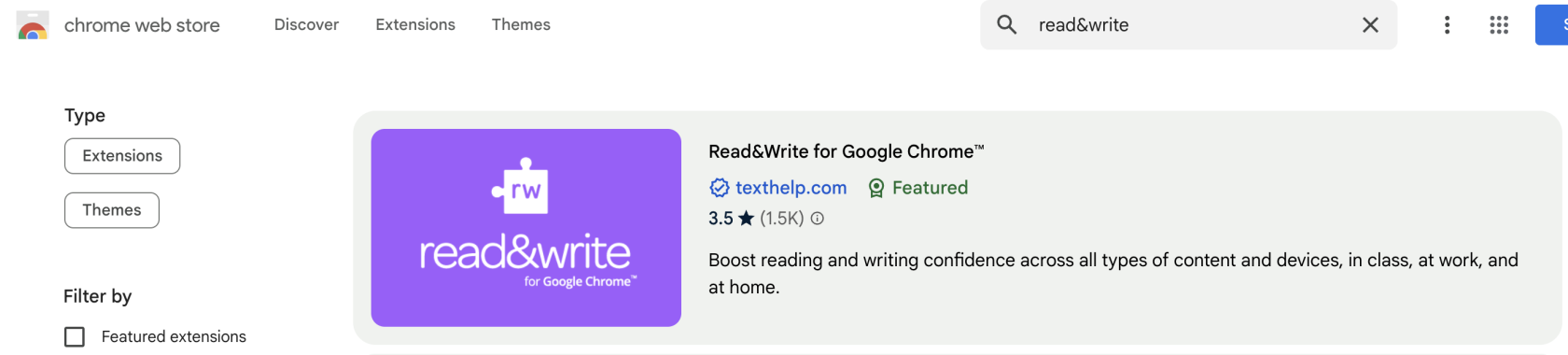
**Step 2:** Navigate to the [Chrome Web Store](https://chromewebstore.google.com/) and search for the Read&amp;Write extension.

[![image.png](https://sophie.onlineschool.ca/uploads/images/gallery/2024-06/scaled-1680-/97Ximage.png)](https://sophie.onlineschool.ca/uploads/images/gallery/2024-06/97Ximage.png)

---

**Step 3:** Click the blue "Add to Chrome" button.

[![image.png](https://sophie.onlineschool.ca/uploads/images/gallery/2024-06/scaled-1680-/UXLimage.png)](https://sophie.onlineschool.ca/uploads/images/gallery/2024-06/UXLimage.png)

---

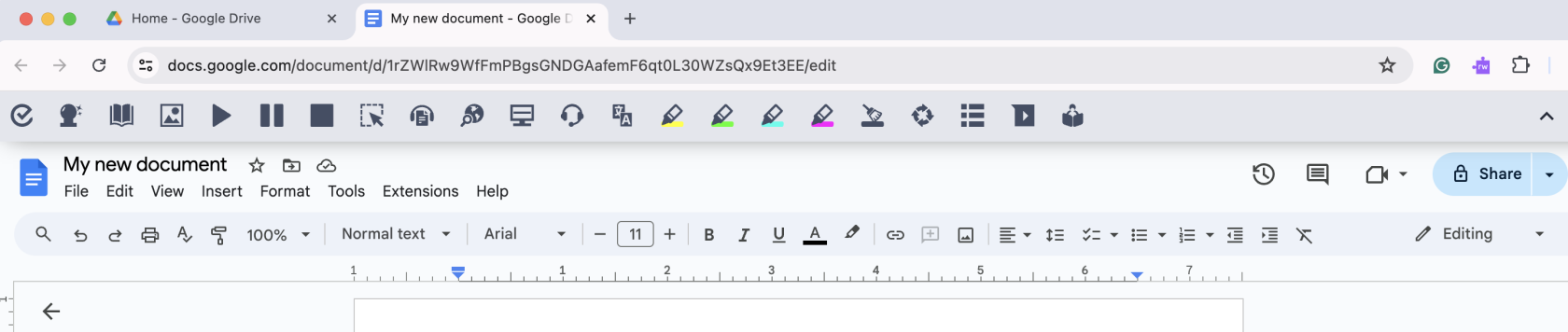
**Step 4:** Click the Read&amp;Write extension to activate the Read&amp;Write toolbar when working in Google Workspace apps or browsing websites in the Chrome browser.

[![image.png](https://sophie.onlineschool.ca/uploads/images/gallery/2024-06/scaled-1680-/Pr6image.png)](https://sophie.onlineschool.ca/uploads/images/gallery/2024-06/Pr6image.png)
<p class="callout success">To learn more about how to use each feature of the Read&amp;Write toolbar, visit the [Using Read&amp;Write SOPHIE page](https://sophie.onlineschool.ca/books/information-for-families/page/using-readwrite).</p>