# Booking Textbooks
Please note: This is for Individualized Patrons with Encom Passwords.
### Logging into the Search Portal:
Click on this link: [https://hcs.insigniails.com/LibrarySAML/Home](https://hcs.insigniails.com/LibrarySAML/Home)
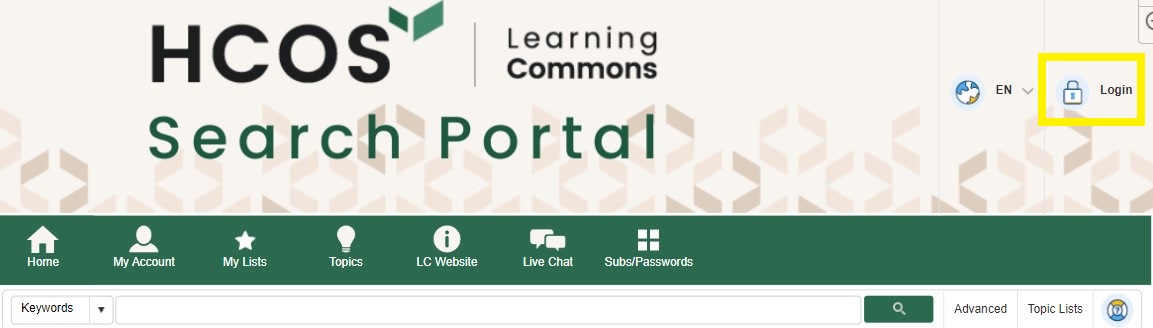
You will see the Search Portal menu below; click on Login in the upper right-hand corner.
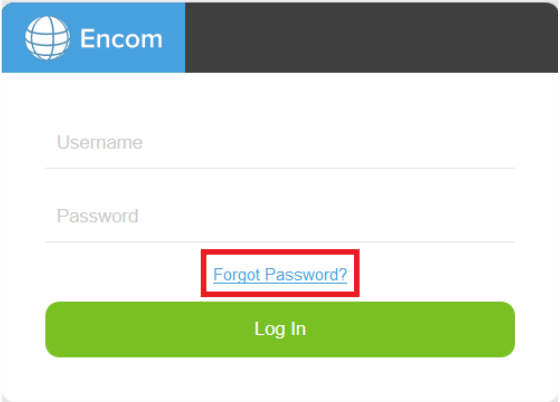
You will log in with your Encom username and password. If you have forgotten your password, choose the ‘forgot password?’ link, and the site will send it to your email. To find out your username or password, email .
[](https://sophie.onlineschool.ca/uploads/images/gallery/2020-08/image-1597180004189.png)
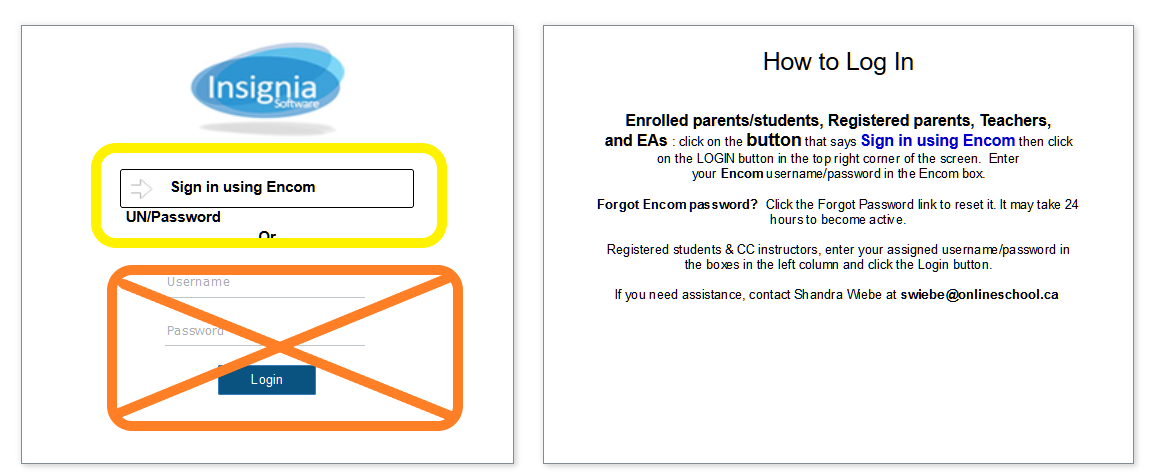
You may arrive at this page if coming from the Learning Commons website. If so, click on the SAML link and follow the instructions above.
### Physical Resource Limits For Textbooks
- High School Textbooks are loaned out for up to 8 months with a 1-month renewal option.
### Physical Resource Limits For Other Resources
- The loan period is 13 weeks, except for textbooks, so please consider aligning your return dates with other bookings. You receive six free shipments (3 return trips).
### Searching
We have curated the textbook list into Topic Lists, making it easier to find and book them. Click on the icon that says “Topic Lists”.
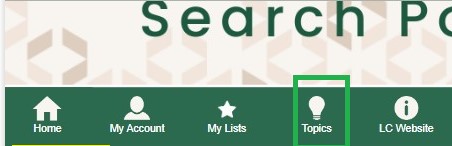
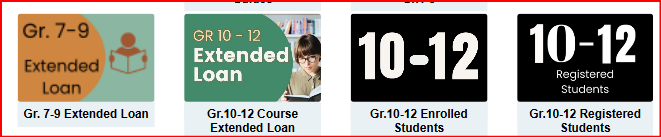
The next screen will show a list of topics by grade and subject. Click on the applicable icon:
[](https://sophie.onlineschool.ca/uploads/images/gallery/2025-02/lvzimage.png)
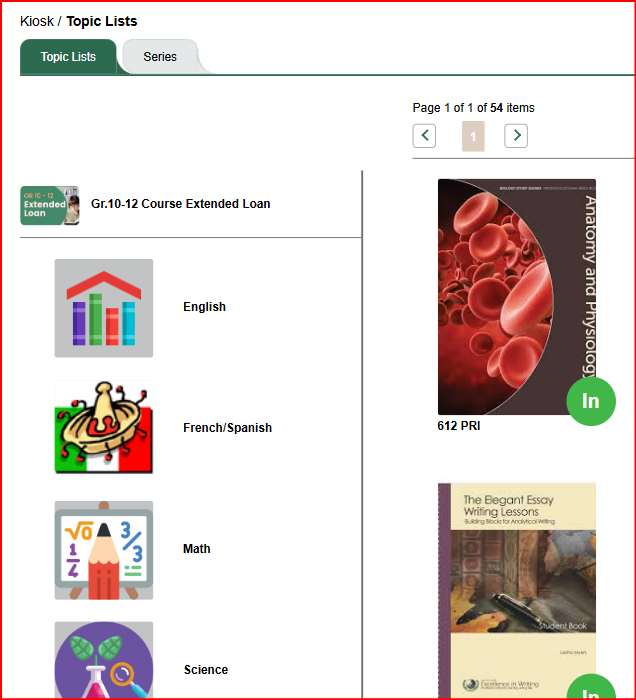
The left scroll bar has subjects - click on the subject and scroll to view titles. If you hover over the title, a balloon pops up with information about the title. Not all browsers load all of the pictures (Chrome), so you may want to use Firefox or another browser.
[](https://sophie.onlineschool.ca/uploads/images/gallery/2025-02/Nfbimage.png)
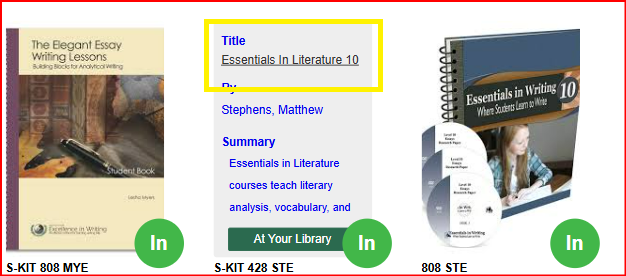
Click on a book cover, then click on the Title.
[](https://sophie.onlineschool.ca/uploads/images/gallery/2025-02/45fimage.png)
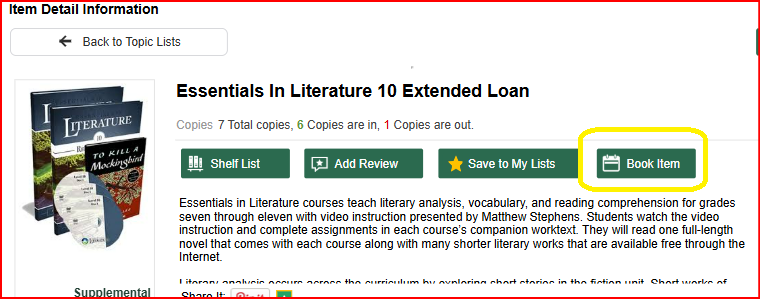
You will be taken to the Title Details page, where you can book by clicking the Book Item icon.
[](https://sophie.onlineschool.ca/uploads/images/gallery/2025-02/nZ5image.png)
### Booking items
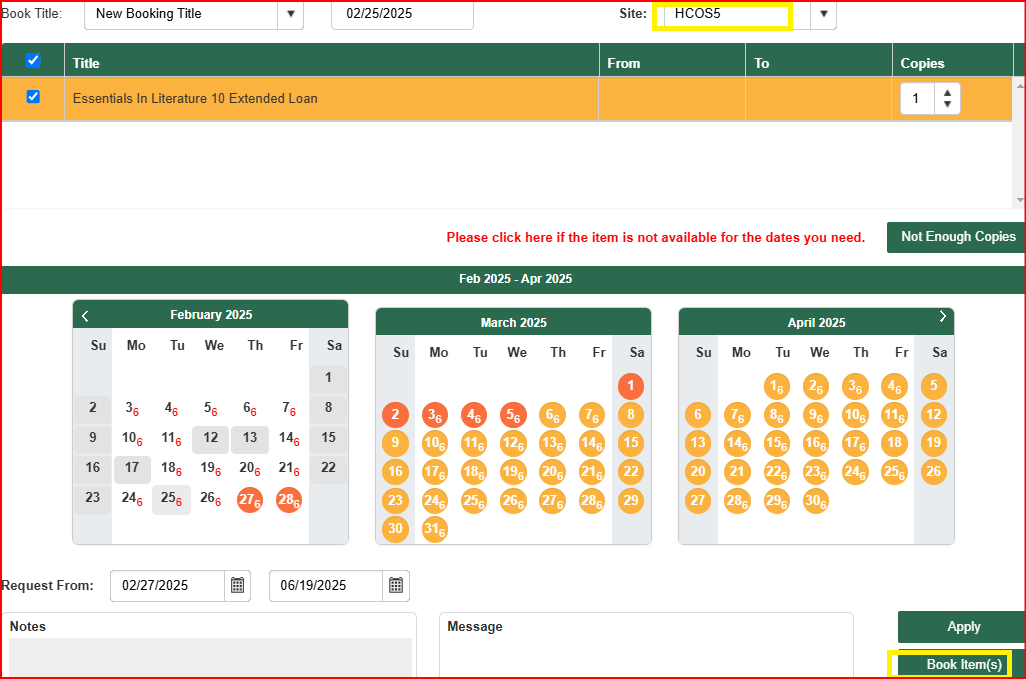
A calendar will appear When you click “Book Item” (see image below). The small red numbers indicate how many copies are available on that requested day. In the top right corner you will see your unique shipping “Site,” which shows the number of shipping days (HCOS5).
[](https://sophie.onlineschool.ca/uploads/images/gallery/2025-02/popimage.png)
In the screenshot above, we’ve selected HCOS5, which means this patron is five shipping days away from Kelowna. Be sure to choose a date that allows the number of shipping days before you want to receive your items.
The system will automatically change your date to allow for the correct shipping days.
**Click on the date.** In this example, March 6th was chosen. Next, **click “Book Items”.**
Shipping days are marked in **orange** on the calendar, excluding weekends and holidays. These days are added to the booking date before and after to determine the shipping timeframe.
A pop-up will confirm if your booking was successful, and you will receive a confirmation email.
### View your bookings
Hover over “My Account,” then “My Borrowing,” and then select “Booking.”
[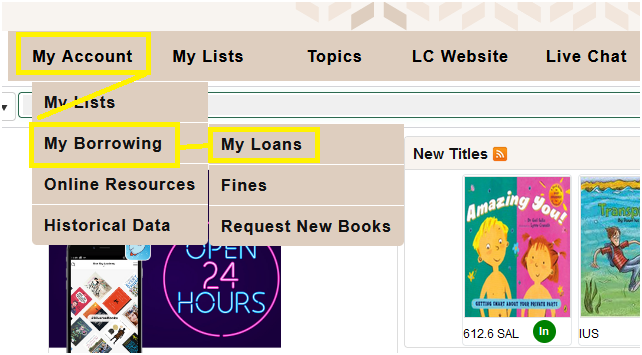](https://sophie.onlineschool.ca/uploads/images/gallery/2025-02/my-loans.png)
### You can view all of your bookings for the year.
Hover over “My Account,” then “My Borrowing,” and then select “Future Bookings":
[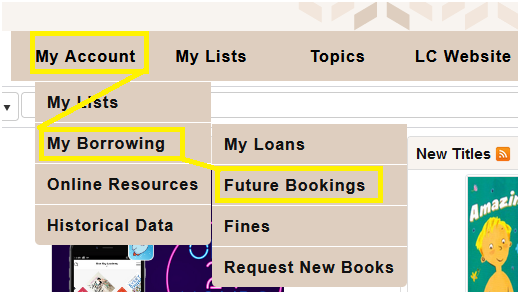](https://sophie.onlineschool.ca/uploads/images/gallery/2025-02/future-bookings.jpg)
You will see:
1. The booking loan period with Shipping to and from days
2. The Cancel button - click to cancel your booking
3. Edit Booking button - click to change your date
[](https://sophie.onlineschool.ca/uploads/images/gallery/2025-02/FWcimage.png)
### View due dates and renewal options for items out.
To renew your items:
1. **Hover** over the **“My Account”** icon.
2. Click on **“My Borrowing”** and select **“My Loan.”**
3. View the **Due Date**
4. Choose to renew **all items** at once by clicking **Select All, then Renew All,** or just one item by clicking the Renew **button**.
**Note:** Items cannot be renewed if another patron has booked them. If available, renewals are for **4 weeks**.
[](https://sophie.onlineschool.ca/uploads/images/gallery/2025-02/my-loans.png)
[](https://sophie.onlineschool.ca/uploads/images/gallery/2025-02/u0jimage.png)