# Accessing Multiple Seesaw Accounts

#### How to Toggle Between Multiple Seesaw Accounts (for CC/CC+ Parents)

It is easy to access multiple Seesaw classes on the same device without repeatedly signing out and back in to accounts. This is especially helpful when you have multiple children in CC/CC+.

Watch the video [<span data-rich-links="{"fple-t":"Toggling between multiple Seesaw accounts.mp4","fple-u":"https://drive.google.com/file/d/1qIiVX6YsSrBKEpGCsrOt9hDH-5rX4a7U/view?usp=sharing","fple-mt":"video/mp4","type":"first-party-link"}">Toggling between multiple Seesaw accounts.mp4</span>](https://drive.google.com/file/d/1qIiVX6YsSrBKEpGCsrOt9hDH-5rX4a7U/view?usp=sharing) and/or follow the instructions below to see how easy it is to toggle between accounts.

<p class="callout info">NOTE: This is device-specific. You will need to repeat these steps if you're using Seesaw on multiple devices.</p>

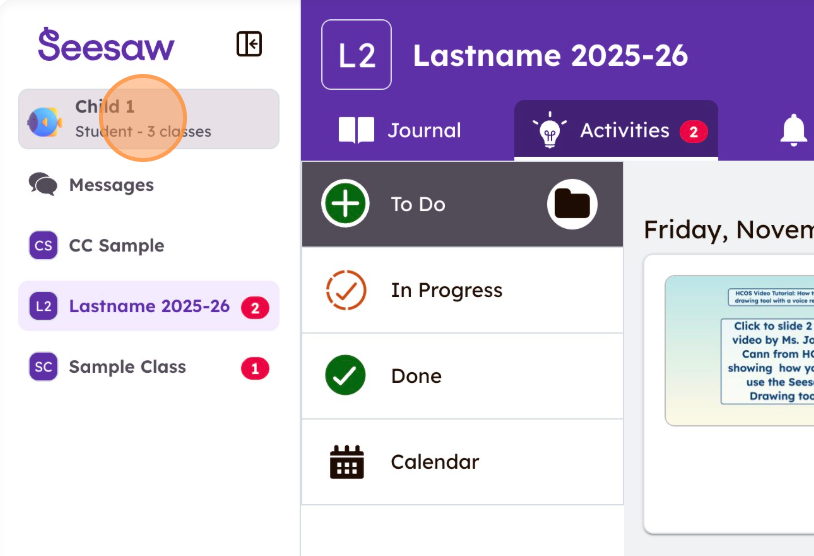
<div align="left" dir="ltr" id="bkmrk-step-1%3A-to-add-stude"><table style="height: 344px; width: 97.2619%;"><colgroup><col style="width: 40.1469%;" width="328"></col><col style="width: 40.1469%;" width="328"></col></colgroup><tbody><tr><td colspan="2" style="background-color: rgb(211, 239, 255);">**Step 1:** To add student accounts to Seesaw, follow the steps [here](https://sophie.onlineschool.ca/books/information-for-families/page/seesaw-student-login-to-cccc-classes). To toggle between the Seesaw accounts already added to your device, click on your child’s name at the top left.

</td></tr><tr><td colspan="2">![](https://sophie.onlineschool.ca/uploads/images/gallery/2026-01/embedded-image-ss5wmdmy.png)

</td></tr></tbody></table>

</div><div align="left" dir="ltr" id="bkmrk-step-2%3A-%C2%A0scroll-down"><table style="height: 497px; width: 97.0238%;"><colgroup><col style="width: 40.2454%;" width="328"></col><col style="width: 40.2454%;" width="328"></col></colgroup><tbody><tr><td colspan="2" style="background-color: rgb(211, 239, 255);">**Step 2:** Scroll down to the section titled “Switch Accounts” and click on the account you want to switch to. In this case, we want to switch to the account belonging to “Child 2.”

</td></tr><tr><td colspan="2">![](https://sophie.onlineschool.ca/uploads/images/gallery/2026-01/embedded-image-llu6qoef.png)

</td></tr></tbody></table>

</div>