# Brightspace

Student and Parent Brightspace resources

# Adding Images to Discussions

Here are some basic steps for adding an image to your discussion post or thread.

# Brightspace Troubleshooting

{{@7624}}

# Accessing Your Gradebook

To access your gradebook for a specific course in Brightspace:

1. Begin by logging into Brightspace with your username and password.
2. Navigate to the course through the 'My Courses' widget on the homepage and click on the course.  
    [![image.png](https://sophie.onlineschool.ca/uploads/images/gallery/2023-04/scaled-1680-/mhpimage.png)](https://sophie.onlineschool.ca/uploads/images/gallery/2023-04/mhpimage.png)
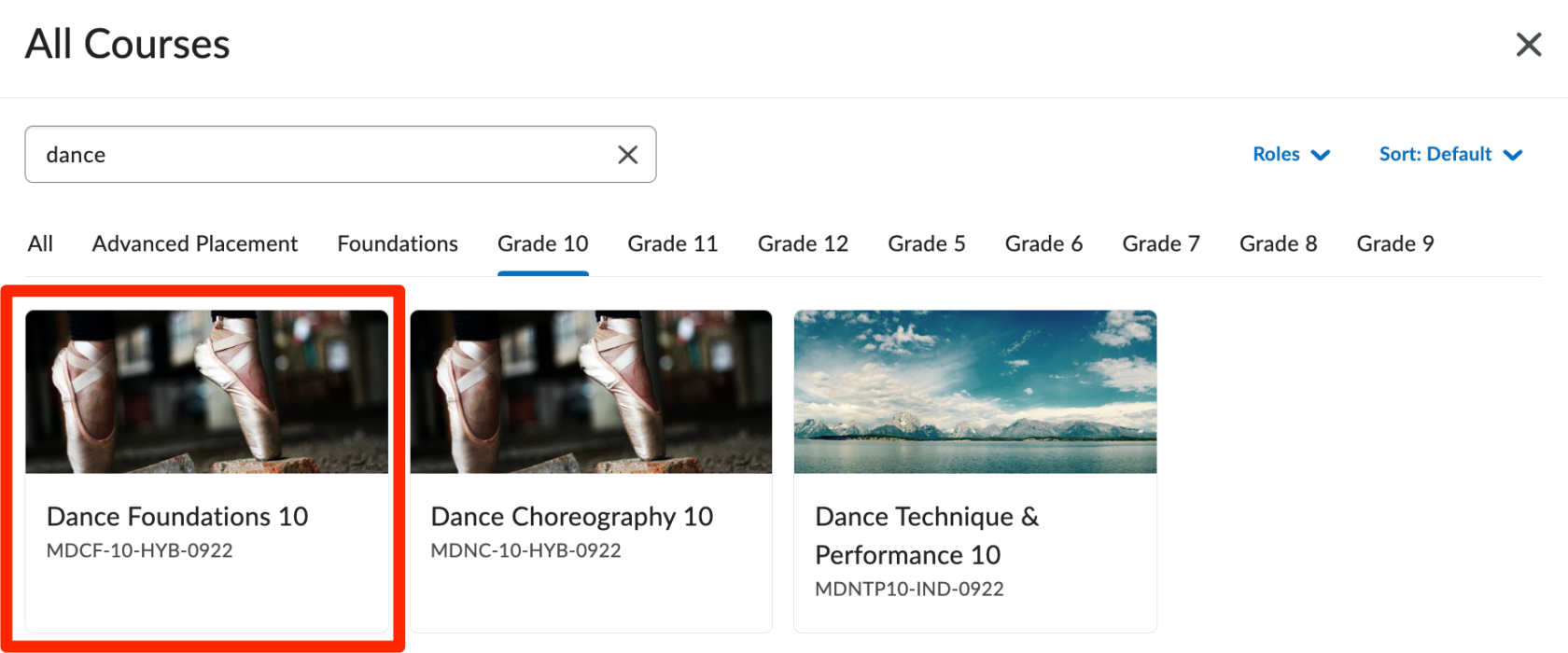
3. At the top of the course homepage, in the tan navigation bar, click grades.  
    [![image.png](https://sophie.onlineschool.ca/uploads/images/gallery/2023-04/scaled-1680-/Bscimage.png)](https://sophie.onlineschool.ca/uploads/images/gallery/2023-04/Bscimage.png)

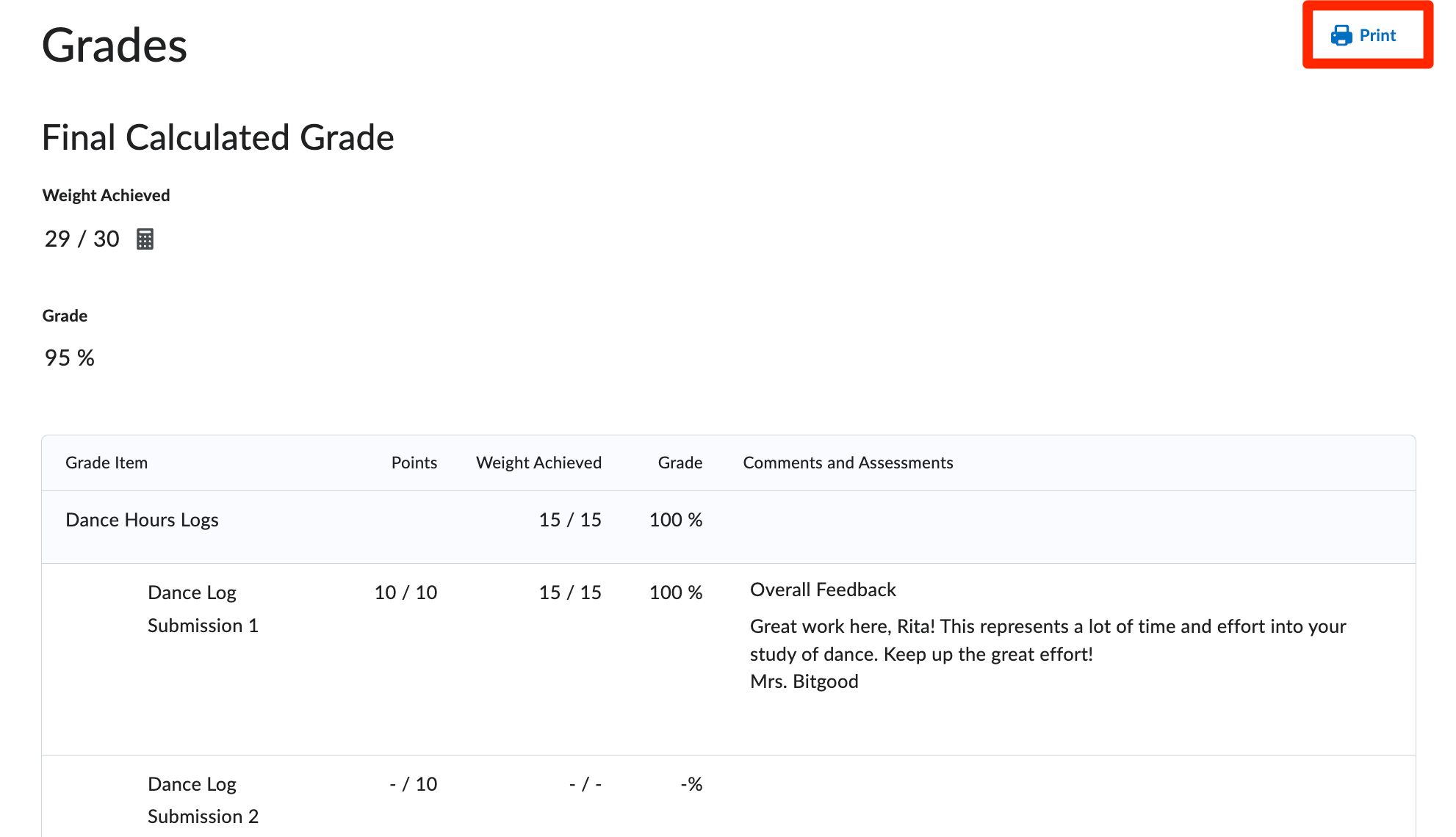
4. You will be taken to your grade report for the course.  
    Here you can see your overall grade, comments and individual assessment item results. You can also print this page for reference using the blue 'Print' button in the top right hand corner.   
    [![image.png](https://sophie.onlineschool.ca/uploads/images/gallery/2023-04/scaled-1680-/w8Aimage.png)](https://sophie.onlineschool.ca/uploads/images/gallery/2023-04/w8Aimage.png)
# Creating and Updating Your Brightspace Pacing & Progress Tool

<span style="font-size: 11pt; font-family: Arial,sans-serif; color: #000000; background-color: transparent; font-weight: 400; font-style: normal; font-variant: normal; text-decoration: none; vertical-align: baseline; white-space: pre-wrap;">Follow these five steps to create a Pacing &amp; Progress Tool Schedule for each of your courses.</span>

<span style="font-size: 11pt; font-family: Arial,sans-serif; color: #000000; background-color: transparent; font-weight: 400; font-style: normal; font-variant: normal; text-decoration: none; vertical-align: baseline; white-space: pre-wrap;">**Step 1:** Begin by logging into Brightspace. </span>

<span style="font-size: 11pt; font-family: Arial,sans-serif; color: #000000; background-color: transparent; font-weight: 400; font-style: normal; font-variant: normal; text-decoration: none; vertical-align: baseline; white-space: pre-wrap;">**Step 2:** Select the course that you wish to build a schedule for. </span>

<p class="callout info"><span style="font-size: 11pt; font-family: Arial,sans-serif; color: #000000; background-color: transparent; font-weight: 400; font-style: normal; font-variant: normal; text-decoration: none; vertical-align: baseline; white-space: pre-wrap;">If your teacher has not yet built a pacing guide for your course, you will be unable to create your schedule. Please contact your teacher for more information.</span></p>

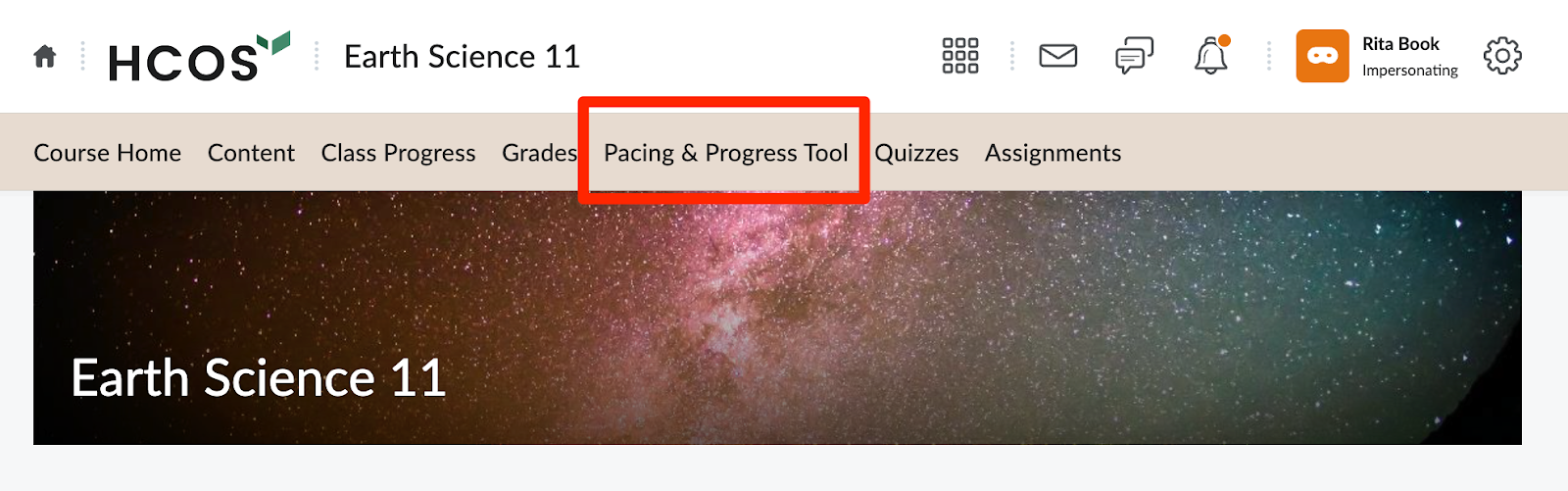
<span style="font-size: 11pt; font-family: Arial,sans-serif; color: #000000; background-color: transparent; font-weight: 400; font-style: normal; font-variant: normal; text-decoration: none; vertical-align: baseline; white-space: pre-wrap;">**Step 3:** Click </span><span style="font-size: 11pt; font-family: Arial,sans-serif; color: #000000; background-color: transparent; font-weight: bold; font-style: normal; font-variant: normal; text-decoration: none; vertical-align: baseline; white-space: pre-wrap;">Pacing &amp; Progress Tool</span><span style="font-size: 11pt; font-family: Arial,sans-serif; color: #000000; background-color: transparent; font-weight: 400; font-style: normal; font-variant: normal; text-decoration: none; vertical-align: baseline; white-space: pre-wrap;"> in the Navigation Bar. It will appear differently, depending on if you are in a Middle School</span><span style="font-size: 11pt; font-family: Arial,sans-serif; color: #000000; background-color: transparent; font-weight: 400; font-style: normal; font-variant: normal; text-decoration: none; vertical-align: baseline; white-space: pre-wrap;"> course or a Grad course:</span>

---

#### <span style="font-size: 12pt; font-family: Arial,sans-serif; color: #666666; background-color: transparent; font-weight: 400; font-style: normal; font-variant: normal; text-decoration: none; vertical-align: baseline; white-space: pre-wrap;">Middle School</span>

<span style="font-size: 11pt; font-family: Arial,sans-serif; color: #000000; background-color: transparent; font-weight: 400; font-style: normal; font-variant: normal; text-decoration: none; vertical-align: baseline; white-space: pre-wrap;">[![Screenshot 2024-10-22 at 9.19.19 AM.png](https://sophie.onlineschool.ca/uploads/images/gallery/2024-10/scaled-1680-/screenshot-2024-10-22-at-9-19-19-am.png)](https://sophie.onlineschool.ca/uploads/images/gallery/2024-10/screenshot-2024-10-22-at-9-19-19-am.png)</span>

---

#### <span style="color: #666666; font-family: Arial, sans-serif;"><span style="font-size: 16px; white-space-collapse: preserve;">Grad</span></span>

<span style="font-size: 11pt; font-family: Arial,sans-serif; color: #000000; background-color: transparent; font-weight: 400; font-style: normal; font-variant: normal; text-decoration: none; vertical-align: baseline; white-space: pre-wrap;"><span style="border: none; display: inline-block; overflow: hidden; width: 624px; height: 196px;">![](https://lh7-rt.googleusercontent.com/docsz/AD_4nXeVOeHNGSEJpe8AuMl7t9fjuUDS1GJKQJ5xhQYch0_VBZO-ma91KmnHvCZtoQ0ATvxnfTfTJSbL08BSe8_w9Hhp73JmJE47fruWSQqde2nat_VPDEosP-hAUWNdwZ-EON85bvoockj4GpTFatr40oNHN_bA?key=Gt7TQvbqwysk0v1zn6zOzw)</span></span>

---

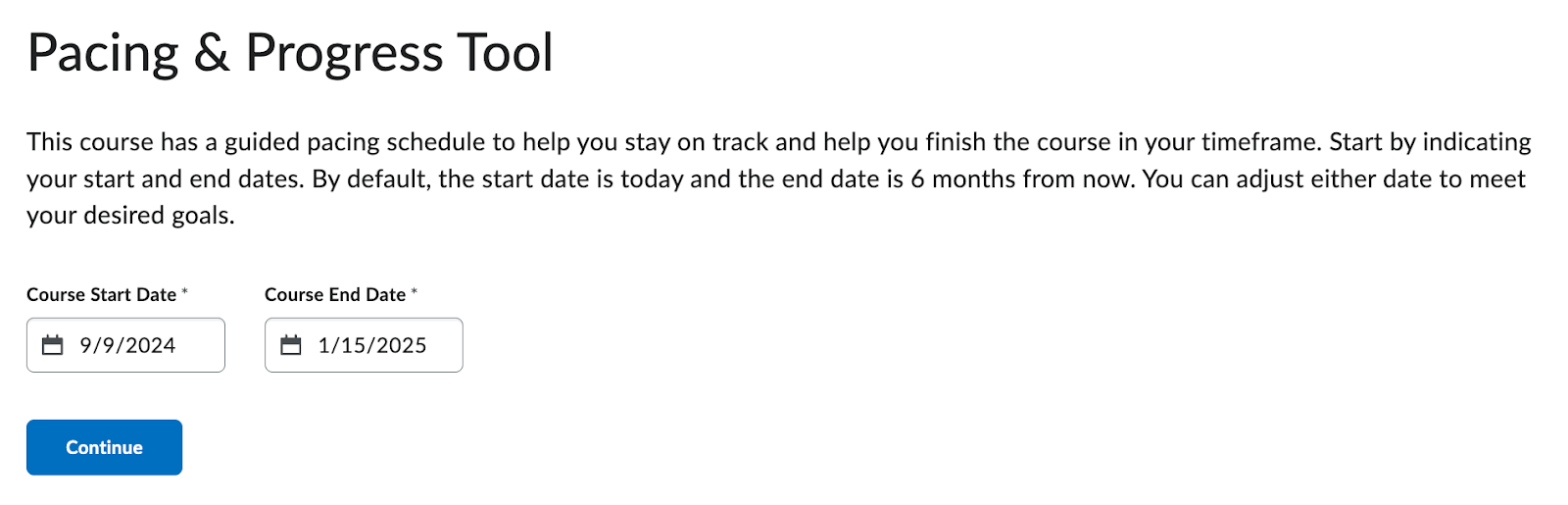
<span style="font-size: 11pt; font-family: Arial,sans-serif; color: #000000; background-color: transparent; font-weight: 400; font-style: normal; font-variant: normal; text-decoration: none; vertical-align: baseline; white-space: pre-wrap;">**Step 4:** You will be taken to the </span><span style="font-size: 11pt; font-family: Arial,sans-serif; color: #000000; background-color: transparent; font-weight: bold; font-style: normal; font-variant: normal; text-decoration: none; vertical-align: baseline; white-space: pre-wrap;">Pacing &amp; Progress Tool </span><span style="font-size: 11pt; font-family: Arial,sans-serif; color: #000000; background-color: transparent; font-weight: 400; font-style: normal; font-variant: normal; text-decoration: none; vertical-align: baseline; white-space: pre-wrap;">landing page. To begin, you need to select your start date and completion date. </span><span style="font-size: 11pt; font-family: Arial,sans-serif; color: #000000; background-color: transparent; font-weight: 400; font-style: normal; font-variant: normal; text-decoration: none; vertical-align: baseline; white-space: pre-wrap;">  
</span><span style="font-size: 11pt; font-family: Arial,sans-serif; color: #000000; background-color: transparent; font-weight: 400; font-style: normal; font-variant: normal; text-decoration: none; vertical-align: baseline; white-space: pre-wrap;">  
</span><span style="font-size: 11pt; font-family: Arial,sans-serif; color: #000000; background-color: transparent; font-weight: 400; font-style: normal; font-variant: normal; text-decoration: none; vertical-align: baseline; white-space: pre-wrap;">Here are some suggested dates; however, you can choose any start and end date:</span><span style="font-size: 11pt; font-family: Arial,sans-serif; color: #000000; background-color: transparent; font-weight: 400; font-style: normal; font-variant: normal; text-decoration: none; vertical-align: baseline; white-space: pre-wrap;">  
</span>

<div align="left" dir="ltr" id="bkmrk-pacing-start-end-1st" style="margin-left: 36pt;"><table style="border: none; border-collapse: collapse; table-layout: fixed; width: 468pt;"><colgroup><col></col><col></col><col></col></colgroup><tbody><tr style="height: 0pt;"><td style="vertical-align: top; padding: 5pt 5pt 5pt 5pt; overflow: hidden; overflow-wrap: break-word; border: solid #000000 1pt;"><span style="font-size: 11pt; font-family: Arial,sans-serif; color: #000000; background-color: transparent; font-weight: bold; font-style: normal; font-variant: normal; text-decoration: none; vertical-align: baseline; white-space: pre-wrap;">Pacing</span>

</td><td style="vertical-align: top; padding: 5pt 5pt 5pt 5pt; overflow: hidden; overflow-wrap: break-word; border: solid #000000 1pt;"><span style="font-size: 11pt; font-family: Arial,sans-serif; color: #000000; background-color: transparent; font-weight: bold; font-style: normal; font-variant: normal; text-decoration: none; vertical-align: baseline; white-space: pre-wrap;">Start</span>

</td><td style="vertical-align: top; padding: 5pt 5pt 5pt 5pt; overflow: hidden; overflow-wrap: break-word; border: solid #000000 1pt;"><span style="font-size: 11pt; font-family: Arial,sans-serif; color: #000000; background-color: transparent; font-weight: bold; font-style: normal; font-variant: normal; text-decoration: none; vertical-align: baseline; white-space: pre-wrap;">End</span>

</td></tr><tr style="height: 0pt;"><td style="vertical-align: top; padding: 5pt 5pt 5pt 5pt; overflow: hidden; overflow-wrap: break-word; border: solid #000000 1pt;"><span style="font-size: 11pt; font-family: Arial,sans-serif; color: #000000; background-color: transparent; font-weight: 400; font-style: normal; font-variant: normal; text-decoration: none; vertical-align: baseline; white-space: pre-wrap;">First Semester</span>

</td><td style="vertical-align: top; padding: 5pt 5pt 5pt 5pt; overflow: hidden; overflow-wrap: break-word; border: solid #000000 1pt;"><span style="font-size: 11pt; font-family: Arial,sans-serif; color: #000000; background-color: transparent; font-weight: 400; font-style: normal; font-variant: normal; text-decoration: none; vertical-align: baseline; white-space: pre-wrap;">September 3, 2025</span>

</td><td style="vertical-align: top; padding: 5pt 5pt 5pt 5pt; overflow: hidden; overflow-wrap: break-word; border: solid #000000 1pt;"><span style="font-size: 11pt; font-family: Arial,sans-serif; color: #000000; background-color: transparent; font-weight: 400; font-style: normal; font-variant: normal; text-decoration: none; vertical-align: baseline; white-space: pre-wrap;">January 16, 2026</span>

</td></tr><tr style="height: 0pt;"><td style="vertical-align: top; padding: 5pt 5pt 5pt 5pt; overflow: hidden; overflow-wrap: break-word; border: solid #000000 1pt;"><span style="font-size: 11pt; font-family: Arial,sans-serif; color: #000000; background-color: transparent; font-weight: 400; font-style: normal; font-variant: normal; text-decoration: none; vertical-align: baseline; white-space: pre-wrap;">Second Semester</span>

</td><td style="vertical-align: top; padding: 5pt 5pt 5pt 5pt; overflow: hidden; overflow-wrap: break-word; border: solid #000000 1pt;"><span style="font-size: 11pt; font-family: Arial,sans-serif; color: #000000; background-color: transparent; font-weight: 400; font-style: normal; font-variant: normal; text-decoration: none; vertical-align: baseline; white-space: pre-wrap;">January 26, 2026</span>

</td><td style="vertical-align: top; padding: 5pt 5pt 5pt 5pt; overflow: hidden; overflow-wrap: break-word; border: solid #000000 1pt;"><span style="font-size: 11pt; font-family: Arial,sans-serif; color: #000000; background-color: transparent; font-weight: 400; font-style: normal; font-variant: normal; text-decoration: none; vertical-align: baseline; white-space: pre-wrap;">June 12, 2026</span>

</td></tr><tr style="height: 0pt;"><td style="vertical-align: top; padding: 5pt 5pt 5pt 5pt; overflow: hidden; overflow-wrap: break-word; border: solid #000000 1pt;"><span style="font-size: 11pt; font-family: Arial,sans-serif; color: #000000; background-color: transparent; font-weight: 400; font-style: normal; font-variant: normal; text-decoration: none; vertical-align: baseline; white-space: pre-wrap;">Linear</span>

</td><td style="vertical-align: top; padding: 5pt 5pt 5pt 5pt; overflow: hidden; overflow-wrap: break-word; border: solid #000000 1pt;"><span style="font-size: 11pt; font-family: Arial,sans-serif; color: #000000; background-color: transparent; font-weight: 400; font-style: normal; font-variant: normal; text-decoration: none; vertical-align: baseline; white-space: pre-wrap;">September 3, 2025</span>

</td><td style="vertical-align: top; padding: 5pt 5pt 5pt 5pt; overflow: hidden; overflow-wrap: break-word; border: solid #000000 1pt;"><span style="font-size: 11pt; font-family: Arial,sans-serif; color: #000000; background-color: transparent; font-weight: 400; font-style: normal; font-variant: normal; text-decoration: none; vertical-align: baseline; white-space: pre-wrap;">June 12, 2026</span>

</td></tr><tr style="height: 0pt;"><td style="vertical-align: top; padding: 5pt 5pt 5pt 5pt; overflow: hidden; overflow-wrap: break-word; border: solid #000000 1pt;"><span style="font-size: 11pt; font-family: Arial,sans-serif; color: #000000; background-color: transparent; font-weight: 400; font-style: normal; font-variant: normal; text-decoration: none; vertical-align: baseline; white-space: pre-wrap;">Online Synchronous</span>

</td><td style="vertical-align: top; padding: 5pt 5pt 5pt 5pt; overflow: hidden; overflow-wrap: break-word; border: solid #000000 1pt;"><span style="font-size: 11pt; font-family: Arial,sans-serif; color: #000000; background-color: transparent; font-weight: 400; font-style: normal; font-variant: normal; text-decoration: none; vertical-align: baseline; white-space: pre-wrap;">September 22, 2025</span>

</td><td style="vertical-align: top; padding: 5pt 5pt 5pt 5pt; overflow: hidden; overflow-wrap: break-word; border: solid #000000 1pt;"><span style="font-size: 11pt; font-family: Arial,sans-serif; color: #000000; background-color: transparent; font-weight: 400; font-style: normal; font-variant: normal; text-decoration: none; vertical-align: baseline; white-space: pre-wrap;">June 12, 2026</span>

</td></tr></tbody></table>

</div><p class="callout info"><span style="font-size: 11pt; font-family: Arial,sans-serif; color: #000000; background-color: transparent; font-weight: 400; font-style: normal; font-variant: normal; text-decoration: none; vertical-align: baseline; white-space: pre-wrap;"><span style="font-size: 11pt; font-family: Arial,sans-serif; color: #000000; background-color: transparent; font-weight: 400; font-style: normal; font-variant: normal; text-decoration: none; vertical-align: baseline; white-space: pre-wrap;">You may create your schedule with any start and finish date, as long as the duration does not exceed 365 days. </span></span></p>

**<span style="font-size: 11pt; font-family: Arial, sans-serif; color: rgb(0, 0, 0); background-color: transparent; font-style: normal; font-variant: normal; text-decoration: none; vertical-align: baseline; white-space: pre-wrap;"><span style="font-size: 11pt; font-family: Arial, sans-serif; color: rgb(0, 0, 0); background-color: transparent; font-style: normal; font-variant: normal; text-decoration: none; vertical-align: baseline; white-space: pre-wrap;">Step 5: </span></span>**<span style="font-size: 11pt; font-family: Arial,sans-serif; color: #000000; background-color: transparent; font-weight: 400; font-style: normal; font-variant: normal; text-decoration: none; vertical-align: baseline; white-space: pre-wrap;">Once you’ve chosen your dates, click the blue </span><span style="font-size: 11pt; font-family: Arial,sans-serif; color: #000000; background-color: transparent; font-weight: bold; font-style: normal; font-variant: normal; text-decoration: none; vertical-align: baseline; white-space: pre-wrap;">Continue</span><span style="font-size: 11pt; font-family: Arial, sans-serif; color: rgb(0, 0, 0); background-color: transparent; font-style: normal; font-variant: normal; text-decoration: none; vertical-align: baseline; white-space: pre-wrap;"> button</span><span style="font-size: 11pt; font-family: Arial,sans-serif; color: #000000; background-color: transparent; font-weight: 400; font-style: normal; font-variant: normal; text-decoration: none; vertical-align: baseline; white-space: pre-wrap;">.</span><span style="font-size: 11pt; font-family: Arial,sans-serif; color: #000000; background-color: transparent; font-weight: 400; font-style: normal; font-variant: normal; text-decoration: none; vertical-align: baseline; white-space: pre-wrap;">  
</span>

<span style="font-size: 11pt; font-family: Arial,sans-serif; color: #000000; background-color: transparent; font-weight: 400; font-style: normal; font-variant: normal; text-decoration: none; vertical-align: baseline; white-space: pre-wrap;"><span style="border: none; display: inline-block; overflow: hidden; width: 624px; height: 201px;">![](https://lh7-rt.googleusercontent.com/docsz/AD_4nXcRkPlT7JDQj1goPT9rjwsve5tvZQfCS0SyblnP6rHtWIdN2SjziRZXoVCV3Y05Pu5z-hZWT7xAHlTUICO1rU-h1urUj3_Q5okwzqwDJwL_S1KvQwLTHR6COcAihpDuZktIj-6pinLAVJWN--daY-G9Ukg?key=Gt7TQvbqwysk0v1zn6zOzw)</span></span>

<p class="callout warning"><span style="font-size: 11pt; font-family: Arial,sans-serif; color: #000000; background-color: transparent; font-weight: 400; font-style: normal; font-variant: normal; text-decoration: none; vertical-align: baseline; white-space: pre-wrap;"><span style="font-size: 11pt; font-family: Arial,sans-serif; color: #000000; background-color: transparent; font-weight: 400; font-style: normal; font-variant: normal; text-decoration: none; vertical-align: baseline; white-space: pre-wrap;">Your Course End Date **can** be edited after this initial selection; however, the Course Start Date **cannot** be changed. Please ensure that you choose a date that best reflects your starting goals. </span></span></p>

<span style="font-size: 11pt; font-family: Arial,sans-serif; color: #000000; background-color: transparent; font-weight: 400; font-style: normal; font-variant: normal; text-decoration: none; vertical-align: baseline; white-space: pre-wrap;">You will be asked to confirm you are ready to proceed. If your dates are correct, click </span><span style="font-size: 11pt; font-family: Arial,sans-serif; color: #000000; background-color: transparent; font-weight: bold; font-style: normal; font-variant: normal; text-decoration: none; vertical-align: baseline; white-space: pre-wrap;">Create Schedule. </span><span style="font-size: 11pt; font-family: Arial,sans-serif; color: #000000; background-color: transparent; font-weight: 400; font-style: normal; font-variant: normal; text-decoration: none; vertical-align: baseline; white-space: pre-wrap;">You will be taken to a page that outlines your course schedule! </span>

<span style="font-size: 13.999999999999998pt; font-family: Arial,sans-serif; color: #434343; background-color: transparent; font-weight: 400; font-style: normal; font-variant: normal; text-decoration: none; vertical-align: baseline; white-space: pre-wrap;">Updating Your Schedule</span>

<span style="font-size: 11pt; font-family: Arial,sans-serif; color: #000000; background-color: transparent; font-weight: 400; font-style: normal; font-variant: normal; text-decoration: none; vertical-align: baseline; white-space: pre-wrap;">There is flexibility built into the scheduler tool, as it is designed to assist you in your planning and support you in your course progress.   
  
</span>

<span style="font-size: 11pt; font-family: Arial,sans-serif; color: #000000; background-color: transparent; font-weight: 400; font-style: normal; font-variant: normal; text-decoration: none; vertical-align: baseline; white-space: pre-wrap;">There may be times throughout the year where you need to adjust a date on a specific assignment, or your final course end date. </span>

#### <span style="font-size: 12pt; font-family: Arial,sans-serif; color: #666666; background-color: transparent; font-weight: 400; font-style: normal; font-variant: normal; text-decoration: none; vertical-align: baseline; white-space: pre-wrap;">Course End Date</span>

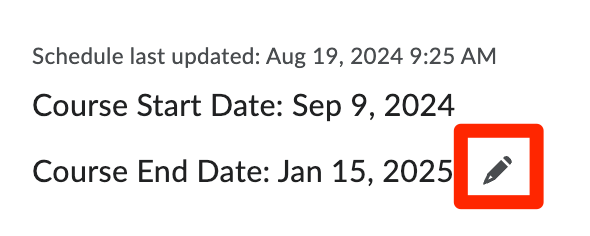
<span style="font-size: 11pt; font-family: Arial,sans-serif; color: #000000; background-color: transparent; font-weight: 400; font-style: normal; font-variant: normal; text-decoration: none; vertical-align: baseline; white-space: pre-wrap;">To adjust your final course end date, click the pencil icon to the right of the Course End Date at the top of your schedule. </span><span style="font-size: 11pt; font-family: Arial,sans-serif; color: #000000; background-color: transparent; font-weight: 400; font-style: normal; font-variant: normal; text-decoration: none; vertical-align: baseline; white-space: pre-wrap;">  
</span><span style="font-size: 11pt; font-family: Arial,sans-serif; color: #000000; background-color: transparent; font-weight: 400; font-style: normal; font-variant: normal; text-decoration: none; vertical-align: baseline; white-space: pre-wrap;"><span style="border: none; display: inline-block; overflow: hidden; width: 286px; height: 114px;">![](https://lh7-rt.googleusercontent.com/docsz/AD_4nXdOVPnvWBQEhzAFiL9soRSEPnlDjzr3m51Dr6hNipmzQr_3haEzmF7c6TYW-jTv5Y4a5kJ5zyOjp9YLfQCm-rvgK1xmHTa1KvqB81MOeDY2j4JnvuFu3Dkhvq1aD2EWWCUmPJSZQOX_eLh0dbL1645GgA7I?key=Gt7TQvbqwysk0v1zn6zOzw)</span></span>

<span style="font-size: 11pt; font-family: Arial,sans-serif; color: #000000; background-color: transparent; font-weight: 400; font-style: normal; font-variant: normal; text-decoration: none; vertical-align: baseline; white-space: pre-wrap;">Here you will be able to select a different course end date. Please remember that you will not be able to select a date that is more than 365 days from your start date. Once you have chosen your new date, click </span><span style="font-size: 11pt; font-family: Arial,sans-serif; color: #000000; background-color: transparent; font-weight: bold; font-style: normal; font-variant: normal; text-decoration: none; vertical-align: baseline; white-space: pre-wrap;">Save</span><span style="font-size: 11pt; font-family: Arial,sans-serif; color: #000000; background-color: transparent; font-weight: 400; font-style: normal; font-variant: normal; text-decoration: none; vertical-align: baseline; white-space: pre-wrap;"> at the bottom of the window. </span><span style="font-size: 11pt; font-family: Arial,sans-serif; color: #000000; background-color: transparent; font-weight: 400; font-style: normal; font-variant: normal; text-decoration: none; vertical-align: baseline; white-space: pre-wrap;">The tool will now repopulate your Suggested Due Dates for assignments based on your new Course End Date. </span>

#### <span style="font-size: 12pt; font-family: Arial,sans-serif; color: #666666; background-color: transparent; font-weight: 400; font-style: normal; font-variant: normal; text-decoration: none; vertical-align: baseline; white-space: pre-wrap;">Specific Assignment Dates</span>

<span style="font-size: 11pt; font-family: Arial,sans-serif; color: #000000; background-color: transparent; font-weight: 400; font-style: normal; font-variant: normal; text-decoration: none; vertical-align: baseline; white-space: pre-wrap;">You can adjust your assignment due dates to fit your schedule in two different ways:  
  
</span>

<span style="font-size: 11pt; font-family: Arial,sans-serif; color: #000000; background-color: transparent; font-weight: bold; font-style: normal; font-variant: normal; text-decoration: none; vertical-align: baseline; white-space: pre-wrap;">Option 1: Individually</span>

<span style="font-size: 11pt; font-family: Arial,sans-serif; color: #000000; background-color: transparent; font-weight: 400; font-style: normal; font-variant: normal; text-decoration: none; vertical-align: baseline; white-space: pre-wrap;">Click the pencil icon next to the Suggested Due Date of the assignment you wish to move. </span><span style="font-size: 11pt; font-family: Arial,sans-serif; color: #000000; background-color: transparent; font-weight: 400; font-style: normal; font-variant: normal; text-decoration: none; vertical-align: baseline; white-space: pre-wrap;">  

</span><span style="font-size: 11pt; font-family: Arial,sans-serif; color: #000000; background-color: transparent; font-weight: 400; font-style: normal; font-variant: normal; text-decoration: none; vertical-align: baseline; white-space: pre-wrap;"><span style="border: none; display: inline-block; overflow: hidden; width: 624px; height: 79px;">![](https://lh7-rt.googleusercontent.com/docsz/AD_4nXdBp748kbDLfiyLxTv0tStsBncfhSkpipRfAxH94Kr0bo6nANiFQaxBr0HNOz2aUDnnWDB2kZjaBZNJw79CpdwKFAN1YjTY9YyVOmnEZCRxvT-2ylnx1gU-aqqSUrBqMg7jSoSAdC1KvlVo6LyyA5b34KM?key=Gt7TQvbqwysk0v1zn6zOzw)</span></span>

<span style="font-size: 11pt; font-family: Arial,sans-serif; color: #000000; background-color: transparent; font-weight: 400; font-style: normal; font-variant: normal; text-decoration: none; vertical-align: baseline; white-space: pre-wrap;">You will then be prompted to select a new date for when you plan to complete the assignment. Click </span><span style="font-size: 11pt; font-family: Arial,sans-serif; color: #000000; background-color: transparent; font-weight: bold; font-style: normal; font-variant: normal; text-decoration: none; vertical-align: baseline; white-space: pre-wrap;">Save</span><span style="font-size: 11pt; font-family: Arial,sans-serif; color: #000000; background-color: transparent; font-weight: 400; font-style: normal; font-variant: normal; text-decoration: none; vertical-align: baseline; white-space: pre-wrap;"> at the bottom of the window. </span><span style="font-size: 11pt; font-family: Arial,sans-serif; color: #000000; background-color: transparent; font-weight: 400; font-style: normal; font-variant: normal; text-decoration: none; vertical-align: baseline; white-space: pre-wrap;">Your scheduler will adjust to the new dates, including your progress wheel.   
</span>

<p class="callout info"><span style="font-size: 11pt; font-family: Arial,sans-serif; color: #000000; background-color: transparent; font-weight: 400; font-style: normal; font-variant: normal; text-decoration: none; vertical-align: baseline; white-space: pre-wrap;"> Due dates created by teachers in specific courses (e.g., CC+ courses, synchronous classes) should not be changed in the scheduler. In the case where a scheduler's due date and assignment due date disagree, the due date set by the instructor takes priority. </span></p>

<span style="font-size: 11pt; font-family: Arial,sans-serif; color: #000000; background-color: transparent; font-weight: bold; font-style: normal; font-variant: normal; text-decoration: none; vertical-align: baseline; white-space: pre-wrap;">Option 2: Bulk Edit</span>

<span style="font-size: 11pt; font-family: Arial,sans-serif; color: #000000; background-color: transparent; font-weight: 400; font-style: normal; font-variant: normal; text-decoration: none; vertical-align: baseline; white-space: pre-wrap;">Are you going away for Christmas holidays or maybe Spring Break? Consider bulk editing your due dates during that time frame.</span>

<span style="font-size: 11pt; font-family: Arial,sans-serif; color: #000000; background-color: transparent; font-weight: 400; font-style: normal; font-variant: normal; text-decoration: none; vertical-align: baseline; white-space: pre-wrap;">First, select the items you wish to change by clicking the checkbox to the left of the items.   
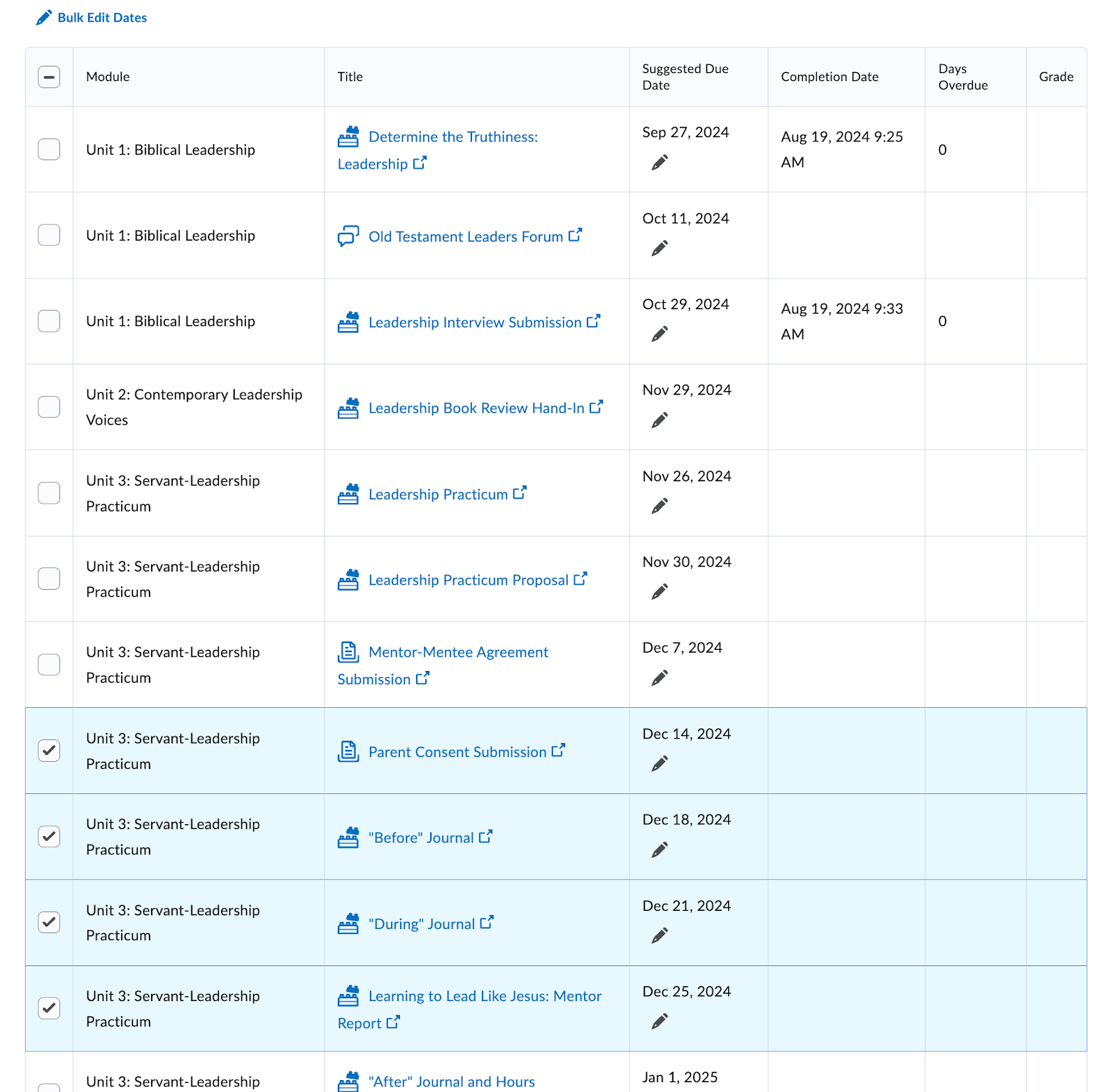
</span><span style="font-size: 11pt; font-family: Arial,sans-serif; color: #000000; background-color: transparent; font-weight: 400; font-style: normal; font-variant: normal; text-decoration: none; vertical-align: baseline; white-space: pre-wrap;"><span style="border: none; display: inline-block; overflow: hidden; width: 448px; height: 438px;">![](https://lh7-rt.googleusercontent.com/docsz/AD_4nXe9hu-9kVzOIQ-LJ98rlZ0Vw_est7gxo6dHRgIgZPDupj8qNj1rnyqz9uFPJ_8gka2x-e1coUdZFz0rbN6SxfH82_1yDZ4fKe_i20xtEK2y2S0pPRtKllEmjiOCxdx6QffzINsX8kqme3JAFjxhvyYkzZF6?key=Gt7TQvbqwysk0v1zn6zOzw)</span></span>

<span style="font-size: 11pt; font-family: Arial,sans-serif; color: #000000; background-color: transparent; font-weight: 400; font-style: normal; font-variant: normal; text-decoration: none; vertical-align: baseline; white-space: pre-wrap;">Next, click the </span><span style="font-size: 11pt; font-family: Arial,sans-serif; color: #000000; background-color: transparent; font-weight: bold; font-style: normal; font-variant: normal; text-decoration: none; vertical-align: baseline; white-space: pre-wrap;">Bulk Edit Dates </span><span style="font-size: 11pt; font-family: Arial,sans-serif; color: #000000; background-color: transparent; font-weight: 400; font-style: normal; font-variant: normal; text-decoration: none; vertical-align: baseline; white-space: pre-wrap;">located at the top left of the scheduler items. </span><span style="font-size: 11pt; font-family: Arial,sans-serif; color: #000000; background-color: transparent; font-weight: 400; font-style: normal; font-variant: normal; text-decoration: none; vertical-align: baseline; white-space: pre-wrap;">  

</span><span style="font-size: 11pt; font-family: Arial,sans-serif; color: #000000; background-color: transparent; font-weight: 400; font-style: normal; font-variant: normal; text-decoration: none; vertical-align: baseline; white-space: pre-wrap;"><span style="border: none; display: inline-block; overflow: hidden; width: 624px; height: 99px;">![](https://lh7-rt.googleusercontent.com/docsz/AD_4nXfG-3ZJQGqDsDVQpxVwAzazjLYhV3e9Old7wmlIQy4suQXlpk4y0gpbfwwboh6QQwuqw9OffZPad-mtDM7M8wghcCBLPc3LMsdPiJ2LqUCuSafkeWDc9pwb1J6grcfAtr5qm2qxOoF2jkSjsHimqeJwn1Q?key=Gt7TQvbqwysk0v1zn6zOzw)</span></span>

<span style="font-size: 11pt; font-family: Arial,sans-serif; color: #000000; background-color: transparent; font-weight: 400; font-style: normal; font-variant: normal; text-decoration: none; vertical-align: baseline; white-space: pre-wrap;">You will be taken to a window where you can edit all of the Suggested Due Dates for those items. Change the dates accordingly and click the blue </span><span style="font-size: 11pt; font-family: Arial,sans-serif; color: #000000; background-color: transparent; font-weight: bold; font-style: normal; font-variant: normal; text-decoration: none; vertical-align: baseline; white-space: pre-wrap;">Save</span><span style="font-size: 11pt; font-family: Arial,sans-serif; color: #000000; background-color: transparent; font-weight: 400; font-style: normal; font-variant: normal; text-decoration: none; vertical-align: baseline; white-space: pre-wrap;"> button at the bottom of the window. If you have chosen a date outside your Course End Date, it will populate as an error and flagged for change. </span><span style="font-size: 11pt; font-family: Arial,sans-serif; color: #000000; background-color: transparent; font-weight: 400; font-style: normal; font-variant: normal; text-decoration: none; vertical-align: baseline; white-space: pre-wrap;">  

</span><span style="font-size: 11pt; font-family: Arial,sans-serif; color: #000000; background-color: transparent; font-weight: 400; font-style: normal; font-variant: normal; text-decoration: none; vertical-align: baseline; white-space: pre-wrap;"><span style="border: none; display: inline-block; overflow: hidden; width: 624px; height: 53px;">![](https://lh7-rt.googleusercontent.com/docsz/AD_4nXcxe3W3eNSrw1fjLS0gWLSyRBPTtI6riFiiQkT7EZkhA1vtul5U3PFnch4_fcRxiH1XrTvp3mp7ozE7OFJqSBUQOweilwb1eO444TKMRsZQ0zJ7aNbokGG1kwTTdo9m8CIlFjxlkuPjNDEMbL2JUczFs80?key=Gt7TQvbqwysk0v1zn6zOzw)</span></span>

<span style="font-weight: normal;"><span style="font-size: 11pt; font-family: Arial, sans-serif; color: rgb(0, 0, 0); background-color: transparent; font-weight: 400; font-style: normal; font-variant: normal; white-space-collapse: preserve;">Once all new dates are saved, click </span><span style="font-size: 11pt; font-family: Arial, sans-serif; color: rgb(0, 0, 0); background-color: transparent; font-weight: bold; font-style: normal; font-variant: normal; white-space-collapse: preserve;">Close</span><span style="font-size: 11pt; font-family: Arial, sans-serif; color: rgb(0, 0, 0); background-color: transparent; font-weight: 400; font-style: normal; font-variant: normal; white-space-collapse: preserve;"> to then be redirected to your schedule. </span></span>

# Integrity Advocate - Student Experience

<main class="content-wrap card" id="bkmrk-some-courses-will-re">Some courses will require students to be proctored for exams using Integrity Advocate.

There are two modes that students will experience, Demo Mode and Proctored Mode.

### Demo Mode

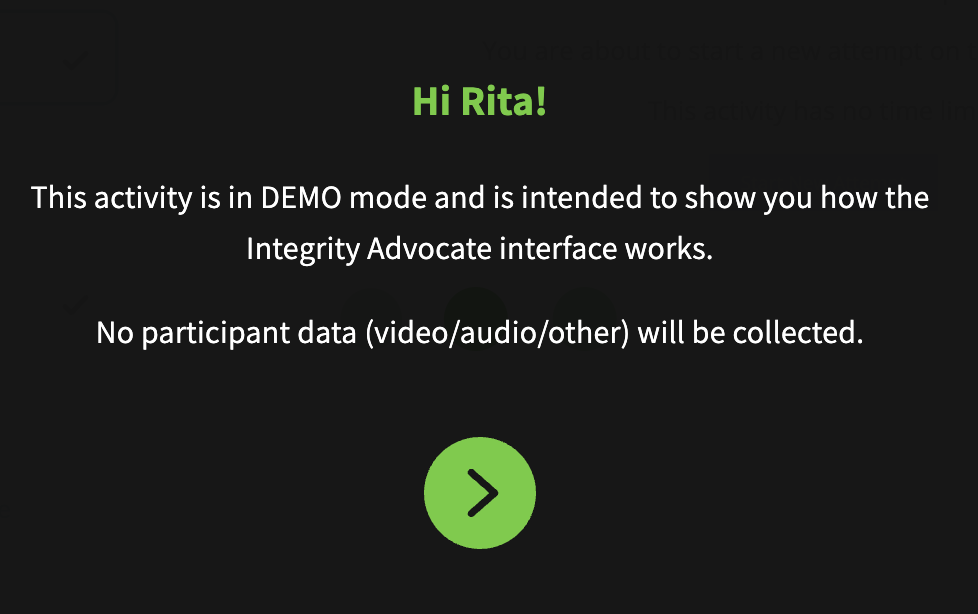
Teachers may set up quizzes or tests using the demo mode of Integrity Advocate. This gives students the chance to experience and walk through the different steps of launching an exam within Integrity Advocate ahead of a high-stakes test. The process is the same as outlined below with the exception that the first screen shows demo mode.

[![image.png](https://sophie.onlineschool.ca/uploads/images/gallery/2023-04/scaled-1680-/16gimage.png)](https://sophie.onlineschool.ca/uploads/images/gallery/2023-04/16gimage.png)
### Proctored Mode

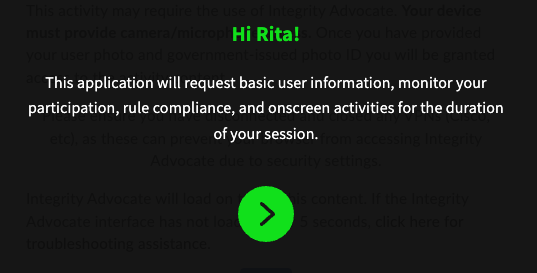
When your teacher has requested that a specific test be proctored, you will click on the link within your course and Integrity Advocate will appear:

<p class="callout info">Please note, tests proctored by IA must be taken in either a Chrome or Edge browser. Other browsers will not work. </p>

[![image.png](https://sophie.onlineschool.ca/uploads/images/gallery/2023-04/scaled-1680-/XoEimage.png)](https://sophie.onlineschool.ca/uploads/images/gallery/2023-04/XoEimage.png)

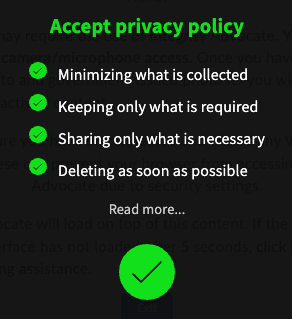
Click the green arrow, and accept the privacy policy.

[![image.png](https://sophie.onlineschool.ca/uploads/images/gallery/2023-04/scaled-1680-/S6Wimage.png)](https://sophie.onlineschool.ca/uploads/images/gallery/2023-04/S6Wimage.png)
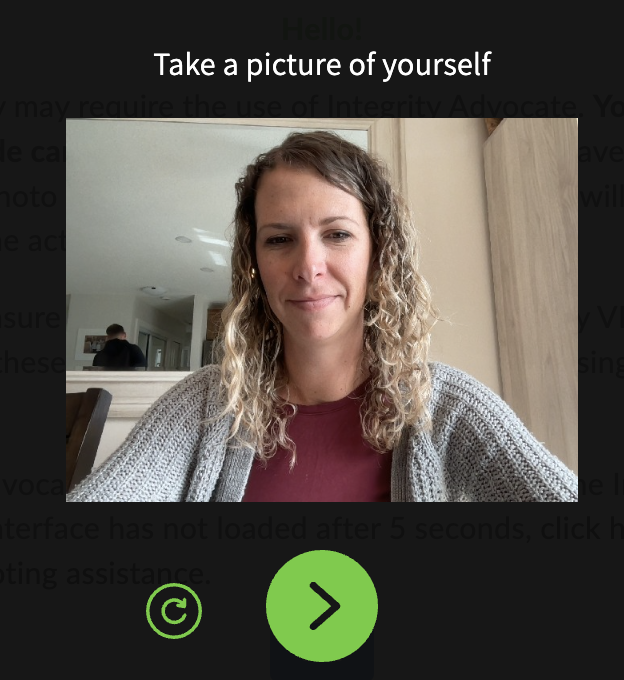
You will then be requested to take a picture of yourself.

[![image.png](https://sophie.onlineschool.ca/uploads/images/gallery/2023-04/scaled-1680-/knaimage.png)](https://sophie.onlineschool.ca/uploads/images/gallery/2023-04/knaimage.png)
You will then be requested to take a picture of your Photo ID. Acceptable IDs are:

<div class="page-content clearfix" page-display="6898"><div class="page-content clearfix" page-display="6898"><div dir="auto">- Drivers License
- Government Issued ID
- School Issued ID card

</div></div></div>You are given the option to 'Mask Information on your ID Card'. Feel free to block out personal information such as address, and date of birth. Please do not block our your picture.

Once the picture has been submitted, the rules for your exam are then displayed.

[![image.png](https://sophie.onlineschool.ca/uploads/images/gallery/2023-04/scaled-1680-/OiQimage.png)](https://sophie.onlineschool.ca/uploads/images/gallery/2023-04/OiQimage.png)
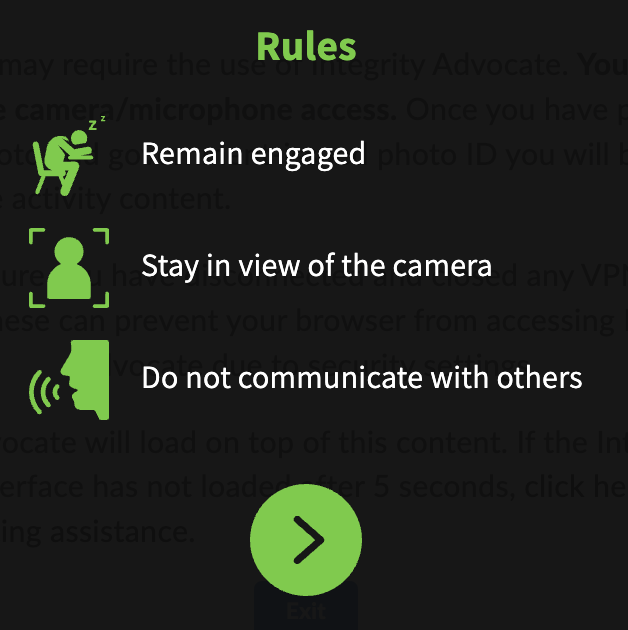
You are then able to take your exam. You will notice on your window a recording of yourself as you proceed through the test.

[![image.png](https://sophie.onlineschool.ca/uploads/images/gallery/2023-04/scaled-1680-/hpGimage.png)](https://sophie.onlineschool.ca/uploads/images/gallery/2023-04/hpGimage.png)
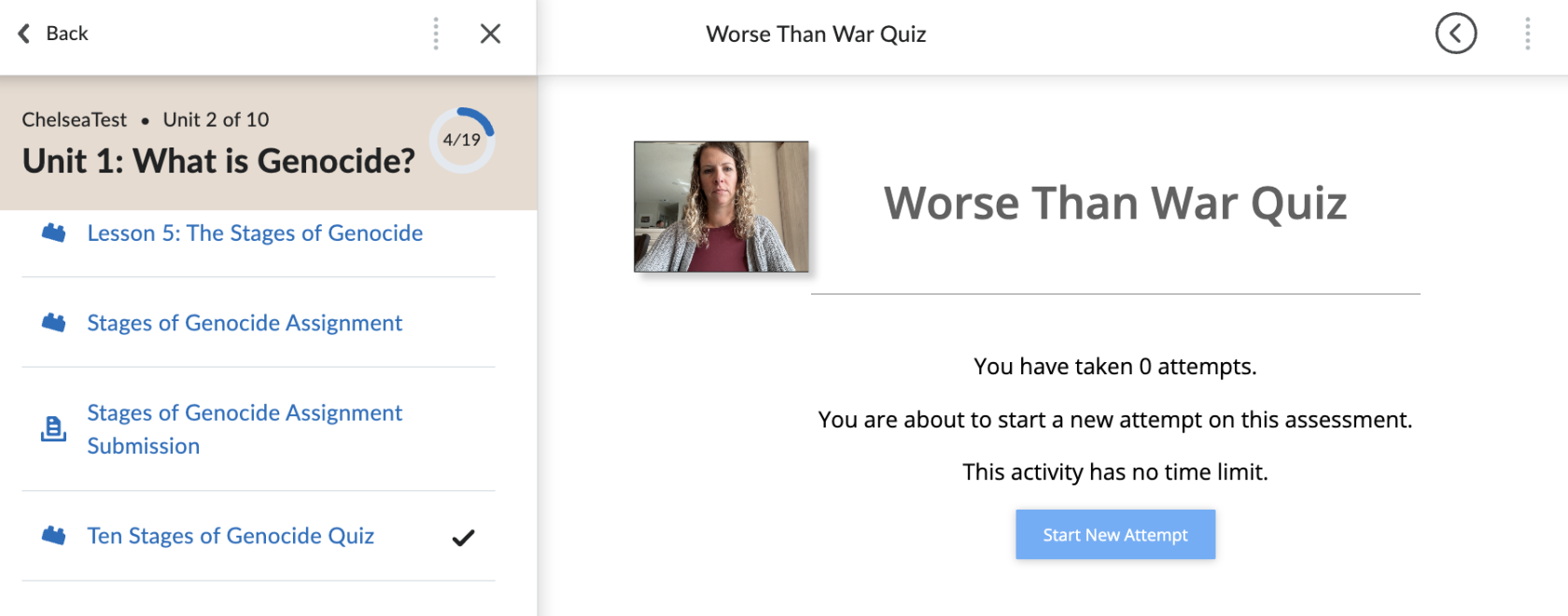
There are two ways to end the Integrity Advocate Session:

1\) If you are taking a quiz that is in Brightspace, clicking the Submit Quiz will end the Integrity Advocate session.

2\) If you are taking a quiz that is in StudyForge or on another content item in the course, the session will end when you navigate away from the window for longer than 10 minutes. If you close the browser (window or tab) when you have finished your assessment that is the simplest way to ensure the session is closed.

A few things to note:

<div class="page-content clearfix" page-display="6898"><div class="page-content clearfix" page-display="6898"><div dir="auto">- If you leave the view of your camera, you may hear a voice through your speakers directing you to come back into the frame. This can be startling if you are not aware it may happen.
- Integrity Advocate is monitoring you through your webcam and microphone to ensure you are following the rules of the test.
- Artificial Intelligence will flag any rule violations during your test.
- If flags are made, a human review from Integrity Advocate reviews those flags to determine if they are appropriate. 
    - For example, if you sneezed and it temporarily took you out of the view of the webcam, this would be deemed appropriate and the flag would be removed.
- Following the scans, your teacher receives a report about 5 minutes following the completion of your exam, that states either the session was clear or that there are flags that need to be addressed. If there are concerns that need to be addressed, your teacher will contact you to set up a meeting.

</div></div></div></main>Additionally, Mr. Johnston has create a video that walks you through the process:

<iframe allowfullscreen="allowfullscreen" frameborder="0" height="305" src="https://player.vimeo.com/video/840196727?h=68d681a679" width="640"></iframe>

<div class="grid half collapse-xs items-center mb-m px-m no-row-gap fade-in-when-active print-hidden" id="bkmrk-previous-brightspace"><div><div class="inline-block"><div class="icon-list-item no-hover">  
</div></div></div></div>

# Logging Into Brightspace and Accessing Course Pages

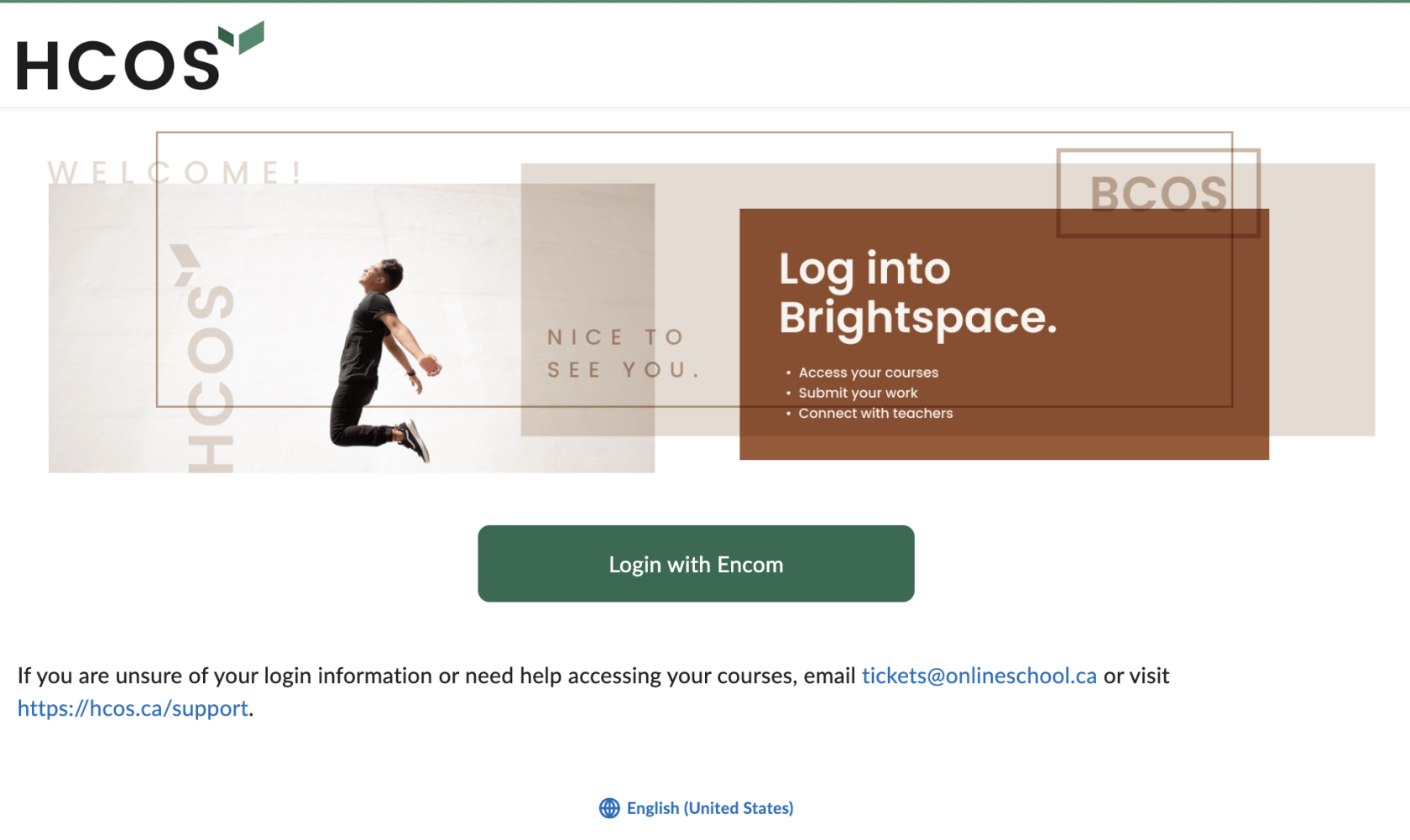
To access your Brightspace account and your course shells, go to the Brightspace Login page at this link:

[https://hcos.onlinelearningbc.com/d2l/login. ](https://hcos.onlinelearningbc.com/d2l/login)You should see the following page:
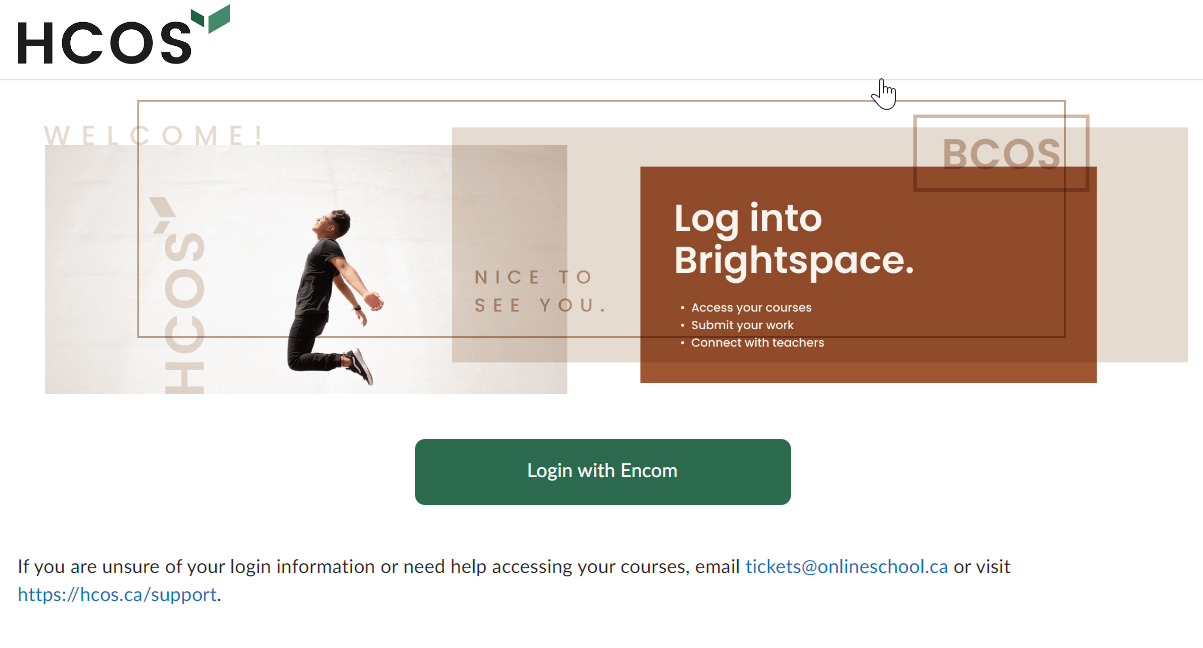
<span id="bkmrk--8" style="font-weight: normal;"><span style="font-size: 11pt; font-family: Arial; color: rgb(0, 0, 0); background-color: transparent; font-weight: 400; font-style: normal; font-variant: normal; white-space: pre-wrap;"><span style="border-width: initial; border-style: none; display: inline-block; overflow: hidden; width: 624px; height: 336px;">![](https://lh6.googleusercontent.com/gL_KyjQZo999Qd_hJaswmNl8bErGVATD98zFkJqwgevfKg8cWydDsU5OsVypvvpFZiS80yxgnMXzvqeEvZzdY8Gjt7EbzOxKJMO84PxFbv1ZH0txzAAMjCWnXWSRE2Ng947OYVHI2GMdGiKJn0XcfKk)</span></span></span>

<span style="font-size: 11pt; font-family: Arial; color: #000000; background-color: transparent; font-weight: 400; font-style: normal; font-variant: normal; text-decoration: none; vertical-align: baseline; white-space: pre-wrap;">Click on the green </span><span style="font-size: 11pt; font-family: Arial; color: #000000; background-color: transparent; font-weight: bold; font-style: normal; font-variant: normal; text-decoration: none; vertical-align: baseline; white-space: pre-wrap;">Login with Encom</span><span style="font-size: 11pt; font-family: Arial; color: #000000; background-color: transparent; font-weight: 400; font-style: normal; font-variant: normal; text-decoration: none; vertical-align: baseline; white-space: pre-wrap;"> button, and when prompted, enter your Encom username and password to bring up your homepage.</span>

- <span style="font-size: 11pt; font-family: Arial; color: #000000; background-color: transparent; font-weight: 400; font-style: normal; font-variant: normal; text-decoration: none; vertical-align: baseline; white-space: pre-wrap;">HCOS Students - Your parents will need to setup your Brightspace account using the instructions found at [Setting up a Student Brightspace Account| SOPHIE](https://sophie.onlineschool.ca/books/information-for-families/page/setting-up-a-student-brightspace-account)</span>
- <span style="font-size: 11pt; font-family: Arial; color: #000000; background-color: transparent; font-weight: 400; font-style: normal; font-variant: normal; text-decoration: none; vertical-align: baseline; white-space: pre-wrap;">BCOS Students - Your Encom login information is included in your acceptance letter.</span>

<span style="font-size: 11pt; font-family: Arial; color: #000000; background-color: transparent; font-weight: 400; font-style: normal; font-variant: normal; text-decoration: none; vertical-align: baseline; white-space: pre-wrap;">If you are unsure of your login information please email [Tech Support ](https://sophie.onlineschool.ca/link/1097#bkmrk-note%3A%C2%A0if-you-forget)</span><span style="font-size: 11pt; font-family: Arial; color: #000000; background-color: transparent; font-weight: 400; font-style: normal; font-variant: normal; text-decoration: none; vertical-align: baseline; white-space: pre-wrap;">and request a reset using the email you signed up with. </span>

  
<span style="font-size: 11pt; font-family: Arial; color: #000000; background-color: transparent; font-weight: 400; font-style: normal; font-variant: normal; text-decoration: none; vertical-align: baseline; white-space: pre-wrap;">The first time you log in to Brightspace, you will be prompted to complete the Brightspace Orientation module. This informational module provides you with the information, tips and knowledge you will need in order to navigate online courses in Brightspace. </span>
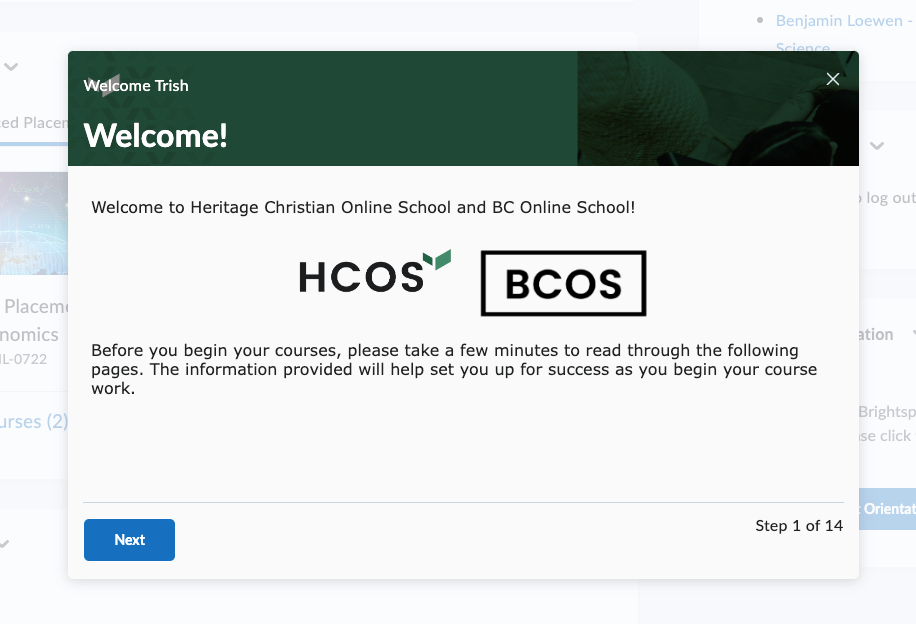
<span style="font-size: 11pt; font-family: Arial; color: #000000; background-color: transparent; font-weight: 400; font-style: normal; font-variant: normal; text-decoration: none; vertical-align: baseline; white-space: pre-wrap;"><span style="border: none; display: inline-block; overflow: hidden; width: 624px; height: 425px;">![](https://lh3.googleusercontent.com/Wu7VL_LLcSLNrwGvleTelkXb6MO5lGkDZFlvofHL-FvBsj5dXy2UX9Z9qLADYtMeNsC0xlkUQz8D46KE5hxeUm2I_AZEjb7w5jyO6Cgjh_9sWllMExGMibI45j0j26B6MeJw7AwTNByTIrVmCqZtxEw)</span></span>

<span style="font-size: 11pt; font-family: Arial; color: #000000; background-color: transparent; font-weight: 400; font-style: normal; font-variant: normal; text-decoration: none; vertical-align: baseline; white-space: pre-wrap;">The orientation module can be accessed at any time by finding the orientation widget below the Student Success Centre widget if you need a refresher on any of the topics. </span>

<span style="font-size: 11pt; font-family: Arial; color: #000000; background-color: transparent; font-weight: 400; font-style: normal; font-variant: normal; text-decoration: none; vertical-align: baseline; white-space: pre-wrap;">For tackling any additional issues visit</span><span style="font-size: 11pt; font-family: Arial; color: #000000; background-color: transparent; font-weight: 400; font-style: normal; font-variant: normal; text-decoration: none; vertical-align: baseline; white-space: pre-wrap;"> [Brightspace Troubleshooting | SOPHIE<span style="font-size: 11pt; font-family: Arial; color: #1155cc; background-color: transparent; font-weight: 400; font-style: normal; font-variant: normal; text-decoration: underline; -webkit-text-decoration-skip: none; text-decoration-skip-ink: none; vertical-align: baseline; white-space: pre-wrap;">.</span>](https://sophie.onlineschool.ca/books/information-for-families/page/brightspace-troubleshooting)</span>

# Message, Subscription and Update Alerts

<span style="font-size: 11pt; font-family: Arial; color: #000000; background-color: transparent; font-weight: 400; font-style: normal; font-variant: normal; text-decoration: none; vertical-align: baseline; white-space: pre-wrap;">At the top of your Brightspace login you will see five different icons located next to your profile image and name. </span>

<span style="font-size: 11pt; font-family: Arial; color: #000000; background-color: transparent; font-weight: 400; font-style: normal; font-variant: normal; text-decoration: none; vertical-align: baseline; white-space: pre-wrap;"><span style="border: none; display: inline-block; overflow: hidden; width: 552px; height: 88px;">![](https://lh4.googleusercontent.com/kbiCLav6oPj8mYXas-4Fu84r9926dgO6sUZt1o2zl18coKc-Iwhri4VDPfin7vvVY4N0uEOe9G67SZLPQ8Z_8xdZg7quHmW1Sormh57yShqLoYd_zs2bO4Za7IJguuX7sfA_zH_wYSsllBLSkCpNsIo)</span></span>

<span style="font-size: 11pt; font-family: Arial; color: #000000; background-color: transparent; font-weight: 400; font-style: normal; font-variant: normal; text-decoration: none; vertical-align: baseline; white-space: pre-wrap;">There are two icons in addition to the alerts: </span>

<div align="left" dir="ltr" id="bkmrk-the-%E2%80%98waffle%E2%80%99-is-a-sh" style="margin-left: 0pt;"><table style="border: none; border-collapse: collapse;"><colgroup><col width="93"></col><col width="531"></col></colgroup><tbody><tr style="height: 0pt;"><td style="vertical-align: top; padding: 5pt 5pt 5pt 5pt; overflow: hidden; overflow-wrap: break-word; border: solid #000000 1pt;"><span style="font-size: 11pt; font-family: Arial; color: #000000; background-color: transparent; font-weight: 400; font-style: normal; font-variant: normal; text-decoration: none; vertical-align: baseline; white-space: pre-wrap;"><span style="border: none; display: inline-block; overflow: hidden; width: 79px; height: 76px;">![](https://lh4.googleusercontent.com/dmRDu2KD1MKA7p7YFxv9aT9LhyqeQb00EZa1nFd03fl2O1cFBmBl-NWgErpY3-CSsvSAY77SCmHPPjYTmRd3Yo4q-F9drb6CaKjI1JLsmyqhyxs67ejwWriknoCdQ0AtqQOQIBARxaM0drCgSBc23Y4)</span></span>

</td><td style="vertical-align: top; padding: 5pt 5pt 5pt 5pt; overflow: hidden; overflow-wrap: break-word; border: solid #000000 1pt;"><span style="font-size: 11pt; font-family: Arial; color: #000000; background-color: transparent; font-weight: 400; font-style: normal; font-variant: normal; text-decoration: none; vertical-align: baseline; white-space: pre-wrap;">The ‘waffle’ is a shortcut to search your courses. It allows you to navigate to your courses from any page you might be on within Brightspace. </span>

</td></tr><tr style="height: 0pt;"><td style="vertical-align: top; padding: 5pt 5pt 5pt 5pt; overflow: hidden; overflow-wrap: break-word; border: solid #000000 1pt;"><span style="font-size: 11pt; font-family: Arial; color: #000000; background-color: transparent; font-weight: 400; font-style: normal; font-variant: normal; text-decoration: none; vertical-align: baseline; white-space: pre-wrap;"><span style="border: none; display: inline-block; overflow: hidden; width: 79px; height: 81px;">![](https://lh4.googleusercontent.com/W2YYGSS9eODJbRsl1Pn2hwFTy5TUQ7K9vtV36TwLp8kOW7UVMrkHOSVhWk35UGMUFvkWZkFn6P6oB1VMr5rfPfsyG6AskTAw4A2Tt63LzEN4iRTW6Vyk3pDG0WC55XGH5QUVMcMcMDZYsXZUKRFJl-U)</span></span>

</td><td style="vertical-align: top; padding: 5pt 5pt 5pt 5pt; overflow: hidden; overflow-wrap: break-word; border: solid #000000 1pt;"><span style="font-size: 11pt; font-family: Arial; color: #000000; background-color: transparent; font-weight: 400; font-style: normal; font-variant: normal; text-decoration: none; vertical-align: baseline; white-space: pre-wrap;">The ‘cog’ is a shortcut to any settings that you might be able to change. As a student, you don’t have access to more than your Media Library. This is where all media (videos, recordings etc.) you have created within Brightspace is stored. </span>

</td></tr></tbody></table>

</div><span style="font-size: 11pt; font-family: Arial; color: #000000; background-color: transparent; font-weight: 400; font-style: normal; font-variant: normal; text-decoration: none; vertical-align: baseline; white-space: pre-wrap;">The three icons that are related to alerts are listed below. Anytime that an alert is present it will be represented by an orange dot. </span>

<div align="left" dir="ltr" id="bkmrk-messages-this-will-t" style="margin-left: 0pt;"><table style="border: none; border-collapse: collapse;"><colgroup><col width="96"></col><col width="528"></col></colgroup><tbody><tr style="height: 23.89892578125pt;"><td style="vertical-align: top; padding: 5pt 5pt 5pt 5pt; overflow: hidden; overflow-wrap: break-word; border: solid #000000 1pt;"><span style="font-size: 11pt; font-family: Arial; color: #000000; background-color: transparent; font-weight: 400; font-style: normal; font-variant: normal; text-decoration: none; vertical-align: baseline; white-space: pre-wrap;"><span style="border: none; display: inline-block; overflow: hidden; width: 82px; height: 88px;">![](https://lh4.googleusercontent.com/09aBsyV9a0M7YKRRfm969SnKX5cnEnDnGdkHOwAs-zG7Zf6mcdmhXxxe6LAFKNdJ1smGJrjzUl0AreuDlZVjiIr9pZOljZUbfWb8X6gTcpaXI73tmL6K_0bw6D5rh-iARLcV_WPdYUlH2vUF2u2kjKw)</span></span>

</td><td style="vertical-align: top; padding: 5pt 5pt 5pt 5pt; overflow: hidden; overflow-wrap: break-word; border: solid #000000 1pt;"><span style="font-size: 11pt; font-family: Arial; color: #000000; background-color: transparent; font-weight: 400; font-style: normal; font-variant: normal; text-decoration: none; vertical-align: baseline; white-space: pre-wrap;">Messages</span>

<span style="font-size: 11pt; font-family: Arial; color: #000000; background-color: transparent; font-weight: 400; font-style: normal; font-variant: normal; text-decoration: none; vertical-align: baseline; white-space: pre-wrap;">This will track any email alerts that have been sent to you through Brightspace. </span>

</td></tr><tr style="height: 0pt;"><td style="vertical-align: top; padding: 5pt 5pt 5pt 5pt; overflow: hidden; overflow-wrap: break-word; border: solid #000000 1pt;"><span style="font-size: 11pt; font-family: Arial; color: #000000; background-color: transparent; font-weight: 400; font-style: normal; font-variant: normal; text-decoration: none; vertical-align: baseline; white-space: pre-wrap;"><span style="border: none; display: inline-block; overflow: hidden; width: 82px; height: 88px;">![](https://lh6.googleusercontent.com/e_yKsZp5kehig5mpkwPSONxHA8qllh_mXkycanNJqPBVEFdSHsOG8oeXOox76saC5sf1o1sujlFHVbaZ5oD3al8PRwM_6se76SwPkBlssR0FZpWbbBNbwmGnP0pTE3GDc03HU69R89LMyUbYMy1Y28k)</span></span>

</td><td style="vertical-align: top; padding: 5pt 5pt 5pt 5pt; overflow: hidden; overflow-wrap: break-word; border: solid #000000 1pt;"><span style="font-size: 11pt; font-family: Arial; color: #000000; background-color: transparent; font-weight: 400; font-style: normal; font-variant: normal; text-decoration: none; vertical-align: baseline; white-space: pre-wrap;">Subscription Alerts</span>

<span style="font-size: 11pt; font-family: Arial; color: #000000; background-color: transparent; font-weight: 400; font-style: normal; font-variant: normal; text-decoration: none; vertical-align: baseline; white-space: pre-wrap;">These would be alerts for anything you might have subscribed to in your courses; announcement feeds, discussion posts etc. </span>

</td></tr><tr style="height: 0pt;"><td style="vertical-align: top; padding: 5pt 5pt 5pt 5pt; overflow: hidden; overflow-wrap: break-word; border: solid #000000 1pt;"><span style="font-size: 11pt; font-family: Arial; color: #000000; background-color: transparent; font-weight: 400; font-style: normal; font-variant: normal; text-decoration: none; vertical-align: baseline; white-space: pre-wrap;"><span style="border: none; display: inline-block; overflow: hidden; width: 82px; height: 84px;">![](https://lh5.googleusercontent.com/dswDHlY0thTSxyeNs2LH7J4TRoKx5WVa7cyRlh5nfe_GioiYgOM9jwrrOXAlgwCoNJ-C21qHK3ZM7cLe0kz2L76wRrRzDA_Hr2iR8ieNqTMGD6bttM4ZAWIvh3Kl9PEIz7GptNXjLbNyYrjG7B4bs6E)</span></span>

</td><td style="vertical-align: top; padding: 5pt 5pt 5pt 5pt; overflow: hidden; overflow-wrap: break-word; border: solid #000000 1pt;"><span style="font-size: 11pt; font-family: Arial; color: #000000; background-color: transparent; font-weight: 400; font-style: normal; font-variant: normal; text-decoration: none; vertical-align: baseline; white-space: pre-wrap;">Update</span>

<span style="font-size: 11pt; font-family: Arial; color: #000000; background-color: transparent; font-weight: 400; font-style: normal; font-variant: normal; text-decoration: none; vertical-align: baseline; white-space: pre-wrap;">These are alerts based on settings you’ve created for what you’d like to be notified about. This can include new content, announcements etc. </span>

</td></tr></tbody></table>

</div><span style="font-size: 11pt; font-family: Arial; color: #000000; background-color: transparent; font-weight: 400; font-style: normal; font-variant: normal; text-decoration: none; vertical-align: baseline; white-space: pre-wrap;">To change your notification settings:</span>

1. [<span style="font-size: 11pt; font-family: Arial; color: #1155cc; background-color: transparent; font-weight: 400; font-style: normal; font-variant: normal; text-decoration: underline; -webkit-text-decoration-skip: none; text-decoration-skip-ink: none; vertical-align: baseline; white-space: pre-wrap;">Log in</span>](https://hcos.onlinelearningbc.com/d2l/login)
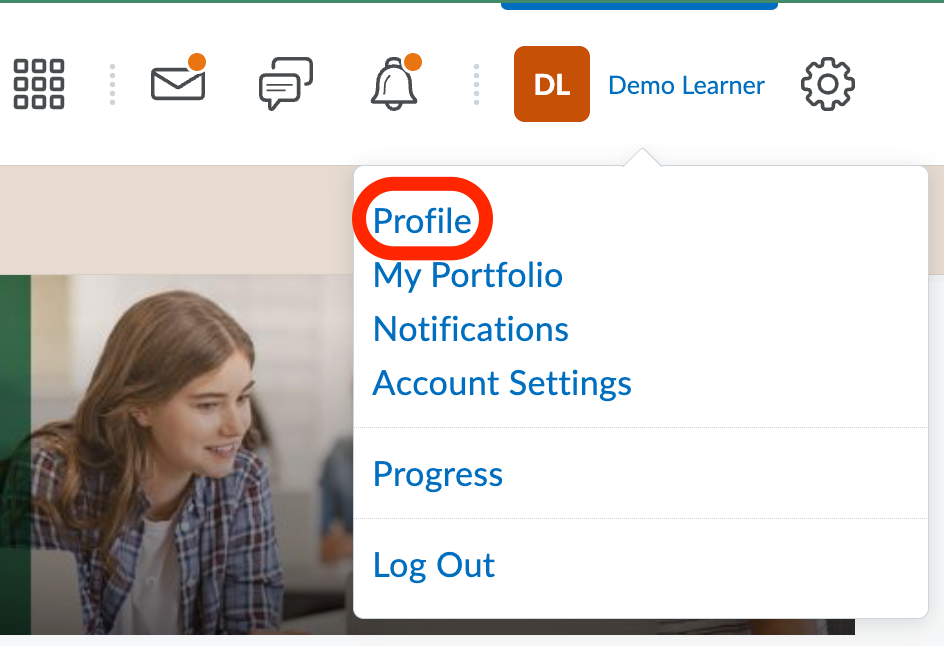
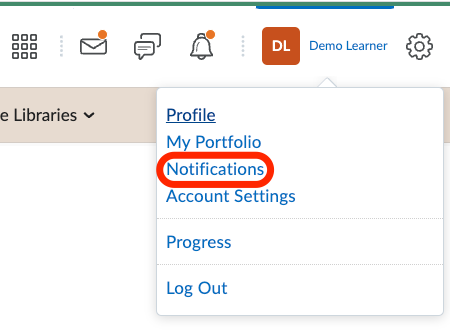
2. <span style="font-size: 11pt; font-family: Arial; color: #000000; background-color: transparent; font-weight: 400; font-style: normal; font-variant: normal; text-decoration: none; vertical-align: baseline; white-space: pre-wrap;">At the top right, click on your user name or profile picture. </span><span style="font-size: 11pt; font-family: Arial; color: #000000; background-color: transparent; font-weight: 400; font-style: normal; font-variant: normal; text-decoration: none; vertical-align: baseline; white-space: pre-wrap;">  

    </span><span style="font-size: 11pt; font-family: Arial; color: #000000; background-color: transparent; font-weight: 400; font-style: normal; font-variant: normal; text-decoration: none; vertical-align: baseline; white-space: pre-wrap;"><span style="border: none; display: inline-block; overflow: hidden; width: 398px; height: 99px;">![](https://lh5.googleusercontent.com/nH5q8RMBYJ3sOP5oXAAfdHnPWnYAeGbBjbKDPLyz7hcT1vQKzyXhZAThIumYeGGmIbRnLkKjx-cNobUqSV8tS5s6_0htkwKdyUV9qX-Ya4dOHs52H3YXYOOEdg__zxSExFW7VpM_YUMiOSjuz_2Gsr8)  


    </span></span>
3. <span style="font-size: 11pt; font-family: Arial; color: #000000; background-color: transparent; font-weight: 400; font-style: normal; font-variant: normal; text-decoration: none; vertical-align: baseline; white-space: pre-wrap;">Select ‘Notifications’ from the pop up window.</span><span style="font-size: 11pt; font-family: Arial; color: #000000; background-color: transparent; font-weight: 400; font-style: normal; font-variant: normal; text-decoration: none; vertical-align: baseline; white-space: pre-wrap;">  
    </span><span style="font-size: 11pt; font-family: Arial; color: #000000; background-color: transparent; font-weight: 400; font-style: normal; font-variant: normal; text-decoration: none; vertical-align: baseline; white-space: pre-wrap;"><span style="border: none; display: inline-block; overflow: hidden; width: 367px; height: 269px;">![](https://lh4.googleusercontent.com/f3mFNqO2IBMR_-Jy6Q6V-U0RzgvU6fI-SQ2jvz9JHDYXDJHkYXimbI-T51dOiZoEc0dna8hFdCY7JS8owIPfu9_NhC_bWGWuWkVrO3YLBDsfOrMlcvQNrMCGBCf7wNjvZ4KUze5M9-yOcSPbQSE2btc)</span></span>

<span style="font-size: 11pt; font-family: Arial; color: #000000; background-color: transparent; font-weight: 400; font-style: normal; font-variant: normal; text-decoration: none; vertical-align: baseline; white-space: pre-wrap;">  
</span>

Once into the notifications tab, there are instructions on how to download the Pulse App which connects to your Brightspace account. Additionally, you can update contact methods, both email and mobile.

There are a few settings that you have the ability to choose from.

<span style="font-size: 11pt; font-family: Arial; color: #000000; background-color: transparent; font-weight: 400; font-style: normal; font-variant: normal; text-decoration: none; vertical-align: baseline; white-space: pre-wrap;">4. Under ‘Summary of Activity’ you have the ability to receive a summary of activity for each of your different courses. The options are never, daily or weekly. </span>

<span style="font-size: 11pt; font-family: Arial; color: #000000; background-color: transparent; font-weight: 400; font-style: normal; font-variant: normal; text-decoration: none; vertical-align: baseline; white-space: pre-wrap;"><span style="border: none; display: inline-block; overflow: hidden; width: 332px; height: 197px;">![](https://lh3.googleusercontent.com/vldSFKilP3dh737N9rbVOfJdm6KKqIeWUugCO44y36nwbvSerFiZJTy1fkEQaygMrBMM62UNBDaNrf0StTpnj3Sd1O2YFL8JlXC_JtHl0yYyWAaJXZIzivbW5NHEj04qPIxHKpXnU3rFAxJefm0wZ_Q)</span></span>

<span style="font-size: 11pt; font-family: Arial; color: #000000; background-color: transparent; font-weight: 400; font-style: normal; font-variant: normal; text-decoration: none; vertical-align: baseline; white-space: pre-wrap;">5. There are different ‘Instant Notifications’ that you have the ability to select from. As a student, you might want to select notifications to do with the following either as a SMS (text message) or email:</span>

- - - <span style="font-size: 11pt; font-family: Arial; color: #000000; background-color: transparent; font-weight: 400; font-style: normal; font-variant: normal; text-decoration: none; vertical-align: baseline; white-space: pre-wrap;">Activity Feed - new comments from others on a post</span>
        - Activity Feed - new posts created by others
        - Announcements - announcement updated
        - Announcements - new announcement available
        - Assignments - assigned feedback released 
            - This will notify you when your teacher has given you feedback on any of your submitted work.
        - Discussions - mentioned in a discussion post or thread
        - Discussions - new port in a forum, topic, or thread that i subscribed to in instant notifications
        - Grades - grade item released
        - Grades - grade item updated

<span style="font-size: 11pt; font-family: Arial; color: #000000; background-color: transparent; font-weight: 400; font-style: normal; font-variant: normal; text-decoration: none; vertical-align: baseline; white-space: pre-wrap;">We suggest leaving off the different Content items unless you want to know every time a typo or small addition is made to your courses :)   
  
</span>

<span style="font-size: 11pt; font-family: Arial; color: #000000; background-color: transparent; font-weight: 400; font-style: normal; font-variant: normal; text-decoration: none; vertical-align: baseline; white-space: pre-wrap;">6. Under customize notifications, you have the ability to choose whether or not you’d like the grade value of your assignments sent when receiving feedback.</span>

<span style="font-size: 11pt; font-family: Arial; color: #000000; background-color: transparent; font-weight: 400; font-style: normal; font-variant: normal; text-decoration: none; vertical-align: baseline; white-space: pre-wrap;"><span style="border: none; display: inline-block; overflow: hidden; width: 295px; height: 100px;">![](https://lh6.googleusercontent.com/LwalonfrpdpoGyaWw7tc3PFCuddc9zK9aplNqK9FKxyW4E5-VHDlOCRlm6ThLIE9awsukbWA64Hv7HDMIjz_APKiPLeBJ0ubDoMFXdVWBHM4gKvqFOSjv-PtblwHERvqgglUqR4z8Z-EZx7hHR2SA94)</span></span>

<span style="font-size: 11pt; font-family: Arial; color: #000000; background-color: transparent; font-weight: 400; font-style: normal; font-variant: normal; text-decoration: none; vertical-align: baseline; white-space: pre-wrap;">The second option may be chosen if you’ve enrolled in courses that haven’t yet started, such as synchronous course options.   
  
</span>

<span style="font-size: 11pt; font-family: Arial; color: #000000; background-color: transparent; font-weight: 400; font-style: normal; font-variant: normal; text-decoration: none; vertical-align: baseline; white-space: pre-wrap;"><span id="bkmrk--7" style="font-weight: normal;"></span></span>

<span style="font-size: 11pt; font-family: Arial; color: #000000; background-color: transparent; font-weight: 400; font-style: normal; font-variant: normal; text-decoration: none; vertical-align: baseline; white-space: pre-wrap;">7. Lastly, the ‘Exclude some Courses’ section. If there are courses that you are enrolled in but don’t want to receive notifications for, this is where you would list those under the ‘Manage my course exclusions.’  
  
</span>

<span style="font-size: 11pt; font-family: Arial; color: #000000; background-color: transparent; font-weight: 400; font-style: normal; font-variant: normal; text-decoration: none; vertical-align: baseline; white-space: pre-wrap;">8. Remember to click ‘Save’ before leaving this page.</span>

<span style="font-size: 11pt; font-family: Arial; color: #000000; background-color: transparent; font-weight: 400; font-style: normal; font-variant: normal; text-decoration: none; vertical-align: baseline; white-space: pre-wrap;"><span style="border: none; display: inline-block; overflow: hidden; width: 433px; height: 124px;">![](https://lh4.googleusercontent.com/87s9okRaqZj5ZQN3sEh8mtoqTIEsHLnkB1NvZZjTC4RcS7nXkOhcaiQtlsM0VMpTPJjXWTVTNzU1BqenU9qSeq8qLAKSC1JD1NPxgp51PMZrVTVNBvvLj38U0JbVqhMnr87IlAyehOV2LngYIUHh0MQ)</span></span>

# Navigating the Course Homepage

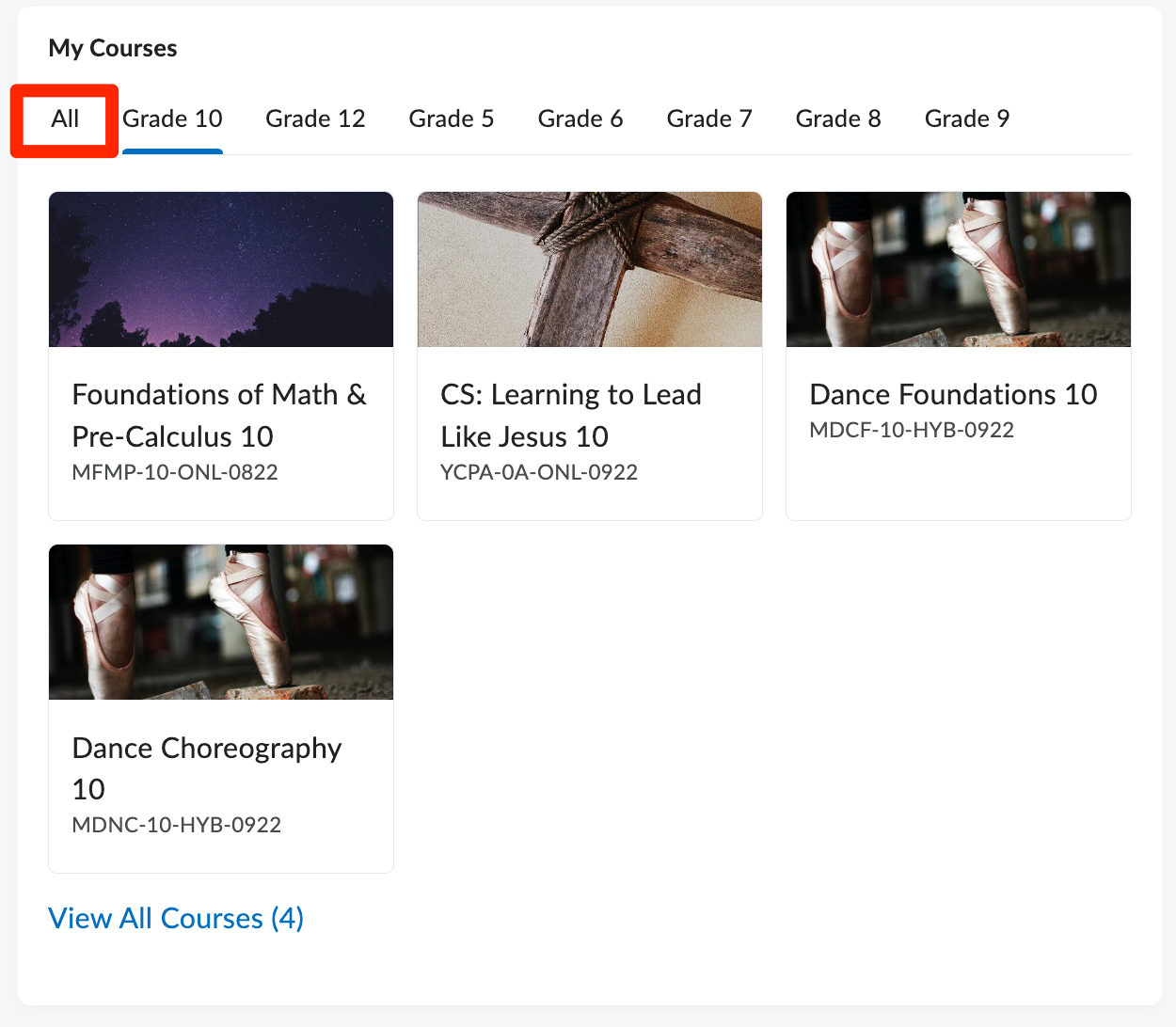
<span style="font-size: 11pt; font-family: Arial; color: #000000; background-color: transparent; font-weight: 400; font-style: normal; font-variant: normal; text-decoration: none; vertical-align: baseline; white-space: pre-wrap;">Once logged into Brightspace, to access your course(s) click on one of the tiles located in the My Courses Widget. If you cannot see all your courses, make sure you have selected All. </span>
<span style="font-size: 11pt; font-family: Arial; color: #000000; background-color: transparent; font-weight: 400; font-style: normal; font-variant: normal; text-decoration: none; vertical-align: baseline; white-space: pre-wrap;"><span style="border: none; display: inline-block; overflow: hidden; width: 373px; height: 326px;">![](https://lh6.googleusercontent.com/CWrgwxIHHjcb3K2fBv1EHX-zRiLFHOkRLldvAiYUAJfwX6Naqy-22TexYQJC_84Z8xFrKF6lRyfetIEagpEHz-FcT1RU3RJCuRetUlt43vTtVckDojiRMOxNTWjjc54j1MHBvowoVeYmTB41tY9d0IY)</span></span>

<span style="font-size: 11pt; font-family: Arial; color: #000000; background-color: transparent; font-weight: 400; font-style: normal; font-variant: normal; text-decoration: none; vertical-align: baseline; white-space: pre-wrap;">Once you have entered the course of your choice you will see a navigation bar and options to select on the course homepage.  
</span>

<span style="font-size: 11pt; font-family: Arial; color: #000000; background-color: transparent; font-weight: 400; font-style: normal; font-variant: normal; text-decoration: none; vertical-align: baseline; white-space: pre-wrap;">At the top you will see the navigation bar. In grades 10 through 12, it will appear like:</span>

<span style="font-size: 11pt; font-family: Arial; color: #000000; background-color: transparent; font-weight: 400; font-style: normal; font-variant: normal; text-decoration: none; vertical-align: baseline; white-space: pre-wrap;"><span style="border: none; display: inline-block; overflow: hidden; width: 624px; height: 88px;">![](https://lh3.googleusercontent.com/fuj7Wp5xoPZ5MKfpeJK8qZvu_gC5fEYP7bwfg_pFxHrYQfm5O23xz3wDVIGsLWalfr5qqEKJwDJEX0ILokD3iAxXlk1gRd9X-oYjfjhbz1AR0QFpDNshCIUdeUD7M8D-19gyQRMcmF2rqQ9XGK3bRIk)</span></span>

<span style="font-size: 11pt; font-family: Arial; color: #000000; background-color: transparent; font-weight: 400; font-style: normal; font-variant: normal; text-decoration: none; vertical-align: baseline; white-space: pre-wrap;">And in grades 5 through 9, it will appear like this:</span>

<span style="font-size: 11pt; font-family: Arial; color: #000000; background-color: transparent; font-weight: 400; font-style: normal; font-variant: normal; text-decoration: none; vertical-align: baseline; white-space: pre-wrap;"><span style="border: none; display: inline-block; overflow: hidden; width: 624px; height: 120px;">![](https://lh5.googleusercontent.com/h1B_Oj7EvgcJFWUJf6EtrSMrUC0oRxPsEskXeUCts4hNEIurpV03YTl0icce5rSGvb9bgLi8k3C97c_OXmrX9EFxoGqbVQZpbug_L8cxL6Tn8E43gqnCJf94lpsOPEyqfrQyQhZBMl6K8PfDWjVjyyI)</span></span>

<span style="font-size: 11pt; font-family: Arial; color: #000000; background-color: transparent; font-weight: 400; font-style: normal; font-variant: normal; text-decoration: none; vertical-align: baseline; white-space: pre-wrap;">While it may look different, the buttons and links represent the same information. </span>

<div align="left" dir="ltr" id="bkmrk-course-home-clicking" style="margin-left: 0pt;"><table style="border: none; border-collapse: collapse; table-layout: fixed; width: 468pt;"><colgroup><col></col><col></col></colgroup><tbody><tr style="height: 0pt;"><td style="vertical-align: top; padding: 5pt 5pt 5pt 5pt; overflow: hidden; overflow-wrap: break-word; border: solid #000000 1pt;"><span style="font-size: 11pt; font-family: Arial; color: #000000; background-color: transparent; font-weight: bold; font-style: normal; font-variant: normal; text-decoration: none; vertical-align: baseline; white-space: pre-wrap;">Course Home</span>

<span style="font-size: 11pt; font-family: Arial; color: #000000; background-color: transparent; font-weight: 400; font-style: normal; font-variant: normal; text-decoration: none; vertical-align: baseline; white-space: pre-wrap;">Clicking the course home link in the navigation bar will redirect you back to the course homepage, from any other page within the course. </span>

</td><td style="vertical-align: top; padding: 5pt 5pt 5pt 5pt; overflow: hidden; overflow-wrap: break-word; border: solid #000000 1pt;"><span style="font-size: 11pt; font-family: Arial; color: #000000; background-color: transparent; font-weight: 400; font-style: normal; font-variant: normal; text-decoration: none; vertical-align: baseline; white-space: pre-wrap;"><span style="border: none; display: inline-block; overflow: hidden; width: 298px; height: 228px;">![](https://lh4.googleusercontent.com/L9IDtgHL31_61F30uofXsSzGm1wNlXZ5y4NfxXmgAi4SzqKJvYMHw_EfjlyH6eGrp197wmHXPGcd1PA-XwYNX4-aFWTT7Mj_LLPc5k_Zi5dJBvNnTEGr-5-frcilRKpPTbivRbTt8VZSC18ud-G1pJA)</span></span>

</td></tr><tr style="height: 0pt;"><td style="vertical-align: top; padding: 5pt 5pt 5pt 5pt; overflow: hidden; overflow-wrap: break-word; border: solid #000000 1pt;"><span style="font-size: 11pt; font-family: Arial; color: #000000; background-color: transparent; font-weight: bold; font-style: normal; font-variant: normal; text-decoration: none; vertical-align: baseline; white-space: pre-wrap;">Content</span>

<span style="font-size: 11pt; font-family: Arial; color: #000000; background-color: transparent; font-weight: 400; font-style: normal; font-variant: normal; text-decoration: none; vertical-align: baseline; white-space: pre-wrap;">The content link will take you to a list of all the content within the course. You can navigate to any specific aspect from this list or launch the different units.</span>

  
</td><td style="vertical-align: top; padding: 5pt 5pt 5pt 5pt; overflow: hidden; overflow-wrap: break-word; border: solid #000000 1pt;"><span style="font-size: 11pt; font-family: Arial; color: #000000; background-color: transparent; font-weight: 400; font-style: normal; font-variant: normal; text-decoration: none; vertical-align: baseline; white-space: pre-wrap;"><span style="border: none; display: inline-block; overflow: hidden; width: 298px; height: 328px;">![](https://lh6.googleusercontent.com/KUi0cI48f52tAjaKUhdf4JTRJeIsz9wDEOgnEWx2668jiesH2Veen7h5vjABwroOtCTOvrr3OjfRKec1g-TnNvpCI1EqXYPYCQe0c-VCe-FethxUM6-xXDKqBxBEnbBOAFDKGh2xBD2lV9QR1tG-Oyo)</span></span>

</td></tr><tr style="height: 0pt;"><td style="vertical-align: top; padding: 5pt 5pt 5pt 5pt; overflow: hidden; overflow-wrap: break-word; border: solid #000000 1pt;"><span style="font-size: 11pt; font-family: Arial; color: #000000; background-color: transparent; font-weight: bold; font-style: normal; font-variant: normal; text-decoration: none; vertical-align: baseline; white-space: pre-wrap;">Class Progress</span>

<span style="font-size: 11pt; font-family: Arial; color: #000000; background-color: transparent; font-weight: 400; font-style: normal; font-variant: normal; text-decoration: none; vertical-align: baseline; white-space: pre-wrap;">This link will give you an overview of your progress in the current course you are viewing. </span>

</td><td style="vertical-align: top; padding: 5pt 5pt 5pt 5pt; overflow: hidden; overflow-wrap: break-word; border: solid #000000 1pt;"><span style="font-size: 11pt; font-family: Arial; color: #000000; background-color: transparent; font-weight: 400; font-style: normal; font-variant: normal; text-decoration: none; vertical-align: baseline; white-space: pre-wrap;"><span style="border: none; display: inline-block; overflow: hidden; width: 298px; height: 285px;">![](https://lh5.googleusercontent.com/4KVO6xmJ-Cycq3892oW_R0MsGvhwYZXlS8rEzDtZ3SSMSQw3WDskMhhvGlq5MUT7ler2XddsXQMwEFjV79DICn0_wR8A7juiQfkb7Bv5nRUhZQ_4ZvNNgnWZLMtvX3iXLH1HvIGNwrLYXg5nzkQ2HwA)</span></span>

</td></tr><tr style="height: 0pt;"><td style="vertical-align: top; padding: 5pt 5pt 5pt 5pt; overflow: hidden; overflow-wrap: break-word; border: solid #000000 1pt;"><span style="font-size: 11pt; font-family: Arial; color: #000000; background-color: transparent; font-weight: bold; font-style: normal; font-variant: normal; text-decoration: none; vertical-align: baseline; white-space: pre-wrap;">Grades</span>

<span style="font-size: 11pt; font-family: Arial; color: #000000; background-color: transparent; font-weight: 400; font-style: normal; font-variant: normal; text-decoration: none; vertical-align: baseline; white-space: pre-wrap;">An overview of your grades for the courses. You can print this page for future reference as well. </span>

</td><td style="vertical-align: top; padding: 5pt 5pt 5pt 5pt; overflow: hidden; overflow-wrap: break-word; border: solid #000000 1pt;"><span style="font-size: 11pt; font-family: Arial; color: #000000; background-color: transparent; font-weight: 400; font-style: normal; font-variant: normal; text-decoration: none; vertical-align: baseline; white-space: pre-wrap;"><span style="border: none; display: inline-block; overflow: hidden; width: 298px; height: 304px;">![](https://lh5.googleusercontent.com/Qvzs90WEnFFKA_lQbMvev1JeY5XSZSyNUfDW7OluohEdsaGfG4HWEvm65ygp0_xNF1lrhFu5ZRY_DCzq5fQEijejXWe5V2_s1aRmIFw68QkoK0nehGefGQ2dsqbYjtPQXSqtkuaXNHLblTQw9YCxjAc)</span></span>

</td></tr><tr style="height: 0pt;"><td style="vertical-align: top; padding: 5pt 5pt 5pt 5pt; overflow: hidden; overflow-wrap: break-word; border: solid #000000 1pt;"><span style="font-size: 11pt; font-family: Arial; color: #000000; background-color: transparent; font-weight: bold; font-style: normal; font-variant: normal; text-decoration: none; vertical-align: baseline; white-space: pre-wrap;">Discussions</span>

<span style="font-size: 11pt; font-family: Arial; color: #000000; background-color: transparent; font-weight: 400; font-style: normal; font-variant: normal; text-decoration: none; vertical-align: baseline; white-space: pre-wrap;">This is a shortcut to all of the forums in the course. If you are following threads and having an in depth discussion with another student this is a great way to navigate directly to those instead of through the content. </span>

  
<span style="font-size: 11pt; font-family: Arial; color: #000000; background-color: transparent; font-weight: 400; font-style: normal; font-variant: normal; text-decoration: none; vertical-align: baseline; white-space: pre-wrap;">Here you can also adjust your subscriptions and notifications to forums. </span>

</td><td style="vertical-align: top; padding: 5pt 5pt 5pt 5pt; overflow: hidden; overflow-wrap: break-word; border: solid #000000 1pt;"><span style="font-size: 11pt; font-family: Arial; color: #000000; background-color: transparent; font-weight: 400; font-style: normal; font-variant: normal; text-decoration: none; vertical-align: baseline; white-space: pre-wrap;"><span style="border: none; display: inline-block; overflow: hidden; width: 298px; height: 131px;">![](https://lh6.googleusercontent.com/ncwb4vxv83NEg9lbTraXBpiV51w7-A9utL5MSmPbAsFTlHTNauw7CUGsaiY8sgL7H1d_oATYgxx3Zw6ApElhw9uoXwZZ_eE6hq6LkcMlMmMGsiLSJPee-yF8rTkh8vK3foHRTSJwGu8o7i7wmnmevEI)</span></span>

</td></tr></tbody></table>

</div><span style="font-size: 11pt; font-family: Arial; color: #000000; background-color: transparent; font-weight: 400; font-style: normal; font-variant: normal; text-decoration: none; vertical-align: baseline; white-space: pre-wrap;">On the course homepage you have:</span>

<div align="left" dir="ltr" id="bkmrk-announcement-feed-te" style="margin-left: 0pt;"><table style="border: none; border-collapse: collapse; table-layout: fixed; width: 468pt;"><colgroup><col></col><col></col></colgroup><tbody><tr style="height: 0pt;"><td style="vertical-align: top; padding: 5pt 5pt 5pt 5pt; overflow: hidden; overflow-wrap: break-word; border: solid #000000 1pt;"><span style="font-size: 11pt; font-family: Arial; color: #000000; background-color: transparent; font-weight: bold; font-style: normal; font-variant: normal; text-decoration: none; vertical-align: baseline; white-space: pre-wrap;">Announcement Feed</span>

<span style="font-size: 11pt; font-family: Arial; color: #000000; background-color: transparent; font-weight: 400; font-style: normal; font-variant: normal; text-decoration: none; vertical-align: baseline; white-space: pre-wrap;">Teachers will use this widget to make class wide announcements, post important information and maybe some fun things, like jokes or current events. </span>

</td><td style="vertical-align: top; padding: 5pt 5pt 5pt 5pt; overflow: hidden; overflow-wrap: break-word; border: solid #000000 1pt;"><span style="font-size: 11pt; font-family: Arial; color: #000000; background-color: transparent; font-weight: 400; font-style: normal; font-variant: normal; text-decoration: none; vertical-align: baseline; white-space: pre-wrap;"><span style="border: none; display: inline-block; overflow: hidden; width: 298px; height: 120px;">![](https://lh5.googleusercontent.com/dxakvfFrHXqIKbf6tBmn3SZ-rxMr_67PjNnffAYElHdLSmzUM7ji_fpmvx73dAp9Q6fwAITx9SZIXoyYzop61NmKb6VijOfDPNzlGVd8O3cgpkcirROvkKsns_CyAwVy2HuEVYQp3XB580T_L_E1u58)</span></span>

</td></tr><tr style="height: 0pt;"><td style="vertical-align: top; padding: 5pt 5pt 5pt 5pt; overflow: hidden; overflow-wrap: break-word; border: solid #000000 1pt;"><span style="font-size: 11pt; font-family: Arial; color: #000000; background-color: transparent; font-weight: bold; font-style: normal; font-variant: normal; text-decoration: none; vertical-align: baseline; white-space: pre-wrap;">Your Teacher and TAs</span><span style="font-size: 11pt; font-family: Arial; color: #000000; background-color: transparent; font-weight: 400; font-style: normal; font-variant: normal; text-decoration: none; vertical-align: baseline; white-space: pre-wrap;">  
</span><span style="font-size: 11pt; font-family: Arial; color: #000000; background-color: transparent; font-weight: 400; font-style: normal; font-variant: normal; text-decoration: none; vertical-align: baseline; white-space: pre-wrap;">Here you will find the contact information for your teacher. They will have their email address, zoom contact, office hours and any other important information you need in order to be able to connect with them.</span>

</td><td style="vertical-align: top; padding: 5pt 5pt 5pt 5pt; overflow: hidden; overflow-wrap: break-word; border: solid #000000 1pt;"><span style="font-size: 11pt; font-family: Arial; color: #000000; background-color: transparent; font-weight: 400; font-style: normal; font-variant: normal; text-decoration: none; vertical-align: baseline; white-space: pre-wrap;"><span style="border: none; display: inline-block; overflow: hidden; width: 298px; height: 421px;">![](https://lh6.googleusercontent.com/H4uNklOHc3RfJNTp-UgSKCcBgU2BhjJJu229uvLH-eDVJLYFeX8UJUEbcPh-HXiGrwW-ICo_vINCZT10i1XhmSSgh2ytvJ502NPTd1iIE8eEXc_ltsivODk6df2td-Tyyf8Jd2iVsFD2Zw_oFDZXkcI)</span></span>

</td></tr><tr style="height: 0pt;"><td style="vertical-align: top; padding: 5pt 5pt 5pt 5pt; overflow: hidden; overflow-wrap: break-word; border: solid #000000 1pt;"><span style="font-size: 11pt; font-family: Arial; color: #000000; background-color: transparent; font-weight: bold; font-style: normal; font-variant: normal; text-decoration: none; vertical-align: baseline; white-space: pre-wrap;">Calendar</span>

<span style="font-size: 11pt; font-family: Arial; color: #000000; background-color: transparent; font-weight: 400; font-style: normal; font-variant: normal; text-decoration: none; vertical-align: baseline; white-space: pre-wrap;">This will be an important tool in synchronous courses. Teachers may add due dates and class times so you can follow along with the group.</span>

</td><td style="vertical-align: top; padding: 5pt 5pt 5pt 5pt; overflow: hidden; overflow-wrap: break-word; border: solid #000000 1pt;"><span style="font-size: 11pt; font-family: Arial; color: #000000; background-color: transparent; font-weight: 400; font-style: normal; font-variant: normal; text-decoration: none; vertical-align: baseline; white-space: pre-wrap;"><span style="border: none; display: inline-block; overflow: hidden; width: 298px; height: 301px;">![](https://lh5.googleusercontent.com/nY4w93A6EXlQjQc5X6dM7_9NThOR2h1_Qslq6upEMNJ2UmjbR1hicwr3jd-dC9GVtdvOjPeLzH7FLWo6bG4wUzvoJ5mlBiJyzb0d9YuUcT0hRnKzhNjOVcxM-wM9LboSvfLT6Y6I-qzERlHAkSxC_-Y)</span></span>

</td></tr><tr style="height: 0pt;"><td style="vertical-align: top; padding: 5pt 5pt 5pt 5pt; overflow: hidden; overflow-wrap: break-word; border: solid #000000 1pt;"><span style="font-size: 11pt; font-family: Arial; color: #000000; background-color: transparent; font-weight: bold; font-style: normal; font-variant: normal; text-decoration: none; vertical-align: baseline; white-space: pre-wrap;">Course Content</span>

<span style="font-size: 11pt; font-family: Arial; color: #000000; background-color: transparent; font-weight: 400; font-style: normal; font-variant: normal; text-decoration: none; vertical-align: baseline; white-space: pre-wrap;">Here is where you will access the different components of your course. Clicking the tiles will take you to the units or lessons to begin or continue working. </span>

</td><td style="vertical-align: top; padding: 5pt 5pt 5pt 5pt; overflow: hidden; overflow-wrap: break-word; border: solid #000000 1pt;"><span style="font-size: 11pt; font-family: Arial; color: #000000; background-color: transparent; font-weight: 400; font-style: normal; font-variant: normal; text-decoration: none; vertical-align: baseline; white-space: pre-wrap;"><span style="border: none; display: inline-block; overflow: hidden; width: 298px; height: 264px;">![](https://lh4.googleusercontent.com/H5ldSv77Q7riu2mN8_-9_dp-eb6X3JjoPni1qz5JPxJkEV7aZlRpbuU7sVvILp-RKWYTl69sPwSkcR8Z980z7OJH848-COdsI0Q2kcttJieoU1EFYTW4bRQ7_eL3FrNtUB5xrJ8bf_B-6FoN_bXuJM0)</span></span>

</td></tr></tbody></table>

</div><span style="font-size: 11pt; font-family: Arial; color: #000000; background-color: transparent; font-weight: bold; font-style: normal; font-variant: normal; text-decoration: none; vertical-align: baseline; white-space: pre-wrap;">Course Content Navigation</span>

<span style="font-size: 11pt; font-family: Arial; color: #000000; background-color: transparent; font-weight: 400; font-style: normal; font-variant: normal; text-decoration: none; vertical-align: baseline; white-space: pre-wrap;">Once you have clicked on a tile in Brightspace you will be taken to a view that displays only the content of your course. To navigate through, you may have to click a ‘hamburger menu’ in the top right corner to see the different components of the unit. Alternatively, you can use the arrows on the right hand side to navigate forwards and backwards. The ‘&lt; Back” button will return you to the course homepage.</span>
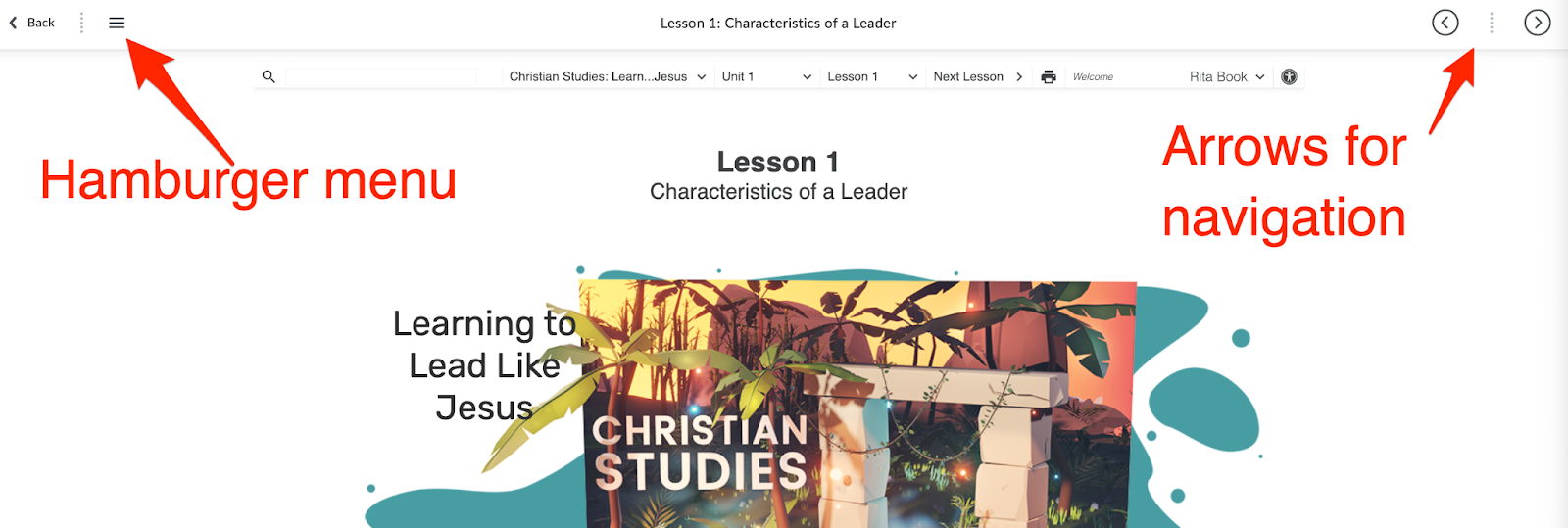
<span style="font-size: 11pt; font-family: Arial; color: #000000; background-color: transparent; font-weight: 400; font-style: normal; font-variant: normal; text-decoration: none; vertical-align: baseline; white-space: pre-wrap;"><span style="border: none; display: inline-block; overflow: hidden; width: 624px; height: 211px;">![](https://lh4.googleusercontent.com/Hjg21w8E4nW4EbmhKtTsyZKJLr8fayzML2dqJkhzSvotAq17y7CoNMui-RdUahJfBlSVvB35ED1xFZ0CJra7S2MojJqXIIv2WJHQq6p6X9_hqYTdXJZDuG1sXvNn0KiBoZw1ZlGwfXaldAfuJrwbDY4)</span></span>

<span style="font-size: 11pt; font-family: Arial; color: #000000; background-color: transparent; font-weight: 400; font-style: normal; font-variant: normal; text-decoration: none; vertical-align: baseline; white-space: pre-wrap;">Once you adjust the menu, you will see additional navigation options:</span>
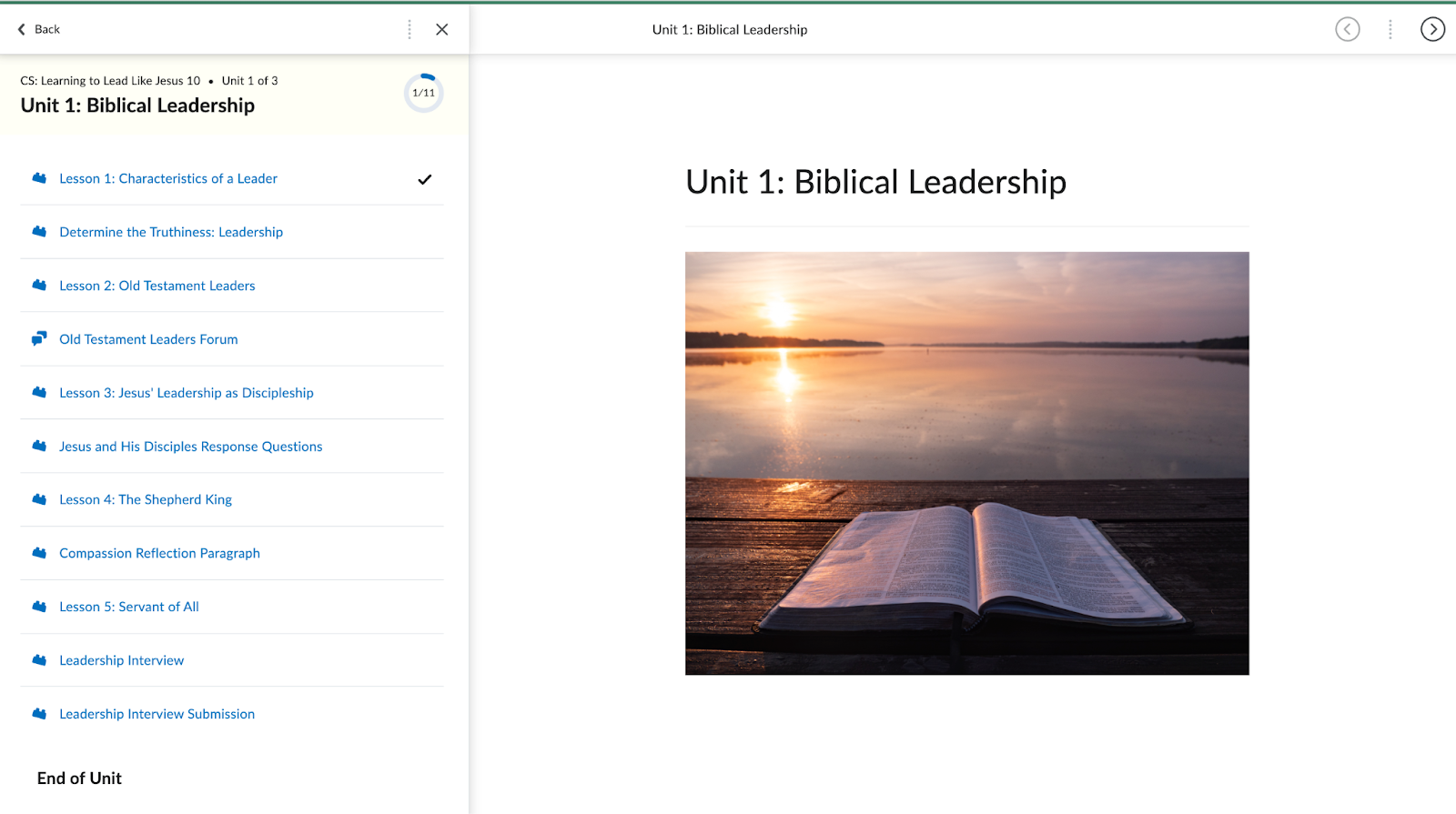
<span style="font-size: 11pt; font-family: Arial; color: #000000; background-color: transparent; font-weight: 400; font-style: normal; font-variant: normal; text-decoration: none; vertical-align: baseline; white-space: pre-wrap;"><span style="border: none; display: inline-block; overflow: hidden; width: 624px; height: 349px;">![](https://lh3.googleusercontent.com/_abF8_ijSqzkCXplXcfp2q_Qj6iIQJTaEZ3UJF7s8EPyQwsKKg_uw0WV6LUCCm_xcHhJ9V3qVlJJ-7BoOBPxmzEWVpUC0wtvTOhW4D5i9FZwxslicXicvOzLFDK97_wyW29-DG95iQ0sZuXVIdvo5io)</span></span>

# Navigating the Landing Page in Brightspace

<span style="font-size: 11pt; font-family: Arial; color: #000000; background-color: transparent; font-weight: 400; font-style: normal; font-variant: normal; text-decoration: none; vertical-align: baseline; white-space: pre-wrap;">Brightspace is the Learning Management System (LMS) used by HCOS to offer a wide variety of courses including online (asynchronous and synchronous), hybrid, Community Connections + and even some individualized offerings. </span>

<span style="font-size: 11pt; font-family: Arial; color: #000000; background-color: transparent; font-weight: 400; font-style: normal; font-variant: normal; text-decoration: none; vertical-align: baseline; white-space: pre-wrap;">  
While course experiences may be different depending on what offerings you are enrolled in, the general user experience is the same.   
  
</span>

<span style="font-size: 11pt; font-family: Arial; color: #000000; background-color: transparent; font-weight: 400; font-style: normal; font-variant: normal; text-decoration: none; vertical-align: baseline; white-space: pre-wrap;">To login, navigate to hcos.onlinelearningbc.com or </span>[<span style="font-size: 11pt; font-family: Arial; color: #1155cc; background-color: transparent; font-weight: 400; font-style: normal; font-variant: normal; text-decoration: underline; -webkit-text-decoration-skip: none; text-decoration-skip-ink: none; vertical-align: baseline; white-space: pre-wrap;">click here</span>](https://hcos.onlinelearningbc.com/d2l/login)<span style="font-size: 11pt; font-family: Arial; color: #000000; background-color: transparent; font-weight: 400; font-style: normal; font-variant: normal; text-decoration: none; vertical-align: baseline; white-space: pre-wrap;">. Click the Teacher &amp; Student login button and enter your username and password. If you do not know your password, please click the forgot password link, and if you are unsure of your username please reach out to your Support Teacher or Grad Advisor. </span>

[![image.png](https://sophie.onlineschool.ca/uploads/images/gallery/2023-03/scaled-1680-/xcUimage.png)](https://sophie.onlineschool.ca/uploads/images/gallery/2023-03/xcUimage.png)

<span style="font-size: 11pt; font-family: Arial; color: #000000; background-color: transparent; font-weight: 400; font-style: normal; font-variant: normal; text-decoration: none; vertical-align: baseline; white-space: pre-wrap;">If it is your first time logging in, you will be prompted to walk through the Online Orientation. A pop-up window will appear and you will be instructed to read through the material provided. </span>
<span style="font-size: 11pt; font-family: Arial; color: #000000; background-color: transparent; font-weight: 400; font-style: normal; font-variant: normal; text-decoration: none; vertical-align: baseline; white-space: pre-wrap;"><span style="border: none; display: inline-block; overflow: hidden; width: 375px; height: 253px;">![](https://lh6.googleusercontent.com/FeuOOzB9E4-eHukXya31eakxJIDKON-1Zw-gl3_rL7uxvJMZMviAQKy2LyS74Z2LvsdA_BVka7ZYJAIIeT4yZUJVmDBVxfrqQG8srhc1cBgKnbXJtZhNMOyfquDC1CgYaSADDiHGCRgrG95yISNratg)</span></span>

<span style="font-size: 11pt; font-family: Arial; color: #000000; background-color: transparent; font-weight: 400; font-style: normal; font-variant: normal; text-decoration: none; vertical-align: baseline; white-space: pre-wrap;">Once you have logged in and completed the Online Orientation, you will be taken to the landing page. On the landing page you will see a few different categories of information:</span>

<div align="left" dir="ltr" id="bkmrk-hcos-%26-bcos-announce" style="margin-left: 0pt;"><table style="border: none; border-collapse: collapse; table-layout: fixed; width: 468pt;"><colgroup><col></col><col></col></colgroup><tbody><tr style="height: 0pt;"><td style="vertical-align: top; padding: 5pt 5pt 5pt 5pt; overflow: hidden; overflow-wrap: break-word; border: solid #000000 1pt;"><span style="font-size: 11pt; font-family: Arial; color: #000000; background-color: transparent; font-weight: bold; font-style: normal; font-variant: normal; text-decoration: none; vertical-align: baseline; white-space: pre-wrap;">HCOS &amp; BCOS Announcements</span>

<span style="font-size: 11pt; font-family: Arial; color: #000000; background-color: transparent; font-weight: 400; font-style: normal; font-variant: normal; text-decoration: none; vertical-align: baseline; white-space: pre-wrap;">This is where schoolwide announcements will be placed for students. Students can expand to see all previous announcements made. </span>

</td><td style="vertical-align: top; padding: 5pt 5pt 5pt 5pt; overflow: hidden; overflow-wrap: break-word; border: solid #000000 1pt;"><span style="font-size: 11pt; font-family: Arial; color: #000000; background-color: transparent; font-weight: 400; font-style: normal; font-variant: normal; text-decoration: none; vertical-align: baseline; white-space: pre-wrap;"><span style="border: none; display: inline-block; overflow: hidden; width: 298px; height: 149px;">![](https://lh5.googleusercontent.com/Ghva3uYDrq9t1vjbHcGrYpq1LOe3gui2vJXY0ICCRPMLX7pqxaOGWyT4NKiV2nKrCAGdmk1iLbZJDLJ7u1tfK-Eo25okQwFAe5rbmziu2pRu2XqzKvfNpYrMshEB7yEzT2nbb-PBbyso_51M-qFWjDY)</span></span>

</td></tr><tr style="height: 0pt;"><td style="vertical-align: top; padding: 5pt 5pt 5pt 5pt; overflow: hidden; overflow-wrap: break-word; border: solid #000000 1pt;"><span style="font-size: 11pt; font-family: Arial; color: #000000; background-color: transparent; font-weight: bold; font-style: normal; font-variant: normal; text-decoration: none; vertical-align: baseline; white-space: pre-wrap;">My Courses</span>

<span style="font-size: 11pt; font-family: Arial; color: #000000; background-color: transparent; font-weight: 400; font-style: normal; font-variant: normal; text-decoration: none; vertical-align: baseline; white-space: pre-wrap;">There is where students will find shortcuts to each of their enrolled classes. They can sort by all, or by grade level if they are enrolled in offerings associated at different grades. </span>

</td><td style="vertical-align: top; padding: 5pt 5pt 5pt 5pt; overflow: hidden; overflow-wrap: break-word; border: solid #000000 1pt;"><span style="font-size: 11pt; font-family: Arial; color: #000000; background-color: transparent; font-weight: 400; font-style: normal; font-variant: normal; text-decoration: none; vertical-align: baseline; white-space: pre-wrap;"><span style="border: none; display: inline-block; overflow: hidden; width: 298px; height: 265px;">![](https://lh3.googleusercontent.com/rVMb8nfb5hz7mMgGqmonA7MREhwt9jRtXOZc0fp_puAKq5aoyS1asJbtgU3u_jULDKDJ3sGO8rPqsovSa_0E_NKqoEa8vnZacFEuxG-nl0l3PrAtARgrKpugv7-evqGp51z7-80AxVdLmKcsFv9BypI)</span></span>

</td></tr><tr style="height: 0pt;"><td style="vertical-align: top; padding: 5pt 5pt 5pt 5pt; overflow: hidden; overflow-wrap: break-word; border: solid #000000 1pt;"><span style="font-size: 11pt; font-family: Arial; color: #000000; background-color: transparent; font-weight: bold; font-style: normal; font-variant: normal; text-decoration: none; vertical-align: baseline; white-space: pre-wrap;">Student Success Centre</span>

<span style="font-size: 11pt; font-family: Arial; color: #000000; background-color: transparent; font-weight: 400; font-style: normal; font-variant: normal; text-decoration: none; vertical-align: baseline; white-space: pre-wrap;">This widget gives students direct access to the Student Success Educational Assistants. Need some help in one of your courses? Feel free to book an appointment directly, using the links provided. </span>

</td><td style="vertical-align: top; padding: 5pt 5pt 5pt 5pt; overflow: hidden; overflow-wrap: break-word; border: solid #000000 1pt;"><span style="font-size: 11pt; font-family: Arial; color: #000000; background-color: transparent; font-weight: 400; font-style: normal; font-variant: normal; text-decoration: none; vertical-align: baseline; white-space: pre-wrap;"><span style="border: none; display: inline-block; overflow: hidden; width: 265px; height: 340px;">![](https://lh3.googleusercontent.com/kHj6LdwHkuAkgQLdn4qOxxGr-G8BESiITOBF4Bksm5Fv1glw0K4bWfL4KefnK746ReshhOJj0hUpBaRayTYZ2wrj9NBULPb2WGDwMtX6PCE3kzOjmz1UO8Y_V488iHIa3QdKSko0bs-VYr4aIPS3kZA)</span></span>

</td></tr><tr style="height: 0pt;"><td style="vertical-align: top; padding: 5pt 5pt 5pt 5pt; overflow: hidden; overflow-wrap: break-word; border: solid #000000 1pt;"><span style="font-size: 11pt; font-family: Arial; color: #000000; background-color: transparent; font-weight: 400; font-style: normal; font-variant: normal; text-decoration: none; vertical-align: baseline; white-space: pre-wrap;">My Courses in Other Orgs</span>

<span style="font-size: 11pt; font-family: Arial; color: #000000; background-color: transparent; font-weight: 400; font-style: normal; font-variant: normal; text-decoration: none; vertical-align: baseline; white-space: pre-wrap;">Are you cross enrolled with another school for an online offering? If so, you will have direct access through this widget to navigate to those courses. </span>

</td><td style="vertical-align: top; padding: 5pt 5pt 5pt 5pt; overflow: hidden; overflow-wrap: break-word; border: solid #000000 1pt;"><span style="font-size: 11pt; font-family: Arial; color: #000000; background-color: transparent; font-weight: 400; font-style: normal; font-variant: normal; text-decoration: none; vertical-align: baseline; white-space: pre-wrap;"><span style="border: none; display: inline-block; overflow: hidden; width: 298px; height: 215px;">![](https://lh6.googleusercontent.com/rKHSX5rX_bQNf7ek3YFEJnuuIDPko7H0UYWIHP4WPTc2IAVX1VV8Iouf6sZYINYXBtQf6oDmPHDm_reskNQRH1X7f5AClET4AKSFzz1V09Jq_qNhTVhDq12Z50YdqDoLbQ4ZtxmGI6Vd5ss--W7p05Q)</span></span>

</td></tr><tr style="height: 0pt;"><td style="vertical-align: top; padding: 5pt 5pt 5pt 5pt; overflow: hidden; overflow-wrap: break-word; border: solid #000000 1pt;"><span style="font-size: 11pt; font-family: Arial; color: #000000; background-color: transparent; font-weight: 400; font-style: normal; font-variant: normal; text-decoration: none; vertical-align: baseline; white-space: pre-wrap;">Log Out Reminder</span>

<span style="font-size: 11pt; font-family: Arial; color: #000000; background-color: transparent; font-weight: 400; font-style: normal; font-variant: normal; text-decoration: none; vertical-align: baseline; white-space: pre-wrap;">It is best practice to log out of your session every time you are finished working. Brightspace will automatically log you out after three hours if there is no activity registered. </span>

</td><td style="vertical-align: top; padding: 5pt 5pt 5pt 5pt; overflow: hidden; overflow-wrap: break-word; border: solid #000000 1pt;"><span style="font-size: 11pt; font-family: Arial; color: #000000; background-color: transparent; font-weight: 400; font-style: normal; font-variant: normal; text-decoration: none; vertical-align: baseline; white-space: pre-wrap;"><span style="border: none; display: inline-block; overflow: hidden; width: 298px; height: 145px;">![](https://lh3.googleusercontent.com/PuuwaRK5pdHhMS1zYKNjQeYu6vHawCz1cB2HoDfGtm-_m6kjNlPcoMH4n9imlfU3FDUs-Hp8H1bpuTWTeKuYZ34wvqQrQeVJ_OVo56ExWvMxHDuTi6bBl3D00GxTRw-eQIqhHKCoSbN2b6B5DuP3RhU)</span></span>

</td></tr></tbody></table>

</div><span style="font-size: 11pt; font-family: Arial; color: #000000; background-color: transparent; font-weight: 400; font-style: normal; font-variant: normal; text-decoration: none; vertical-align: baseline; white-space: pre-wrap;">In addition to the modules you see upon logging in, there are additional resources available to you through the navigation bar. </span>

<span style="font-size: 11pt; font-family: Arial; color: #000000; background-color: transparent; font-weight: 400; font-style: normal; font-variant: normal; text-decoration: none; vertical-align: baseline; white-space: pre-wrap;"><span style="border: none; display: inline-block; overflow: hidden; width: 624px; height: 80px;">![](https://lh3.googleusercontent.com/g_OHDGFQKFQMMphCcB7zbvNxUePS3PoaAaiu7k0LYJq88mRKxbqdoCjh-YN074Vepf2YmGRFMu7rxRo_SjIzDhOs_TLRJidXnSJROVWxsrlTQ_mOyJouX2A9Xn8ZG9ZiYcjrNQIDZ-FTSYsMD00FDDA)</span></span>

<div align="left" dir="ltr" id="bkmrk-progress-clicking-th" style="margin-left: 0pt;"><table style="border: none; border-collapse: collapse; table-layout: fixed; width: 468pt;"><colgroup><col></col><col></col></colgroup><tbody><tr style="height: 0pt;"><td style="vertical-align: top; padding: 5pt 5pt 5pt 5pt; overflow: hidden; overflow-wrap: break-word; border: solid #000000 1pt;"><span style="font-size: 11pt; font-family: Arial; color: #000000; background-color: transparent; font-weight: bold; font-style: normal; font-variant: normal; text-decoration: none; vertical-align: baseline; white-space: pre-wrap;">Progress</span>

<span style="font-size: 11pt; font-family: Arial; color: #000000; background-color: transparent; font-weight: 400; font-style: normal; font-variant: normal; text-decoration: none; vertical-align: baseline; white-space: pre-wrap;">Clicking this link will give you access to an overview of progress on all your enrolled courses. You can navigate to each course individually using the list on the left hand side. </span>

<span style="font-size: 11pt; font-family: Arial; color: #000000; background-color: transparent; font-weight: 400; font-style: normal; font-variant: normal; text-decoration: none; vertical-align: baseline; white-space: pre-wrap;">Once in your course, if you've setup the Pacing &amp; Progress Tool you can check there for progress as well. </span>

</td><td style="vertical-align: top; padding: 5pt 5pt 5pt 5pt; overflow: hidden; overflow-wrap: break-word; border: solid #000000 1pt;"><span style="font-size: 11pt; font-family: Arial; color: #000000; background-color: transparent; font-weight: 400; font-style: normal; font-variant: normal; text-decoration: none; vertical-align: baseline; white-space: pre-wrap;"><span style="border: none; display: inline-block; overflow: hidden; width: 298px; height: 277px;">![](https://lh6.googleusercontent.com/yV0nN66YQk9JZRArm2ScHlPQ9sEYhsNWuClvodKevJ4uTbKdmdXc6-ZyNzAAtqCmcKWeICmwSDEKtGaox8NNvhcV1j0CbusZNSbb0aXE_x5_jgYELg8lsYsoLvUFkUZdgoMxaeQWY1M6X5xV3mxxrsE)</span></span>

[![Screenshot 2026-02-19 114249.jpg](https://sophie.onlineschool.ca/uploads/images/gallery/2026-02/scaled-1680-/screenshot-2026-02-19-114249.jpg)](https://sophie.onlineschool.ca/uploads/images/gallery/2026-02/screenshot-2026-02-19-114249.jpg)  
</td></tr><tr style="height: 0pt;"><td style="vertical-align: top; padding: 5pt 5pt 5pt 5pt; overflow: hidden; overflow-wrap: break-word; border: solid #000000 1pt;"><span style="font-size: 11pt; font-family: Arial; color: #000000; background-color: transparent; font-weight: bold; font-style: normal; font-variant: normal; text-decoration: none; vertical-align: baseline; white-space: pre-wrap;">Learning Commons</span>

<span style="font-size: 11pt; font-family: Arial; color: #000000; background-color: transparent; font-weight: 400; font-style: normal; font-variant: normal; text-decoration: none; vertical-align: baseline; white-space: pre-wrap;">A direct link to our Learning Commons website.</span>

</td><td style="vertical-align: top; padding: 5pt 5pt 5pt 5pt; overflow: hidden; overflow-wrap: break-word; border: solid #000000 1pt;"><span style="font-size: 11pt; font-family: Arial; color: #000000; background-color: transparent; font-weight: 400; font-style: normal; font-variant: normal; text-decoration: none; vertical-align: baseline; white-space: pre-wrap;"><span style="border: none; display: inline-block; overflow: hidden; width: 298px; height: 115px;">![](https://lh6.googleusercontent.com/q0ILg0vws7Qn-G5KXPK4NdSUKeW5vzjJCfaedHHB_NfpJzRZN4Gr2gx3omkvuLzXsyZeluMt-jHLxg_y4dI6K1IFVRuudhBGQBOzid1CAyi6K9keqs_5T83mQQ0c04AR3yFEqDDLM9wnaZqcNA9JJb0)</span></span>

</td></tr><tr style="height: 0pt;"><td style="vertical-align: top; padding: 5pt 5pt 5pt 5pt; overflow: hidden; overflow-wrap: break-word; border: solid #000000 1pt;"><span style="font-size: 11pt; font-family: Arial; color: #000000; background-color: transparent; font-weight: bold; font-style: normal; font-variant: normal; text-decoration: none; vertical-align: baseline; white-space: pre-wrap;">Learning Groups</span>

<span style="font-size: 11pt; font-family: Arial; color: #000000; background-color: transparent; font-weight: 400; font-style: normal; font-variant: normal; text-decoration: none; vertical-align: baseline; white-space: pre-wrap;">Ready to make a face-to-face connection. This link will direct you to our Learning Groups website where you can register for local events in your community. </span>

</td><td style="vertical-align: top; padding: 5pt 5pt 5pt 5pt; overflow: hidden; overflow-wrap: break-word; border: solid #000000 1pt;"><span style="font-size: 11pt; font-family: Arial; color: #000000; background-color: transparent; font-weight: 400; font-style: normal; font-variant: normal; text-decoration: none; vertical-align: baseline; white-space: pre-wrap;"><span style="border: none; display: inline-block; overflow: hidden; width: 298px; height: 191px;">![](https://lh3.googleusercontent.com/dWw75CY-Ssv75Uq41Cw-88RCe-W5yVBk1zFgtvELkKUu6v8s3kO_rdxfN0rvqR8568Voa2JhWFWWT7SPySxkP5MKQu5ATUrJBV1TXZKwRwu-5TanWZF5TJ6ouqj4gEQdVr1eHlgQB8Q8G7LCLNjC0xg)</span></span>

</td></tr><tr style="height: 0pt;"><td style="vertical-align: top; padding: 5pt 5pt 5pt 5pt; overflow: hidden; overflow-wrap: break-word; border: solid #000000 1pt;"><span style="font-size: 11pt; font-family: Arial; color: #000000; background-color: transparent; font-weight: bold; font-style: normal; font-variant: normal; text-decoration: none; vertical-align: baseline; white-space: pre-wrap;">Course Libraries</span>

<span style="font-size: 11pt; font-family: Arial; color: #000000; background-color: transparent; font-weight: 400; font-style: normal; font-variant: normal; text-decoration: none; vertical-align: baseline; white-space: pre-wrap;">Curious what HCOS has to offer. Click the course libraries tab to see what course offerings are available at different grade levels and in all subject areas. </span>

</td><td style="vertical-align: top; padding: 5pt 5pt 5pt 5pt; overflow: hidden; overflow-wrap: break-word; border: solid #000000 1pt;"><span style="font-size: 11pt; font-family: Arial; color: #000000; background-color: transparent; font-weight: 400; font-style: normal; font-variant: normal; text-decoration: none; vertical-align: baseline; white-space: pre-wrap;"><span style="border: none; display: inline-block; overflow: hidden; width: 298px; height: 121px;">![](https://lh5.googleusercontent.com/17i1gGR76OYzOynhFtfRUt0_rE7c9FJRZjhDjVJYvSgi9o-93nngMnABTkt2HKV99S4OBzhinOkNluTZZaPA-KIzcDO-jKvGBMfoT6sWHvfXY1IWSg3kVY30G4EdN-9xR0VKaWTmIaiwYbue8NZGVWI)</span></span>

</td></tr></tbody></table>

</div><span style="font-size: 11pt; font-family: Arial; color: #000000; background-color: transparent; font-weight: 400; font-style: normal; font-variant: normal; text-decoration: none; vertical-align: baseline; white-space: pre-wrap;">The additional icons by your username are for Messages and Profile. To find more information about those please visit these pages:</span><span style="font-size: 11pt; font-family: Arial; color: #000000; background-color: transparent; font-weight: 400; font-style: normal; font-variant: normal; text-decoration: none; vertical-align: baseline; white-space: pre-wrap;">  
</span>

1. [<span style="font-size: 11pt; font-family: Arial; color: #1155cc; background-color: transparent; font-weight: 400; font-style: normal; font-variant: normal; text-decoration: underline; -webkit-text-decoration-skip: none; text-decoration-skip-ink: none; vertical-align: baseline; white-space: pre-wrap;">Message, Subscriptions and Update Alerts</span>](https://sophie.onlineschool.ca/books/information-for-families/page/message-subscription-and-update-alerts)
2. [<span style="font-size: 11pt; font-family: Arial; color: #1155cc; background-color: transparent; font-weight: 400; font-style: normal; font-variant: normal; text-decoration: underline; -webkit-text-decoration-skip: none; text-decoration-skip-ink: none; vertical-align: baseline; white-space: pre-wrap;">Setting Up Your Brightspace Profile</span>](https://sophie.onlineschool.ca/books/information-for-families/page/setting-up-your-brightspace-profile)

# Parent and Guardian Access to Brightspace

We believe that at home learning requires engaged parents and guardians. Brightspace provides a Parent Portal to access announcements, grades, feedback and upcoming assignments for each of course their students are enrolled in.

See more about what is available to parents with Brightspace:<iframe allowfullscreen="allowfullscreen" frameborder="0" height="315" src="https://www.youtube.com/embed/bzOoZ8kr8uc" title="YouTube video player" width="560"></iframe>


**To log into your parent account, please visit [https://hcos.onlinelearningbc.com](https://hcos.onlinelearningbc.com) and use your Encom username and password.**

# Parent Town Hall Q&A

<iframe allowfullscreen="allowfullscreen" frameborder="0" height="360" src="https://player.vimeo.com/video/823064713?h=5f1209cdc7" width="640"></iframe>

# Student Brightspace Access

{{@1247}}

# Setting Up your Brightspace Profile

<span style="font-size: 11pt; font-family: Arial; color: #000000; background-color: transparent; font-weight: 400; font-style: normal; font-variant: normal; text-decoration: none; vertical-align: baseline; white-space: pre-wrap;">To set up your profile within Brightspace:</span>

1. [<span style="font-size: 11pt; font-family: Arial; color: #1155cc; background-color: transparent; font-weight: 400; font-style: normal; font-variant: normal; text-decoration: underline; -webkit-text-decoration-skip: none; text-decoration-skip-ink: none; vertical-align: baseline; white-space: pre-wrap;">Log In</span>](https://hcos.onlinelearningbc.com/d2l/login)
2. <span style="font-size: 11pt; font-family: Arial; color: #000000; background-color: transparent; font-weight: 400; font-style: normal; font-variant: normal; text-decoration: none; vertical-align: baseline; white-space: pre-wrap;">Once logged in, at the top right, click on your initials</span><span style="font-size: 11pt; font-family: Arial; color: #000000; background-color: transparent; font-weight: 400; font-style: normal; font-variant: normal; text-decoration: none; vertical-align: baseline; white-space: pre-wrap;">  
    </span><span style="font-size: 11pt; font-family: Arial; color: #000000; background-color: transparent; font-weight: 400; font-style: normal; font-variant: normal; text-decoration: none; vertical-align: baseline; white-space: pre-wrap;"><span style="border: none; display: inline-block; overflow: hidden; width: 383px; height: 191px;">![](https://lh3.googleusercontent.com/oE1kMqFOZLnSck_1iKPtnR2gYHWtKpOcc-GreQk2YMZoTRnpSDtpyOGuZzUNDE2YlJJBEyvMrpNiuFRCGexT0n8M4MU-KGclbH8gexlHdZdCrV7l-BrkQDpQ6b-mzLajjE6G0AEYi8w6tMbgOC6tZLE)</span></span>
3. <span style="font-size: 11pt; font-family: Arial; color: #000000; background-color: transparent; font-weight: 400; font-style: normal; font-variant: normal; text-decoration: none; vertical-align: baseline; white-space: pre-wrap;">Click ‘Profile’</span><span style="font-size: 11pt; font-family: Arial; color: #000000; background-color: transparent; font-weight: 400; font-style: normal; font-variant: normal; text-decoration: none; vertical-align: baseline; white-space: pre-wrap;">  
    </span><span style="font-size: 20pt; font-family: Arial; color: #000000; background-color: transparent; font-weight: 400; font-style: normal; font-variant: normal; text-decoration: none; vertical-align: baseline; white-space: pre-wrap;"><span style="border: none; display: inline-block; overflow: hidden; width: 386px; height: 263px;">![](https://lh6.googleusercontent.com/MH378uf_BtxcU4Y3UexrWxIUIHzTORU6KreJSZalMxROhycHWnDo1hQUCOyzwesfuKFAf5XK8ds2cK3HO_hXJmH6180Xe_4XDLE6yamzIxDlgRPxZzGWpjI-r5SqCIkUSOVoOSKagq1vKddStSJ5oYg)</span></span>

<span style="font-size: 11pt; font-family: Arial; color: #000000; background-color: transparent; font-weight: 400; font-style: normal; font-variant: normal; text-decoration: none; vertical-align: baseline; white-space: pre-wrap;">Here you can update:</span>

- <span style="font-size: 11pt; font-family: Arial; color: #000000; background-color: transparent; font-weight: 400; font-style: normal; font-variant: normal; text-decoration: none; vertical-align: baseline; white-space: pre-wrap;">Profile picture</span>
- <span style="font-size: 11pt; font-family: Arial; color: #000000; background-color: transparent; font-weight: 400; font-style: normal; font-variant: normal; text-decoration: none; vertical-align: baseline; white-space: pre-wrap;">Images must be less than 1MB in size</span>
- <span style="font-size: 11pt; font-family: Arial; color: #000000; background-color: transparent; font-weight: 400; font-style: normal; font-variant: normal; text-decoration: none; vertical-align: baseline; white-space: pre-wrap;">Remember that this image will be seen by your teachers and other students, please choose a respectful one that represents you. Your teachers appreciate seeing your face. If you are uncomfortable providing a picture, that is ok. Any pictures with inappropriate images or content will be removed. </span>

- <span style="font-size: 11pt; font-family: Arial; color: #000000; background-color: transparent; font-weight: 400; font-style: normal; font-variant: normal; text-decoration: none; vertical-align: baseline; white-space: pre-wrap;">Contact Information</span>
- <span style="font-size: 11pt; font-family: Arial; color: #000000; background-color: transparent; font-weight: 400; font-style: normal; font-variant: normal; text-decoration: none; vertical-align: baseline; white-space: pre-wrap;">This will make your email address public to other users within Brightspace. Teachers have access to your email address if you choose to not put it in this box. </span>

- <span style="font-size: 11pt; font-family: Arial; color: #000000; background-color: transparent; font-weight: 400; font-style: normal; font-variant: normal; text-decoration: none; vertical-align: baseline; white-space: pre-wrap;">Personal Information</span>
- <span style="font-size: 11pt; font-family: Arial; color: #000000; background-color: transparent; font-weight: 400; font-style: normal; font-variant: normal; text-decoration: none; vertical-align: baseline; white-space: pre-wrap;">If you’d like for others to get to know you a bit, feel free to include some personal tidbits - favorite movies, favorite quotes etc. This is not required.   
      
    </span>


4. <span style="font-size: 11pt; font-family: Arial; color: #000000; background-color: transparent; font-weight: 400; font-style: normal; font-variant: normal; text-decoration: none; vertical-align: baseline; white-space: pre-wrap;">Once you have finished editing your profile. Remember to click ‘Save and Close’</span><span style="font-size: 11pt; font-family: Arial; color: #000000; background-color: transparent; font-weight: 400; font-style: normal; font-variant: normal; text-decoration: none; vertical-align: baseline; white-space: pre-wrap;"><span style="border: none; display: inline-block; overflow: hidden; width: 460px; height: 449px;">![](https://lh6.googleusercontent.com/7wNCZKg9SmXyChv39unoJ2WykaDyl0ShglU6sMgsK-UsHvWFNUDtjLv354AYEINBH5Jg3S0U7508MM17MfHYPjULvMCJB2dUekz6N1xpQZqCD31VR7a3zSoUnb-Vi29Y7xYCpyXYTs734IpYuW7CD-k)</span></span>
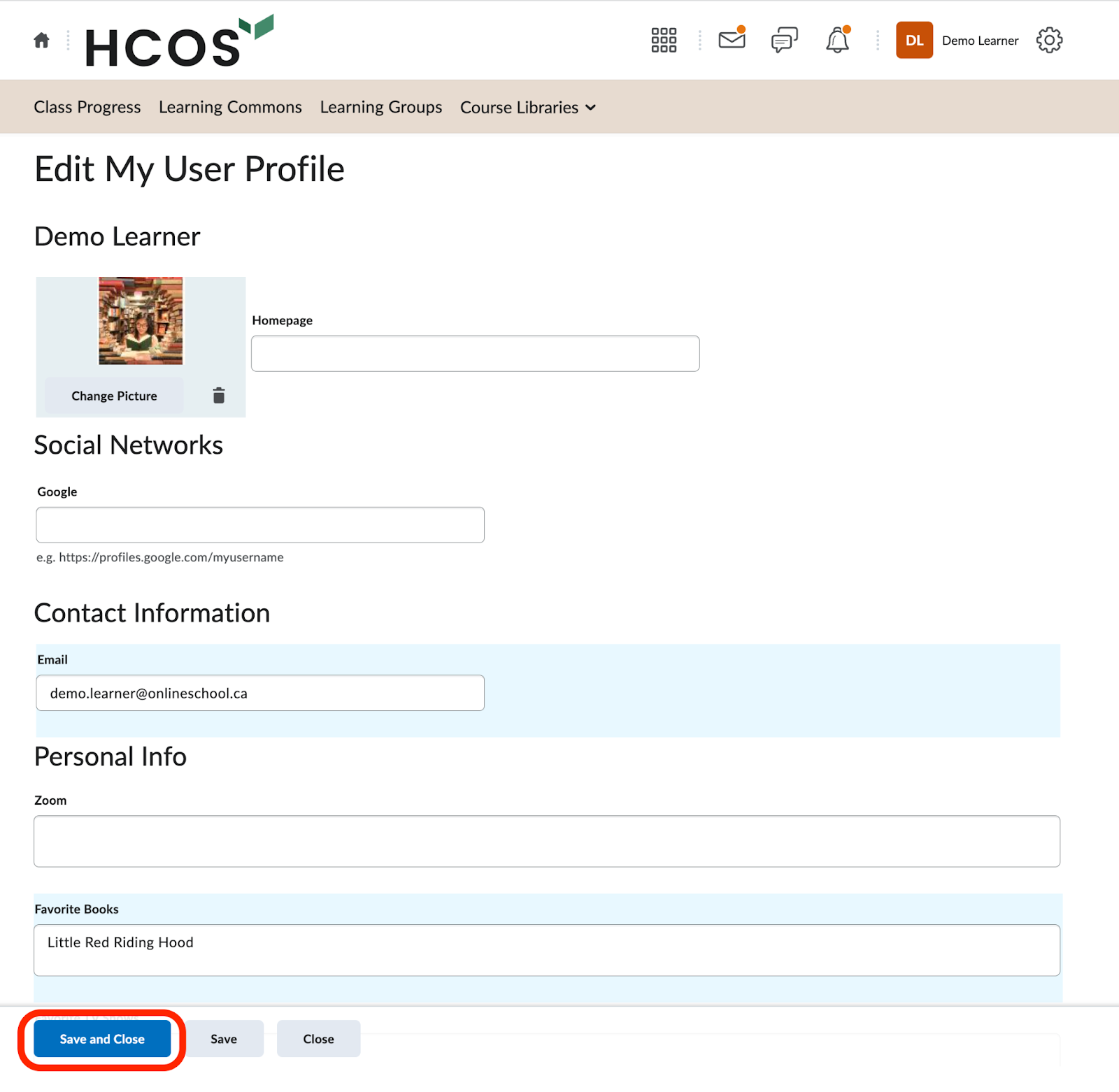
# Setting up a Student Brightspace Account

<p class="callout warning">If you log into Brightspace and cannot see your courses, please ensure you are logged in with the student Encom credentials, **not** the guardian Encom credentials. The username should be the student's FirstnameLastname.</p>

Brightspace is a required part of any online or hybrid course. In addition, some individualized teachers use Brightspace as a way to track submissions and documents. The instructions below will walk you through setting up your student's Brightspace account for the first time and how to login to Brightspace. You can also watch this short tutorial video:

<div id="bkmrk-" style="padding: 75% 0 0 0; position: relative;"><iframe frameborder="0" height="" src="https://player.vimeo.com/video/866107234?badge=0&autopause=0&player_id=0&app_id=58479" style="position: absolute; top: 0px; left: 0px; width: 788px; height: 590px;" title="Logging into Brightspace Tutorial" width=""></iframe>

</div>#### Setting Up A Student Account

If this is the first time your student has taken a Brightspace course please follow the steps below to create a password for them.

<table id="bkmrk-upon-logging-into-yo" style="width: 808px; height: 430px;"><tbody><tr style="height: 132px;"><td style="width: 448.55px; vertical-align: middle; height: 132px;">Login to your Parent account in [Encom](https://encom.onlineschool.ca) and click on the `Student's Account` button.</td><td class="align-center" style="width: 358.45px; height: 132px;">![studentsaccount.JPG](https://sophie.onlineschool.ca/uploads/images/gallery/2018-08-Aug/scaled-840-0/studentsaccount.JPG)

</td></tr><tr><td style="width: 448.55px; vertical-align: middle;">If you do not see `Student's Account` you can access your student's profile by clicking `Student Lists (1)` in the upper menu and select `Upcoming Students (2)` on the left</td><td style="width: 358.45px;">![](https://sophie.onlineschool.ca/uploads/images/gallery/2019-02-Feb/scaled-840-0/image-1550074723633.png)

</td></tr><tr style="height: 200px;"><td style="width: 448.55px; vertical-align: middle; height: 200px;">On the Student Account page you will find your student's `Username` and a text field to set the Brightspace login password for the account. Remember to click `Save Changes` at the bottom of the page if you make any changes. Updates can take up to **10 minutes**. Please wait this period before contacting Tech Support for any assistance.

You can also specify the email address that grading notification and emails from the teacher should be sent to.

</td><td class="align-center" style="width: 358.45px; height: 200px;">[![image-1631213642627.png](https://sophie.onlineschool.ca/uploads/images/gallery/2021-09/scaled-1680-/image-1631213642627.png)](https://sophie.onlineschool.ca/uploads/images/gallery/2021-09/image-1631213642627.png)

</td></tr><tr style="height: 98px;"><td style="width: 448.55px; vertical-align: middle; height: 98px;">You can also check which courses you are enrolled in within Brightspace by clicking the blue `LMS Diagnostics` button. This page only shows the courses your student is enrolled/completed through Brightspace. All courses can be seen on the student's course list page.</td><td class="align-center" style="width: 358.45px; height: 98px;">[![image.png](https://sophie.onlineschool.ca/uploads/images/gallery/2023-05/scaled-1680-/D9Himage.png)](https://sophie.onlineschool.ca/uploads/images/gallery/2023-05/D9Himage.png)

</td></tr></tbody></table>

#### Accessing Brightspace

<table id="bkmrk-navigate-to-hcos%27-ho" style="width: 808px; height: 270px;"><tbody><tr style="height: 141px;"><td style="width: 469.391px; vertical-align: middle; height: 68px;">Navigate to [HCOS' Homepage](http://www.onlineschool.ca). In the top right you will see an @HCOS section. Click there. </td><td class="align-center" style="width: 337.609px; height: 68px;">[![@HCOS.png](https://sophie.onlineschool.ca/uploads/images/gallery/2021-09/scaled-1680-/at-hcos.png)](https://sophie.onlineschool.ca/uploads/images/gallery/2021-09/at-hcos.png)</td></tr><tr style="height: 110px;"><td style="width: 469.391px; vertical-align: middle; height: 110px;">Scroll down to the Quick Access section. Click on Login under Brightspace.</td><td style="width: 337.609px; height: 110px;">[![quick-access-row.png](https://sophie.onlineschool.ca/uploads/images/gallery/2023-05/quick-access-row.png)](https://sophie.onlineschool.ca/uploads/images/gallery/2023-05/quick-access-row.png)</td></tr><tr style="height: 207px;"><td style="width: 469.391px; vertical-align: middle; height: 92px;">Once here, we suggest bookmarking the login page for future access.

If it's your first time logging into Brightspace you will be required to complete the online orientation. This is a short module of information for all users about the software and procedures required to complete an online course. Once the orientation is completed, your courses will show on the Brightspace homepage.

</td><td class="align-center" style="width: 337.609px; height: 92px;">[![image.png](https://sophie.onlineschool.ca/uploads/images/gallery/2023-05/scaled-1680-/Tr3image.png)](https://sophie.onlineschool.ca/uploads/images/gallery/2023-05/Tr3image.png)

 </td></tr></tbody></table>

# Viewing Student Feedback in Brightspace and StudyForge

There are different avenues for students to view their feedback on work submitted to their courses within Brightspace. Below we discuss the different ways to access feedback on different assignment types within Brightspace and StudyForge. Before we get to those particulars, students receive email notifications when their submissions have been assessed by their teacher:

For **Brightspace** related assessments, student receive the following email notification:<span id="bkmrk--5" style="font-weight: normal;"><span style="font-size: 11pt; font-family: Arial, sans-serif; color: rgb(0, 0, 0); background-color: transparent; font-weight: 400; font-style: normal; font-variant: normal; white-space-collapse: preserve;"><span style="border-width: initial; border-style: none; display: inline-block; overflow: hidden; width: 558px; height: 356px;">![](https://lh3.googleusercontent.com/RAqYtJ8B25wKzgp_xvY6UCs9QCSOK02SqKMxgSGTkw5mlMDV2164ee6LgFEh7XO7QlD-y9y-y2OdMRW8E6XacRXtaZACb6Z4km3M4w3UHMaF811p_SUthhbPHPpHsq3kBzejZtSAfBXftjtJ3X7WzIQ)</span></span></span>

For **StudyForge** related assessments, students receive the following email notification:
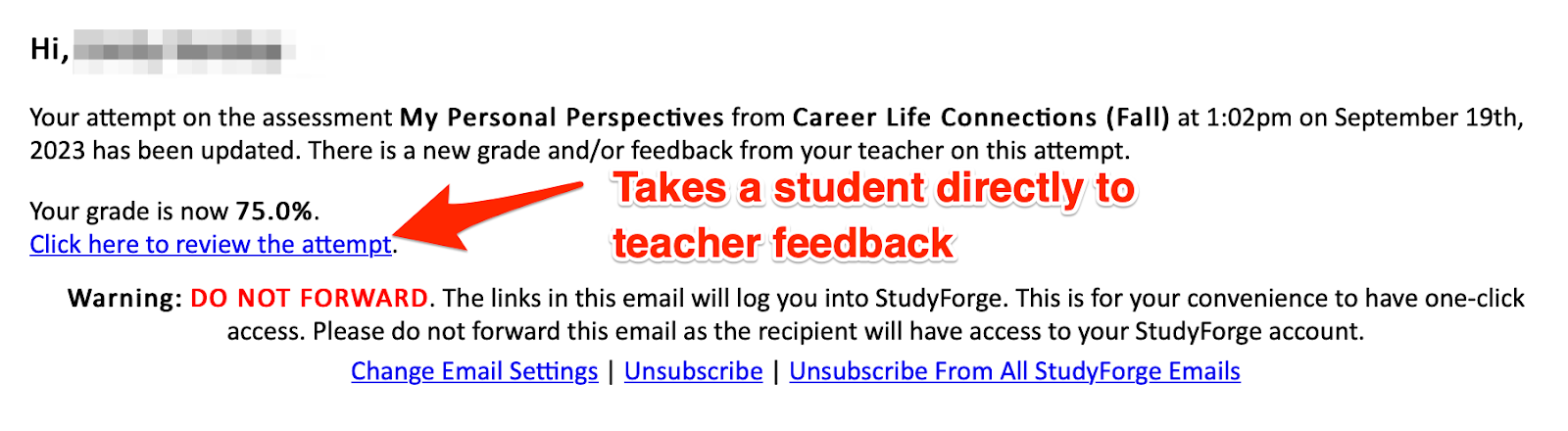
<span id="bkmrk--6" style="font-weight: normal;"><span style="font-size: 11pt; font-family: Arial, sans-serif; color: rgb(0, 0, 0); background-color: transparent; font-weight: 400; font-style: normal; font-variant: normal; white-space-collapse: preserve;"><span style="border-width: initial; border-style: none; display: inline-block; overflow: hidden; width: 624px; height: 172px;">![](https://lh6.googleusercontent.com/9-3SuqN5y_O5yhhGP5KAmX6VSbMUGio7Wpu1iNq87ywYWYEAI27sDUye-lwDO3P3Hknb5KXo9PI3LOIXPpk73KX9gsHeoJRJ4XCROsFrrZC3-fvfrvB5nE-5pVTtGakVfBJSn05ZI6hyrxaUEjcouXk)</span></span></span>

The email notifications are the simplest way for students to directly access their feedback whether in Brightspace or in StudyForge. Additionally, students can access feedback through different methods in both platforms.

---

#### Brightspace Assignment Submissions

If work is submitted through a Brightspace hand-in box, denoted by the icon of of a piece of paper in a tray:

<span id="bkmrk--7" style="font-weight: normal;"><span style="font-size: 11pt; font-family: Arial, sans-serif; color: rgb(0, 0, 0); background-color: transparent; font-weight: 400; font-style: normal; font-variant: normal; white-space-collapse: preserve;"><span style="border-width: initial; border-style: none; display: inline-block; overflow: hidden; width: 329px; height: 199px;">![](https://lh3.googleusercontent.com/lAmzEj8V8qYThy9cC7vlqr3wInp0w_iDTcAepvw12yU7RpRRpVk2rquqhR3aEpP5IT3-o3aa6TzYMtQ9soH9zwhyko2rxTaiqkABkaD6f2UUOUrHpcxxOWy-5pewqF_4egU2PpPn9nuLcHDmeYSUfks)</span></span></span>

Students can access their feedback in three different ways.

1. Through the direct hand in box:  
    By clicking on the hand-in box, students will be taken to a page that shows their submission, as well as the teacher feedback and the proficiency mark or grade given.   
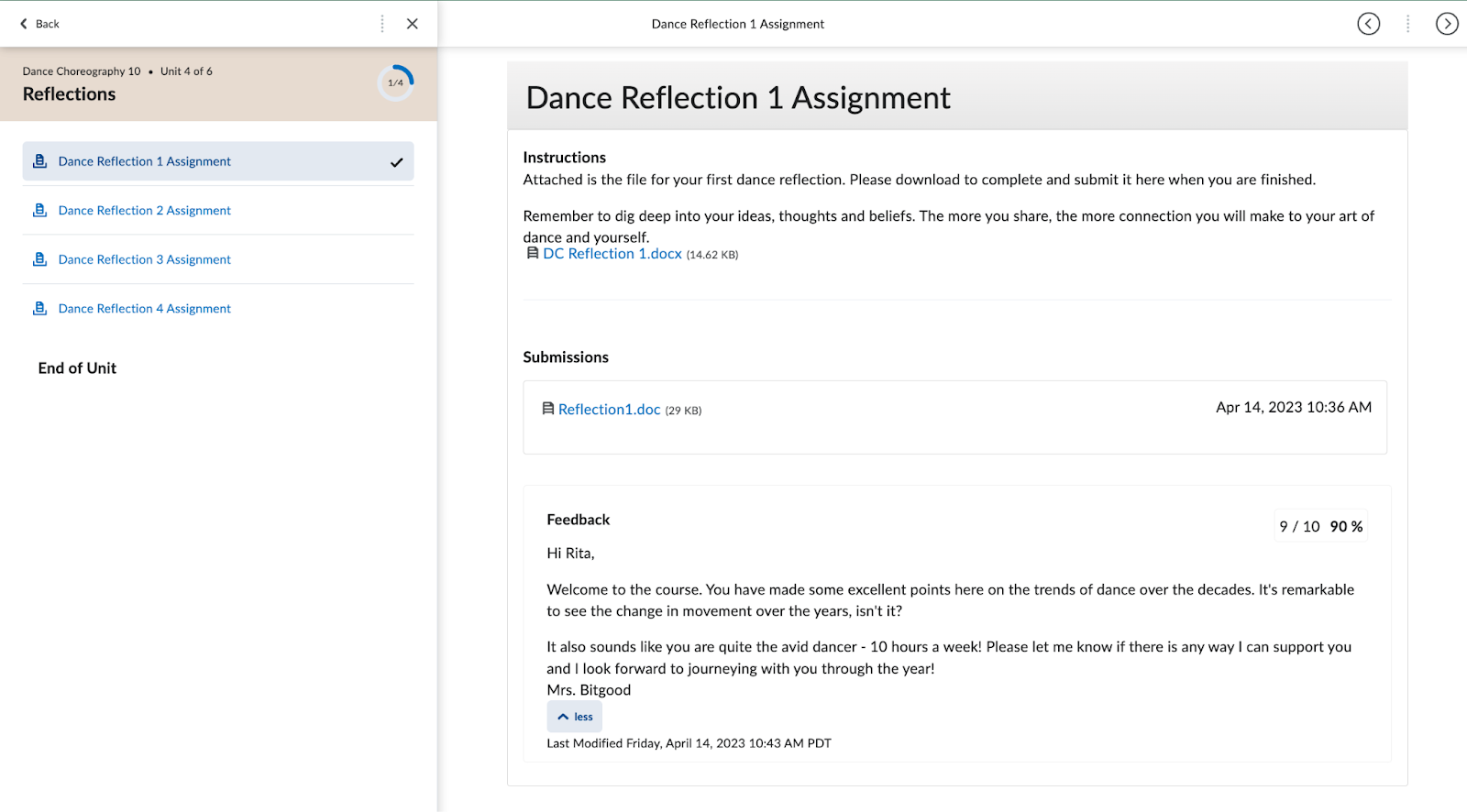
    <span id="bkmrk--8" style="font-weight: normal;"><span style="font-size: 11pt; font-family: Arial, sans-serif; color: rgb(0, 0, 0); background-color: transparent; font-weight: 400; font-style: normal; font-variant: normal; white-space-collapse: preserve;"><span style="border-width: initial; border-style: none; display: inline-block; overflow: hidden; width: 624px; height: 345px;">![](https://lh6.googleusercontent.com/MyX9SgOYk9gXO4RxB2dfJh3ADm-WYuBf0yNNdlOPslhixpG6-iiQm3WYWqvmXkX8dY9Yz6JiXKLjy3QNHpwZUkMVFydEPqQFOgw_A_WPz9_NPK_u33QeMcEE8arkoRm7QWPSCb6Ac3DR3stQvamzXNo)</span></span></span>
2. Through the grades summary:
    
    
    1. Start by clicking **Grades** in the navigation bar of the course:  

        <span id="bkmrk--9" style="font-weight: normal;"><span style="font-size: 11pt; font-family: Arial, sans-serif; color: rgb(0, 0, 0); background-color: transparent; font-weight: 400; font-style: normal; font-variant: normal; white-space-collapse: preserve;"><span style="border-width: initial; border-style: none; display: inline-block; overflow: hidden; width: 624px; height: 117px;">![](https://lh4.googleusercontent.com/nDTTSEKE1KUKoHWQaEjeB2VjLpLZtQaoSBP00TdNV7Fd4bOkVBLZoSNkLFVB5AiBGn2IYwtKDCYlvXJKSB775VD1-oz6UMcnj_Bwm5lapoH3OhBa5lA616CmkJC5YwzLMXKcAxN1C6yTV7h1LcYka7k)</span></span></span>
    2. Students will be taken to a page that outlines all the activities of the course as well as the feedback teachers have given on those activities:  
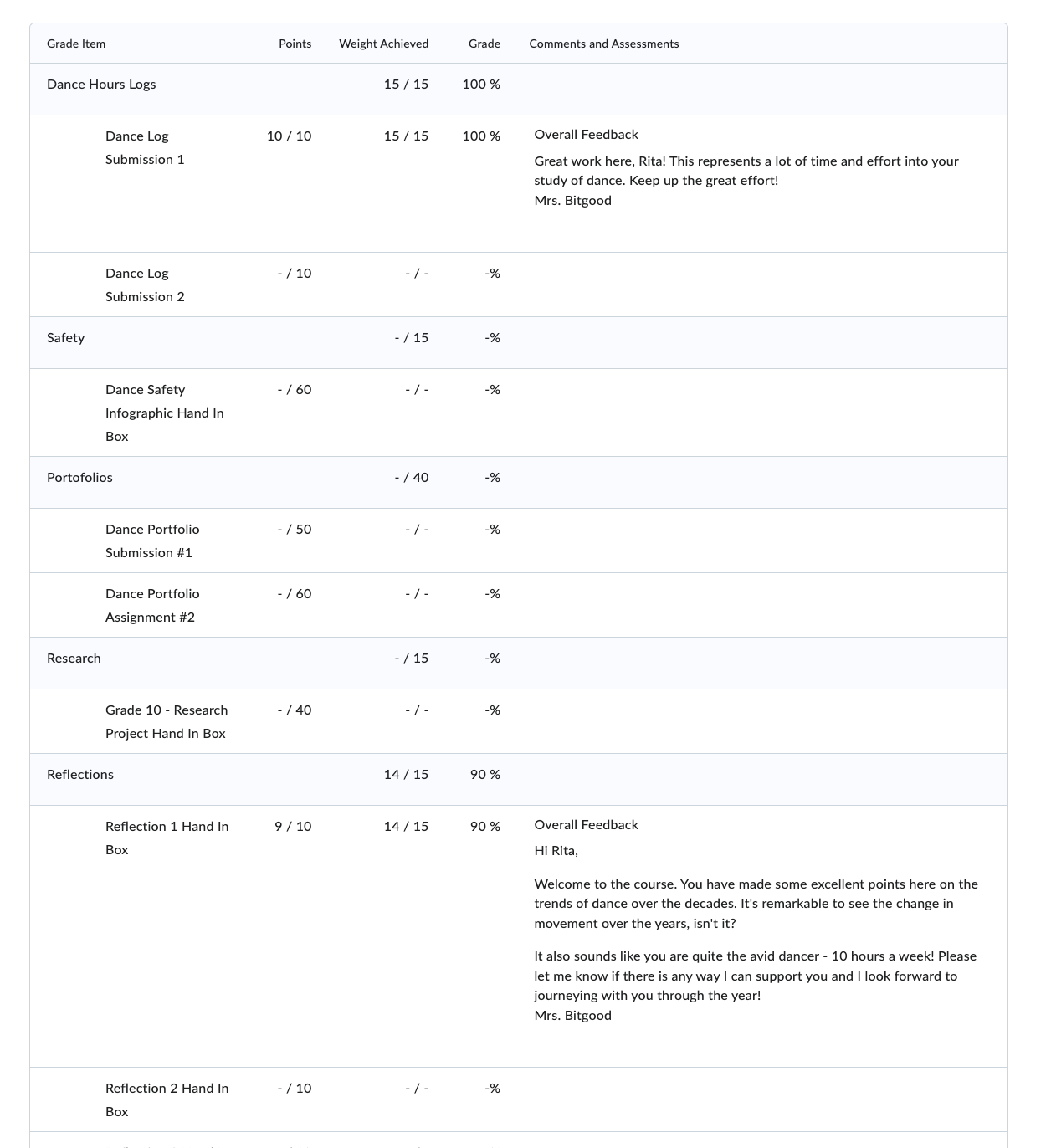
        <span id="bkmrk--10" style="font-weight: normal;"><span style="font-size: 11pt; font-family: Arial, sans-serif; color: rgb(0, 0, 0); background-color: transparent; font-weight: 400; font-style: normal; font-variant: normal; white-space-collapse: preserve;"><span style="border-width: initial; border-style: none; display: inline-block; overflow: hidden; width: 549px; height: 599px;">![](https://lh3.googleusercontent.com/tE_Dl40Dsu7uGzEnveyvf7zmNbKNekkevk3fxYiZ5RYi0owxXlOOtk8Z1Nj3m1IQK0tN4JkynlzAOWbZjSw2yF4PZIHWoJjrOiz9ImcTgsOIZHM0y6gJSsSXl45sOG5ZSogJJjIatZjrEFch_NV6Rtg)</span></span></span>
3. To see teacher feedback on rubrics, navigate to assignments via the **Assignments** tab on the course navigation bar.   
    [![image.png](https://sophie.onlineschool.ca/uploads/images/gallery/2023-10/scaled-1680-/qJbimage.png)](https://sophie.onlineschool.ca/uploads/images/gallery/2023-10/qJbimage.png)



    1. Click the specific assignment for which you wish to see feedback on.   
        [![image.png](https://sophie.onlineschool.ca/uploads/images/gallery/2023-10/scaled-1680-/hW4image.png)](https://sophie.onlineschool.ca/uploads/images/gallery/2023-10/hW4image.png)
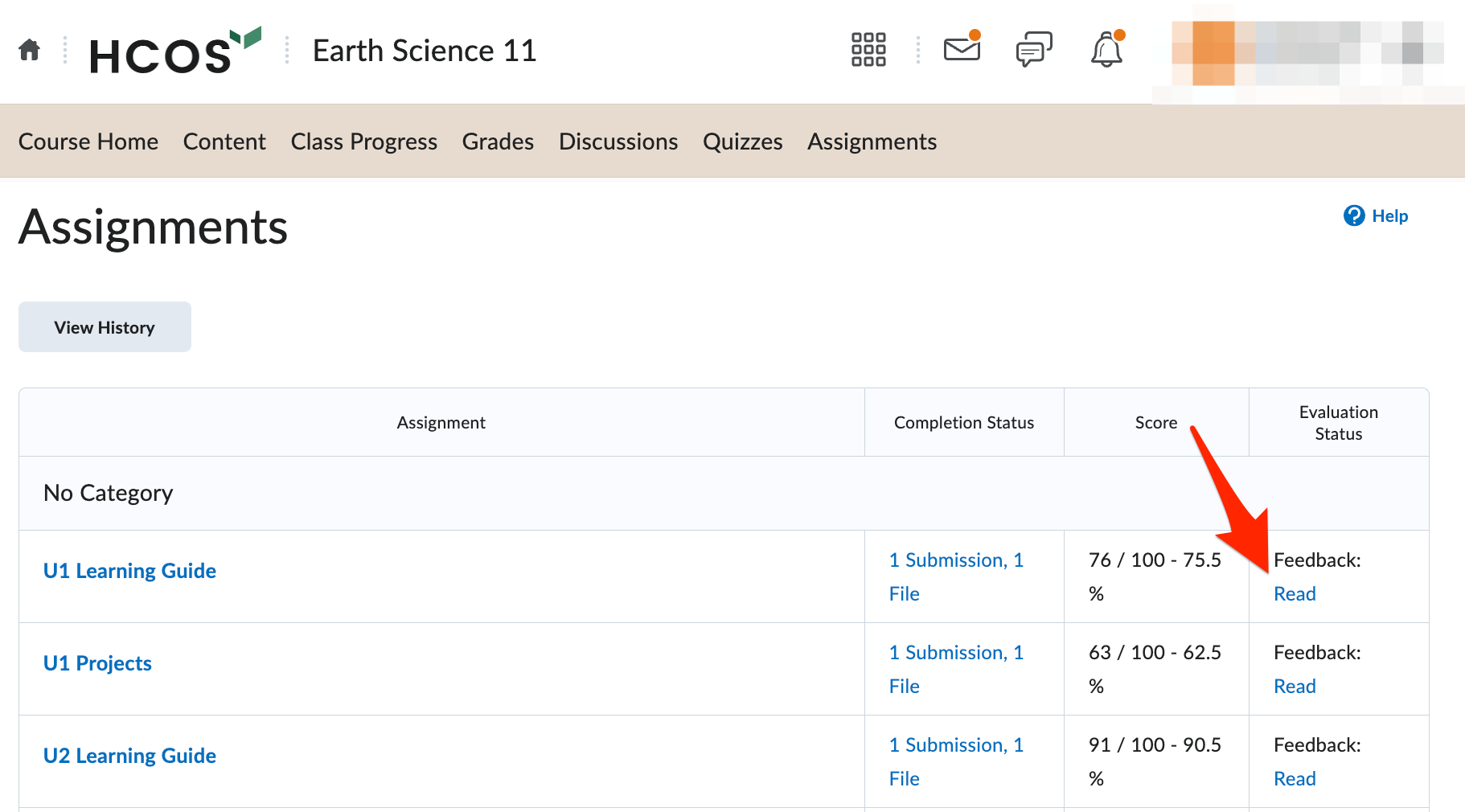
    2. Here you will see all feedback on the assignment hand in, including rubrics that are built into Brightspace.

---

#### Brightspace Quizzes

Brightspace Quizzes are denoted by the blue box with a question mark icon:  
<span id="bkmrk--11" style="font-weight: normal;"><span style="font-size: 11pt; font-family: Arial, sans-serif; color: rgb(0, 0, 0); background-color: transparent; font-weight: 400; font-style: normal; font-variant: normal; white-space-collapse: preserve;"><span style="border-width: initial; border-style: none; display: inline-block; overflow: hidden; width: 322px; height: 238px;">![](https://lh3.googleusercontent.com/GGuNlQb261bkKmUen8cjzGCJUwj_S_gVGzvzMYfJkn12-eXzabEv9s7sKVVVaESDQH_E1ptoWD6XGZGvpfj-jJJnL20_r0YUY_vKaYl8N-KprvqCXBARnZQgwD7-zxPrDBg7vwMGvYgcyvjvC4AFBrg)</span></span></span>

Like assignments, there are two different ways to see the feedback provided to students on Brightspace quizzes.

<p class="callout info">Students will only see feedback on auto-graded quizzes if teachers have set up the quiz to provide automated feedback.</p>

1. Through the quizzes summary:
    
    
    1. Click the **Quizzes** tab in the course navigation bar.
    2. You will be taken to a page that summarizes all the quizzes in the course. Click the **Feedback: (Un)Read** associated with the quiz you wish to review.   
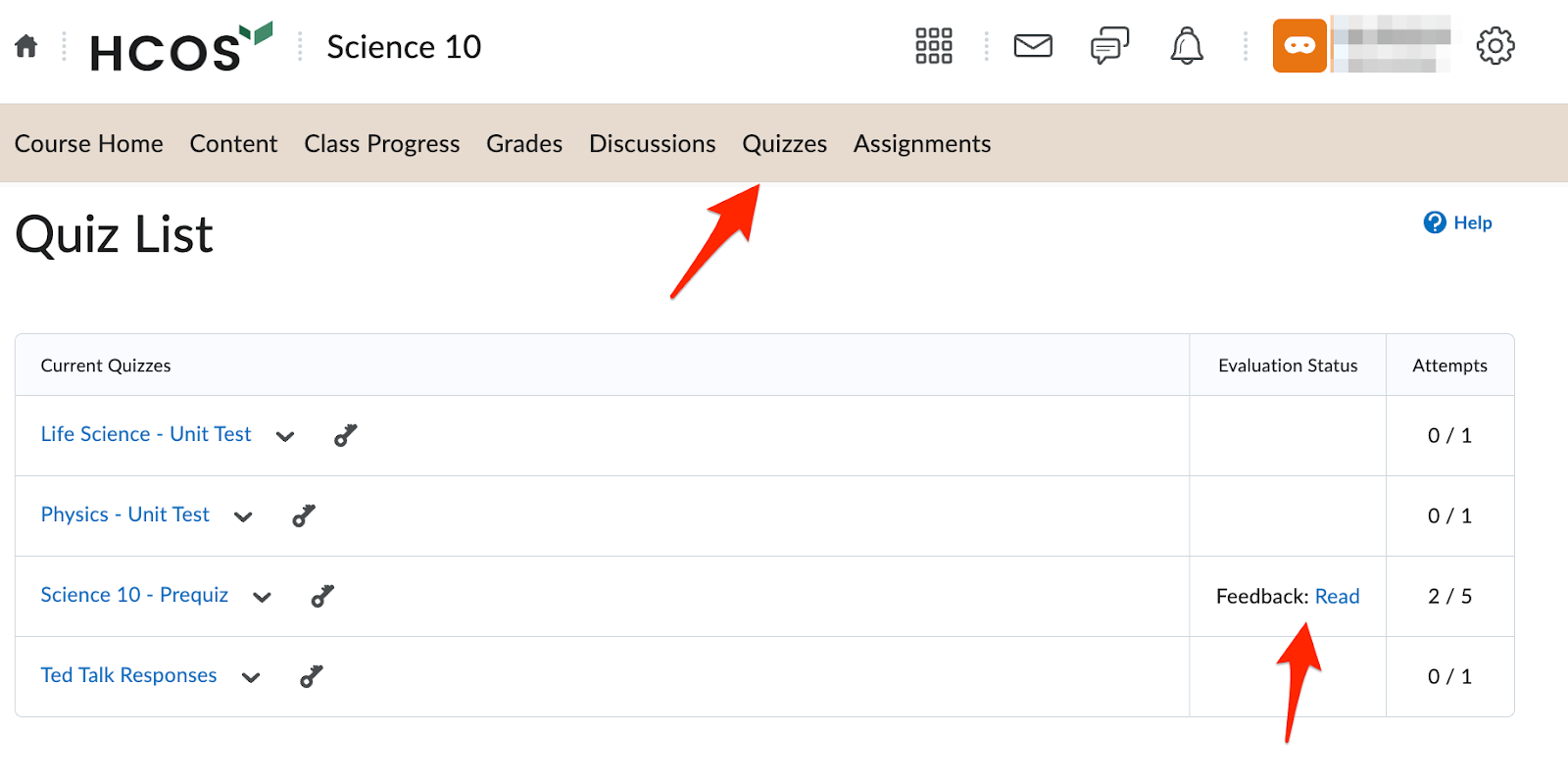
        <span id="bkmrk--12" style="font-weight: normal;"><span style="font-size: 11pt; font-family: Arial, sans-serif; color: rgb(0, 0, 0); background-color: transparent; font-weight: 400; font-style: normal; font-variant: normal; white-space-collapse: preserve;"><span style="border-width: initial; border-style: none; display: inline-block; overflow: hidden; width: 624px; height: 312px;">![](https://lh5.googleusercontent.com/xl4ujznk8vHE373HmGEEKfyzoccxTXu7tIF5f5LWIH8MTbroyUYI4OZofkWkFmXUig_YQ5Ir-zmK5IiRY6vaGZhvU5aowY_7yJIt2Z4OpaBPXtWEAJuGQLlg8mT0ly8INMl-LXTyOS73nl_wrMOgqXc)</span></span></span>
2. Through the grades summary:
    
    
    1. Click the **Grades** tab in the course navigation bar.   

        <span id="bkmrk--13" style="font-weight: normal;"><span style="font-size: 11pt; font-family: Arial, sans-serif; color: rgb(0, 0, 0); background-color: transparent; font-weight: 400; font-style: normal; font-variant: normal; white-space-collapse: preserve;"><span style="border-width: initial; border-style: none; display: inline-block; overflow: hidden; width: 624px; height: 84px;">![](https://lh4.googleusercontent.com/rz_JLLNgSfnUj0RFEAaCHLbus5QLwtdM7fc6K4YBGbrUBJVRZG4WFLUCzDXItoL0cGvRqN45IxEJ74qWAmjWVB6NTa3dWdZTfUogESnIdGYHQabqBx36CcOypFEkEAWiVKVFCAQWWZT2R8DlL7imHag)</span></span></span>
    2. You will be taken to your grades overview which includes all the assessment activities within the course. Feedback for quizzes is shown within this list.  
        <span id="bkmrk--14" style="font-weight: normal;"><span style="font-size: 11pt; font-family: Arial, sans-serif; color: rgb(0, 0, 0); background-color: transparent; font-weight: 400; font-style: normal; font-variant: normal; white-space-collapse: preserve;"><span style="border-width: initial; border-style: none; display: inline-block; overflow: hidden; width: 624px; height: 113px;">![](https://lh3.googleusercontent.com/Mu7tuocG7EDT92YCfhYm-rkP0Fdx7E5pXF6eBsY9-5Wbn1wNohnEinHNjF006k49xlKOuPi2E-2Fu2JMGkSXXdoiBOtV-Go9Y6ZH_jQiaW2uKutDzAwAMiuF6Xn9x4df0SHYSN3fvKX9MPqm7lqs0DY)</span></span></span>

---

#### Brightspace Discussions

Also known as Forums, Brightspace denotes a discussion as a chat bubble icon:  
<span id="bkmrk--15" style="font-weight: normal;"><span style="font-size: 11pt; font-family: Arial, sans-serif; color: rgb(0, 0, 0); background-color: transparent; font-weight: 400; font-style: normal; font-variant: normal; white-space-collapse: preserve;"><span style="border-width: initial; border-style: none; display: inline-block; overflow: hidden; width: 293px; height: 232px;">![](https://lh4.googleusercontent.com/dnfsDWrdBli_ntZfv801E3ITX7a0U6GCA-bhNmFkFzMWQvEFQOs5V6T3yavD1HxIx4qiGeNmJOCxHB072O2ef1gqjL3CxSQfMyQiRfESZRUPzbEKr4G9j3No6sFJ_1GUI5Ue6gZVzpMIPu7YOIW8uz0)</span></span></span>

There are two ways students can view the feedback on their discussion posts:

<p class="callout warning">Note that depending on the purpose of the discussion, teachers may only provide a grade based on the rubric and leave the discussion aspect for the students. You may or may not see anecdotal feedback here. Please feel free to follow up with your teacher if you have questions. </p>

1. Through the discussion post itself:
    
    
    1. Navigate to the discussion in the course.
    2. Scroll below the discussion instructions to the section of feedback.  
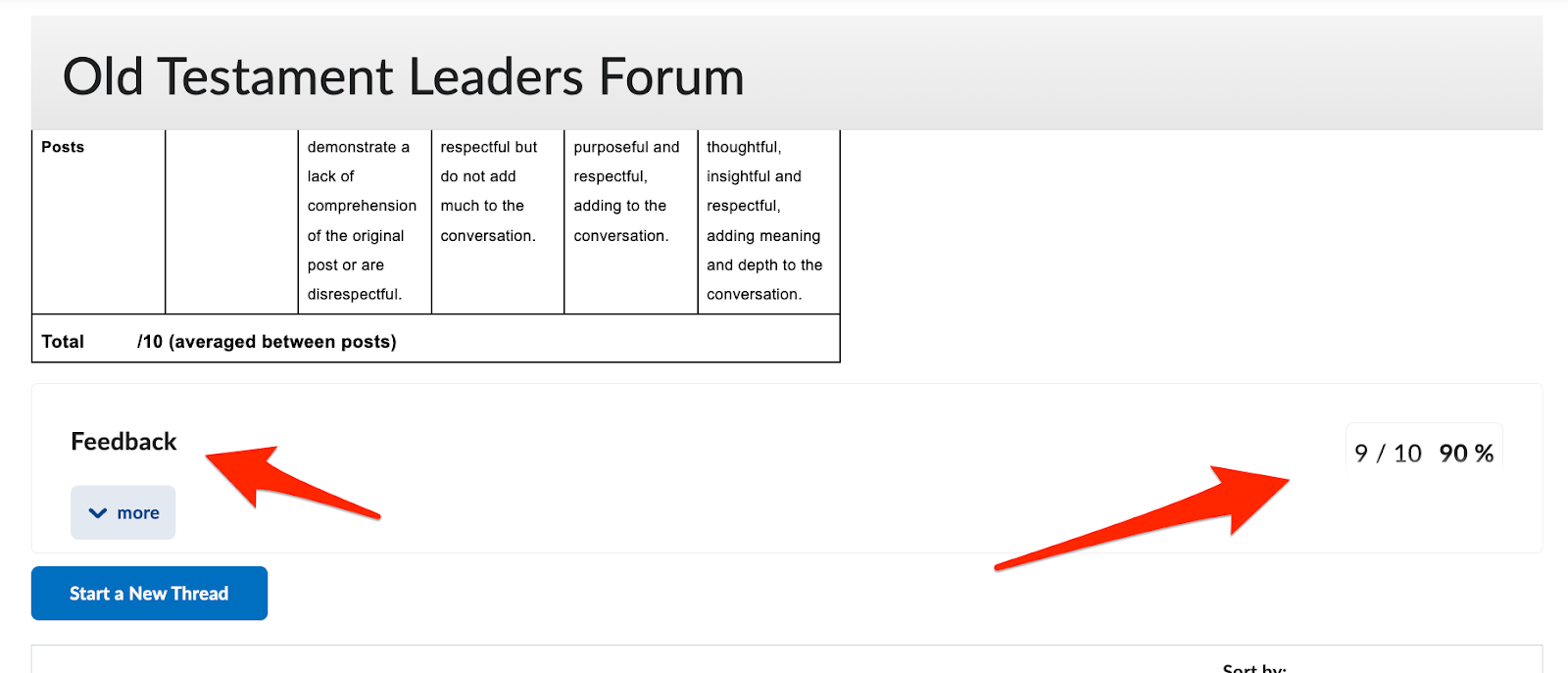
        <span id="bkmrk--16" style="font-weight: normal;"><span style="font-size: 11pt; font-family: Arial, sans-serif; color: rgb(0, 0, 0); background-color: transparent; font-weight: 400; font-style: normal; font-variant: normal; white-space-collapse: preserve;"><span style="border-width: initial; border-style: none; display: inline-block; overflow: hidden; width: 624px; height: 268px;">![](https://lh4.googleusercontent.com/LuKec17jSGnuCVVQAgTio4UTp4p7OX2GdISDOp26bS1IeMhIsrwmmPAZl3qcBV4l2ddjeXTXPCppjTThv76lCfqSuISsdcJJCjdhoLnjWmm3tCbQx1z4NAjATvSUWDQYosQqjHMo99S5aFRnhVKinkA)</span></span></span>
2. Through the grades summary:
    
    
    1. Navigate to the summary by clicking Grades in the course navigation bar:  

        <span id="bkmrk--17" style="font-weight: normal;"><span style="font-size: 11pt; font-family: Arial, sans-serif; color: rgb(0, 0, 0); background-color: transparent; font-weight: 400; font-style: normal; font-variant: normal; white-space-collapse: preserve;"><span style="border-width: initial; border-style: none; display: inline-block; overflow: hidden; width: 624px; height: 77px;">![](https://lh5.googleusercontent.com/P8DUi-Lm7D4c7uwd9XzOzjWWfYOEZ5X9iPZEG8yVzmLihRQ0M6XWRD1WPLcQoFuL05U-vPHhEqe1WYUHOQQZTUBAUcOfLVfcUdmLFYQtR4AcGd9RzHpkTHq7mt3Jne1FIQNCeYSy_9bYKI2sJCAPEk8)</span></span></span>
    2. Scroll to the discussion line within your grade summary for feedback:

---

#### StudyForge Assessments (Quizzes or Assignments)

StudyForge assessment items are denoted by the puzzle block icon in course content (along with StudyForge lessons):

There are multiple ways to view the feedback to StudyForge assessment items:

1. Through the item itself.
    
    
    1. Navigate to the assessment item by locating it within the course content. Click the link to be directed to StudyForge.
    2. You will immediately see your teacher’s overall feedback:  
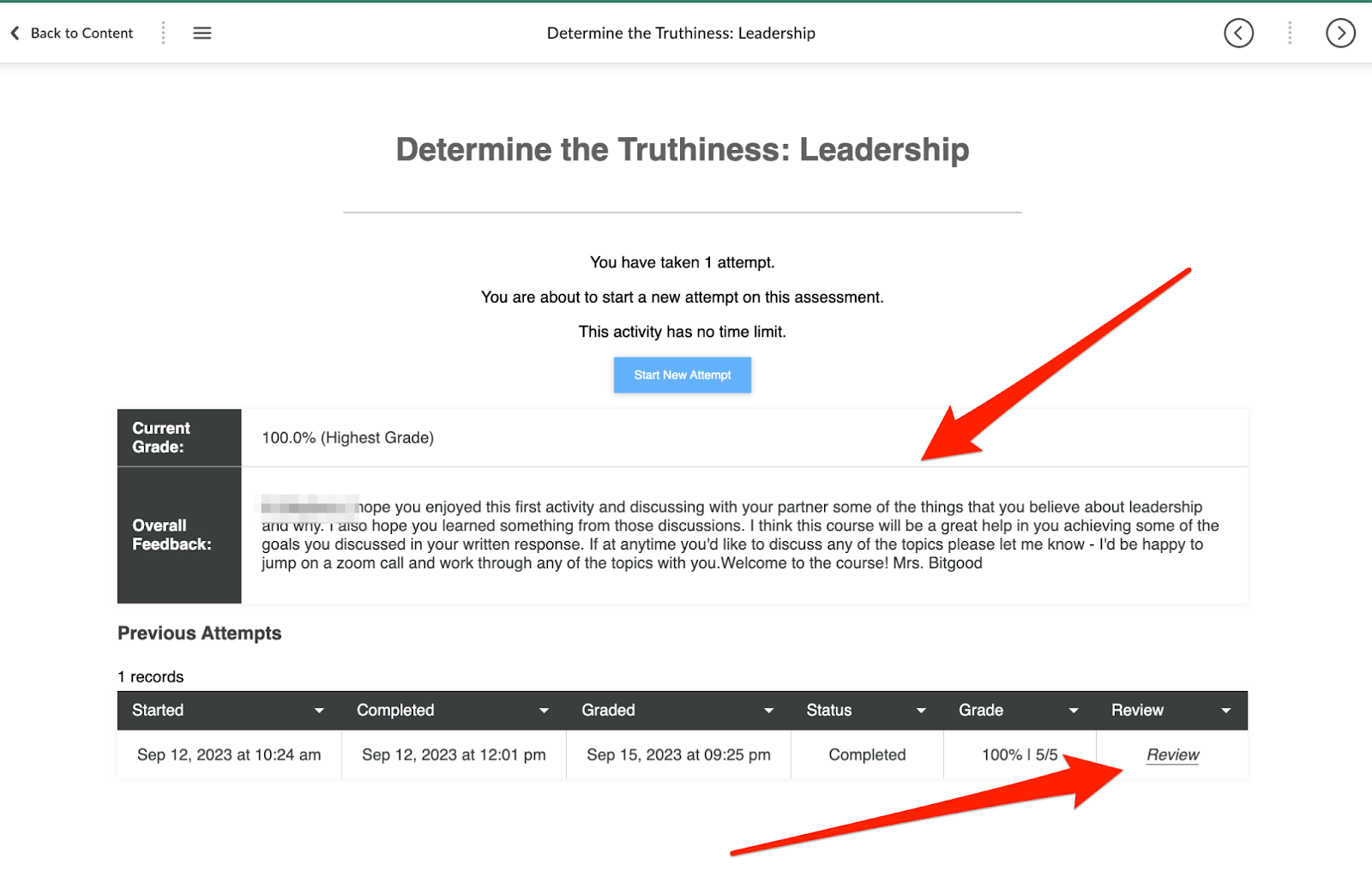
        <span id="bkmrk--18" style="font-weight: normal;"><span style="font-size: 11pt; font-family: Arial, sans-serif; color: rgb(0, 0, 0); background-color: transparent; font-weight: 400; font-style: normal; font-variant: normal; white-space-collapse: preserve;"><span style="border-width: initial; border-style: none; display: inline-block; overflow: hidden; width: 624px; height: 399px;">![](https://lh6.googleusercontent.com/q5QhKHwozRsiMgQz0S_bJ2uicU0PtYZc6mrLBoNR3JjWXVtq66HuK0rT46u9nNeY2dN2klVhERjpcdSrgO2tao4pOw32JLfg-WuBxh6jSQZ0ycoDPG-EJyQW5dz9xLdsr53L3gGZJG3FZC_dIc9Rc5c)</span></span></span>
    3. In the above image, click the Review link beside the attempt that you wish to review further. You will be taken to a more detailed breakdown of feedback. Some assessments give teachers the opportunity to respond in different ways to student work.  
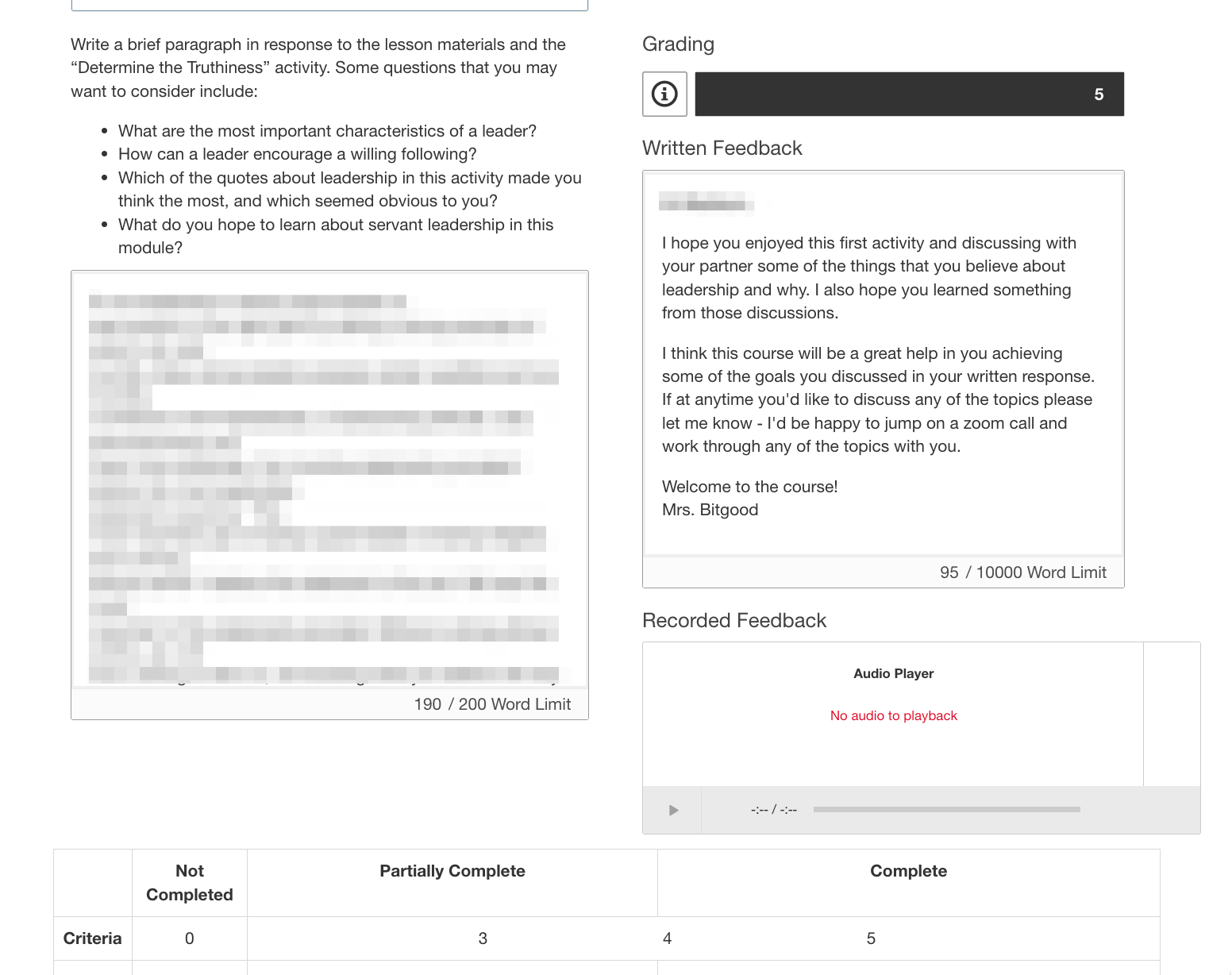
        <span id="bkmrk--19" style="font-weight: normal;"><span style="font-size: 11pt; font-family: Arial, sans-serif; color: rgb(0, 0, 0); background-color: transparent; font-weight: 400; font-style: normal; font-variant: normal; white-space-collapse: preserve;"><span style="border-width: initial; border-style: none; display: inline-block; overflow: hidden; width: 477px; height: 377px;">![](https://lh6.googleusercontent.com/P7U78-jETqUybN-rZxd5L3rLqPTEMQOLNe9vLio0BmL7uqI5pf_-8dDDHyrWX2XpgQ6AHJBnKUwori5fwkJKKuIf_uOh55jUzAeo6Q_j586G34XZp-seF6yd1YfjqW0DDPw5LnW3aarut_ccSSYILTI)</span></span></span>

<p class="callout info">Please note, teachers will always use the overall feedback box and may choose to not add additional feedback details within the assessments. If you have any questions about the feedback given, please feel free to connect with your course teacher.</p>

2\. Through the grades summary:

1. 1. Click the **Grades** link in the course navigation bar:  

        <span id="bkmrk--20" style="font-weight: normal;"><span style="font-size: 11pt; font-family: Arial, sans-serif; color: rgb(0, 0, 0); background-color: transparent; font-weight: 400; font-style: normal; font-variant: normal; white-space-collapse: preserve;"><span style="border-width: initial; border-style: none; display: inline-block; overflow: hidden; width: 624px; height: 77px;">![](https://lh6.googleusercontent.com/_-DCuZlnNnLmA2isRhyzrUVVUvCuOXesfxsMy5HjyTXjCvK1cY7ka3CjFa9KS8ZdFEzyanvJjMKfEwvOOMKuAsYHEDlet_A0pcuGYEEDJQAGCx2gz8ihH8mlnFz2LmwsSfxyJFwHXq1Y7wBj01vgrXQ)</span></span></span>
    2. Feedback that is on the overall feedback page in StudyForge is connected with the Brightspace gradebook. This feedback is viewable on the Grades page:  
        <span id="bkmrk--21" style="font-weight: normal;"><span style="font-size: 11pt; font-family: Arial, sans-serif; color: rgb(0, 0, 0); background-color: transparent; font-weight: 400; font-style: normal; font-variant: normal; white-space-collapse: preserve;"><span style="border-width: initial; border-style: none; display: inline-block; overflow: hidden; width: 624px; height: 419px;">![](https://lh6.googleusercontent.com/gZ7K-LRxyWozxvWxIBtAhzaStTxgiUSk3ilDA_SvDfK2kYhtwRCdO66Df0tB0QHn5Wy0Lq_8GqHI8BJC1_JjCc23Ytlr6bPE6Oi7qkh6fI5fTwPEMuBjVcy79qCb7W_eG6KeczAQ34AqhmyYf67Wx_U)</span></span></span>

# Parent Guide: Supporting your child in Online Classes

As parents, you are the bridge between home and school. Your role is vital in helping your child navigate the digital landscape of HCOS and ensure they stay on track. This guide is designed to equip you with the "how-to" for Brightspace so you can confidently check-in on your child's progress in Brightspace.

## Getting Started

**Firstly, when wanting to check your child's progress ensure you are logged into the correct account. Student progress must be viewed through Student credentials. Instructions on how to access Brightspace can be found here: [Student Brightspace Access](https://sophie.onlineschool.ca/books/information-for-families/page/student-brightspace-access)**

- Password Setup: If a parent doesn't have the password, they can set/reset it via their Parent Encom Account -&gt; Student’s Account button.
    
    
    - Note: Updates in Encom can take up to 10 minutes to sync with Brightspace.

## Navigating the Landing Page

Once logged in, here are the key widgets on their homepage:

- My Courses: Shortcuts to every active class.
- HCOS Announcements: Crucial school-wide updates.
- Student Success Centre: Where they can book an EA for extra help.
- Progress (Top Nav Bar): The "birds-eye view" of all enrolled courses.

## Tracking Progress: What to Look For

### 1. The Pacing &amp; Progress Tool

This is the best way to see if your child is "on schedule."

- Where to find it: Inside a specific course, click Pacing &amp; Progress Tool in the navigation bar.

[![Screenshot 2026-02-19 122542.jpg](https://sophie.onlineschool.ca/uploads/images/gallery/2026-02/scaled-1680-/screenshot-2026-02-19-122542.jpg)](https://sophie.onlineschool.ca/uploads/images/gallery/2026-02/screenshot-2026-02-19-122542.jpg)

- What to check: Look at the Progress Wheel. Is it green (ahead/on time) or red (behind)?
- Suggested Due Dates: Compare these to the current date.
- Tip: If the student is falling behind, help the parent use the "Bulk Edit" or "Course End Date" (pencil icon) to recalibrate the schedule to something more manageable.


### 2. Accessing the Gradebook

For a detailed look at achievement and teacher feedback:

1. Enter the specific course from the My Courses widget.
2. Click Grades in the tan navigation bar at the top.
3. Review: Look for the Overall Grade and individual Comments.

- Encouragement: Point out specific positive feedback from the teacher to build the student's confidence!

## Quick Troubleshooting for Families

- "I can't see my courses!" Check that they aren't logged into the Guardian Encom account. You must use the Student credentials.
- "My child hasn’t set up their Pacing and Progress Tool, how do I do this?" They can follow instructions found here: [Pacing &amp; Progress Tool](https://sophie.onlineschool.ca/books/information-for-families/page/creating-and-updating-your-brightspace-pacing-progress-tool)